Monitors
After an account has been added to the Account Manager, we can create a configuration for the account and then evaluate the account's session performance every 2.5 seconds against that configuration. We call this a Monitor.
One Monitor can be created for each account in your NT8.
This page describes monitors for NT8 accounts, where changes are pushed down to the CrossTrade NT8 Add-On. Linked Tradovate accounts use the same Monitor concept, but everything runs from CrossTrade's cloud instead: no Add-On involved, evaluation reacts to account activity in near real time with a background refresh at least about every 10 seconds when idle, and it's configured from the Tradovate Account Manager page. See Tradovate Account Manager for details.
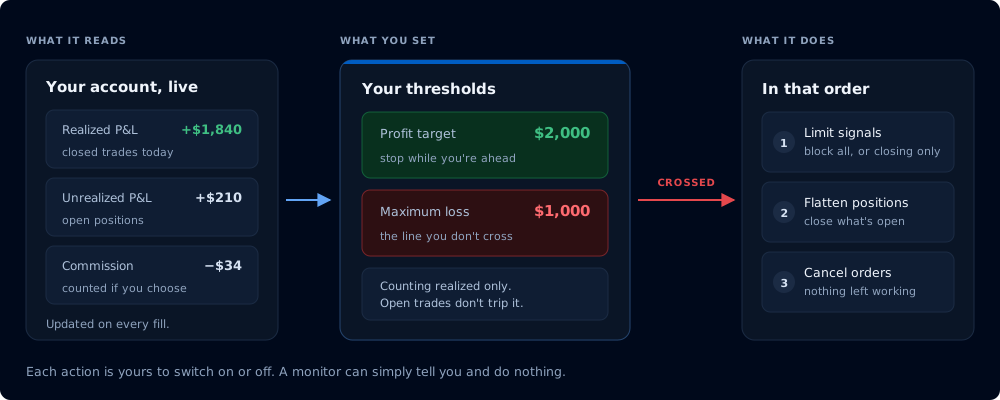
What a monitor reads, what you set, and what it does when a threshold is crossed
Editing a Monitor
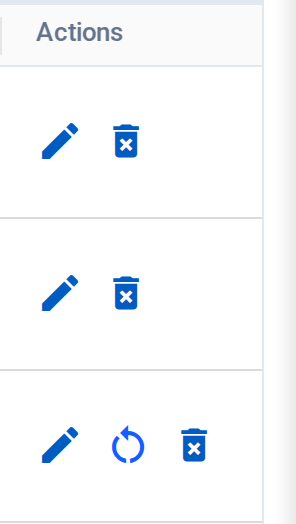
To edit a monitor, click the pencil (Edit) button in the Actions column:
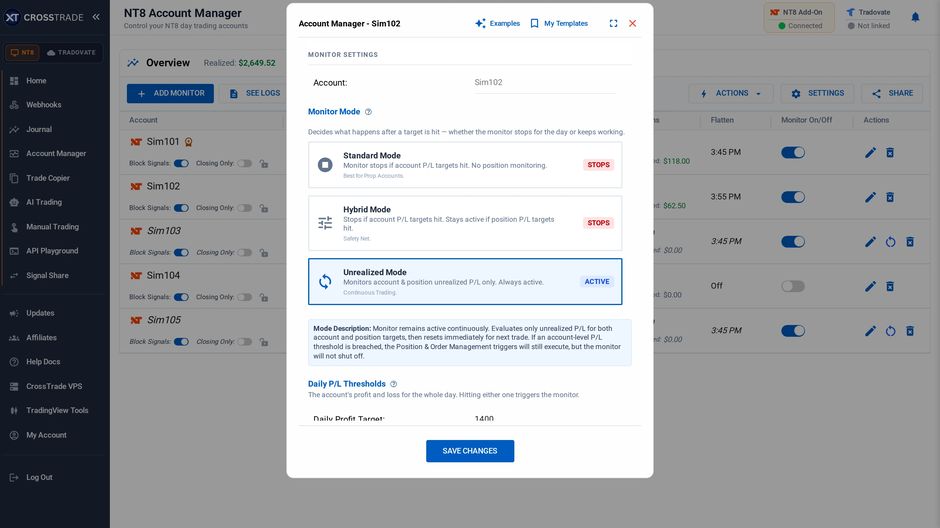
The editor holds the monitor's mode, thresholds and actions, and flatten time.
When a configuration is updated and changes are Saved, they're immediately pushed down to the CrossTrade NT8 Add-On.
Restarting a Monitor
When a monitor reaches its profit or loss threshold, it stops and shows STOPPED for the rest of the session. It re-arms on its own at the 6 PM ET session open. To resume sooner, click the restart icon next to the pencil button.
Clicking on the restart button opens a pop-up similar to the Add/Edit monitor window, giving you a chance to make any changes to the monitor configuration before reactivating.
To restart a monitor after it has been triggered by hitting a profit or loss target, the new profit and loss targets must be beyond the bounds of the current total P/L calculation. So, for example, if your profit target was set at +$100 and the monitor triggered to get you out at $107.50, the new Profit Threshold must be greater than $107.50.
As soon as you click the "Restart" button, changes are saved, status is reset to ACTIVE and the monitor begins scanning again immediately.
Enabling/Disabling a Monitor
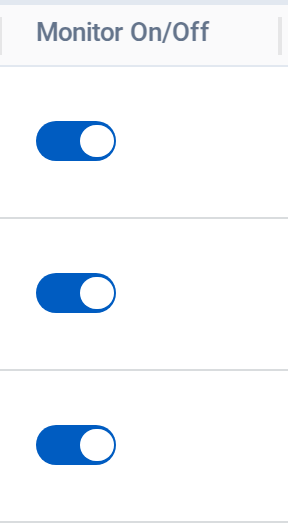
Turning the Monitor On/Off switch on sets the monitor to ACTIVE status and begins scanning in your NT8 account immediately (assuming the CrossTrade NT8 Add-On is connected).
Turning a monitor off stops all scanning and prevents CrossTrade from taking any action on the account, including auto-flattening.
Deleting a Monitor
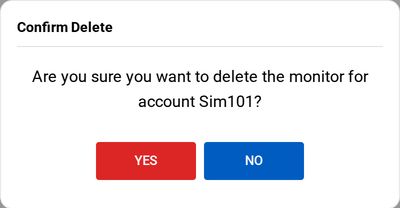
To delete a monitor, click the trash can icon in the Actions column and confirm with Yes, Delete. The monitor stops immediately.