Dashboard
Tradovate monitors use three of these states: ACTIVE, PAUSED, and STOPPED. There is no INACTIVE state, because the clean-session requirement that produces it is specific to NinjaTrader 8. See Tradovate Account Manager.
The Account Manager dashboard shows one row per managed account, with its monitor (the rules you set for the trading day).
What You See on the Dashboard
Each column, left to right:
Account
What It Shows: The name of your trading account as it appears in NT8 and switches to control inbound webhook signal behavior.
- Account Name: The name of the account as it appears in NT8
- Block Signals: If enabled, blocks all incoming webhook signals and prevents them from reaching NT8
- Closing Only: If enabled, only allows signals with closing orders to reach NT8. Block Signals supersedes Closing Only.
- Lock: Prevents the Block Signals and Closing Only switch settings from being reset at the beginning of the next session.
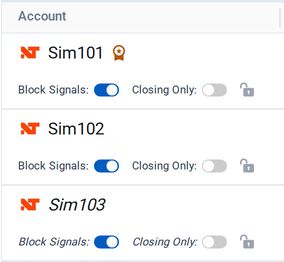
Account name and signal switches
Unless the Lock is engaged, the Block Signals and Closing Only switches will reset at 5:30 PM ET each night along with all Monitors in preparation for the new Session.
Monitor Status
What It Shows: The current state of your automated rules for this account. You'll see one of these statuses:
- ACTIVE: Your configuration is running, and the Account Manager is watching that account.
- INACTIVE: Your rules aren't running for now because a position was detected when the trading session began. The monitor will not run until the start of the next session unless you disable the requirement for a clean session start.
Learn More about Clean Sessions and remove the safeguard here
- STOPPED: A threshold was reached and the monitor stopped for the rest of the session. It re-arms at the 6 PM ET session open, or you can restart it sooner.
- PAUSED: You've turned the monitor off for that account.
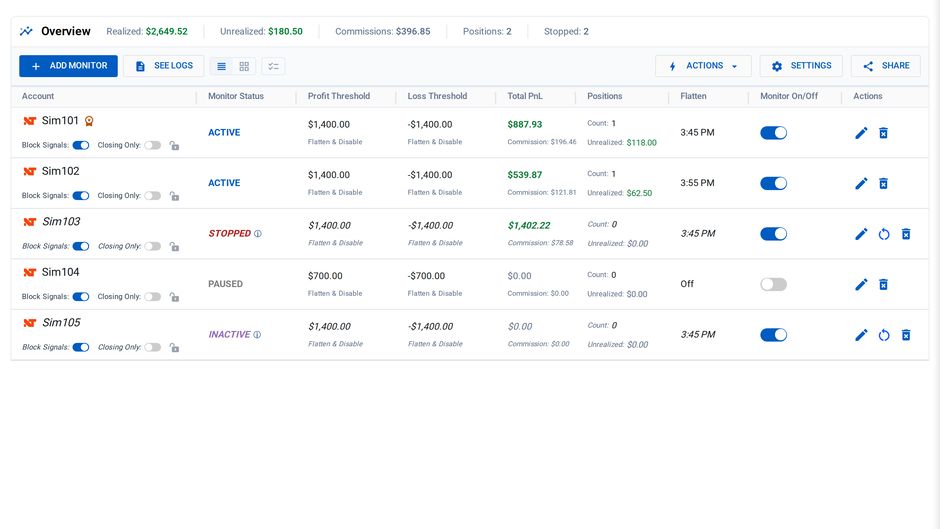
Example Account Management dashboard with multiple accounts and various settings
Profit Threshold
What It Shows: The profit target for this account, with the position and alert actions set to run when it's reached (for example, Flatten & Disable).
Loss Threshold
What It Shows: The loss limit for this account, with the position and alert actions set to run when it's reached.
Total PnL
What It Shows: The profit or loss for the current session, in color. Whether it includes unrealized P/L and commission follows the monitor's settings.
Positions
What It Shows: How many open positions the account holds.
Flatten
What It Shows: The daily auto-flatten time, in 12-hour US Eastern time. "Off" means auto-flatten is not in use.
Monitor On/Off
What It Shows: The switch that turns the account's monitor on or off.
Actions
What It Shows: Edit, Restart, and Delete buttons for the account's monitor. See Monitors.