Global Settings
Enhanced Closing Only is NinjaTrader 8 only. It extends the Closing Only switch to orders that originate inside NinjaTrader, which CrossTrade can only do because the Add-On sits in that path. On Tradovate the per-account Closing Only and Block Signals switches still work on inbound CrossTrade signals, and they apply even when P/L monitoring is off, but orders you place by hand inside Tradovate cannot be blocked before they reach the broker. Monitor Lock works on both platforms. See Tradovate Account Manager.
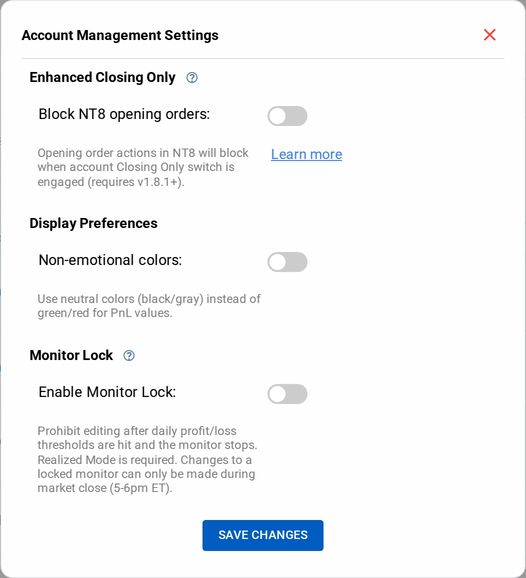
Enhanced Closing Only
When engaged, use of the Closing Only switch on each account in the Account Manager will prevent any opening orders from executing, regardless of their origin.

The Closing Only switch can either be engaged manually or by an account flattening action, such as meeting a Profit or Loss threshold in your Daily P&L.
When an individual account's Closing Only switch is set, no new incoming alerts will be passed through to NT8 if they are to perform a new opening order action that would increase the quantity count of the position.
When Enhanced Closing Only is enabled, this will also apply to any open order action initiated from within NT8, even if it's not by CrossTrade. So manual opening orders will be blocked on the chart or SuperDOM as well as opening trades executed through a trade copier.
Non-emotional colors
Non-Emotional Colors remove the green/red color scheme, which can trigger an emotional response to winning and losing. When enabled, P/L displays in neutral black and grey:
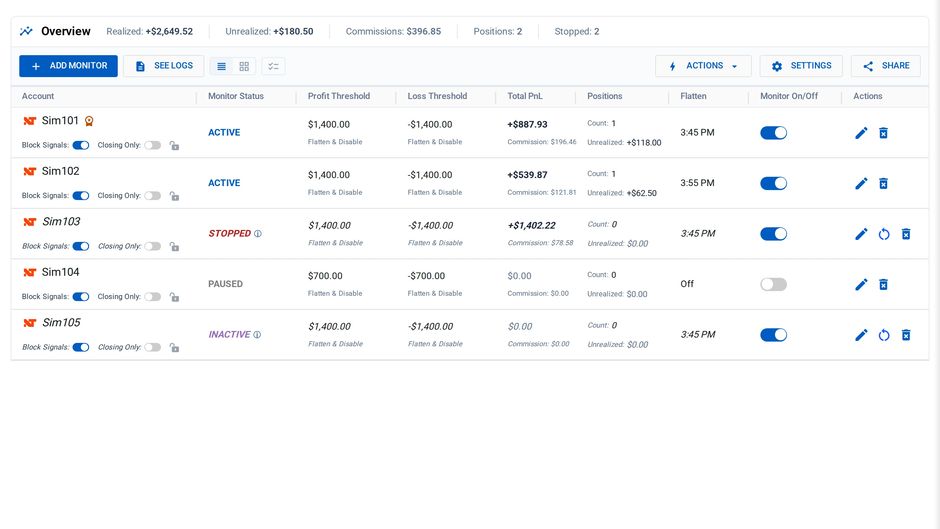
Monitor Lock
Monitor Lock helps with trader discipline by preventing you from editing, restarting, or deleting a STOPPED monitor during the trading session. When an account goes STOPPED, you are "locked out" of the monitor and can only make changes during the 5 PM to 6 PM ET maintenance hour. This feature ONLY applies to STOPPED status. If your account is INACTIVE due to a non-clean session scenario, you are still able to restart manually.
Monitor Lock does not apply when using Unrealized Mode as the monitor will not be STOPPED at a profit or loss threshold.
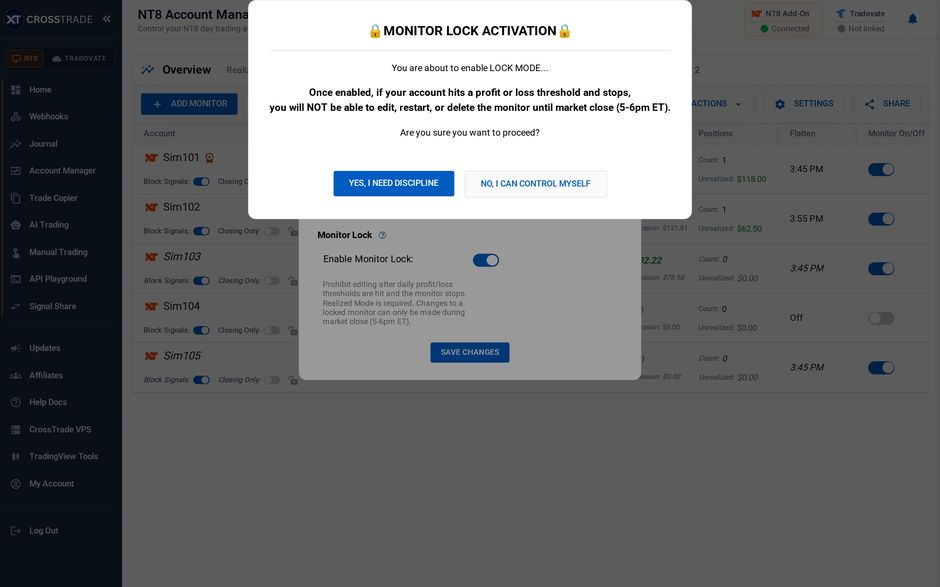
Technically speaking, you can disable the Monitor Lock in the general settings at any time, which disables the lock and allows for adjusting and restarting.