Managing Multiple Accounts
If you're running one strategy across multiple prop firm accounts, or copying trades from a master account to followers, this guide covers the full setup. It assumes you already have a working alert; if not, start with Your First Automated Trade.
Two Approaches to Multi-Account Trading
CrossTrade gives you two paths for trading multiple accounts from a single signal. They solve different problems, and both are built with prop firm guardrails baked in.
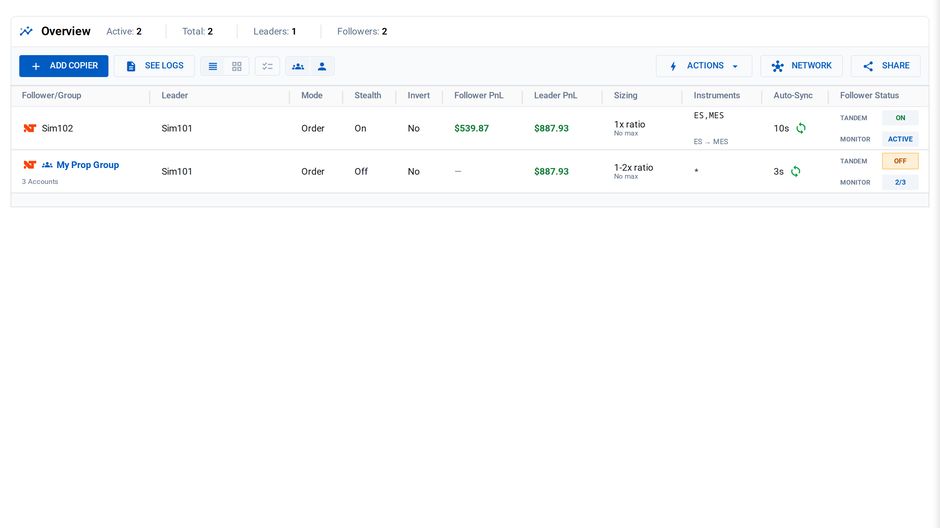
Copier Groups create a leader-follower network where one account drives the others. The leader trades (via webhook, manual entry, or a local NT8 strategy), and every follower in the group mirrors the activity automatically. You configure the group once (copy mode, position sizing ratios, instrument replacements, stealth mode, auto-sync) and manage all followers from a single panel. Copier Groups are the primary tool for running a prop firm operation across multiple accounts.
Multi-Account Placement sends the same webhook alert to multiple accounts in a single payload. Each account gets the same order independently. It's simpler to set up (just list the accounts in the alert), doesn't require a copier configuration, and works with every command type. Use this when you want identical trades on every account with the same timing and parameters, and you don't need per-account sizing or instrument mapping.
When to Use Which
Use Copier Groups when you need different position sizing per follower (ratio-based), different instruments per follower (ES on leader, MES on followers), auto-sync to catch missed fills, tandem mode for coordinated account management, or when your signal source isn't a webhook. The copier works regardless of how the leader trades.
Use Multi-Account Placement when every account should receive the exact same order with the same quantity and instrument, you don't need per-account sizing differences, and you want the simplest possible setup. Multi-account placement also pairs with account cycling in the Account Manager for round-robin distribution across accounts.
Copier Groups
Setting Up a Group
In the Trade Copier section of the CrossTrade dashboard, click Add Copier and select your Leader account. Then add more than one Follower account. We use the same configuration screen for both Group and Single copiers so you will see an input appear to provide your Group with a custom name. All configuration (copy mode, ratio, stealth, auto-sync, tandem) is set at the group level and applies to every follower.
Copy Modes
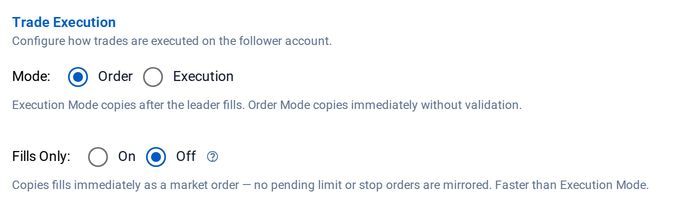
Execution (Fills Only) Mode copies when the leader's order actually fills. Followers only enter when the leader has a confirmed fill. For prop firm accounts, this is generally the safer choice: you don't want followers entering positions based on unfilled limit orders.
Order Mode copies when an order is placed on the leader. This is faster because followers enter as soon as the leader's order is submitted, without waiting for a fill confirmation. The tradeoff: if the leader's order doesn't fill (a limit order that never hits), the follower may have already entered. Within Order mode, you can enable Fills Only to restrict copying to market orders only, giving you the speed benefit without the risk of copying unfilled limits.
Position Sizing
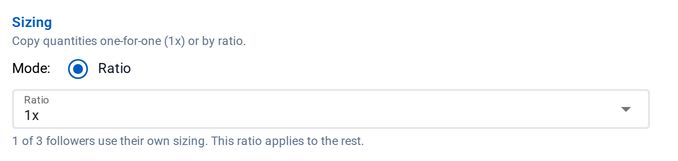
Set a ratio between leader and follower. If the leader trades 4 contracts at a 0.5x ratio, followers trade 2 contracts. NinjaTrader requires whole-number quantities, so plan your ratios around whole numbers: a 3-contract leader at 0.5x produces 1.5, and the order won't execute.
You can also set a max position limit on each follower to cap exposure regardless of the ratio.
Instrument Replacement
If your leader trades ES but you want followers to trade MES (micro), set up a symbol replacement rule. The copier automatically substitutes the instrument on follower orders. This pairs naturally with a sizing ratio: trade ES on the leader at 1x, MES on the followers at the equivalent ratio.
Tandem Mode
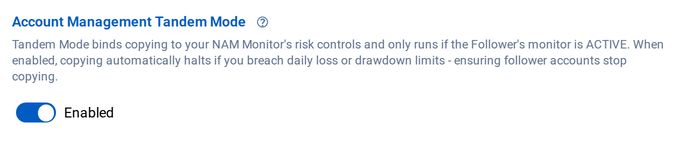
Tandem mode ties the copier to the Account Manager. When enabled, the copier will only place trades on followers that have an active, non-stopped Account Manager monitor. If the Account Manager flattens a follower and stops it for the session (because it hit a daily loss limit, for example), tandem mode prevents the copier from sending new trades to that account.
Without tandem mode, the copier would keep copying trades to a follower that Account Manager just flattened, immediately re-entering a position that was supposed to be closed. Tandem mode prevents this conflict. For prop firm accounts, it should almost always be on.
Auto-Sync
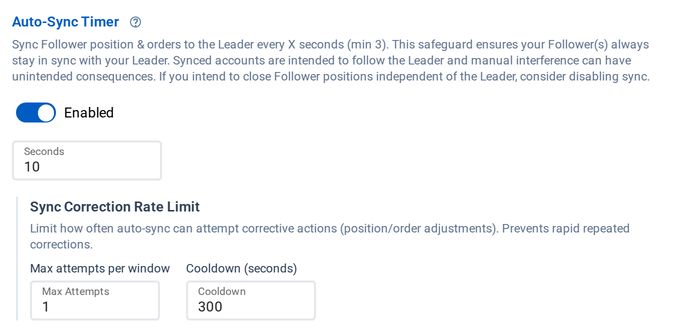
The copier's auto-sync engine checks follower positions against the leader at a configurable interval. If a follower drifts out of alignment (missed a fill, connection blip, manual interference), auto-sync detects the mismatch and submits a corrective order to realign.
If a follower misses an entry, auto-sync enters the position. If a follower misses an exit, auto-sync flattens to match. This runs continuously per group.
Auto-sync includes built-in rate limiting on correction attempts. If a correction is attempted and the position doesn't change, auto-sync won't hammer the same order repeatedly. It also respects a configurable reconnection cooldown: if a follower's data connection just came back online, auto-sync waits for the connection to stabilize before evaluating, preventing false corrections based on stale data.
Important: auto-sync will modify follower positions to match the leader. If you manually close a follower's position while auto-sync is active, it will re-enter. Disable auto-sync or pause the copier before manually intervening.
Stealth Mode
Stealth Mode gives copied orders neutral names instead of CrossTrade's tracking IDs and is enabled by default. It does not change order timing, and it does not make copying acceptable where your prop firm prohibits it.
Multi-Account Placement
Add multiple account names to the account field, separated by commas:
key=your-secret-key;
command=PLACE;
account=Sim101,PROP1234,PROP1235;
instrument=ES1!;
action=BUY;
qty=1;
order_type=MARKET;
tif=DAY;
flatten_first=true;
Every listed account receives the same order. If one account can't execute (disconnected, already in a position with require_market_position=flat;, etc.), the others still proceed independently.
All advanced options (flatten_first, require_market_position, start_time/end_time, brackets, ATMs, Strategy Sync) apply to every account in the list. See the Multi-Account Placement docs for the full specification.
Multi-account placement works with account cycling in the Account Manager, which distributes signals round-robin across accounts rather than sending to all of them simultaneously. This is useful when you want to stagger entries or limit exposure per account.
Protecting Your Prop Firm Accounts
Prop rules are tight and the margin for error is small. These are the controls that enforce them for you.
Daily Loss Limits (Account Manager)
The Account Manager watches each account's session P/L and flattens the account when your threshold is breached, then can disable inbound alerts for the rest of the session. It checks every 2.5 seconds, so set the threshold with a buffer below the firm's actual limit: against a -$2,500 daily max, -$2,200 leaves room for slippage. The account must be flat at session start (6 PM ET) for a clean baseline. See the Account Manager overview.
Trailing Drawdown
Tracks your session's peak and flattens if the give-back from that peak exceeds your threshold. You choose whether the trail follows session P/L or Net Liquidation, because firms calculate it differently, and you can delay activation until a minimum profit is reached. See Trailing Drawdown.
Minimum Profit Drawdown
A floor rather than a trail: once the session reaches your profit trigger, the account is flattened if it gives back more than your drawdown allowance. Set a $500 trigger with a $200 allowance and the account flattens if it falls back under $300. See Minimum Profit Drawdown.
Outlier Protection
Stale quotes and delayed ticks can make a flat account look deeply negative, and a monitor acting on that number flattens a healthy account. Outlier Protection validates the reported P/L against live quotes and recent baselines first, and holds off for a cycle when the data looks wrong. See Outlier Protection.
Opposing Position Protection (OPP)
Blocks any order that would open a conflicting position across the accounts and correlated products you group together, which most firms treat as hedging. The check runs before the order reaches NinjaTrader and works across accounts in a group. See Opposing Position Protection.
Auto-Reconnect
Re-establishes NinjaTrader connections when they drop, covering both clean disconnects and platform errors. You choose which connections to watch and how many attempts to allow. See Auto-Reconnect.
Data Watchdog
Catches the subtler failure: NinjaTrader still says "Connected" but no ticks are arriving. The Watchdog watches real tick flow and forces a reconnect when the feed goes quiet during market hours, handing recovery to Auto-Reconnect when that is enabled. See Data Watchdog.
Both are configured in your My Account, Trading tab and run inside the CrossTrade NT8 Add-On on your machine.
Trading Windows
Restrict trading to the hours allowed by your prop firm. Set windows at the alert level in the payload:
start_time=09:30;
end_time=15:45;
Or set them at the account level in the Account Manager's Trading Windows settings. Account-level windows apply to all webhook activity on that account, regardless of what the alert payload says. When both levels are set, both are evaluated.
Putting It All Together
A typical prop firm operation uses several of these tools in combination. You set up a Copier Group with your leader and follower accounts. Each follower gets an Account Manager monitor with a daily loss limit set below the firm's threshold, a trailing drawdown matching the firm's trailing max drawdown rule, and tandem mode enabled so the copier stops sending to any account that the Account Manager has flattened. You configure Opposing Position Protection if you're running correlated products across accounts. Trading windows match the firm's allowed hours. Auto-Reconnect and Data Watchdog keep the data feed alive so everything else can do its job.
None of these protection tools require webhooks. They run on the CrossTrade NT8 Add-On and protect your account regardless of whether trades come from TradingView alerts, manual entries in NinjaTrader, or the Trade Copier.
Common Multi-Account Pitfalls
Duplicate connections on the same account. If the same account is connected in multiple NT8 instances (two VPS boxes, or one local and one VPS), NinjaTrader fires OrderUpdate events from each connection. This causes duplicate orders. Each account should only be connected to one NT8 instance at a time.
Account name mismatches. The account name in your alert must exactly match what NinjaTrader shows. PROP1234 is not prop1234. Check the Accounts tab in NT8 for exact names.
Auto-sync fighting manual trades. If you manually close a follower position while auto-sync is running, the sync engine will detect the mismatch and re-enter. Disable auto-sync before manually intervening, or pause the copier.
Tandem mode deadlocks. If the Account Manager flattens a follower but a strategy-tagged position survives the flatten (because the tag mode is set to protect), tandem mode can block new trades while the surviving position prevents the account from going fully flat. The dashboard will surface this with actionable detail. Resolution: clear the blocking tag or switch the tag mode to override.
Contract rollover. If you're using hardcoded contract months in your alerts (e.g., instrument=ES 06-25;), you need to update every alert across every account when the contract rolls. Use TradingView continuous contract symbols instead (instrument=ES1!; or instrument=MNQ1!;). CrossTrade auto-converts these to the correct format for each NinjaTrader account.
Related Guides
- Your First Automated Trade - start here if you haven't set up CrossTrade yet
- Exit Management Techniques - ATMs, brackets and how trades close
- Running Multiple Strategies - multiple strategies targeting the same accounts
Reference Docs
Multi-Account Placement Trade Copier Overview Account Manager Overview