Installation
This is the long form of Set Up Guide Step 1, plus the OneDrive fix and the upgrade path.
Step 1 - Download CrossTrade
Download CrossTrade NT8 Add-On Latest release — NinjaTrader 8 NinjaScript (.zip)Step 2 - Install the Add-On
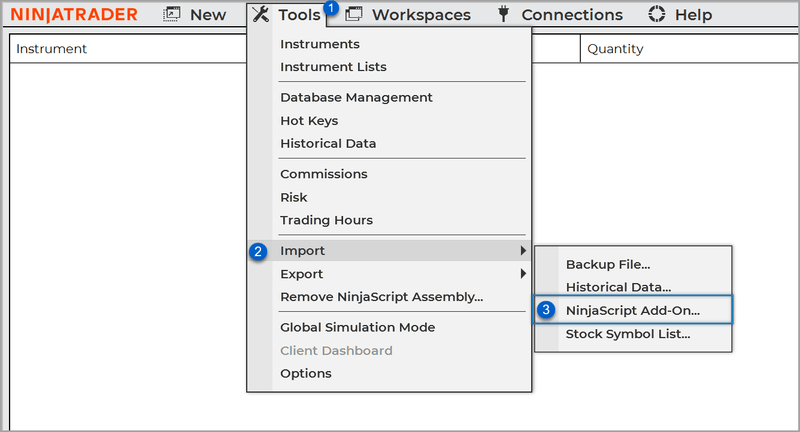
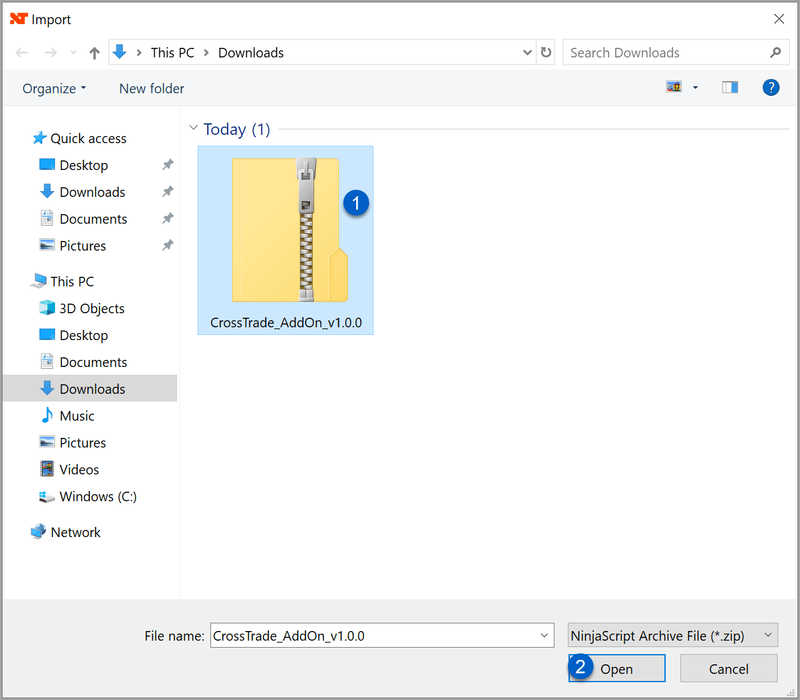
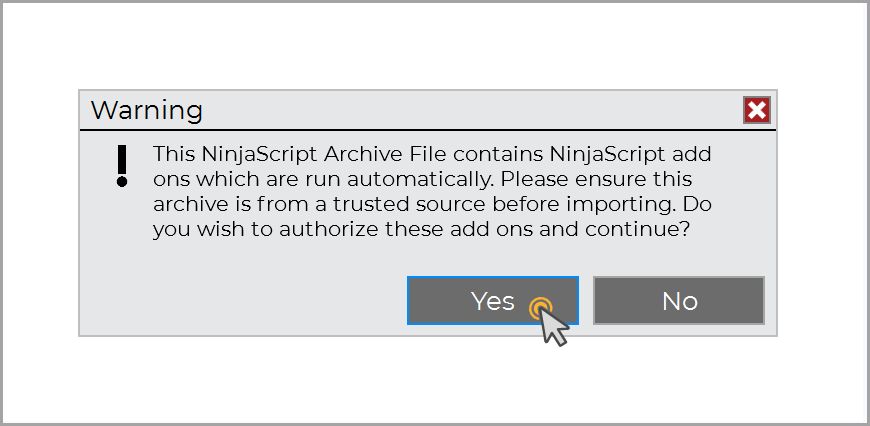
Once downloaded, open NinjaTrader and install the Add-on by clicking on Tools > Import > NinjaScript Add-On.
Before you restart NinjaTrader, complete Step 3!
IMPORT FAILED
Import failed. The NinjaScript Archive File may contain duplicate method names that already exist on your PC, modify a method signature that other scripts were dependent on, or be missing a required file...
If you see an error message similar to above during installation, it's most likely related to the way OneDrive is set up on your PC. OneDrive doesn't play nice with NT8.
To resolve this manually, unzip the contents of the CrossTrade NT8 Add-On zip file to the Documents\NinjaTrader 8\bin\Custom\ directory and restart NT8.
Don't forget to complete Step 3 before doing so.
.png?alt=media&token=007db575-8ff7-425c-a200-c138d3a8b6e5)
Step 3 - Enable the NinjaTrader ATI
Enable the Automated Trading Interface (ATI) to accept your external commands by going to Tools > Settings > Automated Trading Interface.
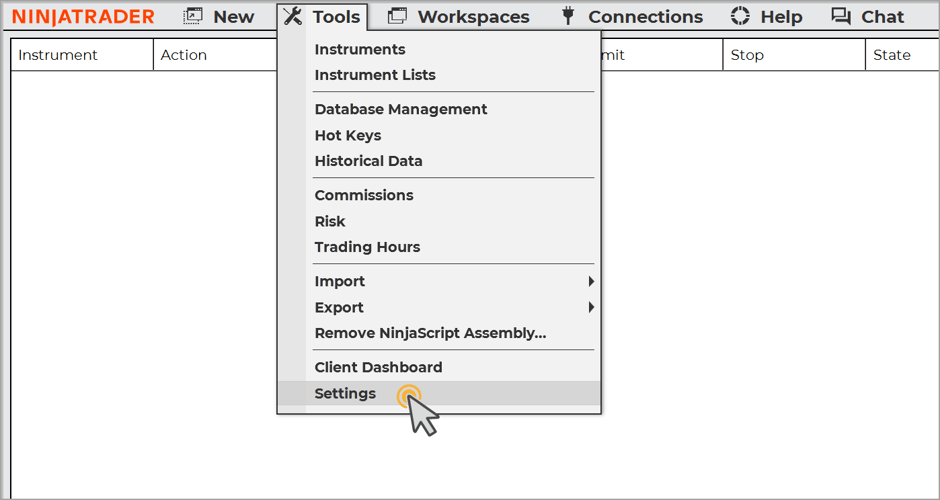
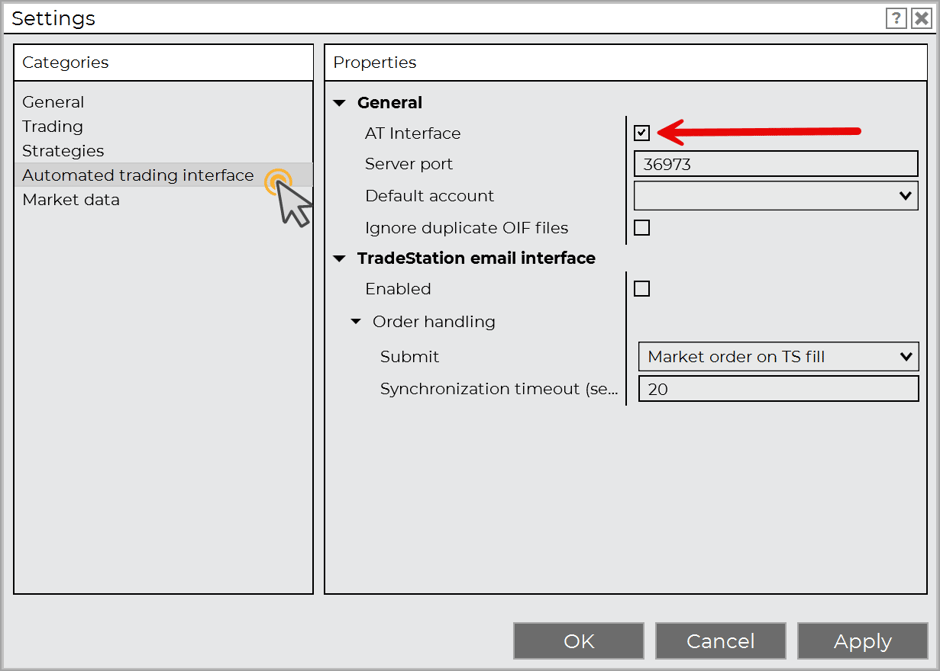
Click Apply and OK to save your changes!
Enable Multi-provider Mode (optional)
This is an optional, but recommended, step if you plan to use multiple data feeds for different accounts.
Click back to General and check the box for Multi-provider.
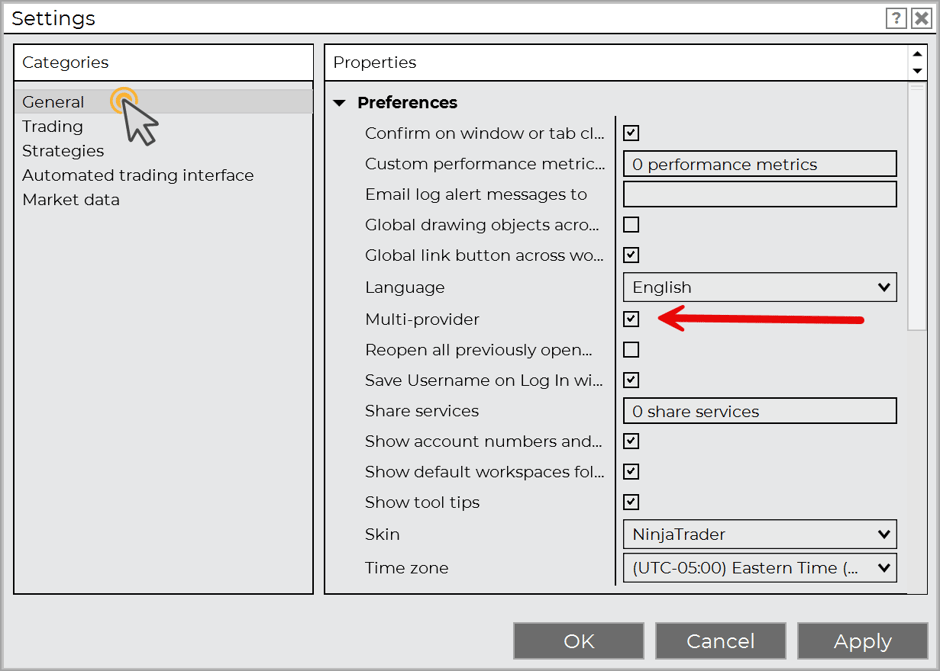
Now restart NinjaTrader!
Final Step - Log In to CrossTrade
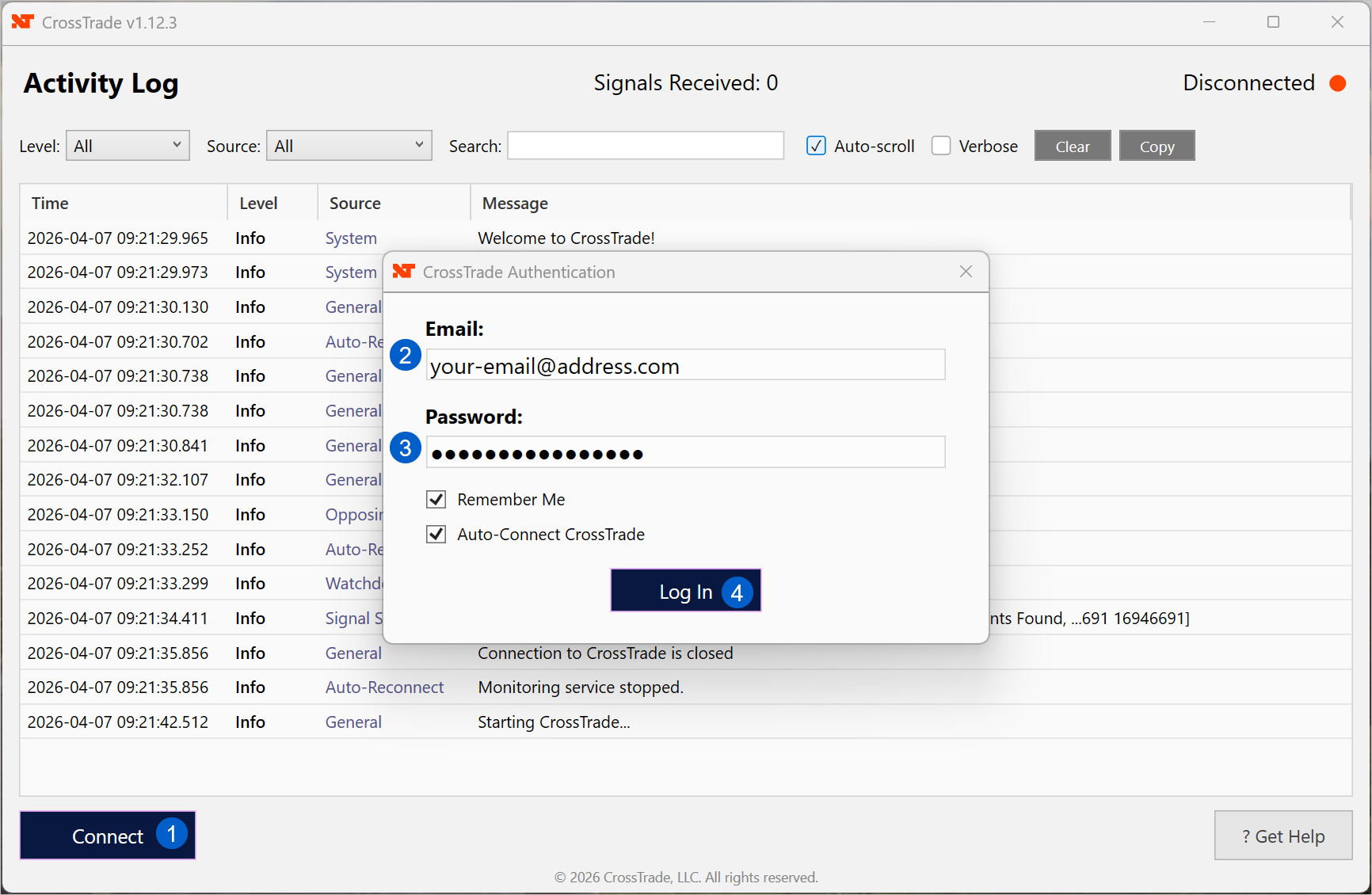
After you have restarted NinjaTrader, it's now time to Log In with your email and password.