CrossTrade Mobile App
The CrossTrade app puts your CrossTrade account on your phone. It reaches the NinjaTrader 8 running on your own computer through the NT8 Add-On, and your Tradovate accounts straight from CrossTrade's cloud, so you can check P&L, close positions, flatten accounts, cancel orders and reconnect data feeds without a remote desktop or a VPS.
The app is available for Android on Google Play, in open testing. Anyone with a CrossTrade account can install it.
How it works
The app never connects to your computer directly. When you tap an action, it goes to CrossTrade's servers, and CrossTrade sends it to the NT8 Add-On running inside your NinjaTrader, the same way a TradingView alert reaches it. The add-on carries it out and the result comes back to your phone.
So NinjaTrader keeps running wherever it runs now, on your PC or your own VPS. Nothing is installed on that machine beyond the NT8 Add-On you already use, and no remote session is opened.
Tradovate accounts don't involve the add-on at all. CrossTrade reaches them through Tradovate's API, so nothing has to be running on your computer.
What you need
| NinjaTrader 8 | Tradovate | |
|---|---|---|
| Phone | Android, with the CrossTrade app from Google Play | Same |
| CrossTrade account | An active plan or free trial | Same |
| On your computer | NinjaTrader 8 running, with the NT8 Add-On connected | Nothing |
| Linked in CrossTrade | Your add-on, signed in with your CrossTrade account | Your Tradovate login, under My Account → Brokers |
You can't create a CrossTrade account in the app. Sign up on crosstrade.io first, then sign in on your phone.
Some features follow your plan, exactly as they do on the web. The Account Manager, the Trade Copier and push notifications are part of Pro.
Install and sign in
- On your Android phone, open CrossTrade on Google Play and tap Install.
- Open the app and sign in with the email and password you use on crosstrade.io.
- Allow notifications when Android asks, if you want push alerts.
Not ready to sign in? Tap Explore the demo first on the sign-in screen to browse the app on sample data.
Most screens have a NinjaTrader / Tradovate switch at the top. The app picks the platform you use automatically; switch it whenever you want to look at the other one.
What you can do
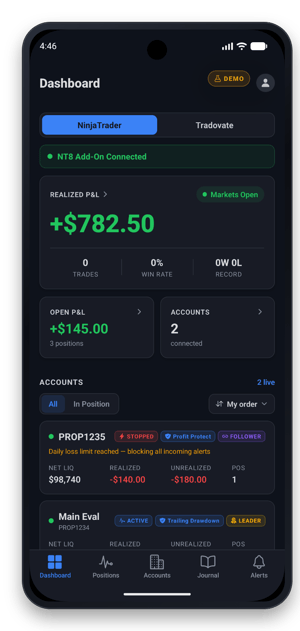
Dashboard. Realized and open P&L, trades and win rate across your accounts, whether the NT8 Add-On is connected, and whether the market is open.
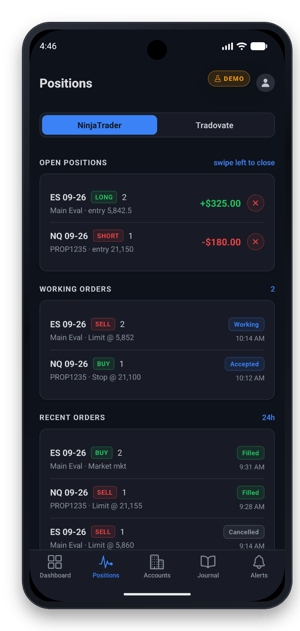
Positions. Every open position, working order and recent order. Close a single position, or swipe a row to close it. Every close asks you to confirm.
Accounts. Each account with its net liquidation, realized and unrealized P&L and open positions. Open an account to flatten it, cancel its working orders, block or unblock its signals, or edit its Account Manager monitor: daily profit target, loss limit, trailing drawdown, close-only mode and end-of-day flattening.
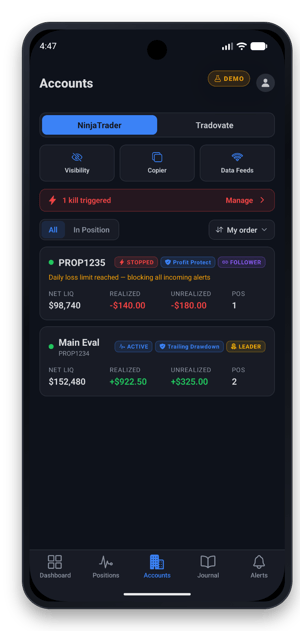
Kill Signals. Which accounts have stopped taking signals, and why, so you can unblock them when you're ready to trade again.
Data Feeds (NinjaTrader). The connections NinjaTrader has, with Connect and Disconnect for each. Disconnect asks you to confirm.
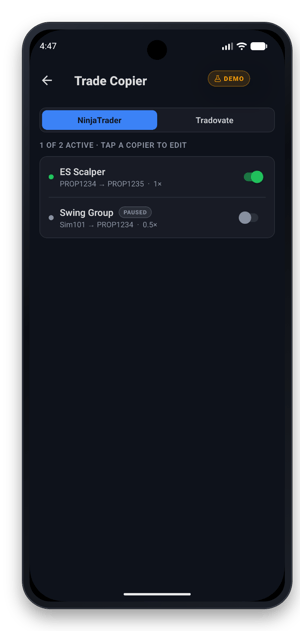
Trade Copier. Pause and resume copiers and adjust follower sizing.
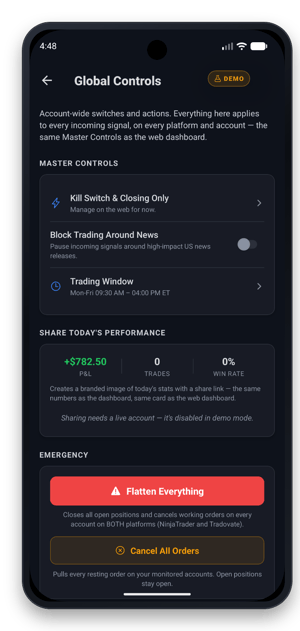
Global Controls. Flatten Everything closes all open positions and cancels working orders on every account, on both platforms. Cancel All Orders pulls every resting order on your monitored accounts and leaves positions open. You can also turn Block Trading Around News on and off here. Your kill switch and Closing Only are still managed on the web.
Alerts. Your recent alerts and their results, the same as Alert History on the web.
Journal. Closed trades, daily P&L and performance scores, filterable by account. You can share a card of today's numbers from Global Controls.
Close, Flatten, Cancel and Disconnect act on your real accounts the moment you confirm. If the app says it could not confirm whether an action went through, refresh before you try again, so you don't send it twice.
Push notifications
The app can push the same alerts CrossTrade already sends by email or Discord: a monitor stopping, an auto-flatten firing, the NT8 Add-On going offline, a broker connection stalling, and more.
- In the app, open Settings and turn on Push notifications.
- Under Notification settings, choose which alert types reach your phone, and which accounts they cover.
- Check the line under the toggle. This device is registered means pushes will arrive.
If the line says Tap to confirm your password and enable notifications on this device, tap it and enter your password. CrossTrade only registers a new device for pushes shortly after a password sign-in, so a phone that's been signed in for a while asks once. If it says Not registered, notifications are turned off for CrossTrade in Android's settings.
Push notifications use your alert notification settings, so they need a plan that includes alerts.
Troubleshooting
"Your NT8 Add-on is not connected." The app reached CrossTrade, but your NinjaTrader isn't connected right now. Check that NinjaTrader is running on your PC or VPS and that the NT8 Add-On shows connected. Tradovate screens keep working either way.
"This account is signed in on too many devices." Each CrossTrade account can be signed in to the app on up to 10 devices. Sign out on a device you no longer use, or use Log out of all devices in Settings on a phone that's still signed in.
"We could not confirm whether that went through." The action reached your platform but the answer didn't come back in time. Pull to refresh and check the account before you repeat anything.
"Your session has expired." Sign in again. Sessions end after 30 days, or after 7 days without opening the app.
A screen links to the web instead of showing a control. Some settings are still managed at app.crosstrade.io. The app opens the right page for you.
Lost your phone? Sign in on another phone and use Log out of all devices in Settings. That ends every app session on your account, and you'll need your password to do it.
Still stuck? Ask in the CrossTrade Discord or email support@crosstrade.io. The app is in open testing, so reports like yours shape what changes next.