Automating TradingView Strategies
This guide covers the full workflow for automating a TradingView strategy (not an indicator). If you're using an indicator, see Automating TradingView Indicators instead. Not sure which one you have? If your Pine Script starts with strategy(...), it's a strategy. If it starts with indicator(...), it's an indicator. That distinction matters more than you'd think.
You can have an AI do this setup for you. Paste our AI automation guide and your Pine Script into Claude, ChatGPT, or any other assistant and ask it to build your alert. It will classify your script and generate the exact settings and payload this guide walks through.
Strategies vs. Indicators: Why It Matters
A strategy gives you dynamic variables ({{strategy.order.action}}, {{strategy.order.contracts}}) plus the position state ({{strategy.market_position}}, {{strategy.prev_market_position}}) that Strategy Sync uses to keep NinjaTrader aligned. The cost: TradingView requires every strategy to have offsetting actions, and {{strategy.order.action}} only ever says buy or sell, so nothing in the alert itself separates an entry from an exit. Strategy Sync exists to resolve that.
An indicator has no offsetting requirement and no ambiguity, but you hardcode the action and quantity yourself. Automating TradingView Indicators covers that path.
The rule of thumb: If your strategy does clean entries and exits with position tracking (long when in position, flat when out), Strategy Sync works well. If your strategy does stop-and-reverse (constantly flipping between long and short without going flat), you're often better off converting the logic to an indicator or using flatten_first without sync. If your strategy has complex exits managed by NT8 (ATMs, trailing stops), use strategy_exit_block=true; to prevent TV's exit signals from interfering.
The Basic Strategy Payload
Here's the starting point for any TradingView strategy automation. This uses Strategy Sync to keep your NinjaTrader position aligned with your TradingView strategy's position:
key=your-secret-key;
command=PLACE;
account=Sim101;
instrument=ES1!;
action={{strategy.order.action}};
qty={{strategy.order.contracts}};
order_type=MARKET;
tif=DAY;
sync_strategy=true;
market_position={{strategy.market_position}};
prev_market_position={{strategy.prev_market_position}};
target_quantity={{strategy.position_size}};
out_of_sync=resync;
sync_strategy=true; turns on position synchronization. With this enabled, CrossTrade compares what TradingView thinks the position is versus what NinjaTrader actually has before placing any order.
market_position={{strategy.market_position}}; tells CrossTrade what position the strategy wants to be in after this order executes. TradingView fills this in automatically: long, short, or flat.
prev_market_position={{strategy.prev_market_position}}; tells CrossTrade what position the strategy was in before this signal. Combined with market_position, this defines the intended transition (e.g., flat→long, long→flat, long→short).
target_quantity={{strategy.position_size}}; tells CrossTrade the exact contract count the strategy expects to hold after this order. TradingView fills it in automatically. It's what lets resync calculate a correction, and it's required whenever out_of_sync=resync; is used.
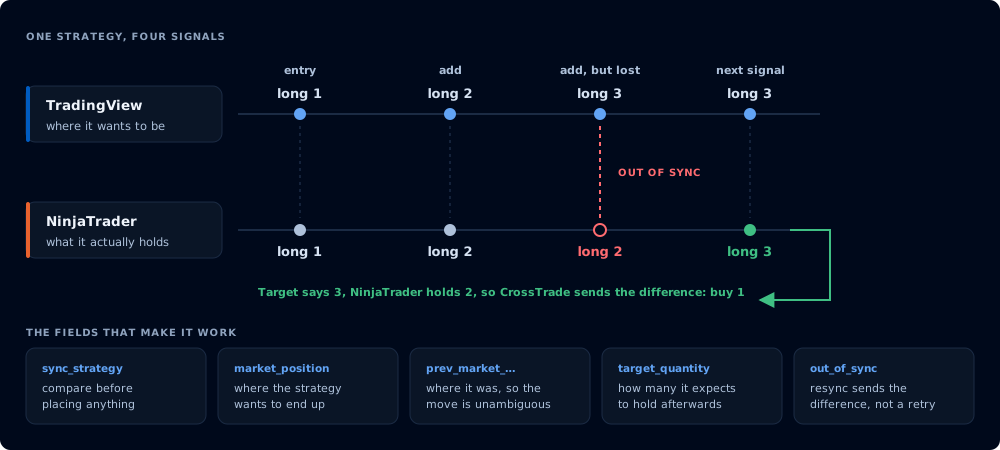
What Strategy Sync is comparing, and what it sends when the two disagree
out_of_sync=resync; defines what happens when TradingView and NinjaTrader disagree. With resync, CrossTrade works out the difference between the live NT8 position and the position the strategy expects, then submits a corrective market order to close that gap. Trading continues instead of stalling. Requires Add-On v1.12.0+. Other options:
flatten- closes the NT8 position to reset everything to flat, then waits for the next clean entry signal (a good safety choice if you'd rather be flat than automatically corrected)wait- blocks the order and does nothing (safest, but requires manual intervention)ignore- places the order anyway despite the mismatch (advanced use only)
resync is the right default for most traders, because it recovers from drift on its own. Choose flatten when you'd rather have the position closed out and wait for a fresh entry than have CrossTrade adjust it for you.
Setting Up the TradingView Alert
TradingView Alerts and Your First Automated Trade cover each step with screenshots.
Create your alert in TradingView with the Condition set to your strategy. Make sure you select the strategy from the condition dropdown, not a price level or indicator.
In the Message field, delete all default text and paste the payload above (with your actual secret key and account name).
In the Notifications tab, check the Webhook box and paste your CrossTrade webhook URL.
Set the alert to fire Every time the strategy fires an order (not "Once" or "Once per bar"). Strategy Sync needs to receive every signal the strategy generates.
Important: TradingView alerts snapshot the strategy settings at the time the alert is created. If you change the strategy's inputs after creating the alert (different SMA lengths, different risk parameters, etc.), the alert will still use the old values. You need to delete the old alert and create a new one. TradingView doesn't warn you about this, and it's one of the most common sources of confusion.
Alerts from Renko, Range, Line Break, Kagi and Point & Figure charts can fire well after the move that triggered them. See Automating TradingView Indicators for why, and for the free TRUE OHLC indicator that works around it.
Understanding Out-of-Sync Scenarios
You manually close a position in NT8 while the TV strategy is still running. The strategy still thinks it's in a position and will eventually send an exit signal for a position that no longer exists.
An alert is missed or delayed. TradingView alert delivery isn't guaranteed to be instant. Server load at the top of the hour, news events, or connectivity issues can delay alerts. If an entry arrives but the exit doesn't (or vice versa), the state drifts.
An ATM strategy closes the position. If you're using an ATM template and the stop loss or profit target hits, NT8 closes the position. TradingView doesn't know this happened and will continue as if the position is still open.
A connection drops. If the CrossTrade NT8 Add-On loses connection to CrossTrade's servers, alerts during the outage are missed.
The Alert History on your web dashboard will show sync warnings when they occur, including what TradingView expected vs. what NT8 had. Check here first when debugging.
Using Strategy Sync with ATM Strategies
This is a common setup, and it requires one critical addition: strategy_exit_block=true;.
Here's why. An ATM template manages exits through stop losses and profit targets on NT8. But your TradingView strategy doesn't know the ATM exists: it will still generate exit signals (because Pine Script strategies require offsetting actions). Without blocking those exit signals, you'll have TradingView trying to close the position at the same time the ATM is managing it. This creates conflicts.
key=your-secret-key;
command=PLACE;
account=Sim101;
instrument=ES1!;
action={{strategy.order.action}};
qty={{strategy.order.contracts}};
order_type=MARKET;
tif=DAY;
flatten_first=true;
atm_strategy=YourATMTemplateName;
sync_strategy=true;
market_position={{strategy.market_position}};
prev_market_position={{strategy.prev_market_position}};
out_of_sync=flatten;
strategy_exit_block=true;
What changed from the basic payload:
atm_strategy=YourATMTemplateName; applies your saved NinjaTrader ATM template. The name must match exactly: case-sensitive, spaces included. Your alert's qty must match the contract quantity saved in the template, covered in Exit Management Techniques.
flatten_first=true; closes any existing position and cancels pending bracket orders before placing the new entry. Always use this with ATMs to prevent orphaned stop/target orders from a previous ATM.
strategy_exit_block=true; blocks any signal where the strategy is transitioning out of a position (where prev_market_position is not flat). This means only fresh entries from flat get through to NT8. The ATM handles the exit.
out_of_sync=flatten; stays here rather than resync. When you hand exits to an ATM, you don't want CrossTrade rebuilding a position the ATM just closed on purpose. Flatten is the correct pairing for ATM setups.
Be aware: When the ATM closes a position (TP or SL hit), the strategy will detect the mismatch and report an out-of-sync condition. This is expected. With out_of_sync=flatten;, it will attempt to flatten (which is already flat) and wait for the next entry. This is normal behavior, not a bug.
If you need dynamic TP/SL levels (levels that change per trade), don't use an ATM. Use take_profit= and stop_loss= in the payload instead. ATM templates have fixed bracket levels defined in advance. See Exit Management Techniques for the full breakdown.
The {{strategy.order.alert_message}} Variable
{{strategy.order.alert_message}} works differently from the other strategy variables: it's a passthrough that carries whatever string you set inside your Pine Script's strategy.entry() / strategy.exit() calls via the alert_message= parameter. TradingView delivers that exact string when the order fills.
If you're authoring your own Pine Script, this is how you trigger CrossTrade alerts. Build the full CrossTrade payload as a string inside your script, pass it via alert_message=msg, and put {{strategy.order.alert_message}} in the alert dialog Message field with Condition set to "Order fills only". This is the only approach that lets you compute per-signal values (calculated SL/TP from tick math, asymmetric long/short payloads, qty derived from ATR), none of which is expressible from the alert dialog.
If you didn't build the payload in Pine, {{strategy.order.alert_message}} is empty and the alert will fail. In that case (third-party scripts, built-in TradingView strategies, indicators someone else wrote), use the individual variables ({{strategy.order.action}}, {{strategy.order.contracts}}, etc.) directly in the alert dialog as shown earlier in this guide.
For an example of how to construct the payload in Pine Script, see the Example Strategies page.
Adding Position Protection
Beyond Strategy Sync, you can layer on additional protection:
require_market_position=flat; - blocks the alert entirely unless your NT8 position is flat. Use this if you never want to enter a new trade while an existing position is open. This is evaluated per-instrument, not per-account: an open NQ position won't block an ES entry.
max_positions=1; - blocks an alert that would open a new position while you are already at the limit, counted across every instrument. Adding to a position you already hold still passes.
start_time=HH:MM; and end_time=HH:MM; - restrict when alerts are accepted. Times are US/Eastern, and an alert outside the window is rejected before it reaches NinjaTrader. See Trading Window docs for formatting.
Related Guides:
- Your First Automated Trade - if you haven't sent a working alert yet, start here
- Automating TradingView Indicators - the simpler path if you don't need strategy variables
- Exit Management Techniques - ATMs, brackets and strategy exits
Reference Docs: