Installing the CrossTrade NT8 Add-On
The add-on runs inside your copy of NinjaTrader. CrossTrade never sees your broker password, and orders are placed by NinjaTrader itself using the connection you already trust.
Where NinjaTrader runs: your PC or a VPS
Your own machine is the simplest start. NinjaTrader has to be open, logged into your data feed, and the computer has to stay awake for an order to fill. Sleep, a reboot, or a dropped internet connection means the alert arrives at CrossTrade and has nowhere to go.
A VPS is a machine that never sleeps. NinjaTrader runs on it around the clock, so alerts fill whether or not your own computer is on. Most traders running unattended automation end up here. See the VPS Connection Guide.
There is nothing to install. Tradovate connects with a one-time sign-in and runs in the cloud, so your orders fill with your computer off. See Linking Your Tradovate Account. Both connections can live side by side on one CrossTrade account.
Step 1: Download the add-on
Grab the latest release from your CrossTrade dashboard, or download it directly:
Download CrossTrade NT8 Add-On Latest release, NinjaTrader 8 NinjaScript (.zip)Leave the file zipped. NinjaTrader imports the archive as-is.
Step 2: Import it into NinjaTrader
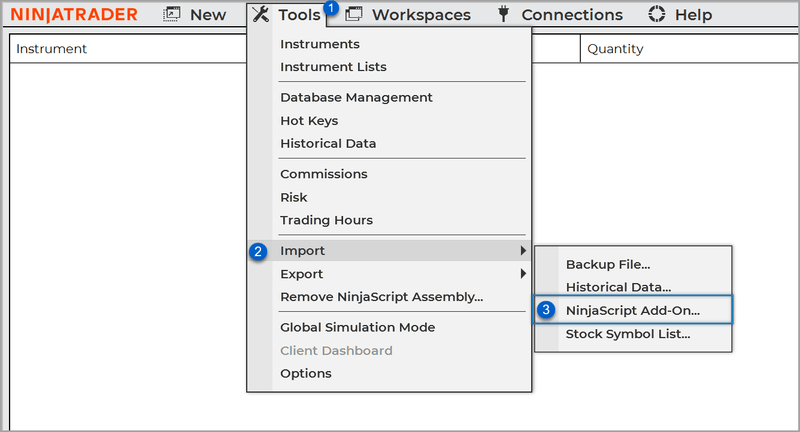
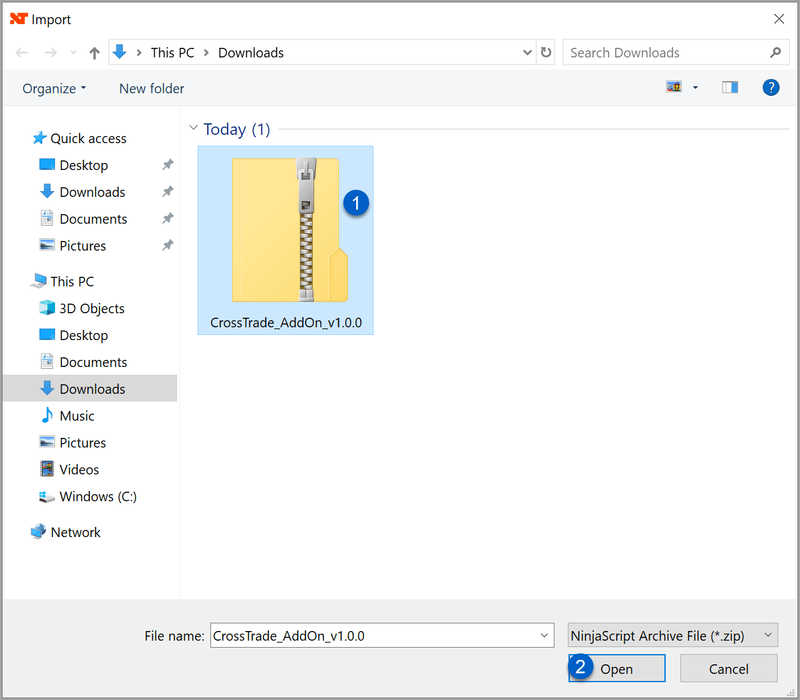
In the NinjaTrader Control Center, go to Tools > Import > NinjaScript Add-On and select the file you just downloaded.
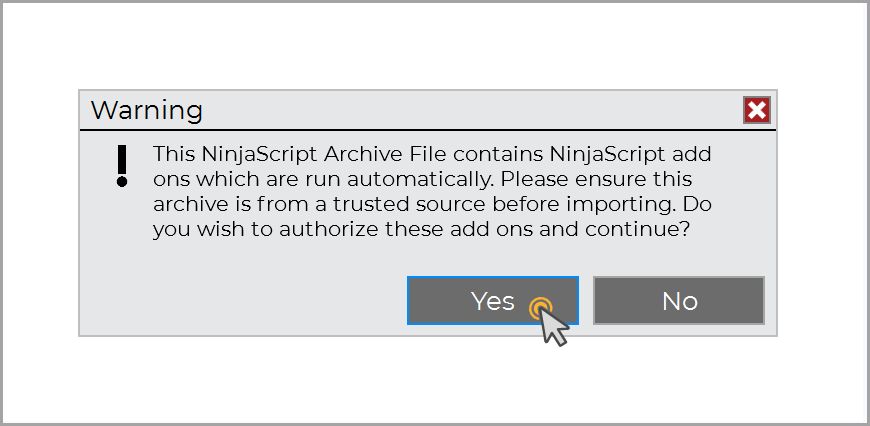
Don't restart NinjaTrader yet. Finish Step 3 first, then restart once.
Step 3: Enable the Automated Trading Interface
NinjaTrader will not accept external commands until the ATI is switched on. Go to Tools > Options > Automated Trading Interface and enable it, then click Apply and OK.
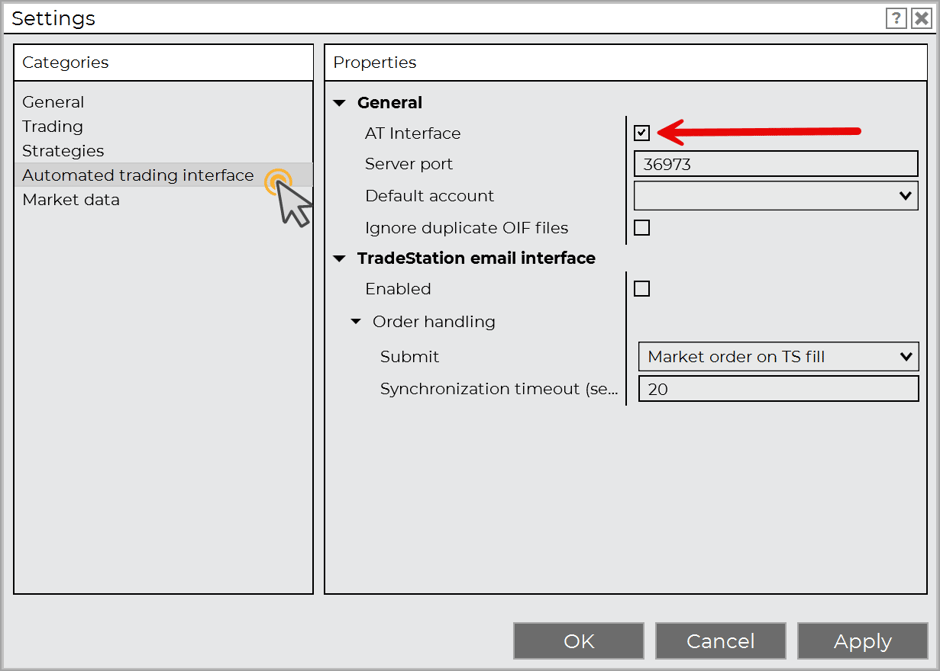
This is the single most common reason a first alert reports success in CrossTrade but nothing happens in NinjaTrader.
Step 4: Restart and log in
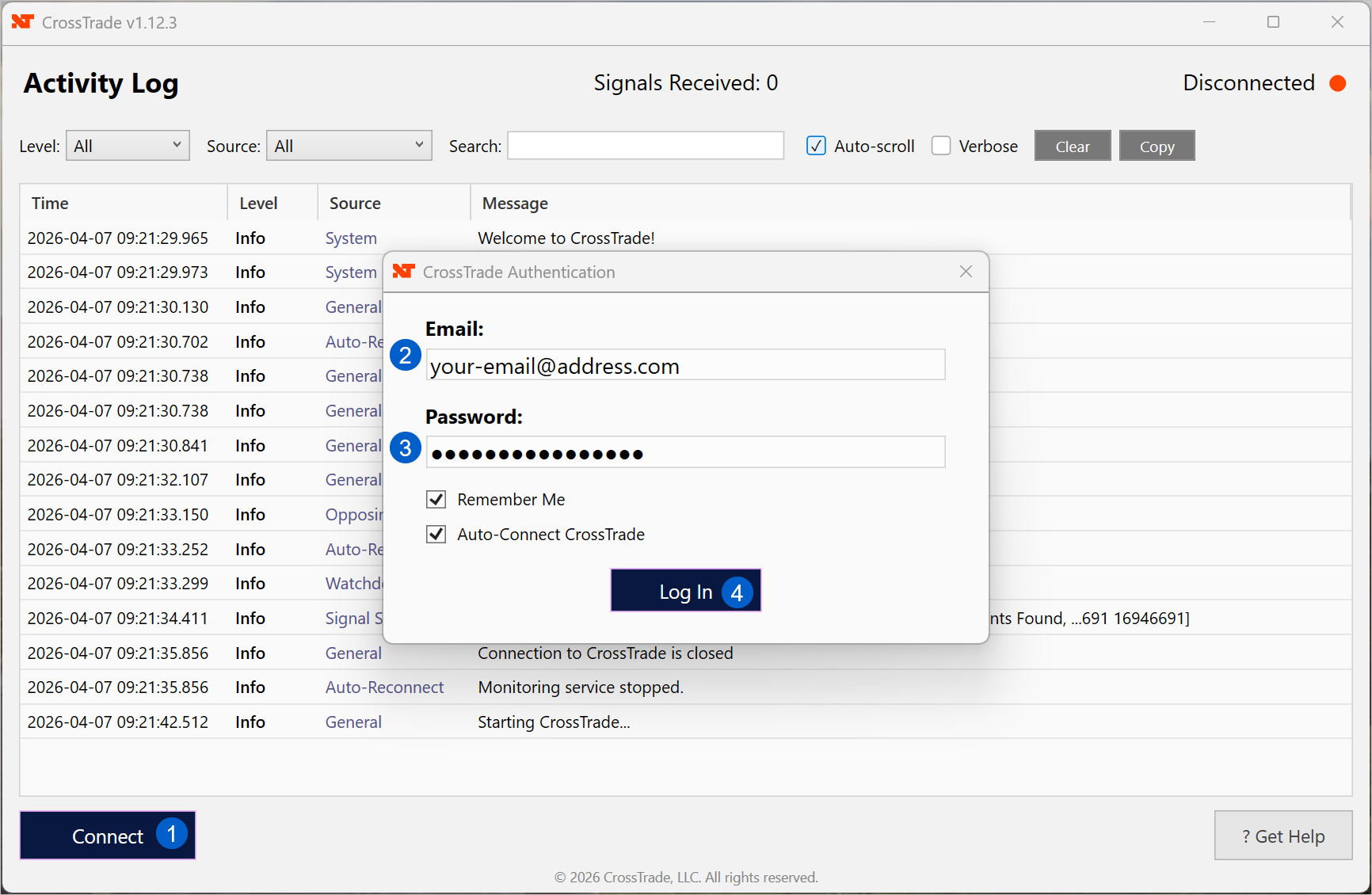
Restart NinjaTrader. After it comes back up, open the CrossTrade NT8 add-on and sign in with your CrossTrade email and password.
Confirm the connection
A green connection indicator in the add-on means you're live. Your NinjaTrader accounts also start appearing in the account pickers across the CrossTrade web app.
The account= value you'll use in webhook alerts is exactly the account name NinjaTrader shows, for example Sim101, Playback101, or a prop firm account like PROP1234.
NinjaTrader needs an active data feed to execute anything. A sim account, a prop firm evaluation, or a live broker connection all work. Level 1 data is enough. If the markets are closed, connect to the Simulated Data Feed to test.
Prop firm and funded accounts
Prop firm accounts connect inside NinjaTrader itself, not inside CrossTrade. You add the firm's connection in NT8 the way the firm documents it, and once those accounts show up in NinjaTrader they are automatically routable from CrossTrade. Nothing extra to link on our side.
Firms that hand you multiple accounts, or traders running an evaluation alongside a funded account, should read the Prop Firm Connection Guide and Managing Multiple Accounts.
Multi-provider mode (optional)
If you plan to run more than one data feed or brokerage connection at the same time, enable multi-provider mode. In Tools > Options > General, check Multi-provider, then restart NinjaTrader.
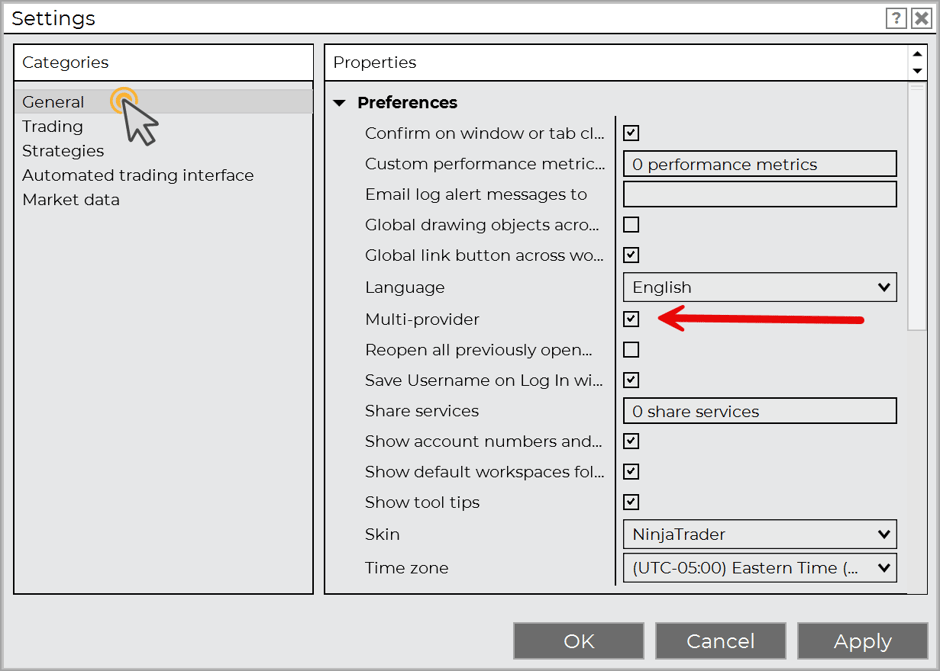
Full detail in Enabling Multi-Provider Mode.
Keeping the connection alive
NinjaTrader stays open. Closing NinjaTrader closes the add-on with it, and CrossTrade has nowhere to send orders. Alert History will show the add-on as offline.
Auto-reconnect handles the rest. When NinjaTrader drops and restores its broker connection, the add-on recovers on its own. See Connection Health.
Turn on offline alerts. In My Account → Alerts you can be notified when your add-on goes offline, so you find out from us rather than from a missed trade.
While the add-on is offline, webhook orders to its accounts will fail and show in Alert History. If you run always-on automation, that notification is the one to pay attention to.
Upgrading
New releases install exactly like the first one: download the latest zip, import it over the top, restart NinjaTrader. Your settings, accounts, and CrossTrade login carry over. See Upgrade Instructions and the release notes.
Removing the add-on
Log out from inside the add-on to break the CrossTrade connection while leaving NinjaTrader untouched. To remove it completely, use Tools > Remove NinjaScript Assembly in NinjaTrader and select the CrossTrade assembly, then restart. Removing the add-on never affects your broker state, open orders, or positions.
Troubleshooting
Import failed, "duplicate method names": This is almost always OneDrive. OneDrive and NinjaTrader don't play nicely together. Unzip the add-on contents manually into Documents\NinjaTrader 8\bin\Custom\ and restart NinjaTrader. The Installation page has the file layout.
The alert reports success but no order appears in NinjaTrader: The ATI is almost certainly off. Recheck Tools > Options > Automated Trading Interface, then restart.
My accounts aren't in the CrossTrade account picker: Confirm the add-on shows a green indicator and that NinjaTrader is connected to a data feed. Accounts only appear once NinjaTrader itself can see them.
The order rejects with an invalid instrument: The contract may have rolled. Check that the instrument is current and that your data feed provides it.
What's next
Send your first order → Your First Automated Trade
See everything the NinjaTrader destination supports → Destinations: NinjaTrader vs Tradovate