Your First Automated Trade
What You Need Before Starting
You need three things set up before your first alert will work:
- A CrossTrade account with an active subscription or free trial. If you don't have one, start your free 7-day trial.
- NinjaTrader 8 installed and connected to at least one data feed. This can be a sim account, a prop firm evaluation account, or a live broker connection. You need the data feed active: NT8 won't execute orders without one. Level 1 data is sufficient; Level 2 is not required.
If the markets are closed, connect to the 'Simulated Data Feed' to use dummy data.
- A TradingView account with 2FA enabled. Webhooks require two-factor authentication. If you haven't enabled it, TradingView will prompt you the first time you try to set up a webhook.
Step 1: Install the CrossTrade NT8 Add-On
Install the add-on, enable the Automated Trading Interface, restart NinjaTrader, then sign in with your CrossTrade email and password. A green connection indicator means you are connected.
Installing the CrossTrade NT8 Add-On walks it through with screenshots, including the OneDrive conflict that produces a "duplicate methods" import error.
Step 2: Find Your Webhook URL and Secret Key
You need two things from your CrossTrade account:
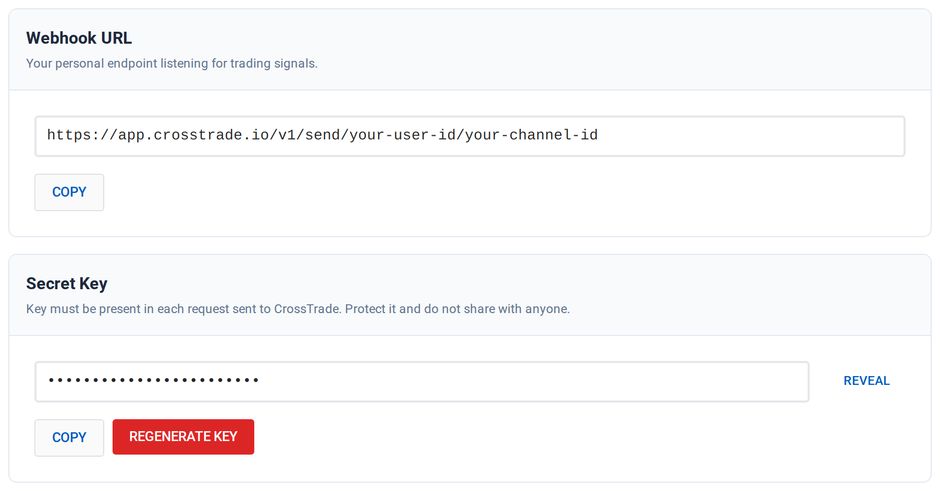
Your Webhook URL - this is the address TradingView will send alerts to. Find it on your My Account page or on the web dashboard below the Webhook Trader.
Your Secret Key - this authenticates your alerts. It's on the same My Account page.
Step 3: Build Your First Alert Payload
Open a chart in TradingView. It doesn't matter which instrument: we'll specify the instrument in the alert message, not through the chart.
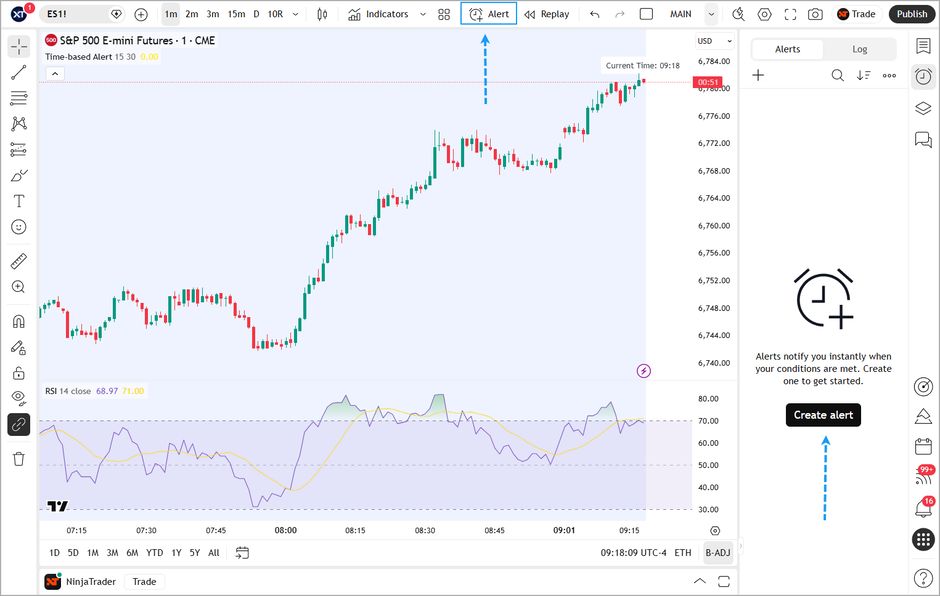
Click the alert icon (the clock button on the right sidebar or the alarm icon in the top toolbar) to open the alert creation window.
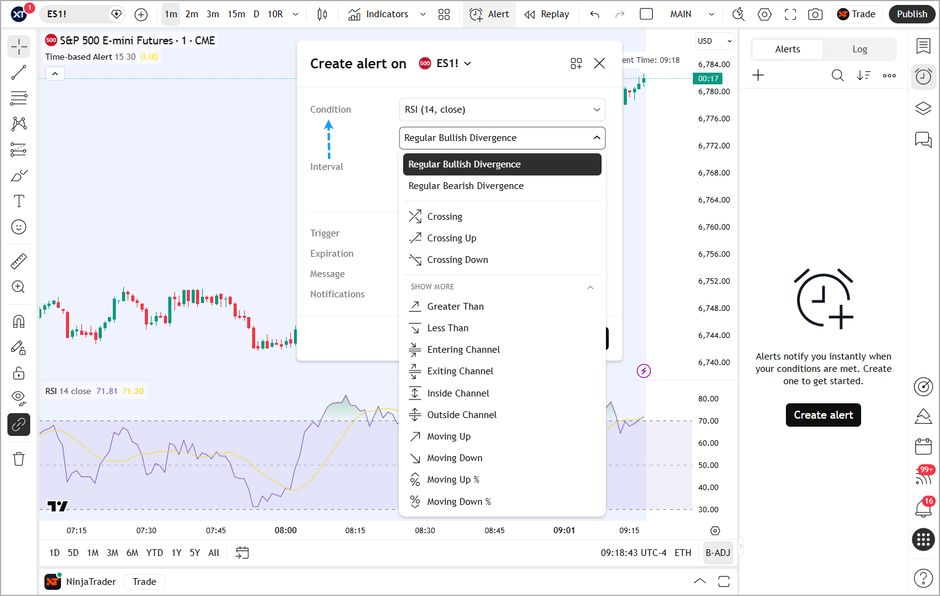
Set the Condition: For testing, use something simple that will trigger quickly. You can set it to the chart's price crossing above or below a nearby price level, or use CrossTrade's free test indicator which fires a signal on every bar.
Set the Alert Message: This is the critical part. Delete everything in the message box, all of it. TradingView pre-fills this with default text from your indicator or strategy, and that text will break your alert. The message must contain only the CrossTrade command.
Paste the following, replacing your-secret-key with your actual key and Sim101 with your actual account name:
key=your-secret-key;
command=PLACE;
account=Sim101;
instrument=ES1!;
action=BUY;
qty=1;
order_type=MARKET;
tif=DAY;
flatten_first=true;
flatten_first=true; is included so that each time the alert fires, it closes any existing position before opening a new one. This prevents stacking positions during testing.
To make life easy you can simply copy the preloaded message in your Webhook Trader. Your secret key is already provided with all of the Command Examples on the Webhooks dashboard.
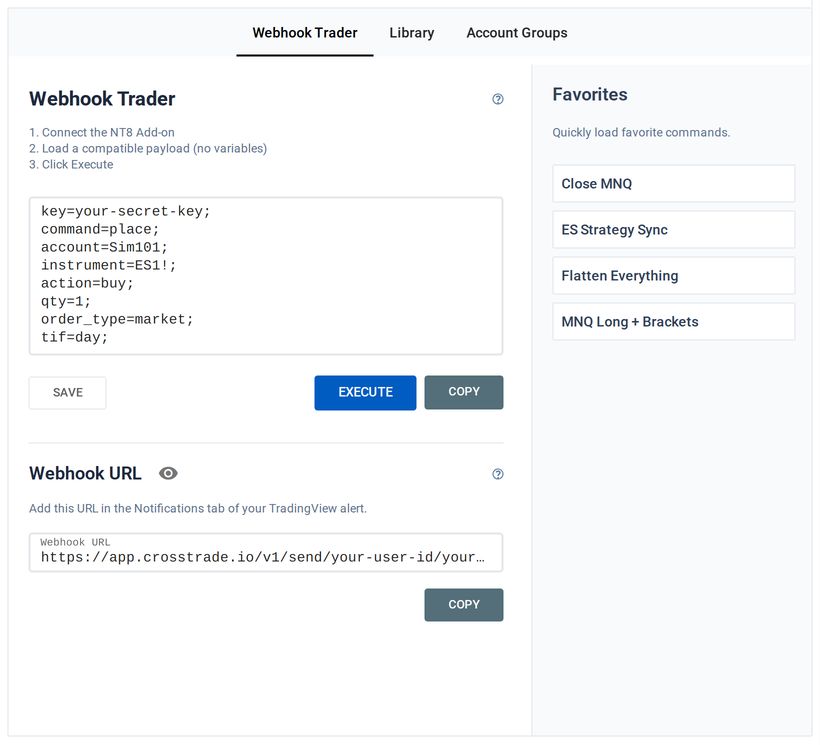
That's it. Every line ends with a semicolon. The instrument uses TradingView's continuous contract format (ES1!), which CrossTrade will automatically convert to whatever format your NinjaTrader account expects.
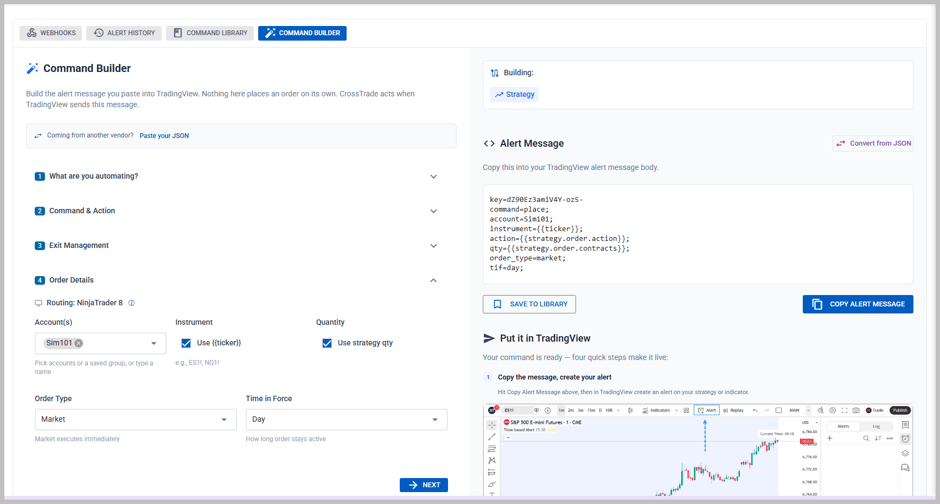
For step-by-step alert creation made easy, check out the Command Builder
Step 4: Add the Webhook URL
Switch to the Notifications tab in the alert window. Check the Webhook box and paste your CrossTrade Webhook URL.
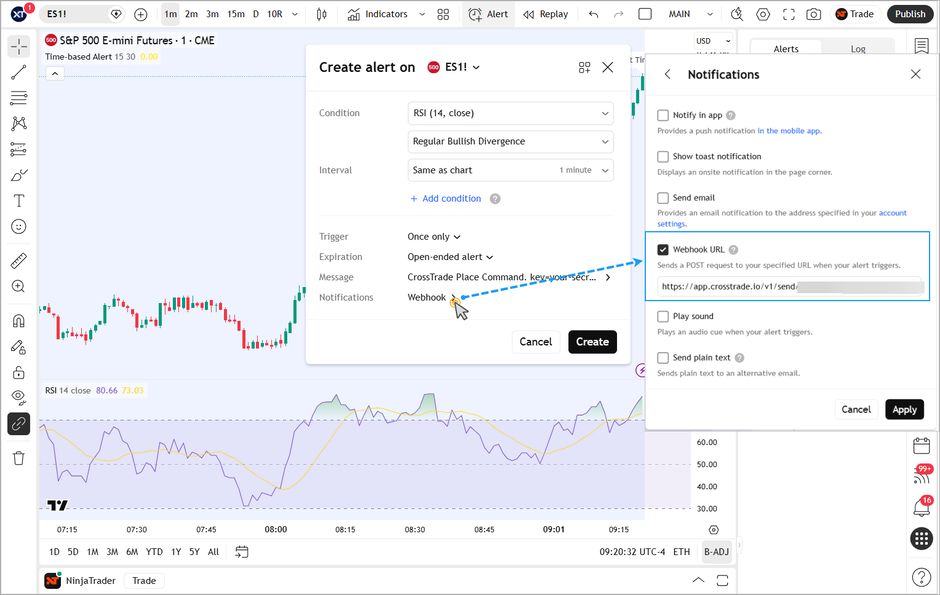
If this is your first time using webhooks, TradingView will prompt you to enable 2FA. Follow the prompts, then come back and paste the URL.
Save the alert.
Step 5: Verify It Worked
When the alert fires, three things should happen almost simultaneously:
TradingView logs the alert in its alert history (click the clock icon to see it and then switch to Log).
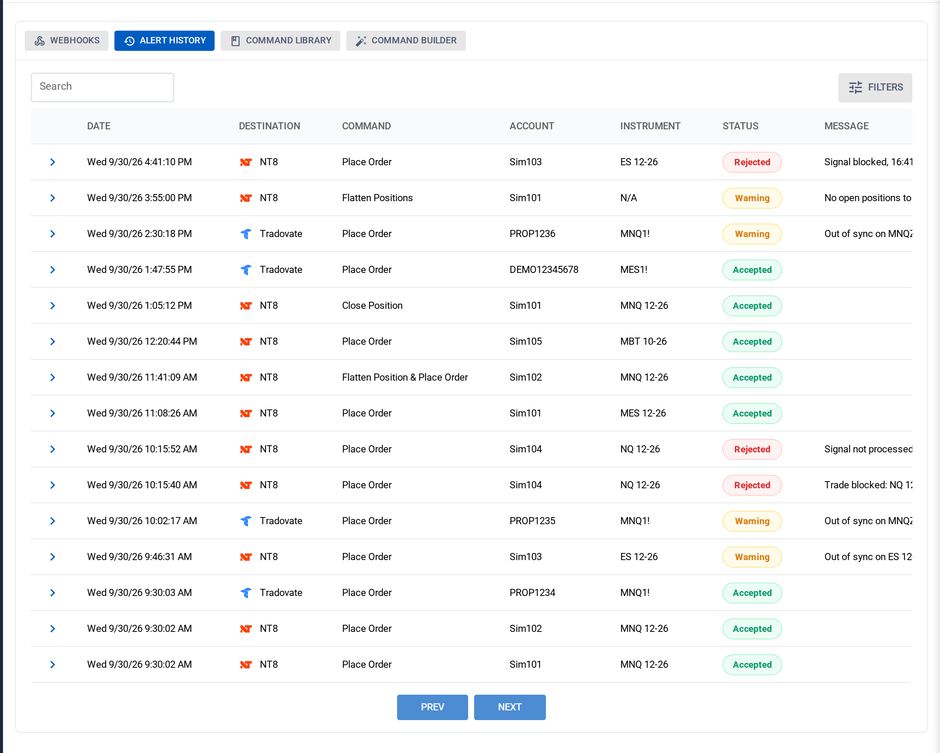
CrossTrade Alert History shows the received alert with a status. Go to Alert History on the web dashboard. You should see your alert with a green Accepted status. If it shows red, the status message will tell you what went wrong, usually a formatting issue or account name mismatch.
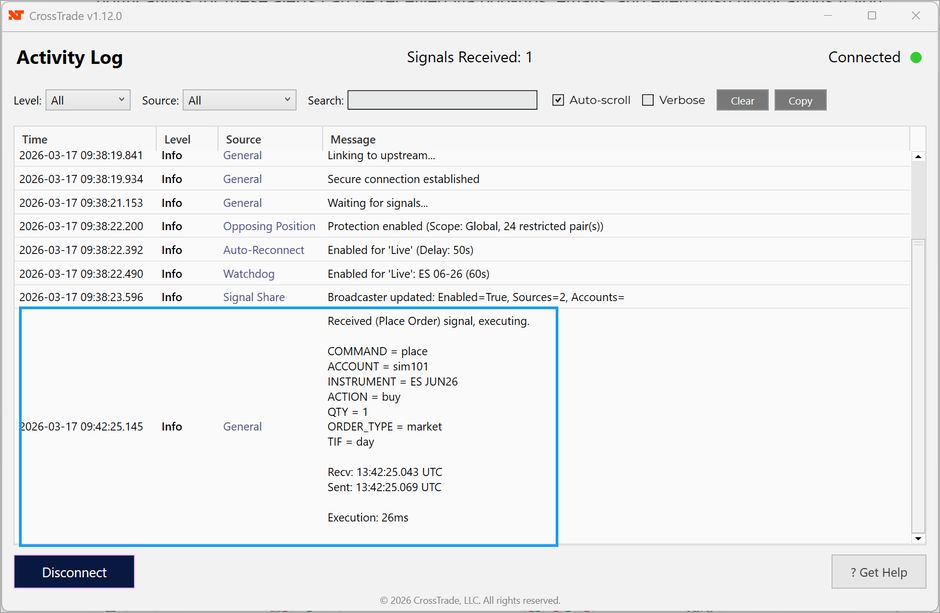
CrossTrade NT8 Add-On shows the received alert with details on what was received. You will also see exact time stamps on when the alert was received and how long it took to process.
Troubleshooting Your First Alert
If it didn't work, here's the diagnostic path:
Alert didn't show up in CrossTrade NT8 Add-On or Alert History at all: The webhook URL is wrong or TradingView didn't send it. Double-check the URL on the Notifications tab. Make sure it's your personal webhook URL, not a generic example.
Alert shows "Improperly formatted request": The payload has a syntax problem. The most common mistakes: a missing semicolon at the end of a line, leftover default text from TradingView still in the message box, or a misspelled field name. Compare your message character-by-character against the example above.
Alert shows "Account not found": The account name in your alert doesn't match any connected account in NinjaTrader. Open the Accounts tab in NinjaTrader and check the exact name and verify connection. If this is a newly created account, you will need to restart NinjaTrader.
Alert shows "Secret key missing, invalid, or inactive": Re-copy the key from your My Account page. Watch for invisible characters or trailing spaces that can get picked up during copy-paste.
Alert shows success but no trade appeared in NT8: Make sure the CrossTrade NT8 Add-On is open and logged in, that you're connected to a live data feed, and that the instrument is valid (not an expired contract).
Where to Next
- Automating TradingView Strategies for entries, exits and position tracking
- Automating TradingView Indicators for separate buy and sell alerts
- Managing Multiple Accounts for prop firm evaluations
- Exit Management Techniques for stops, targets and ATM strategies
Or work through the full command reference and advanced options.