Prop Firm Connection Guide
Connecting a Tradovate prop firm account is an OAuth link rather than a platform install. Linking Your Tradovate Account covers it end to end.
This guide covers the connection process for NinjaTrader 8 with various prop firms that CrossTrade users commonly work with. While the general process is similar across most firms, there are specific configuration differences that are important to understand.
General Requirements (All Firms)
- Download NinjaTrader 8.1+
- Stable internet connection (use a VPS if needed)
- Active prop firm account (credentials emailed by Firm)
Enable Multi-Provider Mode
- Open NinjaTrader Desktop
- Login with your NinjaTrader credentials
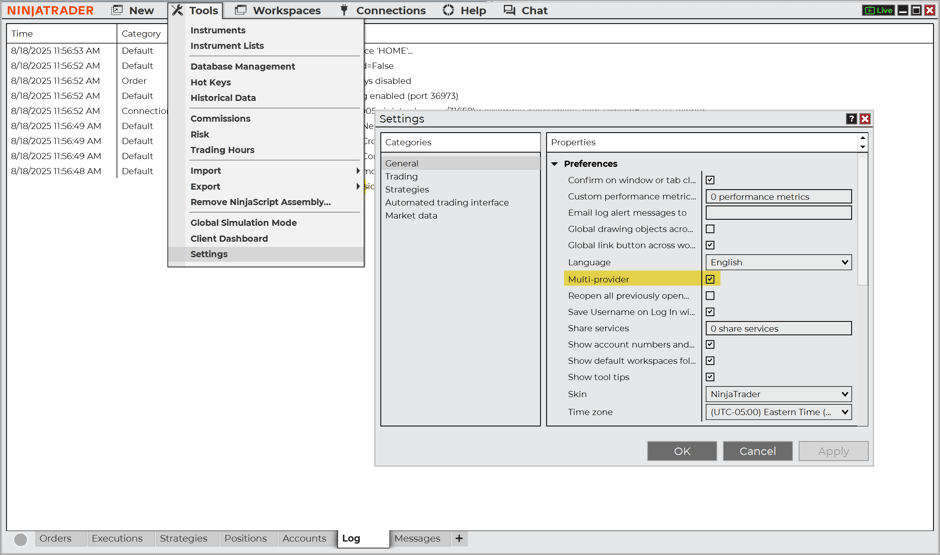
- Go to Tools > Options > General
- Check Multi-provider box
- Click Apply > OK
- Restart NinjaTrader (critical step)
Configure Data Connection
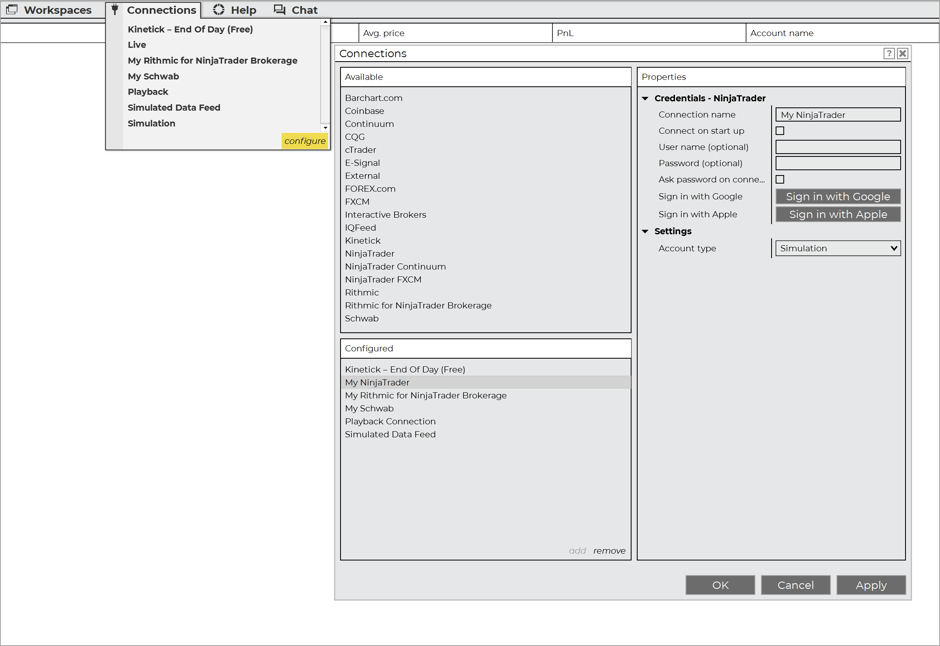
- Go to Connections > Configure
- Select appropriate connection type from "Available" list
- Click Add to move to "Configured" section
- Enter your prop firm credentials
- Configure specific settings (see firm-specific details below)
Firm-Specific Connection Details
This guide covers the most common prop firms used by CrossTrade users. Connection requirements may change, so always refer to the official prop firm documentation for the most current setup instructions.
Lucid Trading
Connection Type: Rithmic for NinjaTrader Brokerage (LucidBlack) OR NinjaTrader/Tradovate (LucidFlex)
Lucid offers two account tiers with different data feed paths. LucidBlack supports Rithmic for full NinjaTrader functionality, while LucidFlex is limited to Tradovate's data connection.
LucidBlack Setup (Rithmic):
- Download and setup Rithmic RTrader Pro
- Login to RTrader Pro with Lucid Rithmic credentials from your dashboard
- Accept Rithmic agreements
- In NinjaTrader: Select "Rithmic for NinjaTrader Brokerage"
- System: "Rithmic Paper Trading (Chicago)"
- Uncheck "Plug-in mode for market data"
- Rename connection to "Lucid"
LucidFlex Setup (Tradovate):
- First login to trader.tradovate.com with the Tradovate credentials Lucid provides (required even for NinjaTrader users)
- Sign the live market data agreement
- Complete the CME Market Data Subscriber Certification (one-time requirement for all Lucid Tradovate users)
- In NinjaTrader: Select "NinjaTrader"
- Account Type: Simulation
- Enter your Lucid Tradovate credentials from the dashboard
Guide Links:
BluSky Trading Company
Connection Type: Rithmic for NinjaTrader Brokerage
Setup:
- Download Rithmic RTrader Pro
- Login to RTrader Pro with BluSky credentials
- Minimize RTrader Pro (keep running)
- In NinjaTrader: Select "Rithmic for NinjaTrader Brokerage"
- Enter BluSky credentials
- System: "Rithmic Paper Trading (Chicago)"
- Account Type: Simulation
Guide Link: BluSky Connection Guide
Earn2Trade
Connection Type: Rithmic for NinjaTrader Brokerage
Setup:
- Complete account setup in Earn2Trade dashboard (select exchanges)
- Download RTrader Pro
- Login to RTrader Pro with Rithmic credentials from E2T email
- Ensure Market Data is OFF and Plugin mode is OFF in RTrader
- Gateway: Chicago Area
- In NinjaTrader: Select "Rithmic for NinjaTrader Brokerage"
- System: "Rithmic Paper Trading - Chicago gateway"
- Enter Rithmic credentials (not Earn2Trade login credentials)
Guide Link: Earn2Trade Rithmic Connection Guide
Tradeify
Connection Type: NinjaTrader (Tradovate)
Setup:
- First login to trader.tradovate.com with Tradeify credentials
- Sign Non-Professional Data Agreement (critical for live data)
- Wait up to 15 minutes for data activation
- In NinjaTrader: Select "NinjaTrader"
- Account Type: Simulation
- Enter Tradeify Tradovate credentials
- Enable "multi provider" in NinjaTrader options if connection not visible
Guide Link: Tradeify NinjaTrader Guide
Take Profit Trader
Connection Type: NinjaTrader (CQG) OR Rithmic for NinjaTrader Brokerage
CQG Setup:
- Select "NinjaTrader" connection
- Account Type: Simulation
- Enter Take Profit Trader CQG credentials
Rithmic Setup:
- Download RTrader Pro
- Connect to RTrader Pro first
- Select "Rithmic for NinjaTrader Brokerage"
- System: "Rithmic Paper Trading (Chicago)"
Note: Take Profit Trader offers both CQG and Rithmic data feeds. Choose based on your account type.
Guide Link: Take Profit Trader Connection Instructions
Elite Trader Funding
Connection Type: Rithmic for NinjaTrader Brokerage OR NinjaTrader (for Tradovate)
ETF supports both Rithmic and Tradovate data feeds.
Rithmic Setup:
- Download Rithmic RTrader Pro
- Login to RTrader Pro with ETF Rithmic credentials
- Accept Rithmic agreements
- In NinjaTrader: Select "Rithmic for NinjaTrader Brokerage"
- Choose the system matching your assigned gateway
- Account Type: Simulation
Tradovate Setup:
- Login to trader.tradovate.com with ETF Tradovate credentials
- Sign required data agreements
- In NinjaTrader: Select "NinjaTrader"
- Account Type: Simulation
- Enter your ETF Tradovate credentials
Guide Link: ETF NinjaTrader Connection Guide
FundedNext Futures
Connection Type: NinjaTrader (Tradovate)
Setup:
- First login to trader.tradovate.com with FundedNext credentials (required before NinjaTrader will accept the login)
- Sign the live market data agreement
- In NinjaTrader: Select "NinjaTrader"
- Account Type: Simulation
- Enter your FundedNext Tradovate credentials
Guide Link: FundedNext NinjaTrader Connection Guide
Alpha Futures
Connection Type: NinjaTrader (Tradovate)
Alpha Futures is a NinjaTrader Prop launch partner, with a free NinjaTrader license available for evaluation accounts.
Setup:
- First login to trader.tradovate.com with the Tradovate credentials from your Alpha Futures dashboard
- Sign the Non-Professional Data Agreement (required for real-time data in NinjaTrader)
- In NinjaTrader: enable Multi-provider in Tools → Options → General (restart NinjaTrader if the Configure option doesn't appear)
- Connections → Configure → select "NinjaTrader" from the Available list
- Customize the connection name (e.g., "Alpha")
- Enter the Tradovate credentials from your Alpha Futures dashboard's Account Information section
- Account Type: Simulation
Guide Link: Alpha Futures NinjaTrader Connection Guide
Alpha Futures prohibits "the use of AI, bots, and other automated trading mechanisms... across all account types" per their Prohibited Trading Practices policy. Semi-automated trading is permitted when traders "actively monitor, manually manage, and understand the system," so manually-triggered or actively-monitored CrossTrade webhooks should be fine, but fully hands-off 24/7 automation is not.
Copy trading is allowed for a single user replicating across their own Alpha accounts. Automated, group, and reverse copy trading are prohibited. Micro-scalping (under 10 ticks AND under 2 minutes) and HFT (over 100 trades/day) are also flagged.
VPS use is permitted; VPN use to mask or change your IP address is not. If your CrossTrade workflow is fully hands-off (e.g., running webhooks unattended overnight), confirm with Alpha support before relying on it.
Funded Futures Family
Connection Type: NinjaTrader (Tradovate)
Setup:
- Login to trader.tradovate.com with FFF credentials
- In NinjaTrader: Select "NinjaTrader"
- Account Type: Simulation (FFF accounts auto-load on connection)
- Enter your FFF credentials
Guide Link: FFF NinjaTrader Connection Guide
Per FFF's Fair Play policy: "The use of Virtual Private Networks (VPNs) or Proxies is not allowed... Virtual Private Servers (VPS) are also prohibited. Trading must be conducted from your personal device, under your direct supervision." Flagged accounts are suspended.
Apex Trader Funding
Connection Type: Rithmic for NinjaTrader Brokerage OR NinjaTrader (for Tradovate)
Rithmic Setup:
- Download Apex Rithmic RTrader Pro
- Login to RTrader Pro first with Apex credentials
- In NinjaTrader: Select "Rithmic for NinjaTrader Brokerage"
- System: "Rithmic Paper Trading (Chicago)"
- Account Type: Simulation
- Uncheck "Plug-in mode for market data"
Tradovate Setup:
- First login to trader.tradovate.com with Apex Tradovate credentials
- Sign all required agreements for data activation (wait up to 4 hours)
- In NinjaTrader: Select "NinjaTrader"
- Account Type: Simulation
- Enter your firm-issued username and password
Guide Links:
Apex's Prohibited Activities policy bars "VPNs, proxy servers, cloud servers, anonymizing tools, or other methods for the purpose of misrepresenting, concealing, or disguising your identity, device, or location." VPN or VPS use flagged during KYC or AML verification can result in funded accounts being disabled. Confirm with Apex support before running on a VPS.
Bulenox
Connection Type: Rithmic for NinjaTrader Brokerage
Setup:
- Download and setup Rithmic RTrader Pro
- Login to RTrader Pro with Bulenox credentials
- Accept Rithmic agreements
- In NinjaTrader: Select "Rithmic for NinjaTrader Brokerage"
- System: "Rithmic Paper Trading (Chicago)"
- Uncheck "Plug-in mode for market data"
- Rename connection to "Bulenox"
- Disable Global Simulation Mode: Tools > Global Simulation Mode (uncheck)
Guide Link: Bulenox Connection Guide
Bulenox support has confirmed in direct correspondence that they no longer permit VPS, VPN, or other tools that alter your apparent IP location. The quote from their support team:
"Please note that we no longer allow the use of VPSs, VPNs, or other tools designed to obscure or alter the actual geographic location or IP address."
If Bulenox flags your IP as a known VPS or VPN, your Rithmic data feed is silently downgraded to the free 15-minute delayed tier. The connection still works and orders still route, but charts go stale and fills lag behind the market.
This policy is not currently published on Bulenox's public help pages, so behavior may vary by account and change over time. If you plan to run Bulenox on a CrossTrade VPS or any other VPS, confirm your current standing with Bulenox support first.
TradeDay
Connection Type: NinjaTrader (Tradovate/CQG)
Setup:
- Login to Tradovate via TradeDay credentials first
- Sign market data agreement form in Tradovate
- Ensure Order Flow tools are enabled in Tradovate settings
- In NinjaTrader: Select "NinjaTrader"
- Account Type: Simulation (for evaluation) or Live (for funded accounts)
- Enter TradeDay credentials
Guide Links:
Per TradeDay's VPN/VPS/IP Masking policy: "TradeDay does not allow the use of virtual private servers (VPS)." VPN, Apple Private Relay, and browser privacy extensions must also be disabled, and you're required to trade from the IP address under which the account is registered. Non-compliance results in account shutdown with refund of activation fees only.
My Funded Futures
Connection Type: NinjaTrader (Tradovate), or direct Tradovate without NinjaTrader
MFFU accounts are Tradovate accounts on Tradovate's Demo environment (evaluation and funded alike). If you do not need NinjaTrader, skip the steps below: link the MFFU-issued Tradovate login with Link Demo under My Account, Brokers, and send destination=tradovate; in your alerts (or use the /v1/api/tv REST surface). See Connecting Tradovate.
Setup (NinjaTrader):
- Login to trader.tradovate.com with MFFU credentials
- Sign live market data agreement
- In NinjaTrader: Select "NinjaTrader"
- Enter MFFU credentials from dashboard
- Account Type: Simulation
- Connection should show green light when successful
Guide Link: My Funded Futures NinjaTrader Instructions
Important Connection Notes
Data Feed Types
- Rithmic: Most common for prop firms (Apex, Bulenox, BluSky, Earn2Trade, LucidBlack, Elite Trader Funding, The Trading Pit)
- Tradovate/CQG: Used by some firms (Apex Tradovate accounts, My Funded Futures, TradeDay, Tradeify, LucidFlex, FundedNext Futures, Funded Futures Family, Alpha Futures, The Trading Pit alternate). Every firm in this group can also be traded without NinjaTrader: link the firm-issued Tradovate login with Link Demo and route alerts with
destination=tradovate;. See Connecting Tradovate.
License Requirements
- NinjaTrader 8.1+: No license key required for most prop firm connections
- NinjaTrader 8.0: May require importing license key from prop firm
- Multi-Provider: Must be enabled to connect to prop firm accounts alongside personal accounts
Connection Limitations
- Only ONE Rithmic connection can be active at a time
- Multiple Tradovate connections can run simultaneously
- To switch between Rithmic prop firms: Disconnect → Close NinjaTrader → Reopen → Connect to new firm
Troubleshooting Tips
- Always start RTrader Pro before NinjaTrader (for Rithmic connections)
- Sign all data agreements in web platforms first
- Wait for data activation (can take hours; but usually only several minutes)
- Check firewall exceptions for NinjaTrader and prop firm software
- Restart NinjaTrader after enabling Multi-Provider mode
- Use exact credentials - avoid copying extra spaces
Connection Status 🟢
- Green circle: Successfully connected and ready to trade
- Yellow circle: Attempting connection or temporary issue
- Red circle: Connection failed - check credentials and internet
- No circle/Transparent: Completely disconnected
BONUS: If you plan to trade with NT8, you should learn how to optimize it for the best experience... Read More