Webhook Trader
What is the CrossTrade Webhook Trader?
The Webhook Trader is a dedicated space where users can create and test trade commands against the active NinjaTrader or Tradovate destination. It lets you verify order flow before using the same payload in TradingView or another webhook source.
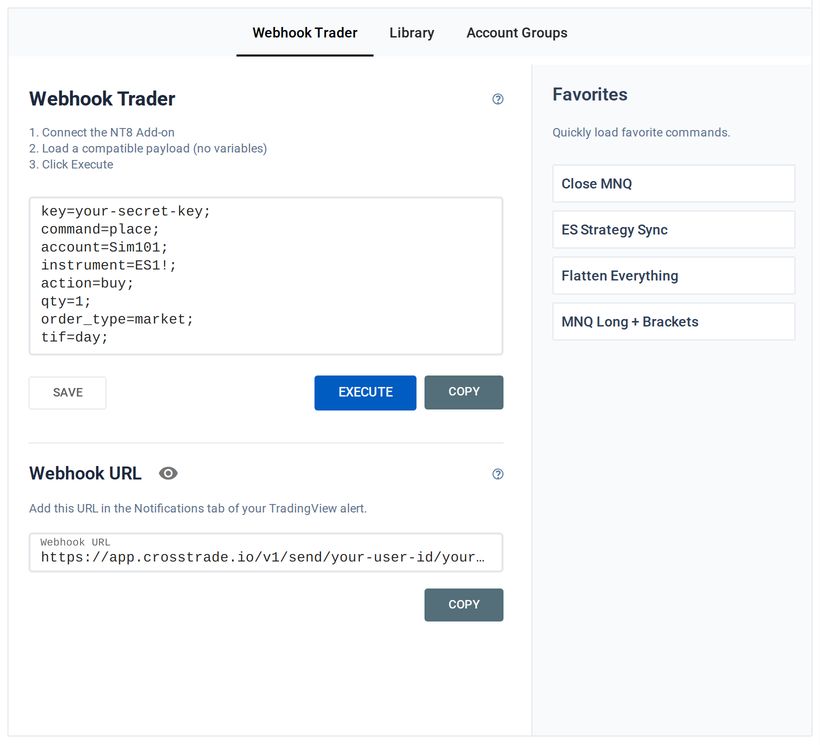
The Webhook Trader sends predefined commands to the selected destination. Dynamic Variables from a TradingView strategy will not work.
Webhook Trader & Command Library
The Webhooks page holds three tools: the Webhook Trader (sends commands to the active destination), the Command Library (pre-built and saved commands), and the Command Examples (reference payloads).
Webhook Trader
The Webhook Trader sends alert payloads through the same route an external platform like TradingView would use. NinjaTrader is the default destination and requires the CrossTrade NT8 Add-On to be connected. In the Tradovate platform view, commands include destination=tradovate; and execute directly against your linked Tradovate account with no desktop Add-On.
Your secret key is included automatically. NT8 commands travel from CrossTrade to the Add-On and NinjaTrader; Tradovate commands route server-side through the linked OAuth connection. If a payload works here, it follows the same path from TradingView.
What the Trader Supports
The Trader accepts static commands only. You type or paste a command payload into the input area and send it. It supports the command set available for the active platform, including market, limit, stop, close, flatten, reverse, cancel, replace, change, and bracket workflows. NT8 lifecycle commands remain NT8-only.
Shared advanced options include Flatten First, Require Market Position, Max Positions, Trading Windows, Rate Limiting, Delay Timer, Cancel After Timeout, Strategy Tags, and Notes. NinjaTrader supports Add-On-backed ATM strategies, and Tradovate adds its own native order types. See Destinations for the full per-broker matrix.
What the Trader Does Not Support
TradingView dynamic variables like {{strategy.order.action}}, {{strategy.order.contracts}}, {{ticker}}, and similar placeholders will not resolve in the Trader. These variables are populated by TradingView at the moment an alert fires. They have no meaning outside of that context. If you send a command containing {{strategy.order.action}}, CrossTrade will receive the literal text {{strategy.order.action}} and reject it because it's not a valid action value.
Test strategy commands by firing a real TradingView alert. In the Trader, use concrete values: action=buy, not action={{strategy.order.action}}.
How to Use It
Type or paste your command into the Trader's text area, or load a command from the Command Library or Command Examples (covered below). Review the payload, then click Execute. The command is dispatched through CrossTrade and the result appears in your Alert History, just like any external webhook would.
If the command is valid, it executes in the active destination. NinjaTrader requires the CrossTrade NT8 Add-On to be connected; Tradovate requires a linked Live or Demo identity and works while NT8 is closed. If something is wrong, Alert History shows the error details and reason for failure. If a command works here but fails from TradingView, the problem is usually unresolved variables or alert configuration. If it fails here too, the command or destination setup needs fixing.
Command Library
The Command Library is a collection of pre-built command examples organized into Basic and Advanced tabs. Each entry is a ready-to-use command template covering the most common trading scenarios.
Basic Commands
These cover the fundamental operations: market buy, market sell, limit orders, close position, and flatten everything. Each one is a complete, working command with placeholder values you can edit for your own account, instrument, and quantity.
Advanced Commands
These demonstrate CrossTrade-specific features beyond basic order commands. You'll find examples for Flatten First, TP/SL brackets (numerical, tick-based, percentage, and dollar-based), Strategy Sync, Require Market Position, Max Positions, Rate Limiting, Trading Windows, Cancel After Timeout, Delay Timer, and more. NT8 examples also cover ATM placement; Tradovate examples use broker-hosted protection.
What You Can Do With Library Commands
Each command in the library has action buttons that let you interact with it directly:
Test - Loads the command into the Webhook Trader and sends it to the active destination. This is the fastest way to verify that a command type works with your setup. The Trader populates with the command payload so you can review it before or after sending.
Copy - Copies the command text to your clipboard, ready to paste into a TradingView alert message body or use with an external webhook. Before pasting, make sure to replace any placeholder values (like Sim101 or ES1!) with your actual account and instrument names.
Saved Commands
In addition to the pre-built examples, the library stores commands you've saved from the Command Builder. When you build a command in the Command Builder and click "Save to Library," it appears here with the custom name you gave it. You can save up to 25 custom commands.
Saved commands work exactly like the pre-built ones: you can test them in the Trader or copy them for use in external alerts.
Command Examples
Below the Trader on the Webhooks page, you'll find a set of command examples organized by category. These are reference payloads that demonstrate the correct syntax for every supported command and enhancement.
Each one shows the exact field names and structure CrossTrade expects. Copy an example into the Trader, change the values, and test until it does what you want. They cover everything from a simple market order to several enhancements stacked together.
Putting It All Together
The typical workflow looks like this: browse the Command Examples or Library to find a command close to what you need. Load it into the Webhook Trader. Modify the account, instrument, quantity, and any other parameters. Send it to the selected destination and confirm the order appears correctly. Once it works, copy the command and paste it into your TradingView alert message body.
For more complex setups (strategy automations, multi-enhancement commands, or anything where you want a guided step-by-step experience), use the Command Builder. The Command Builder builds the command visually and lets you save the result directly to your Command Library, where it's available for testing in the Trader and copying to external alerts.
Tips
Always test with Sim101 for NinjaTrader or a Tradovate Demo account before going live.
If a command works in the Webhook Trader but fails from TradingView, check that your TradingView alert message contains only the CrossTrade payload: no default text, no extra characters, no TradingView boilerplate. The alert message body should contain nothing but your command.
When testing commands that use an ATM strategy, the ATM template name in your command must exactly match the name configured in NinjaTrader. This is case-sensitive and space-sensitive. If NinjaTrader shows "My Strategy" and you send atm_strategy=my strategy, it won't match.