Creating ATM Template
Step-by-Step Guide
- Open your ChartTrader or SuperDOM
- Select
<Custom>from the ATM Strategy control list.
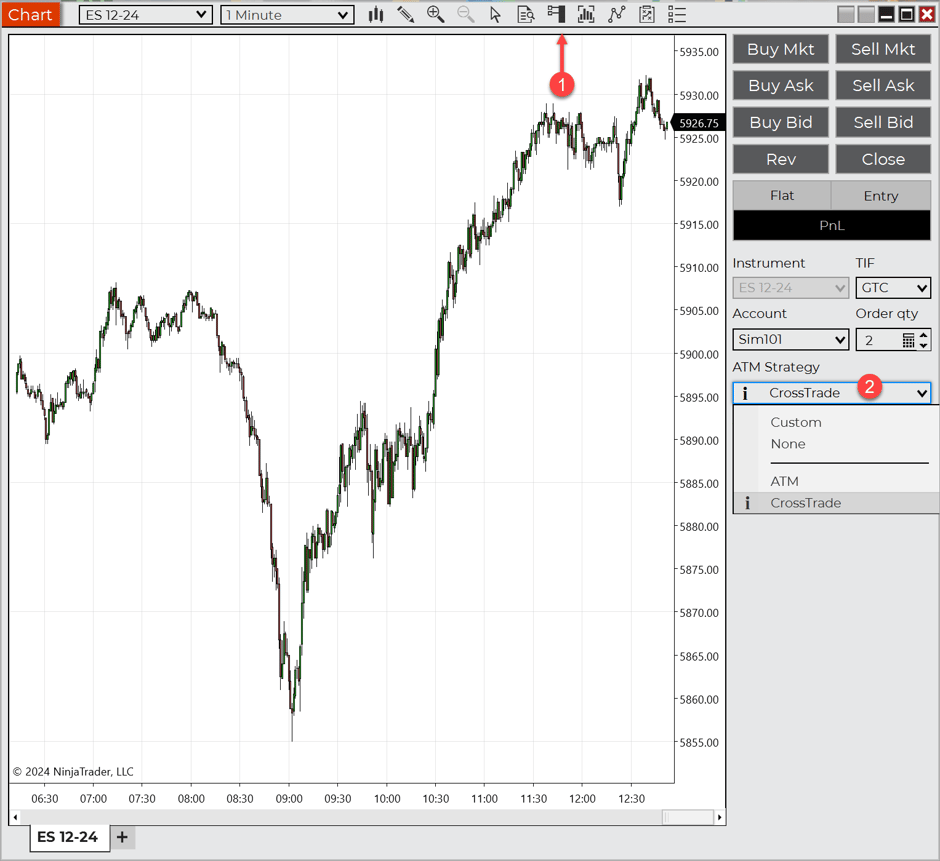
create a new ATM template
- Define Parameters:
- Stop Loss: Set at 10 ticks.
- Profit Target: Set at 20 ticks.
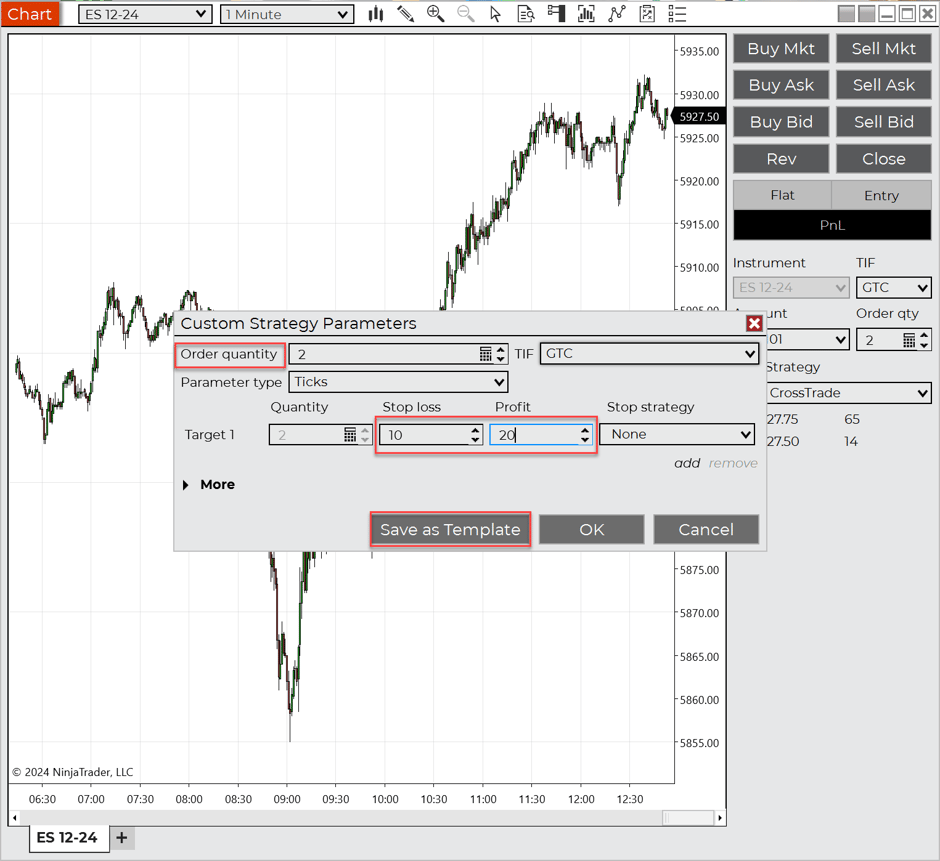
Provide order quantity, stop, and target values
- Save as Template: Name the template (e.g., “20 Tick Target”) and press "Save".
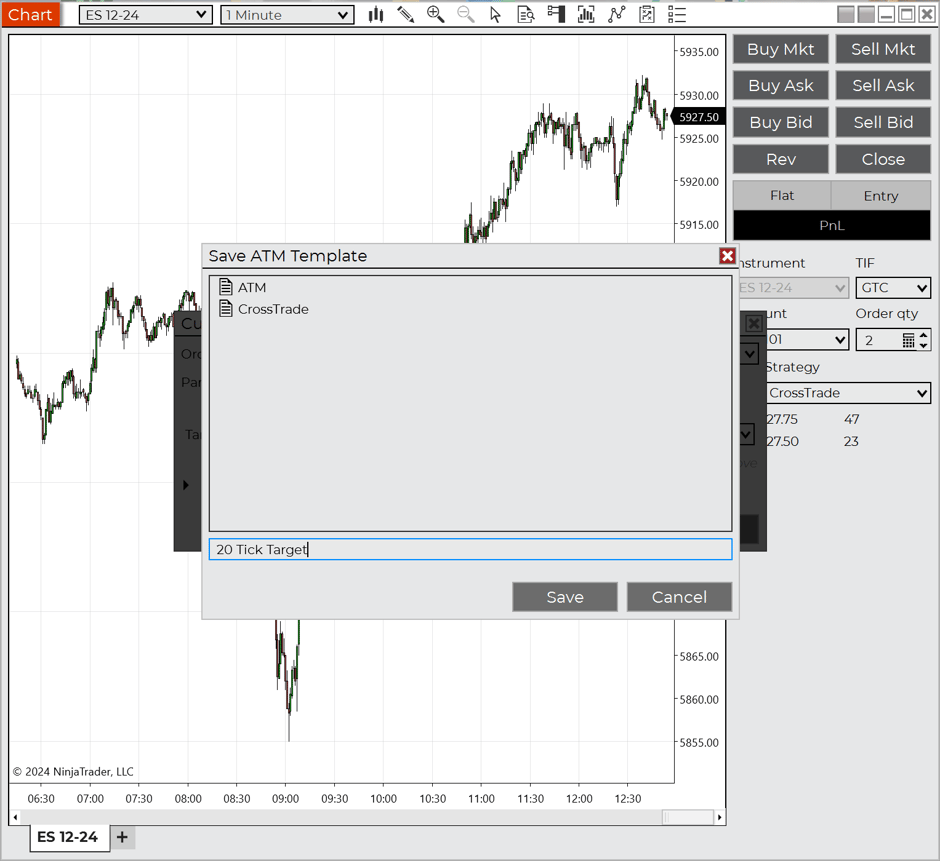
Save your template
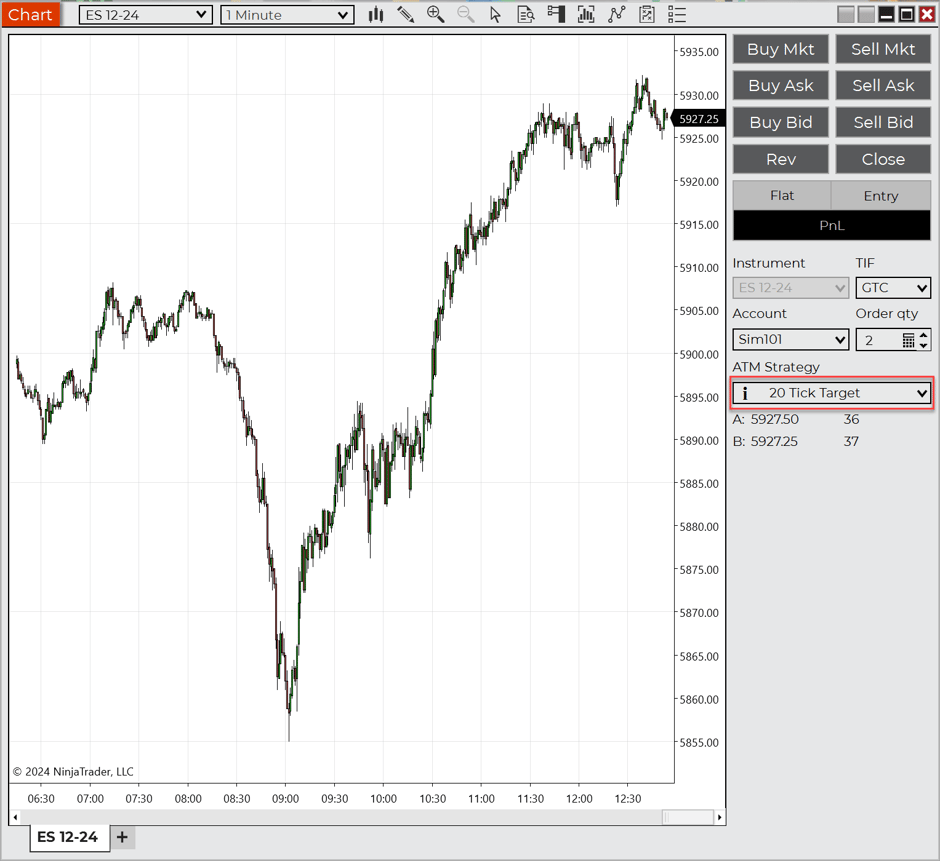
Load your template into ChartTrader or SuperDom
This ATM Strategy will now automatically submit:
- A Stop Loss order 10 ticks from the entry.
- A Profit Target order 20 ticks from the entry.
Once saved, the template becomes available in all order entry windows.
Video Example 1 - Multiple Targets
In this video, you'll learn how to establish a multi-step rule with various stops and targets. This showcases how you can build more complex trade management logic for positions with multiple contracts.
NinjaTrader video tutorial on creating multiple stop and target ATM strategies
Video Example 2 - No Profit Target with Trailing Stop
In this video, you'll learn how to establish a 1 step Trailing Stop with defined no profit target set. This technique allows your trade to run and utilize a trailing stop to lock in profits as the price moves in your favor.
Video tutorial from NinjaTrader - Configure an Automatic Trailing Stop
Using ATM Strategy Templates with CrossTrade
key=your-secret-key;
command=PLACE;
account=Sim101;
instrument=NQ1!;
action=BUY;
qty=1;
order_type=MARKET;
tif=DAY;
flatten_first=true;
atm_strategy=your-atm-template;
Without flatten_first=true;, the previous trade's stop and target stay working and become orphaned orders. The payload above includes it.
Set your alert's qty to the same quantity the template is configured for.