CrossTrade Uptime
CrossTrade Uptime is a free Windows app that keeps NinjaTrader 8 running on your computer or VPS. If NinjaTrader crashes, freezes, or the machine restarts overnight, Uptime brings it back, signs it in, reconnects it, and tells you what happened. It is built for the hours when nobody is watching the screen.
Uptime is in beta. It is free to use, and it is changing quickly based on what traders tell us. If something does not behave the way this page describes, send the latest log to support (click Open log folder beside the Today log).
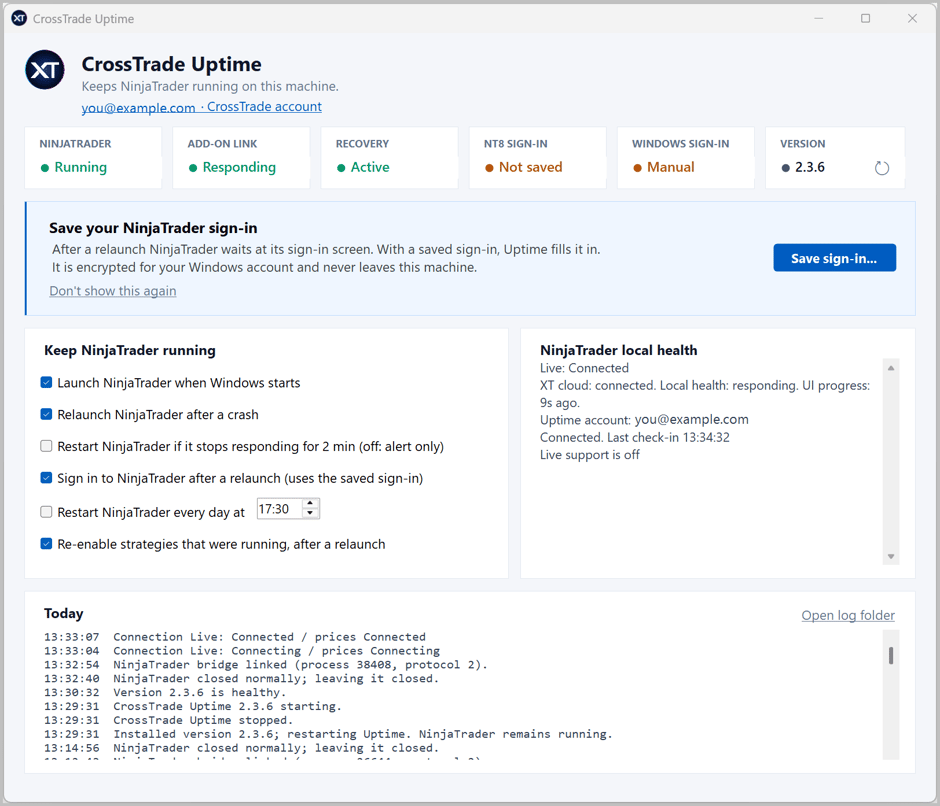
What it does
- Relaunches NinjaTrader after a crash. When NinjaTrader stops unexpectedly, Uptime starts it again.
- Starts NinjaTrader with Windows. After a reboot, NinjaTrader opens as soon as Windows signs in.
- Signs in to NinjaTrader for you. With your NinjaTrader sign-in saved in Uptime, the sign-in window is filled in after every relaunch.
- Restores your connections. Once NinjaTrader is back, Uptime reconnects the connections that were connected before.
- Re-enables strategies that were running (paid plans and trials). After a relaunch, strategies that were enabled before the crash are turned back on.
- Watches for freezes. If NinjaTrader stops responding, Uptime alerts you, and can restart it if you allow it.
- Alerts you. Crashes, freezes, a sign-in that needs you, and recoveries are sent to your CrossTrade notifications.
Install
- Download CrossTrade Uptime from the CrossTrade download page. It runs on Windows 10 and 11.
- Run the installer. Uptime installs for your Windows user and starts each time you sign in to Windows. It does not need administrator rights.
- Sign in with your CrossTrade account, or create a free one, in the Uptime window. Creating an account in Uptime does not start a trial unless you tick the box to start one.
- Make sure NinjaTrader is running the CrossTrade NT8 Add-On v1.14 or later. The add-on includes the link Uptime uses to read NinjaTrader's health, restore connections, and re-enable strategies. See Upgrade instructions.
Without the add-on link, Uptime still relaunches NinjaTrader after a crash. It cannot restore connections or strategies until the Add-on link tile reads Responding.
The status tiles
Tiles you can act on are clickable: the pointer turns to a hand and the tile tints when you hover over it.
| Tile | What it tells you | Click it to |
|---|---|---|
| NinjaTrader | Whether NinjaTrader is running, waiting for a sign-in, or frozen | Launch NinjaTrader, when it is closed |
| Add-on link | Whether Uptime can talk to NinjaTrader through the CrossTrade add-on | Open the add-on install guide, when it reads Not linked |
| Recovery | Whether automatic recovery is active for this machine | Sign in to your CrossTrade account, when recovery is not active |
| NT8 sign-in | Whether a NinjaTrader sign-in is saved | Save or change your NinjaTrader sign-in |
| Windows sign-in | Whether Windows signs itself in after a reboot | Set up or turn off Windows automatic sign-in |
| Version | The Uptime version you are running | Use its icon to check for an update. The icon turns green when one is ready |
Your CrossTrade account is linked under the Uptime name at the top of the window.
Keep NinjaTrader running
These settings are in the Keep NinjaTrader running panel. Each takes effect as soon as you tick or untick it.
| Setting | What it does |
|---|---|
| Launch NinjaTrader when Windows starts | Opens NinjaTrader after Windows signs in |
| Relaunch NinjaTrader after a crash | Starts NinjaTrader again when it stops unexpectedly. Closing NinjaTrader yourself does not trigger it |
| Restart NinjaTrader if it stops responding for 2 min | Restarts a frozen NinjaTrader. Off, Uptime only alerts you |
| Sign in to NinjaTrader after a relaunch | Uses your saved NinjaTrader sign-in |
| Restart NinjaTrader every day at | A scheduled daily restart, which keeps long-running NinjaTrader sessions healthy |
| Re-enable strategies after a relaunch | Turns strategies back on after a relaunch. Needs a paid plan or trial and the full CrossTrade NT8 Add-On |
When Uptime relaunches NinjaTrader and re-enables your strategies, those strategies can place, change, and cancel orders with nobody at the machine. Turn on only the recovery you want to run unattended, and check your positions and working orders after any recovery.
Save your NinjaTrader sign-in
Click the NT8 sign-in tile and enter the username and password you use to sign in to NinjaTrader. Uptime uses them only to fill in NinjaTrader's sign-in window after it restarts NinjaTrader.
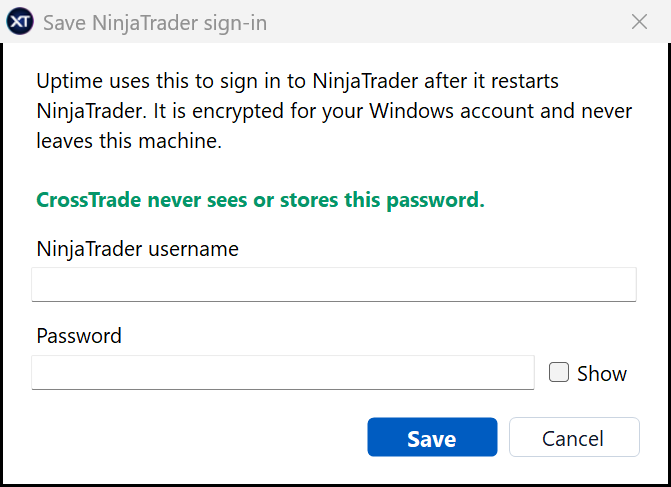
The sign-in is encrypted for your Windows account and stored only on that computer. CrossTrade never sees or stores it.
Windows automatic sign-in
After a reboot, nothing can run until someone signs in to Windows, so a Windows update at 3 a.m. can leave NinjaTrader down until morning. Windows automatic sign-in fixes that: Windows signs in as your account by itself, and Uptime brings NinjaTrader back.
Click the Windows sign-in tile (or Set up... on the blue banner). Uptime fills in the Windows account you are signed in as now, which is usually the one you want (on many VPSs it is Administrator). Enter that account's Windows password and click Turn on. Windows asks for administrator approval.
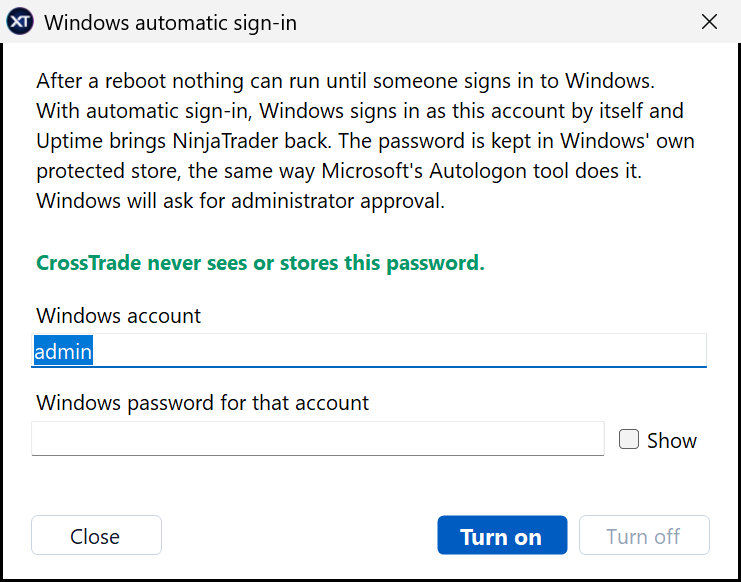
Know what you are turning on:
- Anyone who can restart the computer is signed in to that Windows account. Use it on a VPS or a machine you control.
- CrossTrade never sees or stores the Windows password. Administrators of the computer can read it, as with Microsoft's own Autologon tool.
- If Windows is set to allow only Windows Hello sign-in, turning this on allows password sign-in again, because Windows ignores automatic sign-in otherwise. Turning automatic sign-in off later does not switch that setting back; change it in Windows' sign-in options if you want it.
To stop it, click the Windows sign-in tile and click Turn off.
Updates
Uptime checks for updates when it starts and about every four hours. When one is available, the icon on the Version tile turns green and a Windows notification reminds you once a day. Nothing installs until you click the green icon (or Install now in the tray menu). Installing restarts Uptime only; NinjaTrader keeps running.
Help from CrossTrade support
When you contact support about Uptime, our team can see the health this machine reports and can ask Uptime for more detail, such as NinjaTrader's recent log messages. If it helps, they can also reconnect NinjaTrader's connections or restart NinjaTrader for you. They cannot see your screen or files, and they cannot place, change, or cancel orders through Uptime. The Privacy Policy (section 1.11) lists exactly what Uptime sends.
Sign out
To unlink this computer from your CrossTrade account, click the CrossTrade account link under the Uptime name, then Sign out of this computer. Uptime stops checking in with your account, and any support connection to this computer ends. Your saved NinjaTrader sign-in and Windows automatic sign-in stay on the computer. To remove them too, choose Forget NinjaTrader sign-in from Uptime's tray icon menu, and click the Windows sign-in tile and then Turn off. Sign in again at any time to link the computer back.
Troubleshooting
Add-on link says Not linked. Install or upgrade to CrossTrade NT8 Add-On v1.14 or later, then restart NinjaTrader. Once NinjaTrader has finished loading, the tile should change to Responding.
NinjaTrader says Needs sign-in after every relaunch. Save your NinjaTrader sign-in, and make sure Sign in to NinjaTrader after a relaunch is ticked.
NinjaTrader did not come back after a reboot. Check the Windows sign-in tile. If it reads Manual, nothing could start until someone signed in to Windows.
Strategies did not come back after a crash. Re-enabling strategies needs a paid plan or trial and the full CrossTrade NT8 Add-On. The Uptime window tells you how many strategies are still off.
Something else. Click Open log folder beside the Today log and send the latest log to support with a description of what happened.