Optimizing NinjaTrader Performance
NinjaTrader 8 runs on a single core, so it depends on CPU speed and memory more than on core count. These eight changes keep it responsive.
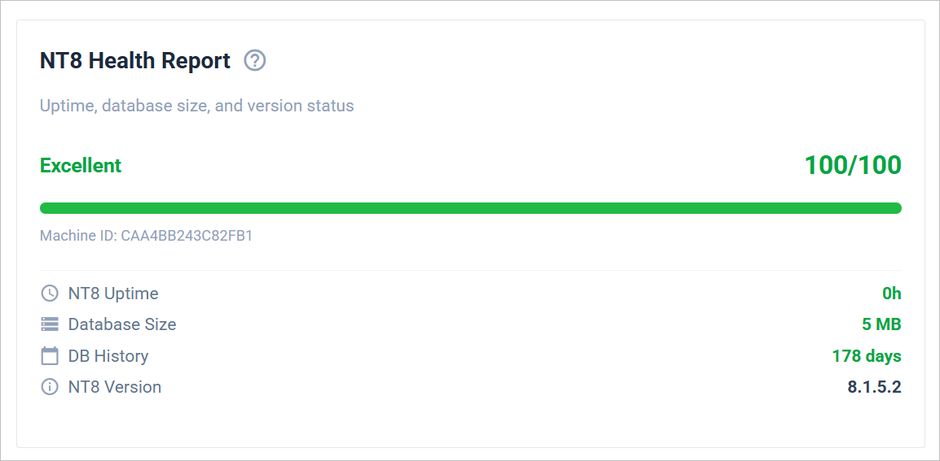
NT8 Health Report
The NT8 Health Report gives you a quick snapshot of how well your NinjaTrader 8 environment is running. It scores your setup out of 100 across four factors: NT8 process uptime (how long since your last restart), database file size, database history age, and NT8 version. Running NT8 for more than 24–48 hours without a restart, carrying a database over 200–500 MB, accumulating more than 6–12 months of trade history, or running an outdated version will each lower your score. The overall grade is rated as Excellent (80+), Good (60–79), Fair (40–59), or Poor (below 40), and you'll see specific recommendations when any metric needs attention. It runs automatically on your Home page.
1. Set the Application Priority to High
For an additional performance boost, you can adjust NinjaTrader 8’s priority level in Windows Task Manager. This setting tells your computer to allocate more resources to NinjaTrader, which can improve responsiveness during heavy usage.
To do this:
- Open Task Manager by pressing Ctrl + Shift + Esc.
- Go to the Details tab.
- Right-click on NinjaTrader.exe, select Set Priority, and choose High.
2. Restart NinjaTrader Daily
Memory use climbs over a long session and does not come back down. Closing NinjaTrader at the end of the day and reopening it before the next session is the cheapest fix on this page, and it is the first thing the Health Report checks.
3. Avoid Auto-Connecting to Data on Startup
Although it might seem convenient, automatically connecting to data on startup can slow down NinjaTrader 8’s initial loading. Instead:
- Start with a blank home workspace (more on this below), and manually connect to your data source only once NinjaTrader is fully loaded and responsive.
Prop Data Feed Warning:
If your only data is the connection supplied with the purchase of a prop evaluation, it is highly recommended that you also open a NinjaTrader brokerage account and purchase your own data feed.
Then, connect to this live data feed first, as the primary source of data, before connecting to your prop-provided data. This can significantly help to avoid connectivity issues.
4. Use a Blank 'Home' Workspace
Starting NinjaTrader 8 with multiple active workspaces can lead to a sluggish launch as the platform processes all the charts, indicators, and tools from the get-go. To improve startup times:
- Set your default workspace to a blank one, minimizing startup load. Once NinjaTrader is open and stable, load only the workspaces you’ll need for the session.
5. Regularly Repair and Reset the Database
Over time, NinjaTrader’s database can accumulate errors or unnecessary data that weigh down its performance. Repairing and resetting the database can often resolve these issues:
- Go to Tools > Database Management in NinjaTrader and select Repair DB to fix errors and improve performance.
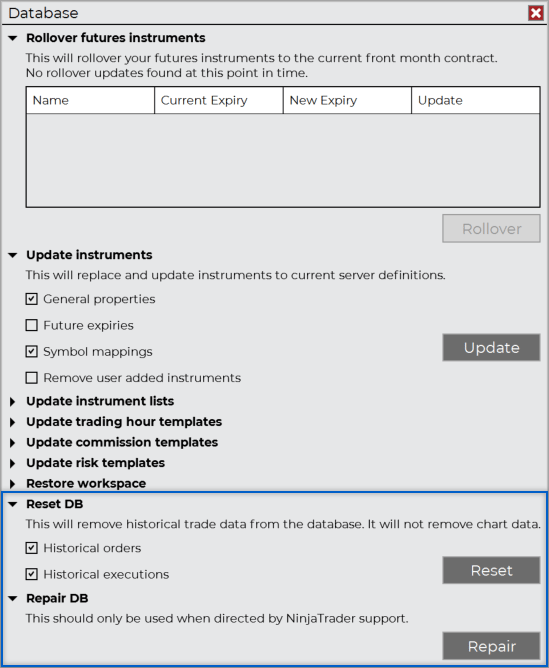
- If necessary, consider using the Reset DB option, which will clear out accumulated data from previous sessions and give NinjaTrader a fresh database to work from.
6. Less is More When Charting
Tick and volumetric charts provide a high level of detail, but they also demand considerable processing power and memory, which can slow down NinjaTrader significantly. Where possible:
- Use these chart types sparingly or substitute with time-based charts if they meet your analysis needs.
Each additional chart or historical data point adds to NinjaTrader 8's processing load, which can slow performance. To optimize speed:
- Limit the number of open charts and avoid loading excessive days of historical data.
- Only load what you need for current analysis, whether that’s the past week’s data or specific chart types. This minimizes memory usage and processing demands on the platform.
7. Delete Stored Data Regularly
NinjaTrader 8 stores extensive data in the Documents > NinjaTrader 8 > db folder, including tick, minute, and replay data. These files can build up quickly, especially with regular trading sessions, and may slow down the platform. Periodically clearing out these folders can help:
- Go to Documents > NinjaTrader 8 > db and delete the tick, minute, and replay data inside of these folders.
Be careful not to delete the actual folder and only the data stored inside
8. Use a Virtual Private Server
If your strategies run while you're away from the screen, or you hold positions overnight, a home computer is a single point of failure: one power outage, ISP drop, or forced Windows update and NinjaTrader goes offline. A VPS runs around the clock with its own power and network, dedicated CPU and RAM, and lower latency to your broker, and you can reach it from anywhere over remote desktop.
If you need a VPS, see CrossTrade VPS for direct hosting.