NinjaTrader 8 Troubleshooting
These problems come from NinjaTrader itself, so the fix is in NinjaTrader, or with your broker or prop firm, rather than in your alert. For alerts that fail before they reach NinjaTrader, see Webhooks Troubleshooting.
Clearing a Sim Position on an Expired Contract
After rollover, a simulation account can be left holding a position you can't close. If a position on the old contract (for example, 1 long MES 09-26 in Sim101) is still open, every attempt to close it fails with "There is no market data available to drive the simulation engine," because the simulator no longer has prices for that contract. Trading the new front month (MES 12-26) won't offset it, since NinjaTrader treats each expiry as a separate instrument.
To clear it, reset the simulation account in NinjaTrader:
- In the Control Center, open the Accounts tab. (If you don't see the tabs, right-click inside the Control Center and select Show Tabs.)
- Right-click the simulation account (for example, Sim101) and select Edit Account.
- In the Account window, click reset at the bottom right.
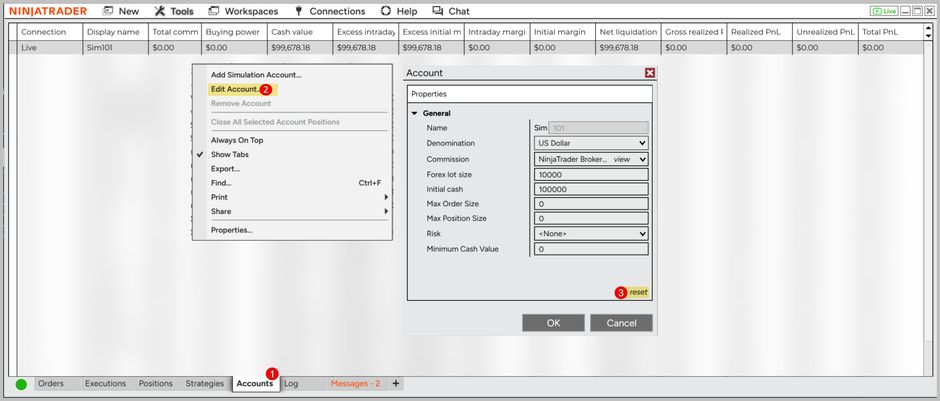
A reset clears the simulation account's open positions, orders, and trade history, and resets its balance. Export or note anything you want to keep first. This only works on simulation accounts: a stuck position on a live or prop account has to be resolved with your broker or firm.
Unable to Submit to Infrastructure Error
This error is typically seen when your prop account has been turned off by the provider. NinjaTrader shows it as:
Error: PROP1234, This order could not be submitted to the infrastructure. affected Order: Sell 1 Market
You can also see an error that says "Contact Administrator"; the administrator is the firm that provided the account.
[Warning] Account '[DEMO_ACCOUNT]' is not connected
If you see this warning, it usually means there's a problem with how NinjaTrader is connected to your account.
One user found that the issue was related to how they were signing into their Tradovate account. Here's what happened:
"I was sometimes signing into Tradovate using Google sign-in from my web browser, and other times I used the username format like
Google:123456xxxxx. But NinjaTrader doesn't handle thatGoogle:style username properly, even if you're technically logged in. Both my live and demo connections kept dropping.The fix was to sign in to Tradovate directly from within NinjaTrader (go to Connections → Configure → My NinjaTrader), using the Google sign-in option there. Once I did that, everything worked."
✅ Fix: Always use the Google sign-in directly from within NinjaTrader, not just through your browser. This ensures NinjaTrader can maintain a proper connection to both live and demo accounts.
LIVE: Unable to connect to the remote server (logon failed)
In some cases when updating your NT8 to the newest version, you can encounter an issue that prevents you from connecting to your Live data. NinjaTrader shows the error "LIVE: Unable to connect to the remote server (logon failed)".
✅ Fix: flush the DNS
- Open Command Prompt (search the Start menu for "Command Prompt").
- Type
ipconfig /flushdnsand press Enter. - Restart NinjaTrader.
.webp?alt=media&token=7b736967-3423-468a-9fc8-87da2df5eca5)
ATM Troubleshooting
Opening Partial Contracts
CrossTrade can not 'see' your setting on NinjaTrader; which means you'll need to ensure that the settings between the two platforms match. For example, you may be wondering why your ATM is not opening a trade. Chances are it's because the quantities do not match.
If your alert information is like this:
key=my-secret-key;
command=place;
account=sim101;
instrument=ES 12-26;
action=buy;
qty=1;
order_type=market;
tif=day;
strategy=your-atm-name;
But on NinjaTrader the ATM Strategy is set to 2 Order Qty, the position will open with only 1 contract using your innermost Stop and Target bracket.
Unable to Load ATM Strategy Template Error
If you're a CrossTrade user trading through NinjaTrader's Automated Trading Interface (ATI), you might have encountered the "Unable to load ATM strategy template" error. This is a fairly common issue, but thankfully, it's also one that's relatively easy to fix with the right approach.
This guide will walk you through the troubleshooting steps to resolve the error.
https://crosstrade.io/blog/troubleshooting-unable-to-load-atm-strategy-template-error-in-ninjatrader/
ATM1 not saved
NinjaTrader 8 automatically creates the default ATM1 strategy template the very first time you submit an order without selecting a saved ATM strategy. So, ATM1 is NinjaTrader's placeholder for your most recent unsaved custom strategy.
Here’s how it works in detail:
- If you place an order using the SuperDOM, Chart Trader, or any other order entry interface with ATM Strategy set to "Custom", and you don't save it manually,
- NinjaTrader will automatically assign it as ATM Strategy: ATM1.
- This ATM1 strategy is created as a temporary, default template, which includes the stop loss, profit target, and other settings you specified at that time.
- If you don’t save the strategy manually, it disappears once the platform is closed or the strategy is replaced.
To preserve a custom strategy
- After configuring your ATM strategy settings in the order panel, click the "Save As" button next to the ATM Strategy dropdown.
- Give it a name (e.g., “CrossTrade Rocks!”) and it will then appear in the dropdown for reuse.
So, ATM1 is NinjaTrader's placeholder for your most recent unsaved custom strategy.
ATM not opening TP/SL order bracket
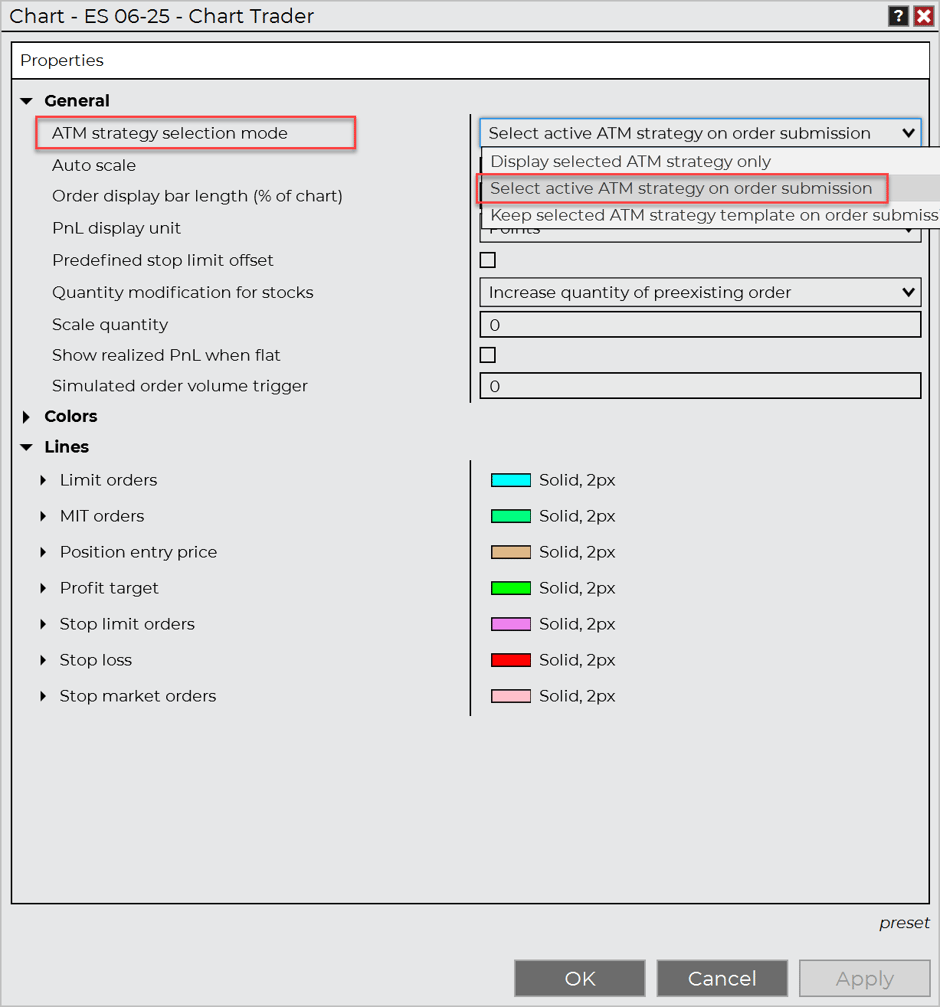
Inside your Chart Trader properties you have options for how the ATM is selected. If not set to "Select active ATM strategy on order submission" then orders can be placed in the non-active ATM template and result in a placement without the TP and SL brackets included.
To resolve: right-click your Chart Trader, select Properties, and set ATM strategy selection mode to Select active ATM strategy on order submission.
Simple Trade Copier
The free 'Simple Trade Copier' found in the NinjaTrader Ecosystem forum does not copy ATM templates from one account to another. It simply copies order direction and contract information.
We do not recommend using this copier with crosstrade beyond very simple order submissions.