TradingView Manual Trading
This setup uses the NT8 Trade Copier, which runs inside the CrossTrade NT8 Add-On. NinjaTrader 8 or Tradovate? is the full capability list.
TradingView's Trading Panel can place orders on a NinjaTrader or Tradovate brokerage login. Make that login's account the leader of an NT8 Trade Copier, and the orders you place from TradingView's chart are copied to your NinjaTrader 8 accounts.
Setup
Step 1: Connect TradingView to your brokerage login
You need the TradingView add-on on your brokerage login. NinjaTrader brokerage logins manage add-ons through the Tradovate web platform:
- Log in to Tradovate
- Click the Settings icon in the top right
- Open the Add-Ons tab and enable TradingView
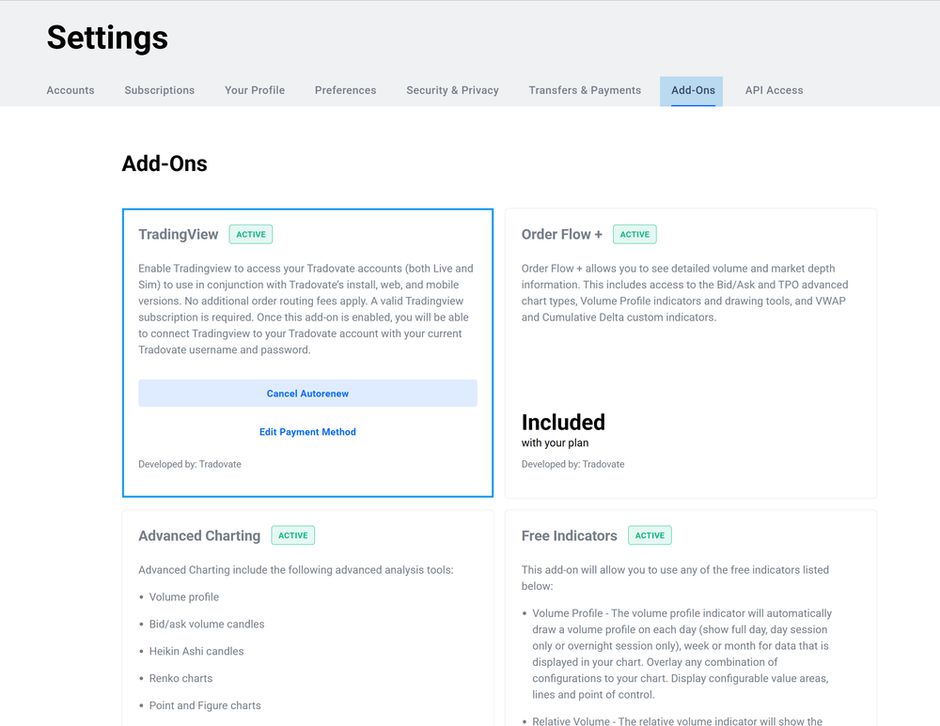
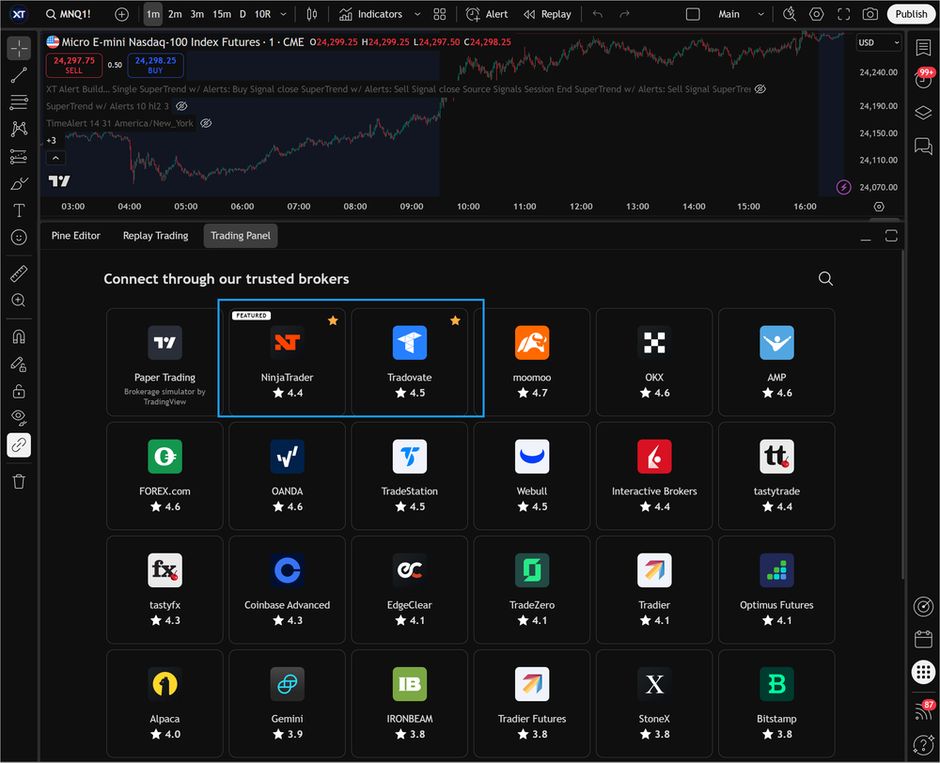
Then connect TradingView to that login. This works with demo and live accounts:
- Open a Superchart
- Click Trading Panel at the bottom
- Log in to NinjaTrader (web) or Tradovate with the same credentials
Step 2: Configure the copier
- Click Add Copier on the Trade Copier page
- Set the leader account to your TradingView-connected account
- Set your follower account
- Keep Order Mode (the default), so pending orders are copied as well as fills
- Make sure NT8 is connected to the brokerage connection that holds the leader account
This page copies a TradingView-connected leader into NinjaTrader 8. If the leader and the followers are all Tradovate accounts, use the Tradovate Copier instead, where order mode mirrors TradingView-native Tradovate orders server-side with nothing running on your machine.
What gets copied
Market orders: a market order placed on TradingView is copied to the follower right away.
Pending orders: limit orders placed on TradingView appear in NT8, and moving one on TradingView moves the copy.
Bracket orders: stop-loss and take-profit combinations placed from TradingView are copied as NT8 orders.
Chart trading: orders sent from TradingView's chart or DOM go through the copier the same way.
On a demo account, a bracket order placed from TradingView with a limit entry shows its take-profit and stop-loss as suspended orders, and Order Mode does not copy suspended orders to followers.
If you close the follower position by hand in NinjaTrader 8, Auto-Sync detects the difference and reopens it to match the leader.