Account pages
Every account on the Trade Desk has a page of its own. Click an account in any table on the desk, or pick it from the Accounts list down the left side.
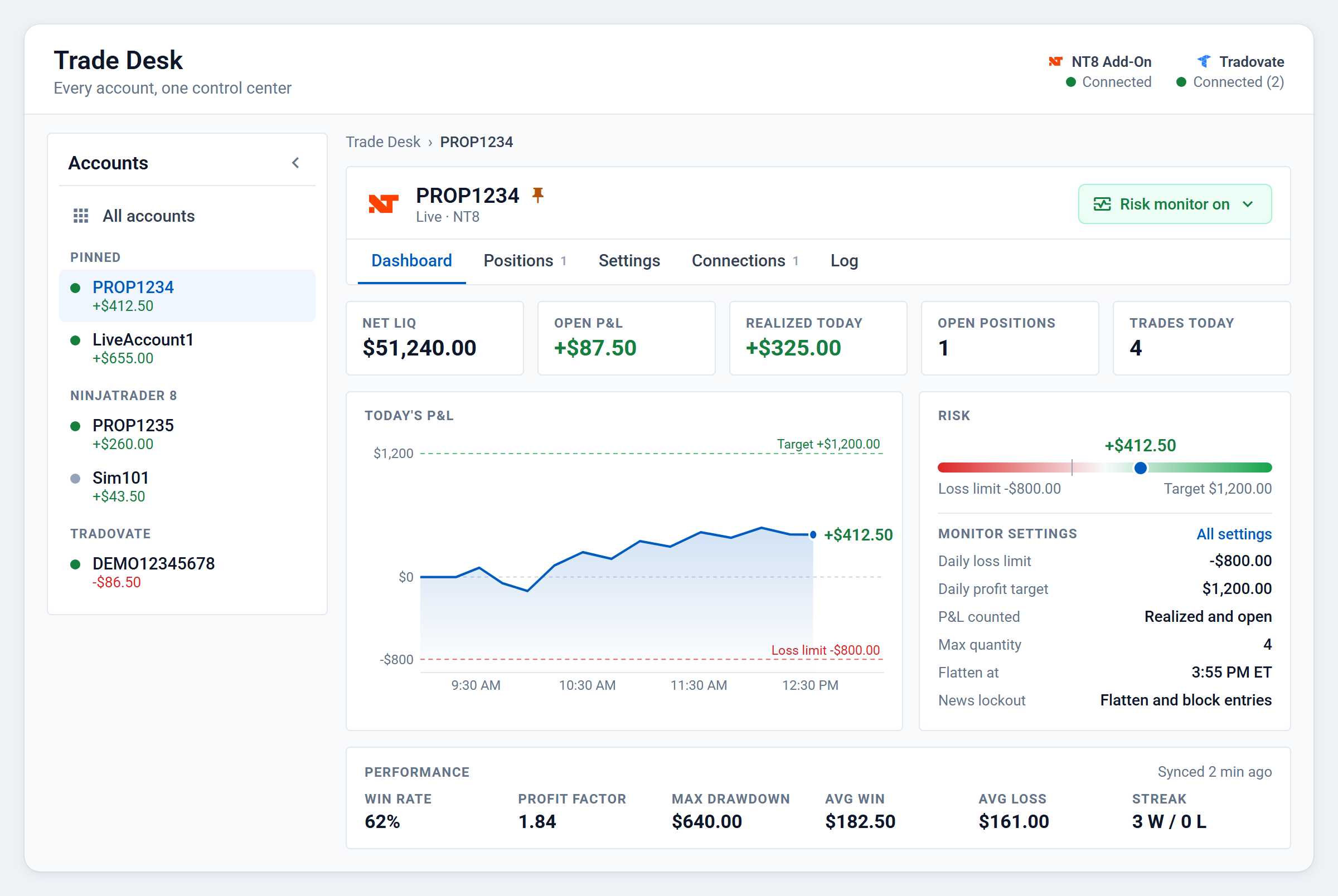
An account's Dashboard
The Accounts list
The list on the left holds every account, so you can step from one to the next without going back. Pinned accounts come first, then each broker's accounts. Each row shows the account's P&L today, and a green dot when its risk monitor is on.
Dashboard
The Dashboard is the account at a glance:
- Net Liq, Open P&L, Realized today, Open positions and Trades today
- Today's P&L as a chart, with the monitor's loss limit and profit target drawn as lines when the account has them
- Risk: where today sits between the loss limit and the target, with the monitor's settings listed under it
- Performance: win rate, profit factor, max drawdown, average win, average loss and current streak, from your Journal
On an account with a risk monitor, a history card goes back up to 60 sessions. Open any session to see its trades.
The Risk card and the history card need a risk monitor on the account. Risk monitors are the Account Manager, part of Pro and Elite.
The other tabs
| Tab | What it shows |
|---|---|
| Positions | This account's open positions, working orders and trades closed today, with Close and Cancel on each row and Flatten for the whole account |
| Settings | The account's risk monitor, one card per setting. Edit on a card changes just that setting; All settings opens the full editor |
| Connections | The copiers this account leads or follows, and whether webhook signals reach it |
| Log | The day's activity for this account only |
The account menu
The menu at the right of an account's header, and on its row in the Overview, organizes the account:
- Pin it, so it stays first in the Accounts list and the Overview table
- Rename, note, and tags: give it a nickname and notes that show wherever the account does
- Add to groups: put it in one of your account groups
- Share today's P&L: make a share card for the day
- Remove from Trade Desk: take the account off the desk
Remove from Trade Desk deletes the account's risk monitor and hides the account. If you only want it out of the way, pin the accounts you care about instead, or hide it in Account Visibility.