Trade Desk
The Trade Desk is one place to run every account you trade. The Account Manager and the Trade Copier are tabs there, beside a live Overview of your whole day, and your NinjaTrader 8 and Tradovate accounts sit together instead of on separate pages.
Nothing you have already set up changes when you open it. The Manager and Copier tabs run the same monitors and copiers you already have, with the same switches.
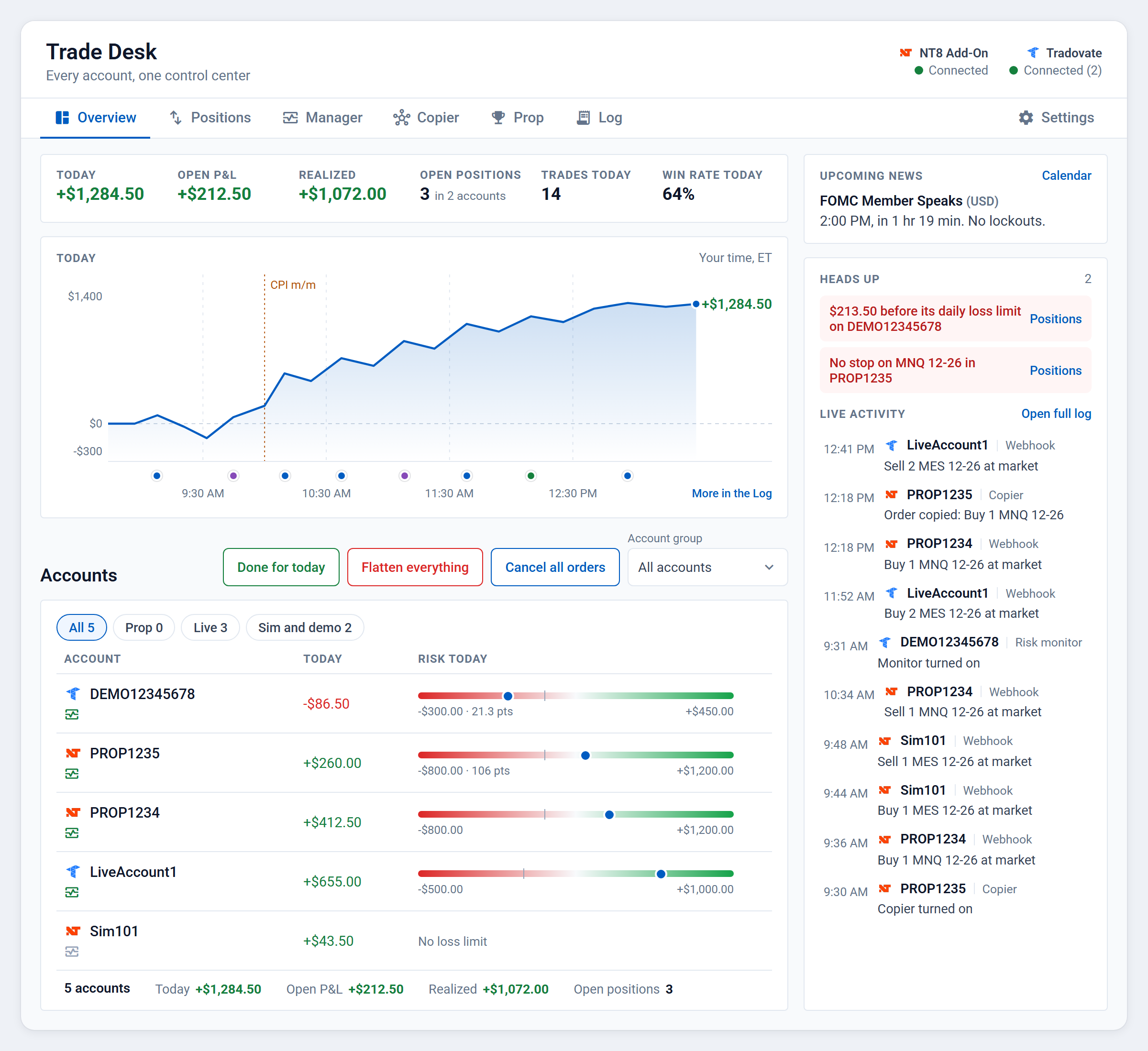
The Trade Desk Overview
Who gets it
The Trade Desk is on every CrossTrade plan. Two of its tabs are Pro tools:
- Manager is the Account Manager, part of Pro and Elite
- Copier is the Trade Copier, part of Pro and Elite
On a plan without them, those two tabs show a Pro mark and open an upgrade card. Everything else on the desk works on your plan.
Open the Trade Desk
- In the menu, under Trading, click Trade Desk
- A short welcome shows what is where. Take the 1-minute tour, or skip it
- Your menu now has one Trade Desk row. Click its arrow to see the pages under it
New accounts start in the Trade Desk. If you were already a customer when it launched, you keep the pages you know until you open it yourself.
What is on it
| Tab | What it is for |
|---|---|
| Overview | Today across every account: the totals, one P&L line for the day, each account's room left, and what needs you |
| Positions | Every open position and working order on every account, with Close and Cancel on each row |
| Manager | Your risk monitors for both brokers in one list. See Account Manager |
| Copier | Your copiers for both brokers in one list. See Trade Copier |
| Prop | Your evaluation and funded accounts at every firm in one view, once an account has a prop profile |
| Log | The record of the day's activity across your accounts |
| Settings | The desk's own settings, and the switch back to the Classic pages |
Click any account, anywhere on the desk, to open that account's own page.
NinjaTrader and Tradovate together
Each account carries its broker's mark, so you always know which is which. The desk reads NinjaTrader accounts through the CrossTrade NT8 Add-On, which needs to be installed and connected, and reads Tradovate accounts from CrossTrade's servers with nothing running on your machine. The connection lights at the top right of the page show both.
Accounts you have hidden in Account Visibility stay out of the desk and out of every total on it.
Going back to the Classic pages
The Account Manager and Trade Copier pages you used before the Trade Desk are still there. They are called the Classic pages.
- Open Settings on the Trade Desk
- Turn off Use the Trade Desk
Your menu goes back to Account Manager and Trade Copier under Trading. To return, use the Switch back to the Trade Desk link at the top of either Classic page. Switching changes only what you see: your monitors and copiers are the same ones either way.