Tradovate Account Manager
The Tradovate Account Manager watches your linked Tradovate accounts and acts on them when your rules are breached. It runs entirely in CrossTrade's cloud against Tradovate's API. There is no desktop software, NinjaTrader is not involved, and your computer can be off.
You configure it from the Tradovate Account Manager page in the dashboard. Each managed account gets a Monitor, the same concept used on NinjaTrader 8, holding that account's thresholds and the actions to take when one is hit.
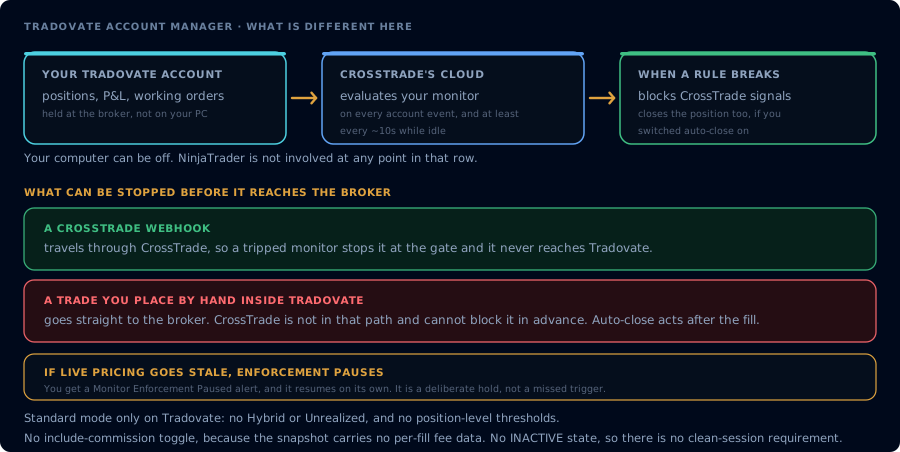
A webhook can be stopped at the gate. A trade you click inside Tradovate cannot.
Setup
- Link the Tradovate identity that holds the accounts you want to manage (My Account, Brokers tab). Live and Demo environments link separately, and you can link more than one identity.
- Open Tradovate Account Manager in the sidebar and add a monitor for an account.
- Set your daily profit target and daily loss limit, choose your P/L basis, and decide whether a trigger should auto-close the position.
- Optionally add a minimum profit floor, a trailing drawdown, a scheduled flatten time, and account-level signal locks.
Each account takes one monitor, and there is no limit on how many accounts you monitor.
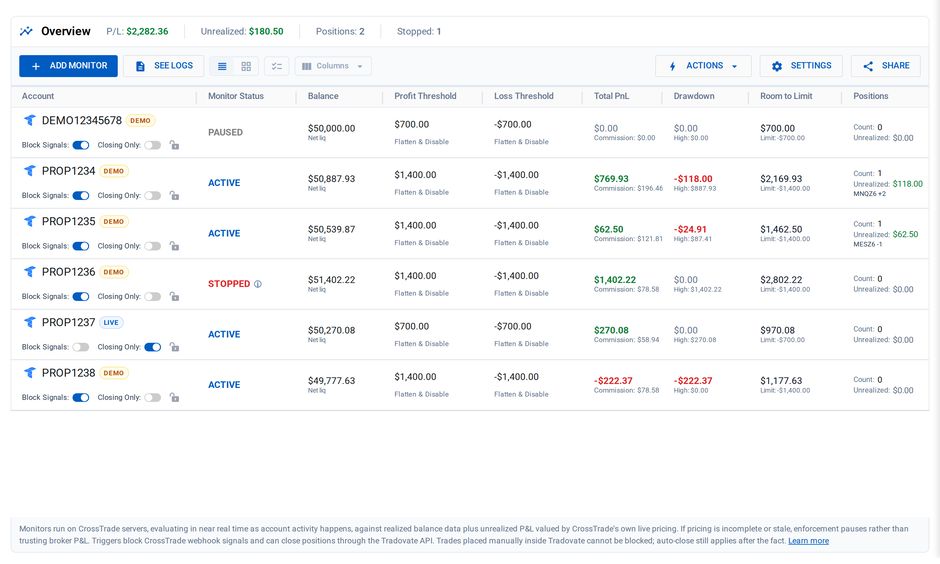
One row per Tradovate account, demo and live, in every monitor state
What a monitor watches
| Rule | What it does |
|---|---|
| Daily profit target | Trips when the account's session P/L rises above the amount you set. Use zero to disable. |
| Daily loss limit | Trips when session P/L falls below the amount you set. Use zero to disable. |
| Minimum profit | Once the day is up by your trigger amount, trips if it falls back below the floor you choose. |
| Trailing drawdown | After the day passes your trigger amount, trails the high watermark and trips if the account gives back more than your threshold. |
| P/L basis | Whether the rules read Total (realized plus unrealized), Realized only, or Unrealized only. |
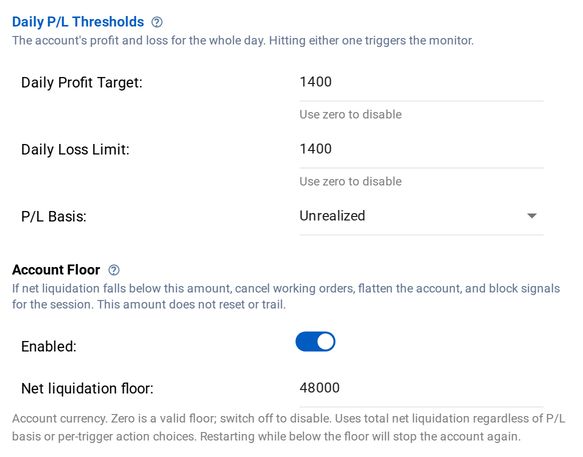
Daily thresholds and an Account Floor in the monitor editor
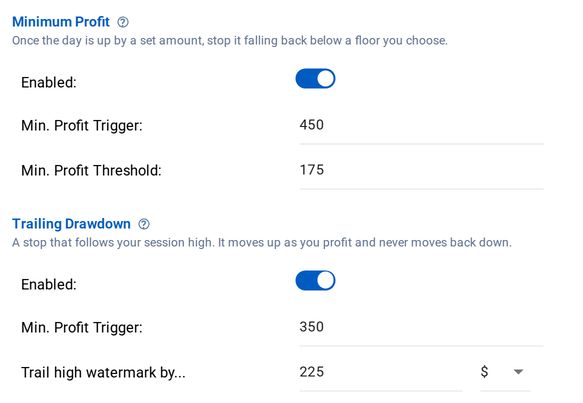
Minimum Profit and Trailing Drawdown in the monitor editor
Unrealized P/L is calculated by CrossTrade from live market data. CrossTrade does not act on the broker's own open P/L figure.
There is no include-commission toggle on Tradovate. Evaluation runs against the Tradovate cash-balance snapshot, which carries no per-fill fee data, so the setting would do nothing.
How evaluation works
Monitors evaluate on CrossTrade's servers in near real time as account activity happens, with a background refresh at least about every 10 seconds when the account is idle. Rule evaluation always runs from the latest confirmed snapshot, and CrossTrade paces the recurring snapshot traffic automatically to stay clear of Tradovate's shared API penalties (see Rate limits on Tradovate).
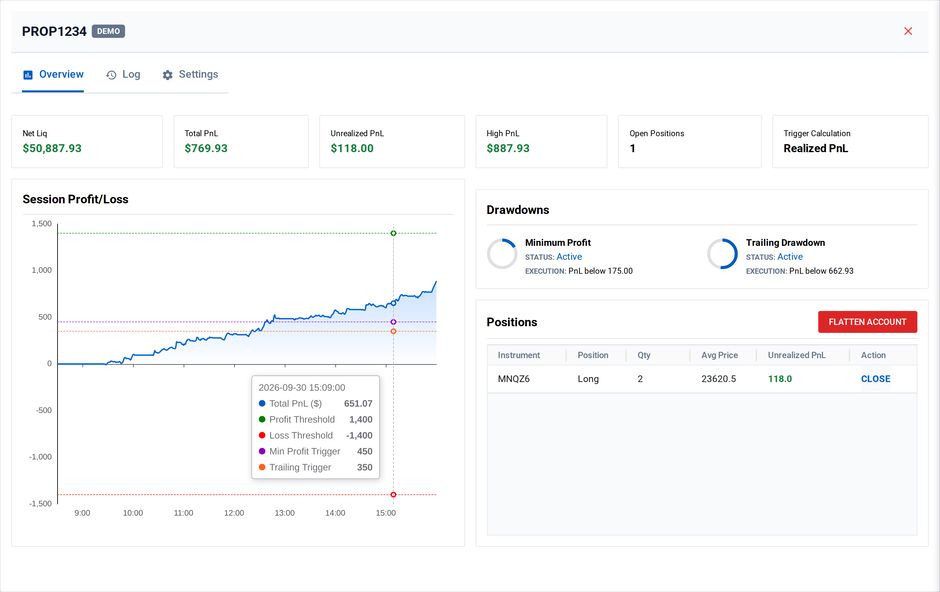
Click an account for its session chart, drawdown status and positions
If live pricing is incomplete or stale for an open position, enforcement pauses instead of acting on unreliable numbers. You will see a Monitor Enforcement Paused alert while this is happening, and enforcement resumes automatically once pricing is current again.
What happens when a monitor triggers
A triggered monitor blocks CrossTrade webhook signals for that account. If auto-close is enabled, it also closes the position through the Tradovate API.
Trades you place by hand inside Tradovate cannot be blocked ahead of time, because CrossTrade is not in the path when you click. Auto-close still applies after the fact.
Flattening cancels working orders before liquidation, then re-reads both working orders and positions. The action reports success only when the account is confirmed order-free and flat.
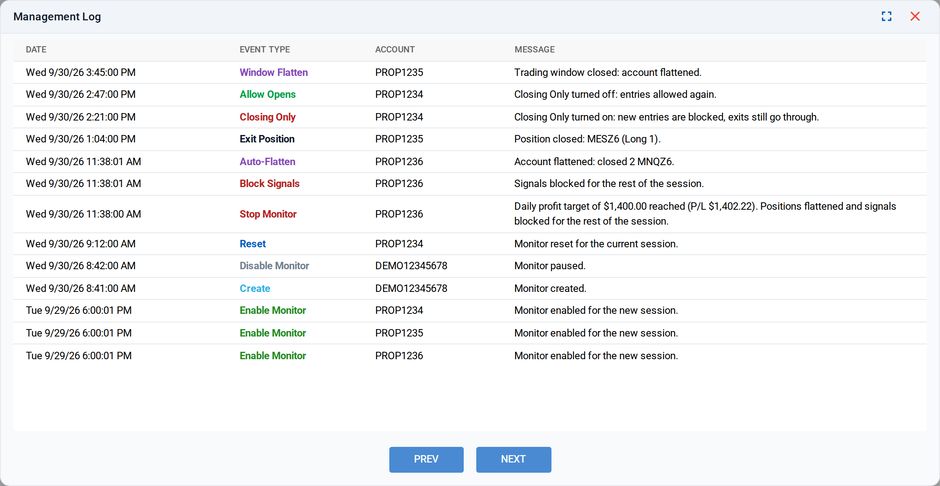
Every trigger, flatten and signal block is logged with its time and account
Scheduled flattening
Set a flatten time in US/Eastern, 24-hour notation, such as 16:30 for 4:30 PM ET. It is optional and never happens on its own: if you leave the time unset, nothing is scheduled.
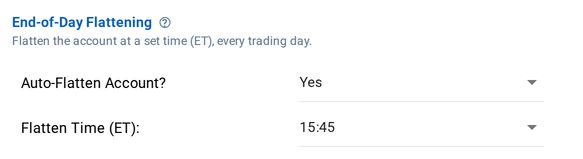
End-of-day flattening, set in US/Eastern
Scheduled flattening is eligible only during the five minutes after the configured time, the same window the NT8 Account Manager uses. If CrossTrade cannot run or verify it inside that window, it does not send a surprise catch-up flatten hours later.
Trading windows
Each monitor can carry up to five trading windows, configured in the monitor editor with start and end times in US/Eastern. Outside an enabled window, CrossTrade webhook signals at that account are blocked before they reach the broker. A window with Flatten enabled also liquidates the account at the window's end while the monitor is enabled, using the same five-minute eligibility rule as scheduled flattening. As with the rest of the Tradovate Account Manager, manual Tradovate trades are not blocked by windows.
Account-level signal locks
Block Signals and Closing Only are account settings rather than monitor rules, so they apply immediately even when P/L monitoring is switched off. Use them when you want to stop or restrict inbound automation on an account without building a threshold around it.
Monitor states
| State | Meaning |
|---|---|
| ACTIVE | The monitor is running and watching the account. |
| PAUSED | You turned the monitor off. Nothing is evaluated or enforced. |
| STOPPED | A threshold was hit and the monitor stopped for the day. Edit the thresholds and restart it to resume. |
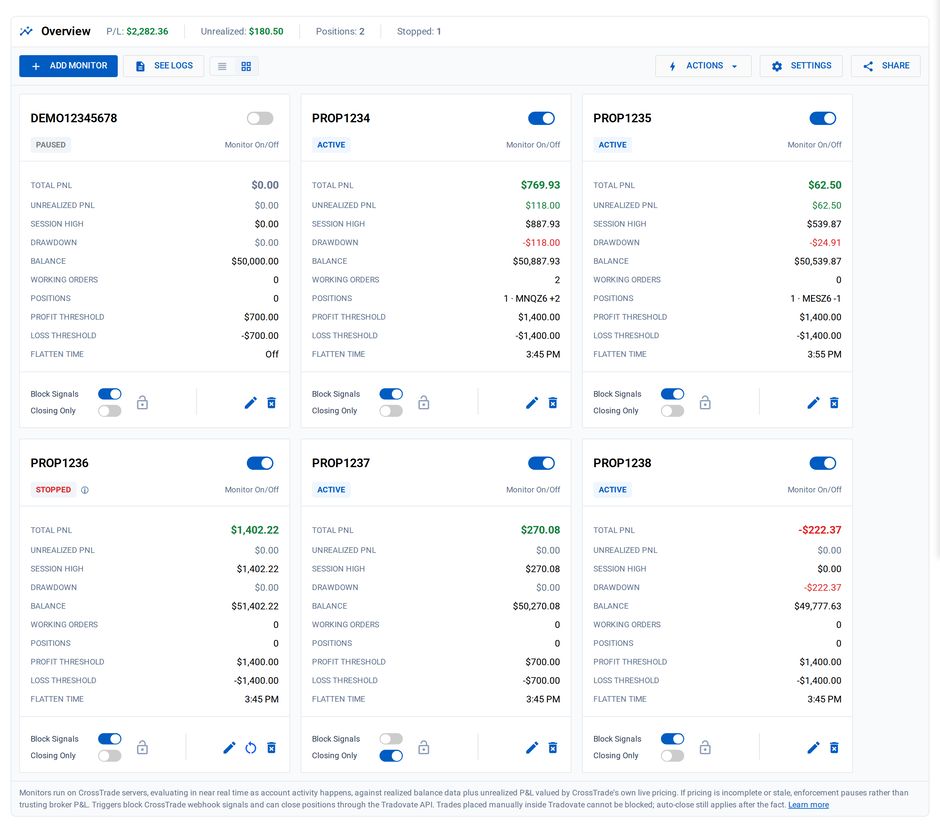
Card view: every state at a glance, with a restart button on the stopped account
Parity with the NT8 Account Manager
| Capability | NT8 Account Manager | Tradovate Account Manager |
|---|---|---|
| Where it runs | Inside NinjaTrader, through the CrossTrade NT8 Add-On | CrossTrade's cloud, against Tradovate's API |
| Works with your computer off | No (NinjaTrader must be running) | Yes |
| Evaluation cadence | Polls every 2.5 seconds | Near real time on account activity, plus a background refresh at least about every 10 seconds when idle |
| Daily profit and loss thresholds | Yes | Yes |
| Minimum profit floor | Yes | Yes |
| Trailing drawdown | Yes | Yes |
| P/L basis | Total or Realized, plus an include-commission toggle | Total, Realized, or Unrealized. No commission toggle |
| Monitor modes | Standard, Hybrid, Unrealized | Standard only |
| Position-level thresholds | Yes, in Hybrid and Unrealized modes | Not available |
| Bad-data protection | Outlier Protection validates reported P/L before acting | Enforcement pauses when live pricing is stale or incomplete |
| Scheduled flatten | Yes, US/Eastern, eligible for five minutes after the set time | Yes, same US/Eastern time and same five-minute window |
| Actions on trigger | Flatten, and independently disable alerts, set closing-only, or leave filtering unchanged | Blocks CrossTrade webhook signals, with optional auto-close |
| Block Signals and Closing Only | Yes | Yes, and they apply even when P/L monitoring is off |
| Trading windows | Yes, up to 5 per account | Yes, up to 5 per account, set in the monitor editor |
| Monitor Lock | Yes | Yes |
| Economic-event lockout | Yes | Yes |
| Clean session requirement | Yes, the account must be flat at the 6 PM ET session start | Not enforced. There is no INACTIVE state for a monitor to land in |
| Monitor states | ACTIVE, INACTIVE, STOPPED, PAUSED | ACTIVE, STOPPED, PAUSED |
| Monitors per account | One per NT8 account | One per account, with no limit on how many accounts |
| Management log | Yes | Yes, in the same log |
| Plan required | Pro and above | Pro and above |
Unlinking
Unlinking any Tradovate identity pauses all Tradovate monitors and copiers before removing the credential. Active broker orders and positions are left alone, and re-linking later does not automatically re-enable them.