Strategy Synchronization
The same checks run on both brokers, but not in the same place. NinjaTrader evaluates the gate inside the Add-On, which is why the version requirements below apply to it; Tradovate evaluates it server-side, where those requirements are irrelevant. Automating TradingView Strategies on Tradovate covers the Tradovate path.
Overview
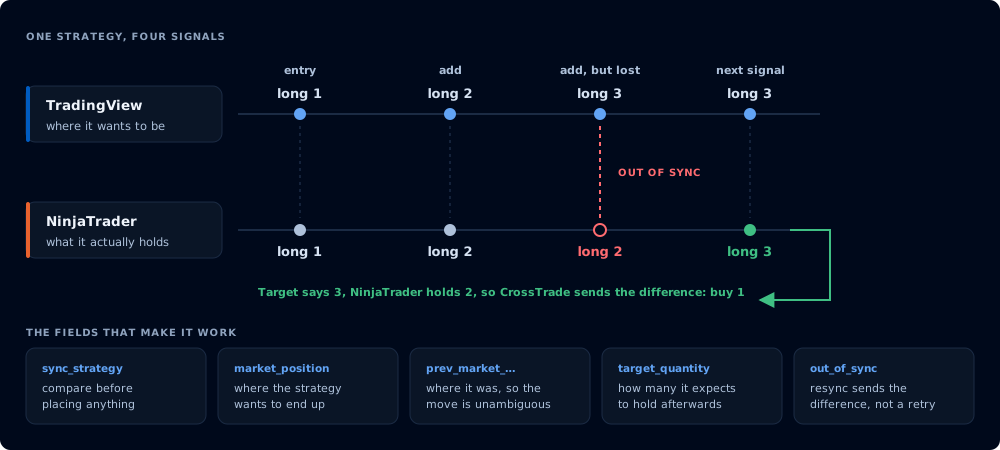
Compare the target against what is held, then send only the difference.
The sync_strategy functionality is an advanced safety feature for entry legs that run through NinjaTrader's PlaceOrder path. That includes PLACE, FLATPLACE, REVERSEPOSITION, and CANCELREPLACE. Its purpose is to prevent "state drift" between your external signaling system (for example, a TradingView strategy) and the actual market position held at your broker: your NinjaTrader 8 account or, with destination=tradovate;, your linked Tradovate account.
Automated strategies are stateful; they "know" whether they are currently long, short, or flat. However, situations can arise where the trading software becomes different from what the strategy expects. This can happen due to manual interventions, connection issues, or partial fills.
When state drift occurs, a signal to "add to a long position" might be sent when you are actually flat, or a signal to "reverse from long to short" might be sent when you are already short. These scenarios can lead to unintended trades and significant risk.
sync_strategy acts as a gatekeeper, comparing your strategy's expected state with the broker's actual state before placing an order. If they don't align, it can prevent the order, flatten the position, or (starting in v1.12.0) automatically correct the mismatch.
On NinjaTrader, sync_strategy is available in add-on versions v1.9.0+; the resync mode and target_quantity parameter require v1.12.0+. On the Tradovate destination the same checks run on CrossTrade's servers, so there is no add-on version requirement.
How It Works
When you enable sync_strategy, CrossTrade performs a series of checks immediately before the supported entry leg is submitted. NinjaTrader runs the gate in the Add-On; Tradovate runs it on CrossTrade's servers. This process can be broken down into three steps: Activation, State Comparison, and Action.
The following information is for educational purposes only for technical discussion on how strategy sync works. In all practical cases, a trader will not be manually inputting the values for market_position and prev_market_position. Instead, we should rely on TradingView's dynamic replacement variables:
market_position={{strategy.market_position}};
prev_market_position={{strategy.prev_market_position}};
target_quantity={{strategy.position_size}};
Activation & Required Parameters
To activate the feature, include sync_strategy=true; on a supported entry command. When this parameter is present, the following companion fields apply:
| Parameter | Required? | Description | Valid Values |
|---|---|---|---|
sync_strategy | Yes | Enables or disables the synchronization check. | true |
market_position | Yes | The target market position your strategy wants to be in after this order is executed. | long, short, flat |
prev_market_position | Yes | The market position your strategy was in before this signal was generated. | long, short, flat |
out_of_sync | Optional | Defines the behavior if a state mismatch is detected. Defaults to wait if not provided. | wait, flatten, ignore, resync |
target_quantity | Optional | The absolute target position size. When provided, sync logic uses quantity-based comparison instead of transition-based. Direction always comes from market_position; the quantity's sign is ignored. | Integer (5 and -5 both mean size 5; market_position determines long/short, and flat targets 0). |
strategy_exit_block | Optional | Reject the payload when prev_market_position is not flat. This is a field-validation gate, not a separate position or order-side calculation. | true |
If sync_strategy is provided but market_position or prev_market_position are missing or invalid, the command fails validation, even when sync_strategy=false.
State Comparison
The core of the logic compares the Remote Expected State Transition (provided by you) with the Local Broker State Transition (calculated from the live account position).
- Remote State: Defined by your
prev_market_positionandmarket_position. - Local State: The add-on checks the current actual position in NinjaTrader and then calculates what the position would be after executing the requested order (
actionandquantity). On the Tradovate destination, CrossTrade's servers perform the same check against the account's live net position.
An order is considered "in-sync" if the local state transition perfectly matches one of the five valid remote state transitions:
- Opening a Position: Remote
flat→long/shortmatches Localflat→long/short. - Adding to Position: Remote
long→longmatches Locallong→long(with increased quantity). - Reversing a Position: Remote
long→shortmatches Locallong→short. - Closing to Flat: Remote
long/short→flatmatches Locallong/short→flat. - Staying Flat: Remote
flat→flatmatches Localflat→flat.
When target_quantity is provided, the sync logic switches from transition-based comparison to absolute quantity comparison. Instead of asking "does flat→long match flat→long?", it asks "will the resulting position be exactly N contracts in the right direction?"
The Critical "New Entry" Rule
In transition mode (no
target_quantity), there is an overriding safety constraint: You cannot open a new position if your remote strategy believes it was already in a position. If the local account isflatbutprev_market_positionwaslongorshort, the order is out of sync. Quantity mode is different by design: it treatsmarket_positionplustarget_quantityas an explicit absolute-state request and compares the projected position directly with that target. NT8 and Tradovate use the same rule.
Handling Mismatches (out_of_sync Behavior)
If the state comparison fails, the out_of_sync parameter determines the outcome.
out_of_sync=wait (Default)
Action: The requested order is withheld, and the current request returns immediately.
Result: The system returns a success: true response with a warning that describes the mismatch. No trade is placed, no order is queued, and CrossTrade does not retry this signal when the position later aligns. A future alert must submit the next attempt.
Use Case: This is the safest option. It prevents any action and alerts you to the discrepancy so you can intervene manually or let a later strategy signal try again after both sides return to a compatible state.
out_of_sync=flatten
Action: The requested order is withheld. If the broker account is currently not flat, a flatten is immediately issued for the instrument.
Result: The system returns a success: true response with a warning message. The goal is to reset the local position to flat to prepare for a clean entry on the next signal.
Use Case: An automated "reset button." Use this if your strategy is designed to re-establish its position from a flat state after a detected error.
out_of_sync=resync
Action: The system calculates the exact delta needed to reach the target position and submits a corrective order automatically.
Result: Instead of blocking the order or flattening, CrossTrade figures out the difference between where the position is now and where it should be, and submits a market order to close that gap. If the position already matches the target, no order is placed.
Use Case: Fully automatic recovery from missed signals, partial fills, or connection drops. This mode is the best choice when you want hands-off position alignment.
out_of_sync=resync requires v1.12.0+ (NinjaTrader add-on) and must be paired with target_quantity: an alert that requests resync without it is rejected, because the correction delta cannot be computed from direction alone.
How resync handles different order types:
- Market orders - treated as a request to reach an absolute position state. The system calculates the total delta required and submits a single market order. For example, if the target is long 5 and the account is currently long 3, resync submits Buy 2. If the account is long 7, it submits Sell 2 to trim back.
- Limit/Stop orders - the system cannot use a resting order to fix an immediate mismatch, so it performs two actions: first, a corrective market order to align the position to the "base target" (the target minus what the limit/stop order would contribute once filled), and then the original limit/stop order is submitted normally so it's in place for future price action.
Using resync with limit or stop orders is advanced. The correction fires immediately as a market order while the original limit/stop rests until triggered. Make sure you understand the resulting position math before using this combination. Test thoroughly in simulation first.
out_of_sync=ignore
Action: The synchronization check is bypassed. The requested order is placed regardless of the state mismatch.
Result: The system returns a response containing a warning message about the mismatch, but proceeds with the order placement.
Use Case: For advanced users who understand the risks and want to force an order through despite a detected state discrepancy. Use with caution.
target_quantity
The target_quantity parameter tells the sync logic the exact position size your strategy expects to have after this order executes. When provided, the sync comparison switches from directional (flat→long, long→short) to quantity-based: the system checks whether the resulting broker position will be exactly the specified number of contracts in the right direction.
Example: Your strategy wants to be long 5 ES and the account is currently long 3. An incoming Buy 2 with target_quantity=5 is in sync because the projected position is exactly 5. Existing working orders are not included in this projection; target_quantity compares the live position plus the incoming order.
When a receiving login gets a signal with target_quantity through Signal Share, any configured position multiplier is applied proportionally. A 2x receiver getting target_quantity=5 targets 10 contracts.
Exit Blocking
For users who want to offload the exit management to NT8, and deploy an ATM strategy in its place, we developed strategy_exit_block, which will check for prev_market_position=flat to ensure the last position was flat. If not, your orders will be blocked. This allows us to better control the strategy signals which are not defined in Pine Script as Entry & Exit, but only Buy & Sell. It's a requirement of all TV strategies that an offsetting order must always be used to ensure backtests can be properly calculated. Because of this requirement, the only way a TV strategy's exit can be avoided is if XT blocks the order request from flowing downstream to NT8.
Adding strategy_exit_block=true; to the Strategy Sync field group requires prev_market_position=flat. The parser uses that one field as the exit-block decision; it does not independently infer whether market_position, action, and qty describe an opening order. The normal Strategy Sync comparison still evaluates the resulting transition when synchronization is enabled.
Strategy Sync fields are validated whenever sync_strategy is present. Setting sync_strategy=false; disables the live state-comparison gate, but it does not bypass validation of the companion fields or strategy_exit_block.
strategy_exit_block is a very aggressive remote-state filter. Scaling, reversal, and exit signals normally have a non-flat prev_market_position, so they are rejected before broker dispatch. It does not inspect the broker's live position by itself; that remains the job of Strategy Sync.
Practical Examples
Standard Sync with Resync (Recommended)
A single alert payload can run a fully automated strategy without the need for human intervention. This is the payload our examples and the in-app command builder hand out by default. It matches the strategy order direction, and if the two sides ever drift apart, resync works out the difference and submits a corrective order so NT8 lands on the position the strategy expects. If your strategy says you should be long 2 but NT8 only has 1 contract, the system buys 1 more to align. If the position is already correct, no action is taken.
key=your-secret-key;
command=PLACE;
account=Sim101;
instrument=NQ1!;
action={{strategy.order.action}};
qty={{strategy.order.contracts}};
order_type=MARKET;
tif=DAY;
sync_strategy=true;
market_position={{strategy.market_position}};
prev_market_position={{strategy.prev_market_position}};
target_quantity={{strategy.position_size}};
out_of_sync=resync;
target_quantity is not optional here. resync needs an absolute target to compute the correction against, and an alert that asks for resync without it is rejected.
Standard Sync with Flatten (Safety Alternative)
Same payload with flatten instead. If the strategy ever gets out of sync, the NT8 account is flattened and stays flat until new entry criteria are met (e.g., NT8 account is flat, the prev_market_position of the TV strategy is also flat, and we're now opening a new position). Choose this when you'd rather be out of the market than have CrossTrade adjust the position for you. Note that target_quantity is dropped: flatten doesn't need it.
key=your-secret-key;
command=PLACE;
account=Sim101;
instrument=NQ1!;
action={{strategy.order.action}};
qty={{strategy.order.contracts}};
order_type=MARKET;
tif=DAY;
sync_strategy=true;
market_position={{strategy.market_position}};
prev_market_position={{strategy.prev_market_position}};
out_of_sync=flatten;
flatten is also the right pairing for ATM setups: when an ATM template owns the exits, you don't want CrossTrade rebuilding a position the ATM deliberately closed.
You do NOT want to sync with ATMs unless you use the strategy_exit_block. The purpose of strategy sync logic is to let TradingView control behavior across platforms. When you open an ATM directly in NinjaTrader, it overrides that logic and defeats the point of syncing unless you explicitly block the TV strategy from firing the required exit.
Sync with target_quantity (Absolute Position Targeting)
Example of what Strategy Sync + Resync looks like after TradingView (or your remote strategy) has done replacement of all dynamic variables.
When you need precise quantity alignment (for example, when used with a strategy that tracks exact contract counts), include target_quantity alongside resync:
key=your-secret-key;
command=PLACE;
account=Sim101;
instrument=ES 12-26;
action=BUY;
qty=1;
order_type=MARKET;
tif=DAY;
sync_strategy=true;
market_position=long;
prev_market_position=long;
target_quantity=5;
out_of_sync=resync;
If the account is currently long 4 ES, the system detects a delta of 1 and submits a Buy 1 market order. If the account is already long 5, no order is placed. If the account is long 7, it submits a Sell 2 to trim back to the target.
On Tradovate
Strategy Sync runs on the Tradovate destination too. With destination=tradovate;, the same validation rules and state comparison (the five transitions, the new-entry rule, and target_quantity exact-quantity mode) run on CrossTrade's servers against the account's live net position immediately before the entry leg. It is attached to place, flatplace, reverseposition, and cancelreplace, matching the NT8 commands that ultimately delegate to PlaceOrder. A bare reverse constructs its own market entry and does not carry Strategy Sync fields on either destination.
Tradovate-specific notes:
- The live position is derived from Tradovate's real-time fill stream (not the lagging
position/findendpoint), so back-to-back alerts see the true position. - Composite commands preserve NT8 ordering:
flatplaceandreversepositionflatten first and then run the sync gate;cancelreplacecancels the old order before the replacement entry reaches the gate. - On limit/stop entries, a resync correction is placed as a market order first, then the original order is submitted: the same two-step the add-on performs. If the correction fails, the original order is withheld.
- If a resync correction would reverse the entry's direction and the alert also carries absolute
take_profit/stop_lossbrackets, the order falls back towaitinstead: absolute bracket prices cannot be flipped to the other side. Inlineatm_*brackets are side-relative and survive a resync normally.