Place Order
Tradovate accepts a different set of order fields and modifiers than NinjaTrader. Order Types and Exits on Tradovate covers what is available there.
The PLACE command is the primary and most versatile method for submitting new orders to NinjaTrader 8. It serves as the foundation for all trade execution, from simple market orders to complex, multi-leg ATM Strategies.
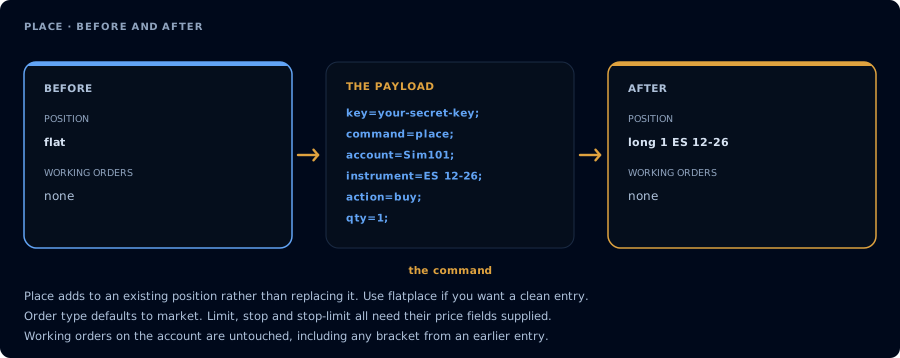
Place adds to what you are holding. It never replaces it.
Core Capabilities
The PLACE command can be used to:
- Submit Standard Orders: Place fundamental order types like
MARKET,LIMIT,STOPMARKET, andSTOPLIMIT. - Initiate New ATM Strategies: Automatically trigger a pre-configured NinjaTrader ATM Strategy template upon the fill of an entry order.
- Attach to Active ATM Strategies: Apply a new order to an existing, active ATM Strategy, allowing for advanced position management like scaling in.
- Synchronize Strategy State: Use the
sync_strategyfeature to ensure orders are only placed when your external strategy's state is aligned with your broker position.
Key Concepts
Standard Orders
For a basic order, you must provide the core parameters: account, instrument, action, qty, order_type, and tif (Time in Force). For LIMIT or STOP orders, you must also provide the limit_price or stop_price respectively.
Using ATM Strategies
The PLACE command is also the entry point for leveraging NinjaTrader's powerful ATM (Advanced Trade Management) functionality.
1. Initiating a New ATM Strategy To have an order start a new ATM Strategy, provide the atm_strategy parameter with the exact name of an ATM Strategy template saved in your NinjaTrader 8 workspace. When this entry order is filled, NinjaTrader will automatically submit the associated stop-loss and profit-target orders defined in that template.
2. Attaching to an Active ATM Strategy If you have an existing position managed by an ATM Strategy, you can place additional orders that are governed by that same strategy. To do this, provide the strategy_id of the active strategy instead of the strategy template name. This is commonly used for scaling into a position.
State Synchronization
For automated systems, preventing state drift between the signaling source and the broker is critical. The PLACE command can be enhanced with the sync_strategy=true parameter to perform a rigorous state check before execution. Learn more.
This advanced feature compares your strategy's expected position with the actual position in NinjaTrader, preventing erroneous trades. For a complete guide, see the Strategy Synchronization (sync_strategy) documentation.
Setting an Order ID
It is also possible to set an ID on the primary order (i.e., not an attached ATM strategy, stop loss, or take profit order) by providing an order_id field that can be referenced later from a change or cancel command. This id is a value you choose yourself, and assigning it on the PLACE is the only way to get a handle you can target afterward. CrossTrade no longer exposes automatically generated order names (the old ENTRY1/TARGET1 style) to reference. Using order_id within a one-way system like webhook trading is genuinely complex, so use of order IDs is considered advanced usage.
Example Payloads
This example message will trigger a simple market order for Buy or Sell actions on continuous contract instrument ES1! that will remain in-force for the rest of the trading day.
For uniform examples we are showing the TradingView continuous contract (ES1!) However, if you are not using TradingView to send webhooks, you will need to supply a NinjaTrader specific format like ES DEC26 or ES 12-26.
Buy or Sell Market Orders
key=your-secret-key;
command=place;
account=sim101;
instrument=ES1!;
action=buy;
qty=1;
order_type=market;
tif=day;
Be aware that if you send a Buy order and then a Sell order using the same quantity, the sell order will offset the buy position. This scenario does not create a net short position.
Buy or Sell Limit Orders
key=your-secret-key;
command=place;
account=sim101;
instrument=ES1!;
action=buy;
qty=1;
order_type=limit;
limit_price=4500;
tif=day;
If you place a Buy limit order above the current price, or a Sell limit order below, it will be executed immediately as you're crossing the spread.
Stop Market and Stop Limit Orders
A Stop Market order rests until the market reaches your stop_price, then converts to a market order. Only stop_price is required.
key=your-secret-key;
command=place;
account=sim101;
instrument=ES1!;
action=buy;
qty=1;
order_type=stopmarket;
stop_price=4600;
tif=day;
A Stop Limit order triggers the same way, but converts to a limit order rather than a market order once stop_price is reached. It needs both prices: stop_price is the trigger, and limit_price is the worst price you will accept once triggered.
key=your-secret-key;
command=place;
account=sim101;
instrument=ES1!;
action=buy;
qty=1;
order_type=stoplimit;
stop_price=4600;
limit_price=4602;
tif=day;
The trigger price always goes in stop_price, never limit_price. A Stop Market order uses stop_price on its own. A Stop Limit order needs both: stop_price for the trigger and limit_price for the limit leg.
Trailing Stop orders
Trailing stop order types are placed by Tradovate's own order engine and are available with destination=tradovate;. On NinjaTrader, trailing is available through ATM templates with auto-trail, selected with strategy=.
A Trailing Stop starts at stop_price and follows the market by trail_offset, tightening only in your favour and never giving ground. Both fields are required; the order is rejected without a trail distance.
key=your-secret-key;
command=place;
account=DemoAccount;
instrument=ES1!;
action=buy;
qty=1;
order_type=trailingstop;
stop_price=4600;
trail_offset=10;
tif=day;
destination=tradovate;
A Trailing Stop Limit behaves the same way but converts to a limit order when triggered, so it takes limit_price as well. All three price fields are then required.
key=your-secret-key;
command=place;
account=DemoAccount;
instrument=ES1!;
action=buy;
qty=1;
order_type=trailingstoplimit;
stop_price=4600;
limit_price=4602;
trail_offset=10;
tif=day;
destination=tradovate;
trail_offset accepts peg_difference as an alias. See Tradovate order types and exits for how trailing interacts with ATM brackets.
Using ATM Strategy Templates
This payload will trigger a simple market order for Buy or Sell actions that will use an ATM strategy template and remain in-force for the rest of the trading day.
key=your-secret-key;
command=place;
account=sim101;
instrument=ES1!;
action=buy;
qty=1;
order_type=market;
tif=day;
atm_strategy=crosstrade;
Similar to the offsetting scenario when sending a Sell after a Buy, when using an ATM strategy, this will create orphaned Stops and Target orders as those are not canceled by default. You must send a CLOSEPOSITION or REVERSEPOSITION command before the next directional trade to avoid this.
The quantity you set inside of your CrossTrade alert will supersede your default ATM quantity
Flatten Before Entry
If you want to close an existing position before opening a new position, there are 2 options. You can either include "flatten_first=true;" inside your message, or you can use the FLATPLACE command in lieu of PLACE.
Both options are available as convenience and achieve the same net effect of executing a CLOSEPOSITION command prior to the PLACE command.
Read more about Flatten First.
Read more about the FLATPLACE command.
place is fully supported with destination=tradovate;, including flatten_first, Tradovate-native TP/SL brackets, iceberg max_show, trailing stops, MIT, and extra TIFs. Relative prices are calculated server-side by CrossTrade from live market data and fail closed if fresh pricing isn't available. strategy= / atm_strategy= resolves a CrossTrade-stored Tradovate ATM Template. Native multibrackets can be enhanced with CrossTrade-exclusive profit-triggered trailing and target-fill breakeven. See Tradovate ATM for the ownership matrix.