Destinations: NinjaTrader vs Tradovate
This page compares both destinations side by side. For the Tradovate path on its own, including the fields Tradovate accepts and the ones it ignores, see Tradovate Webhooks.
Tradovate-native order routing and the CrossTrade-exclusive ATM layer (target-fill breakeven, profit-triggered trail activation, and durable trigger replay) are generally available. If managed ATM behavior is unexpected, note the Order ID from Alert History and report it to support.
Every CrossTrade webhook is routed to a destination: the broker connection that actually executes the order. CrossTrade supports two destinations today.
| Destination | How it executes | Requires |
|---|---|---|
NinjaTrader 8 (nt8) | The CrossTrade NT8 Add-On running inside your NinjaTrader 8 desktop application receives the order and submits it through NinjaTrader. | NinjaTrader 8 open, Add-On installed and connected. |
Tradovate (tradovate) | CrossTrade sends the order directly to Tradovate's cloud API over HTTPS. Core orders and absolute-price orders need no desktop software. | A linked Tradovate account (My Account, Brokers tab). Relative prices additionally require a fresh quote from CrossTrade's quote service. |
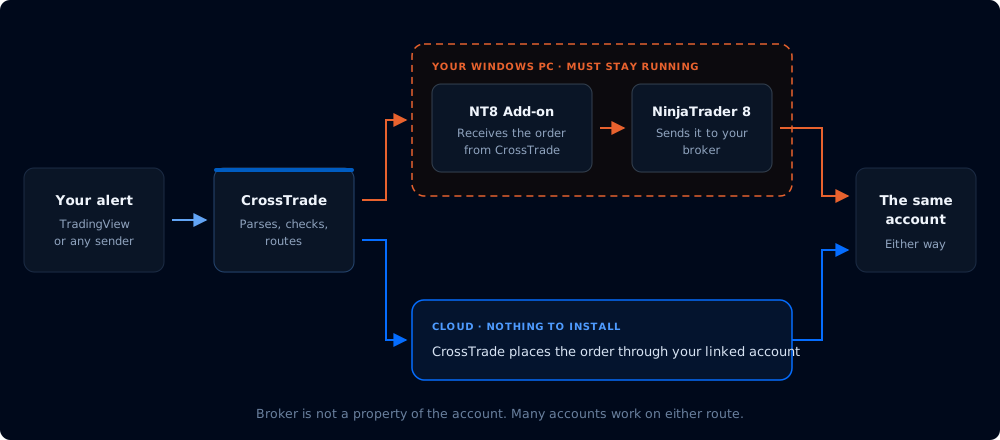
One alert, two routes. The destination field picks which.
Choosing a destination
Add a destination= field to your alert. When you omit it, the order routes to NinjaTrader 8, which keeps every existing alert working exactly as before.
| In your alert | Routes to |
|---|---|
(no destination field) | NinjaTrader 8 (default) |
destination=nt8; | NinjaTrader 8 (explicit) |
destination=tradovate; | Your linked Tradovate account |
The destination value is case-insensitive, and only nt8 and tradovate are valid. Any other value is rejected with a clear error.
NinjaTrader (default)
key=your-secret-key;
command=place;
account=Sim101;
instrument=ES 12-26;
action=buy;
qty=1;
order_type=market;
tif=day;
Tradovate
key=your-secret-key;
command=place;
account=DemoAccount;
instrument=ES 12-26;
action=buy;
qty=1;
order_type=market;
tif=day;
destination=tradovate;
The account for a Tradovate order is the Tradovate account name shown in My Account, Brokers tab after you link. Account names must be unique across all Tradovate identities you link; CrossTrade rejects an ambiguous name instead of choosing an identity arbitrarily. Instruments accept the same three forms as NinjaTrader: TradingView continuous (ES1!, front month auto-resolved), NinjaTrader style (ES 12-26), or Tradovate style (ESZ6).
Connecting Tradovate
- Open My Account and select the Brokers tab.
- In the Tradovate card, click Link Live or Link Demo and authorize through Tradovate's OAuth screen.
- Your accounts appear under the card once linked. Live and Demo are separate environments, and you can link multiple Tradovate identities (for example a personal account plus a funded firm) under each.
Trading a prop firm account (Lucid, Tradeify, or any other Tradovate-based funded firm)? Click Link Demo and sign in with the Tradovate username and password your firm issued. Firm accounts are simulation accounts on Tradovate's Demo environment, and that includes funded/PA accounts: the account stays on Demo after you pass the evaluation, with the firm handling payouts on their side. Link Live is only for a personal real-money Tradovate brokerage login, and authorizing it with a firm-issued login will fail.
CrossTrade stores only an access token, refreshes it automatically, and never sees your Tradovate password.
About the "automated" flag
Tradovate's exchanges require that orders placed by a bot or any algorithmic process are flagged as automated. The field is isAutomated, it applies per order (not to login or to data requests), and CrossTrade sets it to true on every order it places to Tradovate for you. You do not add an automated= field to your webhook, and there is no such field. CrossTrade handles the compliance flag automatically.
If you place orders through Tradovate from another tool as well, make sure that tool also marks its automated orders correctly. CrossTrade only controls the flag on the orders it sends.
Command availability
The destinations share command names where the matrix says they are supported. A shared name describes the same trading intent, not an identical broker request sequence or identical failure handling. Unsupported commands are generally tied to NinjaTrader-only concepts such as local ATM templates, the Add-On order book, or a platform-specific primitive.
| Command | NT8 | Tradovate | Notes |
|---|---|---|---|
place | Yes | Yes | Core entry. Tradovate adds server-side brackets, trailing stops, iceberg, and GTD. See the option tables below. |
flatplace | Yes | Yes | Flatten the same account and exact instrument, cancel its nonterminal working orders, wait for both to clear, then enter. If settlement cannot be confirmed, the entry is withheld. Tradovate applies the same barrier independently before each mapped follower entry. |
closeposition | Yes | Yes | Tradovate uses its liquidate endpoint for a full close. Partial close works the same as NinjaTrader: quantity closes up to that many contracts, percent (0 to 1, rounded up) closes that fraction. |
flatten | Yes | Yes | Same filter semantics on both: account, instrument, and market_position (long or short) are each optional. With no filters, every open position on every linked account is closed. |
flatteneverything | Yes | Yes | Both destinations flatten every position and cancel every working order across all accounts. On Tradovate you can optionally pass account to limit the sweep to one account. |
reverse | Yes | Yes | Both paths require an open position, flatten it and clear its working orders, wait for the flatten to settle, then enter the same quantity in the opposite direction with a market order. |
reverseposition | Yes | Yes | Both paths require an open position, flatten first, then submit the explicit direction, quantity, type, and prices from the alert. |
cancel | Yes | Yes | Cancel one order by order_id — either the numeric Tradovate id or the order_id you set on the original place alert (tracked for 7 days). |
cancelorders | Yes | Yes | Account-scoped on both: cancels working orders on the named account, optionally narrowed to one instrument. |
cancelallorders | Yes | Yes | Cancels every working order across all linked accounts on both destinations. |
change | Yes | Yes | Modify by order_id. NT8 changes quantity and applicable limit/stop prices. Tradovate additionally accepts order type, TIF, expiry, iceberg size, and trailing offset. Before a partial modify, it restores omitted quantity, order type, every price required by the final type, and the trailing offset required by a trailing type. Copied followers restore from their own live order versions. |
cancelreplace | Yes | Yes | Guarded cancel then place, not a broker-atomic edit. Tradovate is owner-fenced and durably staged, restricts the replacement to the original account and exact contract, and confirms leader plus mapped follower cancellations before replacement fan-out. Any ambiguous cancellation or placement outcome is not resent and returns reconciliation_required. |
cancelandbracket | Yes | Yes | Cancels the instrument's working orders and wraps the live position in a TP/SL OCO. action=buy protects a long position and action=sell protects a short position; it is the protected position side, not the exit-order side. Both destinations require an open matching position, clamp quantity, and abort if the position goes flat or changes direction during cancellation. |
closestrategy | Yes | No | Closes a running NinjaScript strategy by id. Tradovate's order-strategy objects are different and are canceled through their tracked order_id, not closestrategy. |
You never get a silent failure. If you set destination=tradovate with a command that is not supported, CrossTrade rejects the alert with a message naming the command and listing the supported set, and the rejection is recorded in your Alert History.
Order types and time in force
| Capability | NT8 | Tradovate | Notes |
|---|---|---|---|
| Market | Yes | Yes | |
| Limit | Yes | Yes | limit_price required. |
| Stop / Stopmarket | Yes | Yes | stop_price required. |
| Stoplimit | Yes | Yes | limit_price and stop_price required. |
| MIT (market if touched) | No | Yes | Tradovate native order type. The touch price goes in limit_price. |
| QTS | No | No | Listed in Tradovate's API schema but not actually placeable (Tradovate has confirmed it is unsupported). CrossTrade rejects it with a clear error. |
| Trailing stop | ATM template only | Yes | Tradovate supports native trailing entry types with order_type=trailingstop. On NinjaTrader, trailing comes from an ATM template with auto-trail, selected with strategy=. |
| Trailing stop limit | No (webhook) | Yes | order_type=trailingstoplimit with stop_price, limit_price, and trail_offset. All three are required. |
| TIF Day, GTC | Yes | Yes | The documented NinjaTrader webhook values. |
| TIF IOC, FOK, GTD | No | Yes | Tradovate adds immediate-or-cancel, fill-or-kill, and good-till-date. GTD requires expire_time (ISO-8601). |
Options and fields on the Tradovate destination
Supported
These fields are supported on Tradovate, but support remains command-scoped and the broker implementation can differ from NinjaTrader. The notes below define the Tradovate behavior.
| Field | Behavior on Tradovate |
|---|---|
account | Tradovate account name (or comma list for multi-account, see below). |
instrument | ES1!, ES 12-26, or ESZ6. Digit-bearing roots (M2K, 6E, M6E, ...) work in all three forms. |
action, qty, order_type, tif | Standard entry fields. |
limit_price, stop_price | Required for the matching order types. |
take_profit, stop_loss | Attaches a Tradovate-native OSO bracket. Absolute prices always work. Relative percentage, tick, point, and dollar offsets are converted server-side by CrossTrade before placement, measured from the submitted limit_price / stop_price when the entry carries one, or from live market data for market entries; they are not recalculated from the fill (use atm_* for fill-measured offsets). Both exit legs are sent GTC and are activated by Tradovate on the entry's first fill, sized to that fill; CrossTrade repairs coverage for later fills (see Tradovate execution internals). Tradovate market data, a requester's personal Add-On quote, and direct GetQuote are never pricing substitutes. The alert fails closed when fresh pricing isn't available. |
strategy / atm_strategy, or inline atm_targets, atm_stops, atm_qtys, atm_trail, atm_trail_trigger, atm_trail_offset, atm_breakeven, atm_breakeven_offset | Tradovate native: entry, scale-out targets, fixed stops, OCO links, and triggerless continuous trailing. CrossTrade-exclusive: named cloud templates, profit-triggered trail activation, trigger progress that survives a brief service restart, and target-fill breakeven. A triggered trail keeps its own stop order for the life of the tier: once the profit trigger is reached, CrossTrade tightens that stop toward the best price seen, and never loosens it. Tradovate does not allow a working stop to be converted into a trailing stop, so no handoff takes place. A name resolves a CrossTrade template, not a Tradovate or NT8 template. See Tradovate ATM. |
flatten_first | true flattens the same account and instrument before the entry and waits for position/order settlement. Current direct NT8 and Tradovate paths clear same-instrument nonterminal orders; legacy NT8 ATI/ATM routing performs staged flatten and cancel operations. Tradovate followers each clear the same contract and pass their own settlement barrier before copied entries. |
order_id | On place, a tracking id you choose: CrossTrade remembers it for 7 days so later cancel / change / cancelreplace alerts can reference the same id, exactly like NinjaTrader. On those commands you can also pass the raw numeric Tradovate order id. |
cl_ord_id | Client order id passed to Tradovate (defaults to your order_id when set). |
require_market_position | Gate the command on the live Tradovate position: flat, long, short, or comma combinations like long,flat. Same semantics as NinjaTrader. |
max_positions | Blocks an opening order that would add a new instrument when the account already has that many open positions. Scaling an existing instrument does not consume another slot. |
quantity / percent on closeposition | Partial close. percent is a decimal between 0 and 1 and always rounds up; quantity wins when both are present. |
cancel_after | Limit-order timeout in minutes (1 to 180). Scheduled broker-side on the leader and signal-mode follower copies, and enforced by CrossTrade's servers as a fallback on demo and prop-firm accounts, where Tradovate parks scheduled cancels without running them. A scheduling rejection is returned as a warning because the entry already exists. |
market_position on flatten | Filter the sweep to long or short positions. |
sync_strategy, market_position, prev_market_position, out_of_sync, target_quantity, strategy_exit_block | Strategy Sync is evaluated immediately before the entry leg of place, flatplace, reverseposition, and cancelreplace. For normal entry commands, Tradovate supports wait, flatten, ignore, and resync. On Tradovate cancelreplace, only wait and ignore are accepted because a separate flatten/resync mutation cannot be recovered safely inside the replacement workflow. wait withholds the current attempt and returns immediately; no order is queued for later placement. See Strategy Synchronization. |
cycle_accounts | With a comma-separated account list, sends each signal to one account instead of all of them. Cycling skips accounts locked by an Account Manager monitor on either destination (Tradovate monitors use the same lock mechanism as NinjaTrader). |
xtstrategy | Tags the signal for XT Strategy tracking, same as NinjaTrader. |
expire_time | ISO-8601 datetime, required with tif=gtd. |
max_show | Iceberg display quantity. |
trail_offset (alias peg_difference) | Trailing distance in price points, for a trailing order type. Not the same default unit as atm_trail_offset, which defaults to ticks. |
activation_time | On the cancel command only: schedules the cancel broker-side at the given ISO-8601 time. It does not delay order entry (use delay for that). |
notes | Free-form order note, sent to Tradovate as the order's text and visible on the order in Tradovate's own UI and reports. |
delay, rate_limit + id | Same delay and rate-limiting behavior as the NinjaTrader path. |
start_time, end_time, closing_only_after, bypass_trade_windows | Trade-window controls apply on both destinations. |
Accepted but ignored
These NinjaTrader fields do nothing on Tradovate. CrossTrade accepts them without error so a shared alert template does not break, but they have no effect because they describe NinjaTrader-only behavior.
| Field | Why it has no effect on Tradovate |
|---|---|
strategy_tag | Strategy tags and locks are enforced by the add-on's local order book, which Tradovate orders never touch. |
Not supported (rejected)
Sending these with destination=tradovate is rejected with a clear error, rather than quietly doing nothing. Most are tied to NinjaTrader concepts; custom_tag is refused by Tradovate itself.
| Field | Reason and Tradovate alternative |
|---|---|
strategy_id, append_atm | These fields refer to active NinjaTrader ATM ownership and attachment. Tradovate named templates configure a new native multibracket entry but do not expose the NinjaTrader strategy-id lifecycle. |
oco_id | Manual OCO grouping is a NinjaTrader feature. On Tradovate, set both take_profit and stop_loss and the two legs are linked as an OCO bracket for you. |
stop_loss_stop, stop_loss_limit | The stop-limit stop-loss leg is a NinjaTrader bracket detail. Tradovate brackets use a single absolute stop price. |
custom_tag | Tradovate's customTag50 identifies registered B2B partners to the exchange; it is not a user fill tag, and Tradovate rejects normal API orders that carry it. Use cl_ord_id or notes instead. |
How Tradovate behaves differently from NinjaTrader
Routing the same alert to Tradovate changes more than the transport. The table below is the compatibility contract for differences that cannot or should not be hidden.
| Area | NinjaTrader 8 | Tradovate |
|---|---|---|
| ATM management | strategy/atm_strategy names a template stored on the desktop. | strategy/atm_strategy resolves a CrossTrade-stored template, or fields can be supplied inline. Tradovate owns the native multibracket. CrossTrade exclusively adds target-fill breakeven and profit-triggered trail activation. |
| TP/SL lifecycle | The Add-On creates protection from the actual entry fill: relative offsets on a limit or stop entry are recalculated from the fill price. A stop-limit bracket can use stop_loss_stop + stop_loss_limit. | The entry and absolute bracket prices are sent as a broker-side OSO. Relative offsets are fixed at submission, measured from the submitted limit/stop entry price (live quote for market entries), never from the fill; atm_* offsets are the fill-measured alternative. The webhook bracket stop is a Stop order; stop-limit bracket fields are rejected. |
| Relative prices | The connected Add-On quote is primary, with a server-calculated fallback when enabled. | CrossTrade's own live pricing is the only source. Tradovate entitlement data and the requester's Add-On quote are never used. Continuous alerts are pinned to the concrete contract that was priced. No fresh pricing means no order. |
tif on entry | Required by the webhook parser. | Optional. When supplied, Day/GTC/IOC/FOK/GTD are validated; GTD requires expire_time. |
| Order identity | User order_id is tracked by the Add-On/platform. | User order_id is mapped to the broker order or ATM strategy for seven days. Numeric user IDs are checked against this map before being treated as raw Tradovate IDs. |
| Strategy ownership | strategy_tag enforces an Add-On-side ownership lock. | strategy_tag is accepted but ignored. Tradovate has no corresponding local ownership lock. |
| Opposing Position Protection | Available through the Add-On across configured accounts/products. | Not available. Server-side position gates and Strategy Sync still apply, but they are not a replacement for cross-account OPP. |
closestrategy | Supported. | Rejected because this lifecycle object is NT8-specific. |
| Extra broker order types | Core market/limit/stop/stop-limit webhook types. | Adds MIT, trailing stops, iceberg display quantity, IOC/FOK/GTD, and scheduled broker-side cancellation. |
Shared fields target the same user-level trading intent, but broker sequencing, confirmation, and edge responses can differ. The command rows and Tradovate field notes on this page are authoritative for those differences; a Tradovate-specific extension is not implied to exist on NT8.
What CrossTrade uniquely adds to Tradovate
These are not native Tradovate AutoBracket settings and are not generic webhook pass-throughs:
- Profit-triggered trailing. CrossTrade holds the stop still until its own live pricing reaches the configured profit trigger, then tightens it toward the best price the market has reached, one step at a time and never backwards. The stop stays an ordinary stop order throughout, because Tradovate does not permit converting a working stop into a trailing one.
- Trigger memory across restarts. CrossTrade records the highs and lows it observes for active managed contracts and restores that history after a brief service restart, so an observed trigger touch is not erased by a momentary interruption.
- Target-fill breakeven. CrossTrade watches the selected target fill and moves surviving stops.
- CrossTrade ATM Templates. Reusable named configurations live in CrossTrade for webhook signals. REST and MCP expose the equivalent inline
atm*fields rather than template names. - Entitlement-independent price decisions. Tradovate quote-dependent features always use CrossTrade's own live pricing, so behavior does not change according to whether one Tradovate login has market-data entitlements.
Accepted is not resting: late broker rejections
Tradovate's API can accept an order (your webhook gets a success response with an order id) and still reject it a moment later in its risk and execution layer. The classic case is a stop or limit price outside the product's exchange price limits: the placement is accepted, then the order is rejected about a second later with InvalidPrice.
CrossTrade re-checks ordinary placements that return a top-level order id a few seconds after acceptance, in the background. If Tradovate rejected one, the Alert History row is updated with a warning that carries Tradovate's reason and the row moves to the yellow warning status. Native multibracket ATM strategies use their own strategy and child-order lifecycle instead. Treat a green row as "accepted by Tradovate" and check back for warnings if your prices sit near the limits.
On NinjaTrader this gap does not exist in the same form: the add-on reports through the platform's own order state, and the platform shows rejections in its Orders tab.
Position reads can lag right after a fill
Tradovate's position endpoint (position/find) can keep reporting the pre-fill state for tens of seconds after a fill, even though the fill itself is visible immediately. CrossTrade therefore never trusts that endpoint alone for time-sensitive decisions: every command that acts on your live position (require_market_position, partial closeposition, a bare reverse, cancelandbracket, and the Tradovate copier's follower sizing) derives the live net position from the broker's real-time fill stream instead.
In practice, back-to-back alerts (an entry followed immediately by a close, reverse, or require_market_position gate) see the true position without waiting. On NinjaTrader, the add-on reads the platform's live position state directly, so neither the lag nor the workaround exists there.
What only Tradovate can do
Because Tradovate orders run in Tradovate's cloud, some things are possible that the NinjaTrader webhook path does not offer. Copy-paste examples for every item below, plus the typical Tradovate request sequence and the reasons extra reconciliation reads may occur, live on the Tradovate: Exclusive Features & Execution Internals page.
- Desktop-free core execution. Absolute-price and market orders execute when your computer is off. Relative price syntax still needs a fresh quote from CrossTrade's quote service.
- Server-side OSO brackets. A
placewithtake_profitandstop_lossbecomes a single broker-side bracket order. The target and stop are linked as an OCO and live on Tradovate's servers, so they survive a disconnect. - Broker-side limit-order timeouts.
cancel_afteris scheduled on Tradovate's servers and backed by a CrossTrade-side watcher, so on live accounts the auto-cancel fires even if your machine and CrossTrade are both unreachable at that moment, and on demo and prop-firm accounts (where Tradovate never runs the schedule itself) CrossTrade enforces it. - Native trailing stops from a webhook.
order_type=trailingstop(ortrailingstoplimit) withtrail_offset. - Iceberg orders.
max_showsets the displayed quantity below the true order size. - GTD orders.
tif=gtdwith anexpire_time. - Extra order types.
mit(market if touched, touch price inlimit_price).
What only NinjaTrader can do
- NT8 desktop ATM strategies (
append_atmand active NT8 strategy ownership). Tradovate cannot load an NT8 desktop template, but CrossTrade provides its own named Tradovate ATM Template library. - Signal Share sync — Signal Share broadcasting and receiving run inside the add-on. (Webhook Strategy Sync itself works on both destinations.)
- Strategy tags and locks (
strategy_tag) for trade-copy coordination. - Opposing Position Protection across accounts.
- Local quote production and chart context: the Add-On can contribute to CrossTrade's server-side pricing. Tradovate never consumes a user's local quote directly; it fails closed without fresh pricing.
closestrategy(there is no ATM strategy to close on Tradovate).- NT8-local trade-copy integration: the NT8 copier runs inside NinjaTrader. Tradovate has its own copier modes (signal, execution, and order), described on the Tradovate Copier page.
- Connection health features: data watchdog and auto-reconnect, which monitor the add-on.
Multi-account placement
Both destinations accept a comma-separated account list and place the order on each account. Each account gets an independent execution through that destination's validation, controls, and broker dispatcher, and each shows as its own Alert History row. Relative Tradovate prices are resolved once before fan-out so every child uses the same quote basis. On Tradovate, every name must identify one linked account unambiguously.
cycle_accounts=true works too: one account per signal instead of all of them. Both destinations cycle based on Account Manager monitor state, skipping accounts a monitor has stopped — Tradovate monitors lock accounts through the same mechanism as NinjaTrader.
key=your-secret-key;
command=place;
account=PROP1234,PROP1235;
instrument=ES 12-26;
action=buy;
qty=1;
order_type=market;
tif=day;
destination=tradovate;
Seeing the destination in Alert History
Every alert is recorded in Alert History with its resolved destination. Orders routed to Tradovate carry a blue Tradovate badge next to the command, and the expanded row shows the destination in its Order Info panel. NinjaTrader orders are unbadged, since that is the default. This makes it easy to confirm at a glance that a non-NinjaTrader order went where you intended.
Bracket example on Tradovate
A market entry with a server-side target and stop, both absolute prices:
key=your-secret-key;
command=place;
account=DemoAccount;
instrument=ES 12-26;
action=buy;
qty=1;
order_type=market;
tif=day;
take_profit=5300.00;
stop_loss=5285.00;
destination=tradovate;
CrossTrade sends this as one OSO order: the entry plus a linked target and stop that cancel each other when one fills.
Trade copying on Tradovate
Tradovate accounts get their own copier: configure follower accounts that mirror mapped webhook-driven entries, brackets, account-scoped closes, reversals, cancels, and changes with per-follower sizing, symbol replacement, inversion, and stealth options. Unscoped global sweeps are not replayed as follower actions. See the Tradovate Copier page for the full feature matrix against the NT8 Trade Copier.