How to Connect AI to NinjaTrader 8 Without Writing Code
You do not need to be a developer to connect an AI agent to NinjaTrader 8. CrossTrade hosts the MCP server. Your AI host handles OAuth in the browser. The setup is one URL, one consent screen, one read-only prompt.
The shape of the setup is the same everywhere
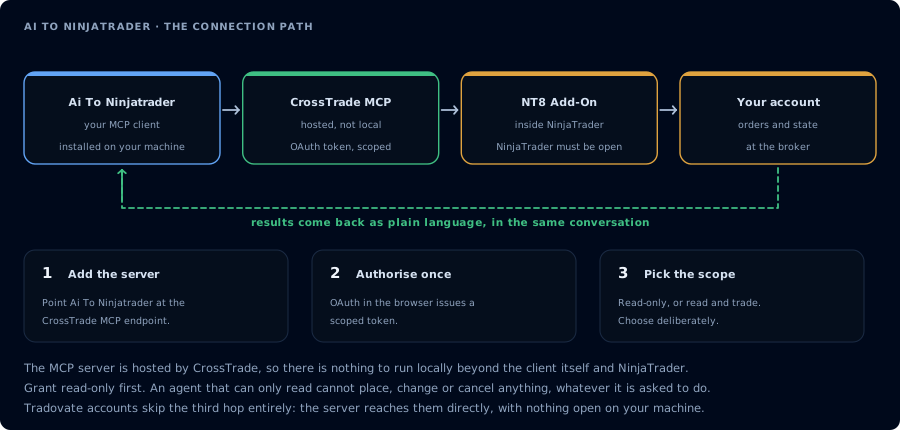
Four hops, authorised once. Read-only is the scope to start with.
- Subscribe to CrossTrade Elite and install the CrossTrade NT8 Add-On in NT8.
- Pick an AI host (a chat app, IDE, CLI, or terminal that supports MCP).
- Register the CrossTrade MCP server:
https://app.crosstrade.io/v1/api/mcp. - Approve OAuth with
mcp:readscope on the first call. - Run your first prompt.
The URL, the OAuth flow, and the read-only first prompt never change. Only the host-specific config step is different per app. Pick a host that fits how you work, then follow its setup page.
Pick a host by how you work
Chat / browser-based (easiest)
| Host | Setup page |
|---|---|
| Claude.ai (web Connectors) | Connect Claude.ai web |
| Claude Desktop (Mac, Windows) | Connect Claude Desktop |
| ChatGPT (web Connectors) | Connect ChatGPT (web) |
| ChatGPT Desktop app | Connect ChatGPT Desktop |
| Cherry Studio | Connect Cherry Studio |
| Msty | Connect Msty |
| 5ire | Connect 5ire |
IDEs (NinjaScript work)
| Host | Setup page |
|---|---|
| Cursor | Connect Cursor |
| Windsurf | Connect Windsurf |
| Zed | Connect Zed |
| VS Code (GitHub Copilot) | Connect GitHub Copilot |
| VS Code (Cline) | Connect Cline |
| VS Code (Continue) | Connect Continue |
| VS Code (Roo Code) | Connect Roo Code |
| JetBrains (AI Assistant / Junie) | Connect JetBrains AI |
| Sourcegraph Cody | Connect Cody |
| Sourcegraph Amp | Connect Amp |
CLI / terminal
| Host | Setup page |
|---|---|
| Claude Code | Connect Claude Code |
| OpenAI Codex CLI | Connect Codex |
| Gemini CLI | Connect Gemini CLI |
| OpenCode (sst/opencode) | Connect OpenCode |
| Aider | Connect Aider |
| Goose (Block) | Connect Goose |
| Crush (Charm) | Connect Crush |
| Warp Agent Mode | Connect Warp |
Self-hosted / multi-user
| Host | Setup page |
|---|---|
| Open WebUI (Ollama frontend) | Connect Open WebUI |
| LibreChat | Connect LibreChat |
| AnythingLLM | Connect AnythingLLM |
| Hermes (Nous Research) | Connect Hermes |
| OpenClaw | Connect OpenClaw |
Workflow automation
| Host | Setup page |
|---|---|
| n8n | Connect n8n |
Recommended path for non-developers
Start with Claude.ai web (Connect Claude.ai web). Zero install, browser-based, supported by Anthropic's Connectors feature. The setup is three clicks.
If you want a native app instead, Claude Desktop (Connect Claude Desktop) is the second-easiest path.
What about the model?
Most of these hosts let you pick which LLM does the reasoning (Claude, GPT, Gemini, DeepSeek, Qwen, Llama, etc.). The MCP setup is the same across them; only the model's strengths differ. See Pick an LLM for trading for a model-by-model breakdown.
What about NinjaScript?
The agent can help write NinjaScript without you knowing C#. That workflow needs mcp:trade (compile is a write tool). See Vibe Code a NinjaScript Strategy. The agent does the writing; you provide the spec and approve the file write.
What about placing trades?
Placing trades through the agent requires mcp:trade. Read Use mcp:read vs mcp:trade and Trade-Enabled AI Agent Workflows before granting that scope.
Related
- Main site: NinjaTrader MCP Setup
- Learn: First Read-Only AI Trading Agent
- Learn: AI Trading Agent Safety
- Learn: Troubleshoot 401/403/408 errors