How to Connect ChatGPT Desktop to NinjaTrader 8 with CrossTrade MCP
The ChatGPT desktop apps on macOS and Windows exposes MCP through Developer Mode + Apps & Connectors, the same mechanism as web. Important: the macOS desktop app cannot add MCP servers itself — register on web, and the connector syncs automatically. The Windows desktop app can add servers natively.
mcp:readSingle-vendor hostPrerequisites
| Requirement | Detail |
|---|---|
| CrossTrade subscription | Elite |
| CrossTrade NT8 Add-On | v1.13.0 or higher |
| NinjaTrader 8 | Running, broker connected |
| Account | Sim101 for first runs |
| OAuth scope | mcp:read |
| Config file | (Windows) Settings → Apps & Connectors → Advanced → Developer mode. (macOS) Cannot add directly: register on web. |
streamable-http. Auth: OAuth 2.1 + PKCE. Request scope mcp:read. Read-only. Inspect accounts, orders, positions, journal, NinjaScript.When to use Desktop vs Web vs Codex
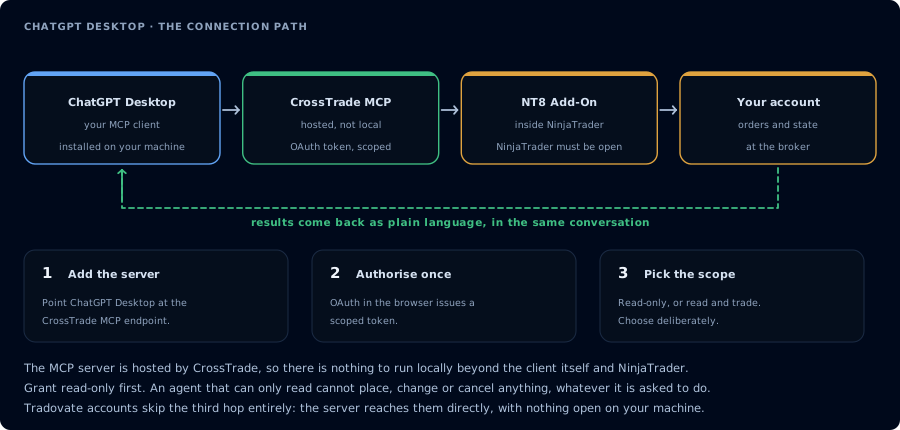
Four hops, authorised once. Read-only is the scope to start with.
- Desktop app: native, faster start, conversation lives locally. Same Apps & Connectors mechanism as web. Adding a new MCP server only works on Windows; macOS users register on web first.
- Web: zero install. Adding a new MCP server works for everyone.
- Codex CLI: terminal-based, edits local files. Best for NinjaScript work.
Path A — Windows desktop (add directly)
- Open ChatGPT Desktop.
- Settings → Apps & Connectors → Advanced settings → toggle Developer mode on.
- Back on Apps & Connectors, click Create.
- Fill in:
- Name:
CrossTrade - MCP Server URL:
https://app.crosstrade.io/v1/api/mcp - Auth: OAuth
- Name:
- Save. Complete OAuth in the browser tab that opens.
Path B — macOS desktop (register on web, syncs in)
The macOS app cannot add new MCP servers directly. Do this once:
- Open chatgpt.com in any browser.
- Follow the full ChatGPT web setup to add CrossTrade.
- Open ChatGPT Desktop on macOS. The CrossTrade connector now appears in the connector tray.
You only ever do step 1-2 once per ChatGPT account. The connector list is account-scoped, not device-scoped.
Step 2 (both paths): First read-only prompt
In a new chat, enable CrossTrade in the connector tray below the message box, then:
Use read-only tools only. Confirm CrossTrade MCP is connected. List my accounts.
Summarize open positions, working orders, and add-on version.
The flow from here mirrors ChatGPT web. Same prompts apply.
FAQ
Why can't macOS add servers directly?
OpenAI hasn't shipped the Developer Mode "Create" UI to the macOS desktop app yet. As of mid-2026 it's documented as "web and Windows desktop." This may change.
Are MCP tools shared across web, Desktop, and iOS?
Yes — connectors are scoped to your ChatGPT account, not the device. Sign in with the same account everywhere, see the same connectors everywhere.
Can I run mcp:trade from desktop?
Same plan gating as web: only Business/Enterprise/Education plans expose write tools through ChatGPT MCP connectors. The first tool call surfaces an authorization URL. Open it in a browser, approve See CrossTrade MCP OAuth for the full flow, and 403/408 troubleshooting if the handshake fails. Smoke-test before doing anything stateful:OAuth handshake
mcp:read, and return to the harness. The access token is stored by the harness (keychain, config file, or memory depending on the client).Verify the connection
Call GetMcpCapabilities and McpSelfTest. Then ListAccounts and GetConnections.
Report add-on version, NT8 version, and which accounts are linked.
mcp:read. The agent can inspect state but cannot place orders, deploy strategies, or write NinjaScript files.Troubleshooting
| Symptom | Likely cause | Fix |
|---|---|---|
| 403 insufficient_scope | Token authorized at mcp:read but tool requires mcp:trade | Reauthorize the connection and select mcp:trade |
| OAuth callback fails | System browser blocked the redirect or popup | Copy the auth URL manually, complete it, paste the code back |
| Tools list is empty after connect | Server registered but session did not refresh | Restart the harness or trigger a tool list refresh |
| Add-on offline error | NT8 not running, or add-on not loaded | Confirm NT8 is open and the CrossTrade NT8 add-on (v1.13.0+) is installed |
| Add Connector option missing on macOS | macOS desktop app does not expose Developer Mode for adding new servers | Add the connector on chatgpt.com in a browser; it syncs to the macOS desktop app automatically |
| Custom MCP write tools don't appear (Plus/Pro) | Plus and Pro restrict custom MCP connectors to read/fetch-only tools | Upgrade to Business/Enterprise/Education |