How to Connect ChatGPT (web) to NinjaTrader 8 with CrossTrade MCP
ChatGPT supports remote MCP servers through Developer Mode + Apps & Connectors. The setup is browser-based with OAuth. CrossTrade MCP routes through OpenAI's cloud to your CrossTrade NT8 Add-On in NT8.
mcp:readSingle-vendor hostPrerequisites
| Requirement | Detail |
|---|---|
| CrossTrade subscription | Elite |
| CrossTrade NT8 Add-On | v1.13.0 or higher |
| NinjaTrader 8 | Running, broker connected |
| Account | Sim101 for first runs |
| OAuth scope | mcp:read |
streamable-http. Auth: OAuth 2.1 + PKCE. Request scope mcp:read. Read-only. Inspect accounts, orders, positions, journal, NinjaScript.How the connection works
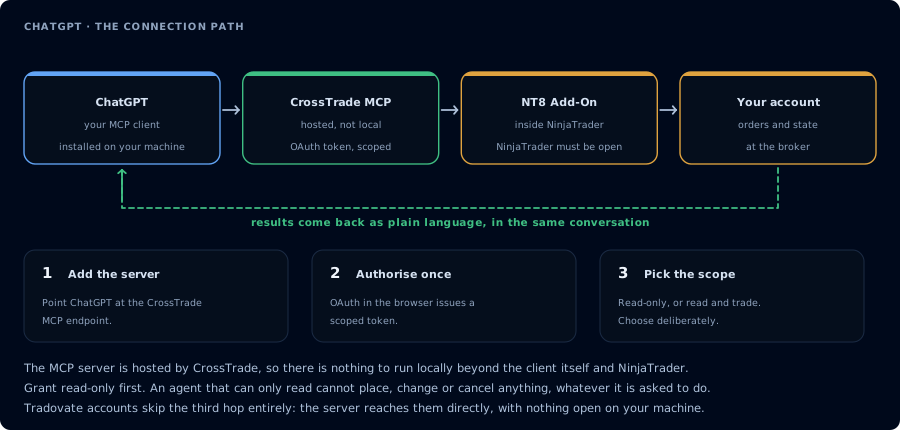
Four hops, authorised once. Read-only is the scope to start with.
There is no direct path from ChatGPT to NinjaTrader. ChatGPT does not run on your machine. NT8 is a Windows desktop application. The connection is a chain:
ChatGPT (web, OpenAI's cloud)
   │  OAuth-authorized request
   ▼
CrossTrade hosted MCP server
   │
   ▼
CrossTrade NT8 Add-On running inside NT8 on your PC
   │
   ▼
NinjaTrader 8
Step 1: Enable Developer Mode
- Open chatgpt.com and sign in.
- Click your profile (top-right) → Settings.
- Open Apps & Connectors in the sidebar (older builds show this as just "Connectors").
- Scroll to Advanced settings.
- Toggle Developer mode on.
Developer Mode + custom MCP connectors is available on Plus, Pro, Business, Enterprise, Education. The Free tier is excluded.
Plus and Pro are restricted to read/fetch-only tools. Business, Enterprise, and Education get full read AND write MCP tool support. If you need mcp:trade actions through ChatGPT, you need a Business+ plan — otherwise use Claude Desktop, Claude Code, or Cursor.
For Business/Enterprise/Education accounts, your workspace admin must first enable Developer Mode at Workspace Settings → Permissions & Roles → Connected Data → Developer mode / Create custom MCP connectors.
Step 2: Add CrossTrade as a custom MCP server
- Back on Apps & Connectors, click Create.
- Fill in:
- Name:
CrossTrade - MCP Server URL:
https://app.crosstrade.io/v1/api/mcp - Auth: OAuth
- Name:
- Save.
ChatGPT opens the CrossTrade OAuth consent screen. Sign in to CrossTrade if needed, approve the scope (start with mcp:read), and return to ChatGPT. The new grant appears on your AI Clients page.
Step 3: First read-only prompt
In a new chat, enable the CrossTrade connector via the connector tray below the message box, then paste:
Use read-only tools only. Confirm that CrossTrade MCP is connected, confirm whether
NinjaTrader 8 is connected through the CrossTrade NT8 add-on, list my available accounts,
and summarize any open positions or working orders. Do not place, cancel, modify,
flatten, deploy, or write anything.
The agent should call GetMcpCapabilities, McpSelfTest, ListAccounts, GetConnections, ListPositions, and ListOrders. The response describes the add-on version, NT8 version, and current account state.
Step 4: Trade journal summary
After the connection test passes, run a real read-only workflow:
Summarize my last 10 matched trades in Sim101 and group them by instrument,
direction, result, and time of day. Redact any account identifiers in the summary.
The agent calls GetJournalTrades and returns a structured summary. This is the highest-value first workflow and it has zero write risk.
Step 5 (optional, Business+ only): Trade-enabled test in Sim101
Only relevant if you're on Business/Enterprise/Education (Plus/Pro can't access write tools through ChatGPT MCP).
- Revoke the
mcp:readgrant from the AI Clients page. - Reauthorize with
mcp:trade. - Use a strict system prompt that requires state checks and explicit confirmation gates before any write.
- Run on Sim101 only.
Funded-account inspection example
Funded futures accounts have firm-specific rules. Always verify the firm's official rules page before granting mcp:trade against a funded account.
For inspection-only on a funded account, this is a safe pattern:
I'm on PROP1234, a $50k prop-firm evaluation. You have mcp:read only. Give me a risk brief: positions, working orders, account summary, watermarks. Compute how close I am to a $1,500 trailing drawdown using the high watermark and current balance. Do not place anything. Do not recommend trades.
See Prop Firm AI Trading for firm-by-firm rules.
FAQ
Can ChatGPT place trades in NinjaTrader 8?
Only on Business/Enterprise/Education plans. Plus and Pro restrict custom MCP connectors to read-only. If you need writes from ChatGPT, you need a higher tier — or switch to Claude Desktop, Claude Code, or Cursor, which have no such gating.
Why was the feature renamed?
OpenAI renamed "Connectors" to "Apps" on December 17, 2025. The combined Settings header is now "Apps & Connectors". The capability and config flow are unchanged.
Does ChatGPT support local (stdio) MCP servers?
No. ChatGPT only consumes remote MCP servers over Streamable HTTP or SSE. CrossTrade's hosted MCP works fine; local servers behind a firewall do not.
What about the macOS desktop app?
The macOS desktop ChatGPT app cannot add MCP servers directly. Register on web (this page), and the connector syncs to all your ChatGPT surfaces including macOS. See Connect ChatGPT Desktop. The first tool call surfaces an authorization URL. Open it in a browser, approve See CrossTrade MCP OAuth for the full flow, and 403/408 troubleshooting if the handshake fails. Smoke-test before doing anything stateful:OAuth handshake
mcp:read, and return to the harness. The access token is stored by the harness (keychain, config file, or memory depending on the client).Verify the connection
Call GetMcpCapabilities and McpSelfTest. Then ListAccounts and GetConnections.
Report add-on version, NT8 version, and which accounts are linked.
mcp:read. The agent can inspect state but cannot place orders, deploy strategies, or write NinjaScript files.Troubleshooting
| Symptom | Likely cause | Fix |
|---|---|---|
| 403 insufficient_scope | Token authorized at mcp:read but tool requires mcp:trade | Reauthorize the connection and select mcp:trade |
| OAuth callback fails | System browser blocked the redirect or popup | Copy the auth URL manually, complete it, paste the code back |
| Tools list is empty after connect | Server registered but session did not refresh | Restart the harness or trigger a tool list refresh |
| Add-on offline error | NT8 not running, or add-on not loaded | Confirm NT8 is open and the CrossTrade NT8 add-on (v1.13.0+) is installed |
| Developer Mode toggle not visible | Free plan, or Business/Enterprise/Education member without admin enablement | Upgrade to a paid plan; if on Business/Enterprise/Education, ask your workspace admin to enable Developer Mode under Permissions & Roles → Connected Data |
| Custom MCP write tools don't appear (Plus/Pro) | Plus and Pro restrict custom MCP connectors to read/fetch-only tools | Upgrade to Business/Enterprise/Education for full read+write tools, or use Claude Desktop/Code/Cursor (no such gating) |
| OAuth loop or no tools after authorize | Stale grant | Settings → Apps & Connectors → remove CrossTrade and re-add |
| Apps & Connectors not in Settings sidebar | Older app build still says just "Connectors" | Refresh the page or update the app; the feature was renamed Dec 17 2025 |