How to Connect Claude Desktop to NinjaTrader 8 with CrossTrade MCP
Claude Desktop supports remote MCP servers through the Custom Connectors UI. CrossTrade's MCP server is publicly reachable from Anthropic's cloud, which is exactly what the Settings → Connectors flow needs. Two-minute setup, no config file editing required.
mcp:readSingle-vendor hostPrerequisites
| Requirement | Detail |
|---|---|
| CrossTrade subscription | Elite |
| CrossTrade NT8 Add-On | v1.13.0 or higher |
| NinjaTrader 8 | Running, broker connected |
| Account | Sim101 for first runs |
| OAuth scope | mcp:read |
| Config file | Settings → Connectors → Add custom connector (UI). Power users can also edit claude_desktop_config.json with the mcp-remote bridge. |
streamable-http. Auth: OAuth 2.1 + PKCE. Request scope mcp:read. Read-only. Inspect accounts, orders, positions, journal, NinjaScript.Step 1: Add CrossTrade through the Custom Connectors UI (recommended)
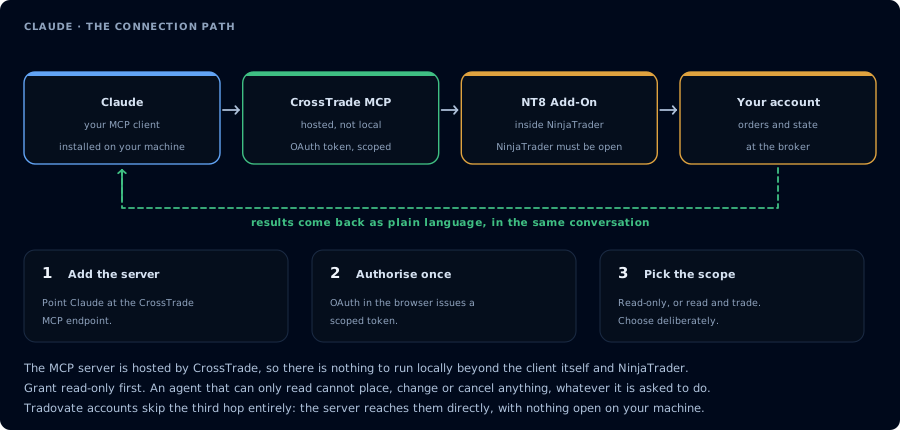
Four hops, authorised once. Read-only is the scope to start with.
This is the supported path for remote HTTP MCP servers. Anthropic's cloud handles the OAuth handshake and stores the token server-side.
- Open Claude Desktop.
- Click your profile → Settings.
- Open the Connectors tab in the left sidebar.
- Scroll to the bottom and click Add custom connector (or click "+" next to Connectors → Add custom connector).
- Fill in:
- Name:
CrossTrade - Remote MCP server URL:
https://app.crosstrade.io/v1/api/mcp
- Name:
- (Optional) Leave Advanced alone unless you have pre-issued OAuth credentials. CrossTrade supports Dynamic Client Registration.
- Click Add.
A browser tab opens for OAuth. Sign in to CrossTrade if needed, approve mcp:read, and return to Claude Desktop. The token stores in Anthropic's cloud (not on your machine) and the new grant appears on your CrossTrade AI Clients page.
The Free Claude plan is limited to 1 Custom Connector. If you already have one, you'll need to remove it or upgrade to Pro/Max/Team/Enterprise.
Step 1 (alternative): Use the config file with mcp-remote
If you prefer the config file (for sync across machines via dotfiles, etc.), you can wrap CrossTrade with the mcp-remote bridge.
- Open Claude Desktop → Settings → Developer → Edit Config.
- Find
claude_desktop_config.json:- macOS:
~/Library/Application Support/Claude/claude_desktop_config.json - Windows:
%APPDATA%\Claude\claude_desktop_config.json
- macOS:
- Paste (merge with any existing
mcpServers):
{
  "mcpServers": {
    "crosstrade": {
      "command": "npx",
      "args": [
        "mcp-remote",
        "https://app.crosstrade.io/v1/api/mcp"
      ]
    }
  }
}
- Save. Quit Claude Desktop completely (Cmd+Q on macOS) and reopen.
The first tool call opens an OAuth browser tab on your local machine. mcp-remote caches the token in ~/.mcp-auth/ so restarts don't re-prompt.
The native mcpServers schema is stdio-only. An entry like "crosstrade": { "url": "https://app.crosstrade.io/v1/api/mcp" } will silently fail to connect. Use either the Settings → Connectors UI (above) or wrap with mcp-remote.
Step 2: First read-only prompt
Use read-only tools only. Confirm that CrossTrade MCP is connected, confirm
whether NinjaTrader 8 is connected through the CrossTrade NT8 add-on, list my
available accounts, and summarize any open positions or working orders.
Do not place, cancel, modify, flatten, deploy, or write anything.
Claude calls ListAccounts, GetConnections, ListPositions, ListOrders, GetAccountSummary, GetWatermarks. The response is a one-page brief of your current state.
Step 3: Summarize recent trades
Pull the last 20 closed trades on Sim101 from the journal. Group by instrument
and side. Report win rate, average win, average loss, and the three biggest
losers. Redact account identifiers in the summary.
This is the highest-value first workflow on any account. It runs entirely on mcp:read.
Step 4: Inspect TradingView webhook history
Pull TradingView webhook signals on Sim101 for the last 24 hours. For each
signal, find the matching add-on activity entry and the order or execution.
Tell me which signals filled, which were rejected, and which produced no order.
If you do not use TradingView webhooks, Claude reports no signals. If you do, this diagnostic surfaces silent misses.
When to use Claude Desktop vs Claude Code
- Claude Desktop: interactive trading sessions, journal review, conversational debugging, anything where the conversation is the primary artifact.
- Claude Code: NinjaScript work, repository-style sessions where you also edit local files, larger backtest scripts, anything you want under version control.
See Connect Claude Code to NinjaTrader 8 for the CLI flow.
Optional: trade copier diagnosis
If you run the trade copier and a follower account missed a fill, Claude can reconstruct the timeline:
For PROP1234 and PROP1235 between 14:30 and 14:35 today, pull GetActivityLog. Reconstruct the timeline event by event. Explain why PROP1235 did not match PROP1234's fill.
This stays on mcp:read. See Debug a Trade Copier with AI.
Safety prompts for trade-enabled sessions
When you graduate to mcp:trade, include one of these as a system prompt. They make the agent verify state and wait for confirmation before any write.
Universal trade-enabled prompt
You have mcp:trade. Before any PlaceOrder, CancelOrder, FlattenEverything, DeployStrategy, or WriteNinjaScriptFile, you must:
- Read accounts, positions, working orders, account summary, and watermarks.
- Restate the action with account, instrument, side, and quantity.
- Wait for me to type "confirm" before calling the write tool.
- Refuse if any read fails.
Funded-account prompt
I am trading a funded evaluation. Do not place an order or deploy unless you have verified open positions, working orders, account summary, watermarks, and computed remaining daily loss room against $1,500 trailing drawdown. If room is below $150, refuse new trades. Do not run experiments on this account.
Read-only assistant prompt
You have mcp:read only. You may inspect, summarize, and explain. Do not attempt any write tool. If I ask you to place, cancel, flatten, deploy, or write, refuse and remind me that the token is read-only.
For the broader pattern, see AI Trading Agent Safety.
FAQ
Is Claude Desktop the only Claude client that works?
Claude Desktop, Claude Code, and Claude.ai web (browser Connectors) all work. Web Claude uses the same Custom Connectors flow, just from a browser instead of the desktop app.
Can Claude place trades?
With mcp:trade scope, yes. With mcp:read (the default for this tutorial), no. The OAuth scope is the floor; prompt design adds confirmation gates.
Why does my config file edit not register the server?
Claude Desktop's claude_desktop_config.json schema is stdio-only. A raw {"url": "..."} entry will silently fail. Use the Settings UI for remote HTTP servers, or wrap with mcp-remote as shown above.
What if I use a funded account?
Verify the firm's automation policy first. Apex prohibits automation; Topstep permits with caveats; others vary. Default to read-only on funded accounts. The first tool call surfaces an authorization URL. Open it in a browser, approve See CrossTrade MCP OAuth for the full flow, and 403/408 troubleshooting if the handshake fails. Smoke-test before doing anything stateful:OAuth handshake
mcp:read, and return to the harness. The access token is stored by the harness (keychain, config file, or memory depending on the client).Verify the connection
Call GetMcpCapabilities and McpSelfTest. Then ListAccounts and GetConnections.
Report add-on version, NT8 version, and which accounts are linked.
mcp:read. The agent can inspect state but cannot place orders, deploy strategies, or write NinjaScript files.Troubleshooting
| Symptom | Likely cause | Fix |
|---|---|---|
| 403 insufficient_scope | Token authorized at mcp:read but tool requires mcp:trade | Reauthorize the connection and select mcp:trade |
| OAuth callback fails | System browser blocked the redirect or popup | Copy the auth URL manually, complete it, paste the code back |
| Tools list is empty after connect | Server registered but session did not refresh | Restart the harness or trigger a tool list refresh |
| Add-on offline error | NT8 not running, or add-on not loaded | Confirm NT8 is open and the CrossTrade NT8 add-on (v1.13.0+) is installed |
| Connector saved but tools never appear | Claude.ai cloud cannot reach the server (firewall, VPN, localhost) | CrossTrade MCP is public; this should never apply. If you swapped to a self-hosted URL it must be reachable from Anthropic's IP ranges. |
| Custom Connectors only shows 1 slot | Free plan limit | Upgrade to Pro/Max/Team/Enterprise for unlimited connectors |
| Edited config.json but Claude Desktop won't pick up the server | Config file format is stdio-only; raw {"url": "..."} entries silently fail | Use the Settings → Connectors UI for remote HTTP servers, or wrap with mcp-remote in the config file |
| Settings menu still shows old "MCP Servers" label | Older build | Update Claude Desktop to the latest release; the modern label is "Connectors" |