How to Connect Claude.ai web to NinjaTrader 8 with CrossTrade MCP
Claude.ai web uses the Custom Connectors UI to register remote MCP servers. The CrossTrade MCP server registers as a Custom Connector and authenticates via OAuth in the browser. This is the zero-install path: no Desktop app, no CLI, no config file.
mcp:readSingle-vendor hostPrerequisites
| Requirement | Detail |
|---|---|
| CrossTrade subscription | Elite |
| CrossTrade NT8 Add-On | v1.13.0 or higher |
| NinjaTrader 8 | Running, broker connected |
| Account | Sim101 for first runs |
| OAuth scope | mcp:read |
| Config file | Settings → Connectors → Add custom connector (or claude.ai/customize/connectors) |
streamable-http. Auth: OAuth 2.1 + PKCE. Request scope mcp:read. Read-only. Inspect accounts, orders, positions, journal, NinjaScript.When to use Claude.ai web vs Claude Desktop
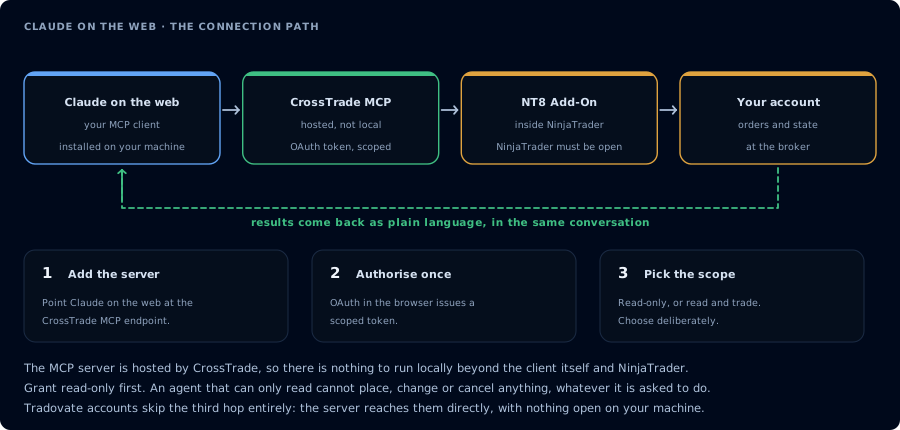
Four hops, authorised once. Read-only is the scope to start with.
- Claude.ai web (Connectors): zero install, browser-based, easiest for non-developers. Good for journal review, account inspection, conversational debugging.
- Claude Desktop: same chat experience, native app. Same Custom Connectors mechanism on the backend.
- Claude Code: terminal-based, can edit local files. Good for NinjaScript work.
This page covers the web flow. For the others, see Connect Claude Desktop and Connect Claude Code.
Step 1: Add CrossTrade as a Custom Connector
Free, Pro, Max plans:
- Open claude.ai and sign in.
- Click your profile icon → Settings.
- Click Connectors in the left sidebar (or jump directly to claude.ai/customize/connectors).
- Scroll to the bottom and click Add custom connector.
- Fill in:
- Name:
CrossTrade - Remote MCP server URL:
https://app.crosstrade.io/v1/api/mcp
- Name:
- Leave the Advanced section alone (CrossTrade supports Dynamic Client Registration).
- Click Add.
Team / Enterprise (Owner-only setup):
- Organization settings → Connectors.
- Add → hover Custom → select Web.
- Enter Name + URL as above → Add.
- After this, members can enable the connector per conversation.
Step 2: Authorize OAuth in the browser
Claude opens the CrossTrade OAuth consent screen in a popup tab.
- Sign in to CrossTrade if needed.
- Select the scope. Choose
mcp:readfor the first run. - Click Allow.
- The popup closes and the connector shows CrossTrade tools.
The grant appears on your AI Clients page. Revoke from there at any time.
Free is capped at 1 Custom Connector. Pro and Max have no documented cap. Team and Enterprise require an Owner to add the connector at the org level first.
Step 3: First read-only prompt
Open a new Claude.ai conversation. If the CrossTrade tools aren't visible, click the connector tray icon (sliders) below the message box and toggle CrossTrade on for this chat. Then paste:
Use read-only tools only. Confirm that CrossTrade MCP is connected, confirm
whether NinjaTrader 8 is connected through the CrossTrade NT8 add-on, list my
available accounts, and summarize any open positions or working orders.
Do not place, cancel, modify, flatten, deploy, or write anything.
Claude calls ListAccounts, GetConnections, ListPositions, ListOrders, GetAccountSummary. The response is a one-page brief.
Step 4: Journal review
Pull the last 20 closed trades on Sim101 from the journal. Group by instrument
and side. Report win rate, average win, average loss, and the three biggest
losers. Redact account identifiers in the summary.
This is the highest-value first workflow and it runs entirely on mcp:read.
Why some flows still need Desktop or Code
mcp:tradeoperations (placing orders, deploying strategies): all three Claude surfaces support them, but Desktop and Code give you a tighter feedback loop because the conversation persists locally.- NinjaScript file writes: Claude Code is the right tool because it edits local files in the same session.
- Long-running backtests: any of the three works; Claude Code is most convenient if you also want the artifacts versioned.
FAQ
Do I need Claude Pro or Max?
Custom Connectors are available on Free too, but Free is capped at 1 connector. Pro and Max have no documented cap. Team and Enterprise require an Owner to add the connector at the org level first.
Can the connector remember across sessions?
Yes. The OAuth grant persists at Anthropic until you revoke it. The connector reappears in every new Claude.ai conversation; you just toggle it on in each chat's connector tray.
Is the web version less capable than Desktop?
The MCP tool surface is identical. Both web and Desktop use the same Custom Connectors mechanism on the backend. The differences are host integration: Desktop has more dev-mode features (config file, MCP logs), web has none of that.
What is the OAuth callback URL CrossTrade should expect?
https://claude.ai/api/mcp/auth_callback. The CrossTrade OAuth server already accepts this; you don't have to configure anything on the CrossTrade side.
Why must the server be publicly reachable?
Claude.ai connects from Anthropic's cloud, not from your browser. Private/VPN/firewalled MCP servers will fail. CrossTrade's hosted MCP at The first tool call surfaces an authorization URL. Open it in a browser, approve See CrossTrade MCP OAuth for the full flow, and 403/408 troubleshooting if the handshake fails. Smoke-test before doing anything stateful:app.crosstrade.io is public, so this isn't a concern.OAuth handshake
mcp:read, and return to the harness. The access token is stored by the harness (keychain, config file, or memory depending on the client).Verify the connection
Call GetMcpCapabilities and McpSelfTest. Then ListAccounts and GetConnections.
Report add-on version, NT8 version, and which accounts are linked.
mcp:read. The agent can inspect state but cannot place orders, deploy strategies, or write NinjaScript files.Troubleshooting
| Symptom | Likely cause | Fix |
|---|---|---|
| 403 insufficient_scope | Token authorized at mcp:read but tool requires mcp:trade | Reauthorize the connection and select mcp:trade |
| OAuth callback fails | System browser blocked the redirect or popup | Copy the auth URL manually, complete it, paste the code back |
| Tools list is empty after connect | Server registered but session did not refresh | Restart the harness or trigger a tool list refresh |
| Add-on offline error | NT8 not running, or add-on not loaded | Confirm NT8 is open and the CrossTrade NT8 add-on (v1.13.0+) is installed |
| Custom Connectors only shows 1 slot | Free plan limit | Upgrade to Pro/Max or use Team/Enterprise where an Owner pre-adds the connector at the org level |
| Custom Connectors section missing entirely | Team/Enterprise members can't add custom connectors; only Owners/Primary Owners can | Ask your org Owner to add CrossTrade at the org level; you can then enable it per chat |
| Connector authorized but tools don't appear in chat | Connector needs to be enabled per conversation | In a new chat, open the connector tray (sliders icon) and toggle CrossTrade on |
| OAuth popup blocked | Browser popup blocker | Allow popups for claude.ai, retry "Add custom connector" |