How to Connect Continue to NinjaTrader 8 with CrossTrade MCP
Continue is an open-source AI coding assistant available as a VS Code and JetBrains extension. The MCP config lives in a YAML file with type: streamable-http (kebab-case — different from Cline's camelCase). No native browser OAuth flow: use a bearer token in requestOptions.headers.
mcp:tradeMulti-model harnessPrerequisites
| Requirement | Detail |
|---|---|
| CrossTrade subscription | Elite |
| CrossTrade NT8 Add-On | v1.13.0 or higher |
| NinjaTrader 8 | Running, broker connected |
| Account | Sim101 for first runs |
| OAuth scope | mcp:trade |
| Config file | ~/.continue/config.yaml (or .continue/config.yaml in workspace; or .continue/mcpServers/*.yaml) |
streamable-http. Auth: OAuth 2.1 + PKCE. Request scope mcp:trade. Read plus write. Place/cancel orders, deploy strategies, compile NinjaScript.Step 1: Add CrossTrade MCP server to ~/.continue/config.yaml
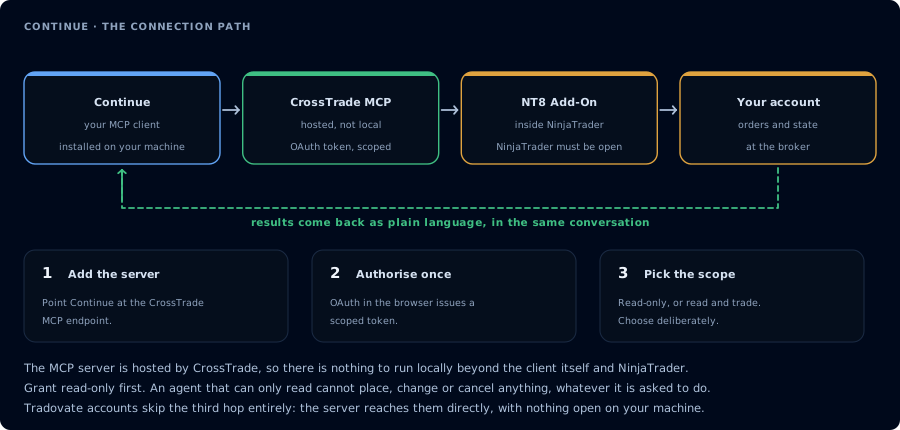
Four hops, authorised once. Read-only is the scope to start with.
mcpServers:
  - name: CrossTrade
    type: streamable-http
    url: https://app.crosstrade.io/v1/api/mcp
    requestOptions:
      headers:
        Authorization: "Bearer YOUR_TOKEN"
Unlike Cursor or Windsurf, Continue requires the type field. Valid values: stdio, sse, streamable-http (kebab-case). For CrossTrade use streamable-http. Cline uses streamableHttp camelCase — do not copy between them.
If you prefer per-server files: put the YAML in .continue/mcpServers/crosstrade.yaml.
Reload Continue (Cmd/Ctrl+Shift+P → "Continue: Reload Config").
Step 2: Obtain a bearer token
Continue's documented MCP flow doesn't include a native browser OAuth handshake. To get a CrossTrade token:
- Use another MCP client that does OAuth (Claude Code, Cursor, Cline, OpenCode) to authorize CrossTrade once.
- Copy the issued token from the CrossTrade AI Clients page.
- Paste it into Continue's
requestOptions.headers.Authorization.
Or set it as an env var and reference it in the YAML through standard YAML anchors.
Step 3: First read-only workflow
Pull the last 20 closed trades on Sim101. Group by instrument and side. Report
win rate, average win, average loss, and the three biggest losers.
Step 4: NinjaScript compile loop (with mcp:trade)
If you have a workspace open and Continue is in your editor, the compile loop runs similarly to Claude Code or Cursor:
GetNinjaScriptHelpon every NT8 type and method.- Draft into a file in the workspace.
CompileNinjaScript(in_memory: true).- Repair on failure.
WriteNinjaScriptFileafter confirmation.RunStrategyBackteston Sim101.
See Vibe Code a NinjaScript Strategy for the full sequence.
FAQ
Will Continue add native OAuth?
Likely. Most MCP-host docs are catching up to OAuth 2.1 + DCR through 2026. Watch the Continue release notes.
Can I use Continue on JetBrains?
Yes. Same YAML config. Same caveats. The first tool call surfaces an authorization URL. Open it in a browser, approve See CrossTrade MCP OAuth for the full flow, and 403/408 troubleshooting if the handshake fails. Smoke-test before doing anything stateful: If you authorized OAuth handshake
mcp:trade, and return to the harness. The access token is stored by the harness (keychain, config file, or memory depending on the client).Verify the connection
Call GetMcpCapabilities and McpSelfTest. Then ListAccounts and GetConnections.
Report add-on version, NT8 version, and which accounts are linked.mcp:trade, also confirm Sim101 is the default account before any order placement.
mcp:trade scope grants order placement. The scope does not protect a funded account; your prompt and account selection do. Default to Sim101 during setup. For funded accounts, verify the firm's automation policy first.Troubleshooting
| Symptom | Likely cause | Fix |
|---|---|---|
| 403 insufficient_scope | Token authorized at mcp:read but tool requires mcp:trade | Reauthorize the connection and select mcp:trade |
| OAuth callback fails | System browser blocked the redirect or popup | Copy the auth URL manually, complete it, paste the code back |
| Tools list is empty after connect | Server registered but session did not refresh | Restart the harness or trigger a tool list refresh |
| Add-on offline error | NT8 not running, or add-on not loaded | Confirm NT8 is open and the CrossTrade NT8 add-on (v1.13.0+) is installed |
| Server defined but never registers | Missing type field — Continue requires it explicitly | Add type: streamable-http (kebab-case) to the server entry |
| OAuth not triggered | Continue does not document a native browser OAuth flow for remote MCP | Obtain a CrossTrade token out-of-band (e.g. from another MCP client's OAuth flow) and put it in requestOptions.headers as a Bearer token |