How to Run Your First Read-Only AI Trading Agent in NinjaTrader 8
The first AI trading agent every trader should run is read-only. It cannot place orders. It cannot cancel, flatten, modify, deploy, or write anything. What it can do is read your accounts, journal, webhooks, and copier history and answer the questions you have been answering manually in a spreadsheet.
Why read-only comes first
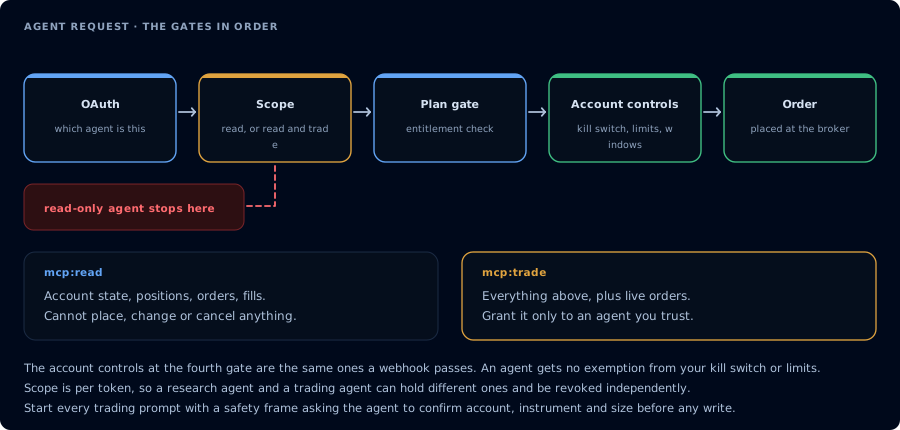
Four gates before an order. A read-only agent never reaches the third.
Two reasons:
- The OAuth scope makes it impossible for the agent to write anything. The server returns
insufficient_scopefor any write tool, no matter what the prompt says. - Read-only covers most of the AI workflows traders actually want: pre-session brief, journal review, webhook audit, copier diagnosis, daily report.
What read-only can do
- List accounts and connection state
- Show open positions and working orders
- Summarize realized and unrealized P&L
- Read watermarks (the daily highs and lows used by trailing drawdown rules)
- Pull TradingView webhook signal history
- Read the CrossTrade NT8 Add-On activity log
- Pull matched-trade journal entries
- Inspect NinjaScript source files and symbols
- Read prior backtest results
What read-only cannot do
- Place, modify, or cancel orders
- Flatten or reverse positions
- Deploy or stop strategies
- Compile or write NinjaScript
- Run new backtests
- Emit alerts
If a workflow needs any of those, see Trade-Enabled AI Agent Workflows.
Prerequisites
| Requirement | Detail |
|---|---|
| CrossTrade subscription | Elite |
| CrossTrade NT8 Add-On | v1.13.0 or higher |
| NinjaTrader 8 | Running, broker connected |
| MCP client | Any client supporting remote MCP |
| Scope | mcp:read |
| Account | Any |
Step 1: Authenticate with read-only scope
Set up your MCP client and complete OAuth, choosing mcp:read on the consent screen. See How to Authenticate the CrossTrade MCP Server.
Step 2: Verify account and connection state
Run the standard first prompt:
Use read-only tools only. Confirm that CrossTrade MCP is connected, confirm
whether NinjaTrader 8 is connected through the CrossTrade NT8 add-on, list my
available accounts, and summarize any open positions or working orders.
Do not place, cancel, modify, flatten, deploy, or write anything.
The agent should return a one-page brief with the add-on version, NT8 version, account list, connection states, and current positions and orders. If anything is missing, troubleshoot before continuing.
Step 3: Ask for open positions and working orders
If Step 2 returned the brief, you already have this. To dig deeper:
For my <account>, list all open positions with side, quantity, average price,
and unrealized P&L. List all working orders with order id, instrument, side,
type, quantity, and price. Flag anything that looks orphaned.
The agent should identify stale orders or unprotected positions you might have missed.
Step 4: Ask for trade journal summary
The highest-value first workflow:
Pull the last 20 closed trades on <account> from the journal. Group by
instrument and side. Report win rate, average win, average loss, biggest
loser. Flag any trade that started within 60 seconds of a prior losing trade
exit on the same instrument.
The agent calls GetJournalTrades. You get an analysis you would not have done manually at the end of a session.
Step 5: Ask for webhook history summary
If you run TradingView webhooks:
Pull TradingView webhook signals on <account> for the last 24 hours. For each
signal, find the matching order or activity entry. Tell me which signals
filled, which were rejected, and which produced no order. Group non-fills by
likely cause.
This is the diagnostic that catches silent webhook misses.
Step 6: Ask for copier diagnostics
If you run a CrossTrade trade copier:
For leader <leader_account> and follower <follower_account> for the last
hour, pull GetActivityLog for both. Pull ListOrders and ListExecutions for
both in the same window. Tell me whether the follower path matched the
leader path. Surface the verbatim rejection reason if any.
The agent reconstructs the timeline and identifies the divergence.
Step 7: Save a daily review prompt
Build a reusable daily report:
On <account>, pull today's matched trades, GetWatermarks, GetAccountSummary,
GetActivityLog, GetSignalHistory. Build a one-page report with:
- Total realized P&L
- Lowest watermark of the day
- Drawdown room at the worst moment (use <model> $<amount>)
- Any orders rejected by the firm risk system
- Any webhook signals that did not produce a fill
- Three biggest losers grouped by setup if tagged
Redact account identifiers in the summary.
Run it every evening. You will recognize patterns within two weeks.
Troubleshooting
| Symptom | Likely cause | Fix |
|---|---|---|
| 401 unauthorized | Token expired or revoked | Reauthorize |
| 403 Elite required | Account below Elite | Upgrade |
| 408 timeout | NT8 closed or add-on disconnected | Open NT8, check add-on |
insufficient_scope | You tried a write tool with read scope | Either revise the prompt or reauthorize at mcp:trade |
| Empty journal | No trades in the range | Widen the range |
When to consider trade-enabled access
Only after read-only feels reliable and you have a specific workflow that needs writes. Typical reasons:
- NinjaScript compile loop
- Strategy Analyzer backtest jobs
- Order placement with explicit confirmation gates
- Strategy deployment with quantitative gates
See Use mcp:read vs mcp:trade for the upgrade decision and Trade-Enabled AI Agent Workflows for the safety pattern.
FAQ
Is read-only safe on a funded account?
Safer than trade-enabled. The OAuth scope cannot place orders. The agent can still produce misleading analysis, so treat its output as one input rather than the answer.
Can the agent expose my account number?
It can, in summaries. Tell it to redact identifiers, and review the output before sharing.
What if I want push alerts?
Push alerts via EmitMcpAlert require mcp:trade. For read-only, the agent reports in chat; you read the chat.
Related
- Main site: AI Trading Agent Safety
- Learn: Authenticate CrossTrade MCP
- Learn: Use mcp:read vs mcp:trade
- Learn: Trade-Enabled AI Agent Workflows
- Learn: Analyze NinjaTrader Trade Journal with AI
- Docs: MCP Scopes