Pine Script Webhook Alerts
TradingView alerts can POST to any webhook URL. The alert's message field becomes the POST body. For CrossTrade, write a Pine Script that formats the message as a semicolon-separated key=value payload, then paste your CrossTrade webhook URL into the alert's Notifications tab. TradingView does the heavy lifting — your script just needs to fire the right alert() or strategy.entry() calls.
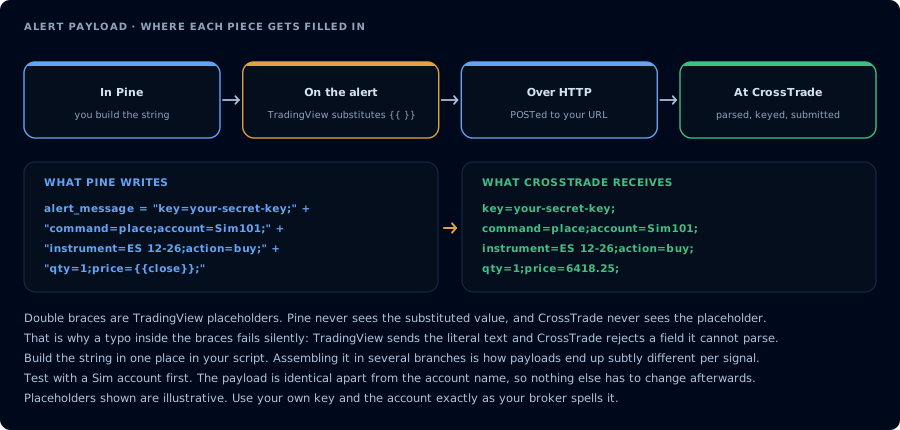
Double braces are filled in by TradingView, not by Pine and not by CrossTrade.
The three moving parts
- Pine Script — your indicator or strategy with the logic and
alert()calls - TradingView alert — the rule that fires and delivers messages to webhooks
- Webhook receiver — CrossTrade's endpoint, which parses your payload and routes the order to the selected destination
Choose a CrossTrade destination: NinjaTrader 8 or Tradovate
The same CrossTrade webhook can route to either NinjaTrader 8 or a linked Tradovate account. Add a destination line to make the route explicit.
key=your-secret-key;
command=place;
account=DemoAccount;
instrument=ES1!;
action=buy;
qty=1;
order_type=market;
tif=day;
destination=tradovate;
Use destination=tradovate; for the direct Tradovate route. Direct native routing, Strategy Sync, the signal copier, and Tradovate-native orders are generally available. The route runs through a cloud connection, so a Windows VPS, NinjaTrader 8, and the CrossTrade NT8 Add-On do not need to stay online.
Test CrossTrade-managed features like fill-driven copying, target-fill breakeven, consensus-triggered trail activation, and durable trigger replay on a linked Tradovate Demo account first.
For NinjaTrader 8, use the NinjaTrader destination described in the existing guide. NinjaTrader 8 is a Windows desktop application, so the CrossTrade NT8 Add-On and NinjaTrader must be running when NinjaTrader is the destination.
For a full cloud setup, read How to Trade Tradovate Webhooks Without a VPS.
Step 1: Write the Pine Script
The simplest version — an indicator() that fires a fixed-side buy alert:
//@version=6
indicator("RSI Oversold Alert", overlay=false)

rsiLen = input.int(14, "RSI length")
rsiVal = ta.rsi(close, rsiLen)

plot(rsiVal, color=color.orange, linewidth=2)
hline(30, "Oversold", color=color.green)

if ta.crossover(rsiVal, 30)
    alert("BUY_SIGNAL", alert.freq_once_per_bar_close)
This fires a plain-text "BUY_SIGNAL" message when RSI crosses 30 upward. The message is static — no dynamic data.
Step 2: Create the TradingView alert
- On the chart with the indicator applied, click Alerts (alarm clock icon) → Create Alert
- Condition: select your indicator → "Any alert() function call"
- Options: "Once per bar close" (recommended) or "Once per bar" depending on the script
- Message: leave TradingView's default
{{alert_message}}placeholder — this inserts whatever the script passed toalert() - Notifications tab: check Webhook URL and paste your CrossTrade endpoint
Click Create. The alert is armed.
Step 3: Format the payload for CrossTrade
The message TradingView delivers is whatever string your script passes to alert(). For CrossTrade, that string needs to be a semicolon-separated key=value payload:
Modify the script:
//@version=6
indicator("RSI Oversold — CrossTrade Alert", overlay=false)

rsiLen = input.int(14, "RSI length")
rsiVal = ta.rsi(close, rsiLen)

plot(rsiVal, color=color.orange, linewidth=2)
hline(30, "Oversold", color=color.green)

// CrossTrade payload
secretKey = input.string("YOUR-SECRET-KEY", "CrossTrade secret key")
account   = input.string("Sim101",          "Account name")
instr     = input.string("ES 12-26",        "NinjaTrader instrument")
qty       = input.int(1,                     "Quantity")

payload = "key=" + secretKey +
          ";command=place" +
          ";account=" + account +
          ";instrument=" + instr +
          ";action=buy" +
          ";qty=" + str.tostring(qty) +
          ";order_type=market" +
          ";tif=day"

if ta.crossover(rsiVal, 30)
    alert(payload, alert.freq_once_per_bar_close)
Now the alert message is the CrossTrade-formatted payload. When fired, CrossTrade receives it, parses it, and sends a buy order to NinjaTrader.
Dynamic payloads with strategy() scripts
If you're writing your own Pine Script, you fire CrossTrade alerts by passing the payload string to strategy.entry() (or strategy.exit() / strategy.order()) via the alert_message= parameter — that's how to trigger a CrossTrade alert from Pine code you authored. You then read the per-order string back in the TradingView alert dialog with {{strategy.order.alert_message}}:
//@version=6
strategy("SMA Crossover with 50-Tick SL/TP", overlay=true)

// Crossover signals
sma1 = ta.sma(close, 1)
sma3 = ta.sma(close, 3)
longCondition  = ta.crossover(sma1, sma3)
shortCondition = ta.crossunder(sma1, sma3)

// Per-instrument tick size (NQ/ES = 0.25)
tickSize = 0.25

if longCondition
    stopLossPrice = close - 50 * tickSize
    targetPrice   = close + 50 * tickSize
    msg  = "key=YOUR-SECRET-KEY;"
    msg := msg + "command=PLACE;"
    msg := msg + "account=Sim101;"
    msg := msg + "instrument={{ticker}};"
    msg := msg + "action=BUY;"
    msg := msg + "qty=1;"
    msg := msg + "order_type=MARKET;"
    msg := msg + "tif=DAY;"
    msg := msg + "flatten_first=true;"
    msg := msg + "take_profit=" + str.tostring(targetPrice)   + ";"
    msg := msg + "stop_loss="   + str.tostring(stopLossPrice) + ";"
    strategy.entry("Long", strategy.long, alert_message=msg)

if shortCondition
    stopLossPrice = close + 50 * tickSize
    targetPrice   = close - 50 * tickSize
    msg  = "key=YOUR-SECRET-KEY;"
    msg := msg + "command=PLACE;"
    msg := msg + "account=Sim101;"
    msg := msg + "instrument={{ticker}};"
    msg := msg + "action=SELL;"
    msg := msg + "qty=1;"
    msg := msg + "order_type=MARKET;"
    msg := msg + "tif=DAY;"
    msg := msg + "flatten_first=true;"
    msg := msg + "take_profit=" + str.tostring(targetPrice)   + ";"
    msg := msg + "stop_loss="   + str.tostring(stopLossPrice) + ";"
    strategy.entry("Short", strategy.short, alert_message=msg)
Then in the TradingView alert dialog:
- Condition: select your strategy → "Order fills only"
- Message:
{{strategy.order.alert_message}}
{{strategy.order.alert_message}} resolves to whatever string you passed as alert_message= on the order that just filled. TradingView still substitutes its own placeholders ({{ticker}}, {{close}}, {{time}}, etc.) inside that string at delivery time, so you can mix script-built fields with TradingView placeholders freely — note instrument={{ticker}} in the example above.
Why the alert_message pattern is worth it when you control the Pine:
- You can compute per-signal values in Pine (SL/TP from tick math, qty from ATR, etc.) — none of that is expressible in the dialog.
- Long and short can have completely different payloads — different account, different command, different bracket distances, even different secret keys.
- Payload logic lives in version-controlled Pine. The alert dialog stays a single line (
{{strategy.order.alert_message}}) and never has to change as you iterate on the strategy.
Alternative: write the payload directly in the alert dialog
If you don't have access to the Pine source — using a third-party script, an indicator someone else wrote, a built-in TradingView strategy — write the entire CrossTrade payload directly in the TradingView alert dialog and use TradingView's strategy placeholders to fill in the dynamic fields:
key=YOUR-SECRET-KEY;
command=place;
account=Sim101;
instrument=ES 12-26;
action={{strategy.order.action}};
qty={{strategy.order.contracts}};
order_type=market;
tif=day;
sync_strategy=true;
market_position={{strategy.market_position}};
prev_market_position={{strategy.prev_market_position}};
target_quantity={{strategy.position_size}};
out_of_sync=resync;
Set the alert's Condition to "Order fills only". TradingView substitutes each placeholder at fire time. The tradeoff vs. the alert_message pattern is no per-signal customization — you can't compute SL/TP from tick math, send different payloads for long vs. short, or reference any script-internal variables. For users authoring their own Pine, reach for alert_message= first.
Alert frequency — alert.freq_*
Pine's alert() function takes a frequency:
alert.freq_once_per_bar_close— fires once when the bar closes. Recommended for most strategies.alert.freq_once_per_bar— fires on the first tick that triggers the condition within a bar. Can fire on bars that later reverse and close differently.alert.freq_all— fires on every tick the condition is true. Usually too noisy.
The safest default is alert.freq_once_per_bar_close. It means signals only fire on confirmed, closed bars — no intra-bar head-fakes.
Pitfalls that cost you trades
1. Using {{strategy.order.action}} in an indicator() script. These placeholders only work in strategy() scripts. Convert or hardcode the action. See strategy vs indicator.
2. Alert expiration. Free TradingView accounts have short alert expirations (days). Paid accounts are longer. Renew expiring alerts before they lapse.
3. Webhook rate limits. TradingView allows a limited number of alerts per plan. A strategy that fires 100 times per day will chew through alerts. Use alert.freq_once_per_bar_close and design strategies to fire sparingly.
4. Not enabling 2FA. TradingView requires 2FA on your account to enable webhook delivery. Without it, alerts fire but webhooks silently fail.
5. Silent payload errors. If your payload is malformed, CrossTrade logs the rejection but your alert appears to have fired. Always check the CrossTrade Alert History after deploying a new script.
Testing before going live
Never point a new strategy at a live account. The workflow:
- Sim test. Point the payload at your NinjaTrader sim account (
account=Sim101). Run for multiple sessions. - Paper test. Watch alert history in CrossTrade for accurate signal delivery and fill behavior.
- Micro live. Deploy to live with 1 MES / 1 MNQ / 1 MCL. Observe real fills, slippage, edge decay.
- Scale. Gradually increase size as confidence builds.
Skipping steps 1–2 is how small Pine Script bugs turn into large real-money losses.
Frequently Asked Questions
How do I send a TradingView alert to a webhook?
In the alert creation dialog, open the Notifications tab and check 'Webhook URL.' Paste your webhook endpoint. TradingView will POST the alert's message content to that URL when the alert fires. For CrossTrade, the message needs to be a semicolon-separated key=value payload.
Why isn't my Pine Script alert firing?
Common causes: (1) the alert has expired (free plan alerts expire quickly); (2) 2FA is not enabled on your TradingView account (required for webhooks); (3) the condition hasn't triggered yet — verify by temporarily using alert.freq_all to see if it fires at all; (4) the script is using a placeholder that doesn't apply (e.g., {{strategy.*}} in an indicator).
Can one alert trigger multiple webhook URLs?
No — each TradingView alert has exactly one webhook URL. To send to multiple endpoints, create duplicate alerts, each with the relevant URL. Alternatively, send to a proxy service that fans out the webhook to multiple destinations.
Do I need a paid TradingView plan for webhooks?
Yes. Webhook alerts require at least the Essential plan. Free plans do not allow webhook delivery. Paid plans also offer more alerts, longer alert durations, and faster alert execution.
Can I send a TradingView webhook to Tradovate?
Yes. Link your Tradovate account in CrossTrade and include destination=tradovate; in the alert. Direct native routing, Strategy Sync, the signal copier, and native orders are generally available. Fill-driven copying, target-fill breakeven, consensus-triggered trail activation, and durable trigger replay are generally available and should be tested with a Tradovate Demo account first.
Do I need a VPS to send TradingView alerts to Tradovate?
No. The direct Tradovate route uses a cloud connection, so NinjaTrader 8 and a Windows VPS do not need to stay online for that destination. This differs from NinjaTrader 8 automation, which requires the CrossTrade NT8 Add-On and NinjaTrader to be running.