How to Use CrossTrade MCP with NinjaTrader 8 on a Windows VPS
Most NinjaTrader users run NT8 on a Windows VPS so the platform stays online when the laptop closes. CrossTrade MCP works the same way on a VPS as on a desktop, with a few network and OAuth considerations.
Prerequisites
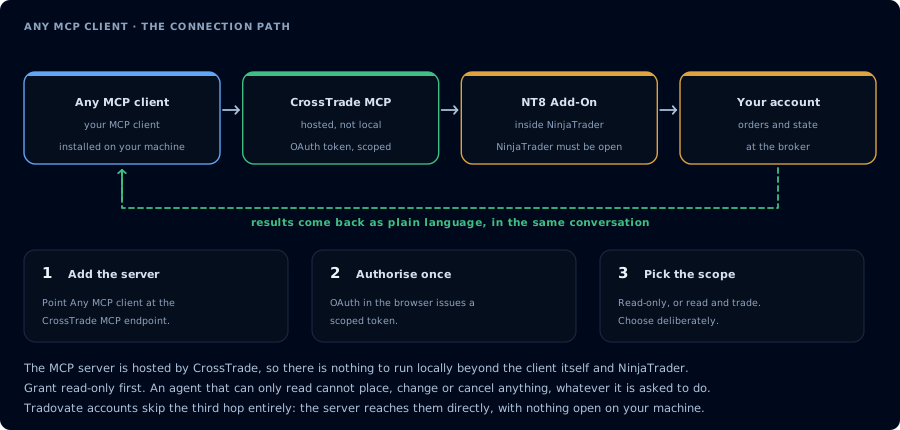
Four hops, authorised once. Read-only is the scope to start with.
| Requirement | Detail |
|---|---|
| Windows VPS | A Windows machine running NinjaTrader 8 24/7 |
| CrossTrade subscription | Elite |
| CrossTrade NT8 Add-On | v1.13.0 or higher installed on the VPS |
| Network | VPS allows outbound HTTPS to app.crosstrade.io |
| AI client location | Your laptop, your VPS, or another machine |
Step 1: Confirm CrossTrade NT8 Add-On is running on the VPS
- RDP into the VPS.
- Open NinjaTrader 8.
- Open the CrossTrade NT8 Add-On panel. Confirm version
v1.13.0or higher and status connected. - Confirm the broker connection inside NT8.
Step 2: Decide where the AI client runs
| Option | Pros | Cons |
|---|---|---|
| AI client on your laptop | OAuth consent uses your local browser; familiar workflow | Some lag depending on internet speed |
| AI client on the VPS | Lowest latency to CrossTrade NT8 add-on; runs even when laptop is off | OAuth consent uses the VPS browser (RDP into the VPS for it) |
| AI client on a third machine | Useful if multiple traders share the VPS | Same considerations as your laptop |
CrossTrade MCP runs in the cloud; the AI client only needs to reach app.crosstrade.io, not the VPS directly.
Step 3: Add the CrossTrade MCP server to the client
Standard config, same as desktop setup:
{
  "mcpServers": {
    "crosstrade": {
      "url": "https://app.crosstrade.io/v1/api/mcp"
    }
  }
}
See the client-specific tutorials: ChatGPT, Claude Desktop, Claude Code, Cursor.
Step 4: Complete OAuth
The OAuth flow opens a browser. If the client runs on the VPS, the consent screen opens in the VPS browser; complete it there. If the client runs on your laptop, complete it locally.
The token is bound to the client device. Each device must complete its own OAuth flow.
Step 5: Verify the connection
In the AI client:
Use read-only tools only. Confirm CrossTrade MCP is connected and NinjaTrader 8
on the VPS is reachable. List my accounts.
The agent should report the add-on version, NT8 version on the VPS, and the account list.
Step 6: Run your usual workflows
The agent reaches NT8 through the CrossTrade hosted server and the add-on running on the VPS. From the agent's point of view there is no difference between local NT8 and VPS NT8.
If you run trade copier features across the VPS and a local NT8, see Debug a NinjaTrader Trade Copier with AI.
VPS considerations
Uptime
If the VPS goes offline, the CrossTrade NT8 Add-On loses connection. The agent will return 408 timeouts on add-on-backed tools until the VPS is back. Use a VPS with a reliable uptime SLA.
Auto-reconnect
The CrossTrade NT8 Add-On has built-in auto-reconnect logic. After a temporary disconnect, it reconnects without intervention.
NT8 must be running
If NT8 itself is closed, MCP tool calls that need NT8 state return 408. Use a watchdog (Task Scheduler or an NT8 restart utility) to keep NT8 up.
OAuth tokens on shared VPSes
If multiple traders share the VPS, each trader's AI client should authorize from their own login. Do not share OAuth tokens.
Troubleshooting
| Symptom | Fix |
|---|---|
| 408 timeout when laptop is off but VPS is on | The agent is reachable through CrossTrade hosted server regardless of laptop state; the VPS-side add-on must be connected. RDP in to check. |
| Agent works from laptop but not from VPS | The client on the VPS may have outdated MCP cache; reload MCP servers in that client |
| OAuth consent opens locally when client is on VPS | The client opened the local browser; if you want consent inside the VPS browser, run the client from the VPS RDP session |
Related
- Main site: VPS hosting
- Learn: Authenticate CrossTrade MCP
- Learn: Troubleshoot 401, 403, and 408 Errors