Time-based Alert
Time-based Alert is a simple utility that fires a TradingView alert once per day at a specific hour and minute. Perfect for flattening positions at session close, sending end-of-day summary alerts, or any timed action where you want a deterministic clock-driven trigger. Pairs naturally with CrossTrade's flatten and close commands.
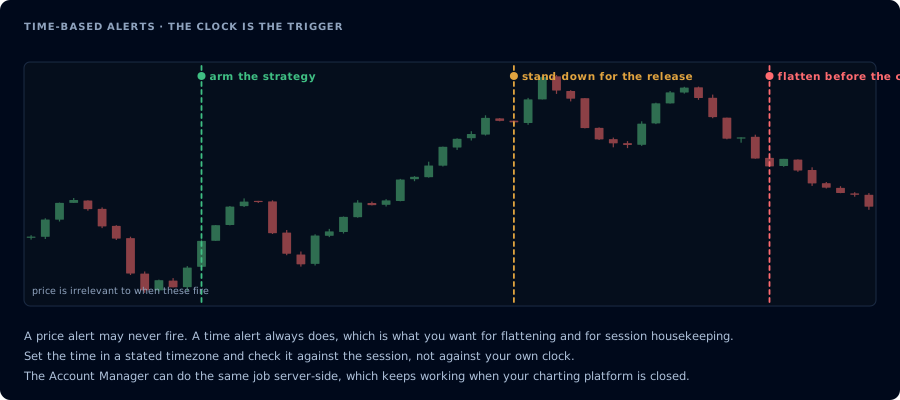
A price alert may never fire. A time alert always does, which is the point.
Why a clock-driven alert
Most trading alerts are condition-driven — they fire when price crosses a level or an indicator signals. But some critical actions need to happen at a specific time regardless of price:
- Flatten before market close — close every position 5 minutes before the bell to avoid overnight risk
- End-of-session alerts — send a "review your trades" reminder at session close
- Halftime checks — fire at noon ET to remind you to reassess open positions
- Pre-market position-cleanup — make sure overnight orders are flat before the next session opens
- Funding-time triggers — for crypto, fire just before funding to flatten or rotate
TradingView's built-in alerts are condition-driven and can't natively schedule "fire at 3:55 PM ET." Time-based Alert solves this with a one-line Pine Script utility.
How it works
You set an hour and a minute. Once per day, when the chart's time hits that combination, the indicator fires its alert condition. That's it.
The indicator runs on whatever timeframe your chart is on, but the alert only fires once per day — multiple bars in the target minute won't produce duplicate alerts.
Settings
| Input | Default | What it does |
|---|---|---|
| Alert Hour | 16 | Hour of the day in 24-hour format (16 = 4 PM) |
| Alert Minute | 0 | Minute past the hour |
| Use Central Time (Exchange) | Off | If checked, time is interpreted as exchange CT |
By default the time is Eastern Time (New York). Most futures and equity traders work in ET, so this matches the common case. Tick the "Use Central Time (Exchange)" box if you want exchange-time semantics — useful for futures traders aligning to the CME exchange clock.
Setup walkthrough
1. Add the indicator
Open Supercharts → Indicators → search Time-based Alert → add it.
2. Set the time
In the indicator settings, set Alert Hour and Alert Minute to your target time. Examples:
- ES futures pre-close flatten: Hour 15, Minute 55 (3:55 PM ET — 5 min before regular session close)
- Crypto funding-time alert: Hour 23, Minute 55 (UTC funding is at midnight UTC, so this fires 5 min before)
- End-of-session NQ check-in: Hour 16, Minute 0 (4:00 PM ET — RTH close)
3. Create the alert
Right-click the indicator → Add alert → choose the Time Alert condition. Set:
- Message — your CrossTrade payload (see below)
- Webhook URL — your CrossTrade webhook URL (Notifications tab)
4. Send a flatten command (the most common use case)
Drop this into the alert message field:
key=your-secret-key;
command=flatten;
account=Sim101;
instrument=ES 03-25;
Replace your-secret-key, Sim101, and ES 03-25 with your actual CrossTrade key, NinjaTrader account, and instrument. CrossTrade will fire a flatten on that account/instrument at the specified time.
For a full close (no new orders, just flatten everything currently open):
key=your-secret-key;
command=closeposition;
account=Sim101;
instrument=ES 03-25;
Other useful patterns: command=cancelallorders; to clear pending orders without affecting positions, or compose multiple commands across separate alerts (TradingView allows several alerts on the same indicator).
Trading applications
Pre-close flatten. The most common use. Set Hour 15, Minute 55 ET to flatten ES/NQ futures before the 4:00 PM regular session close. Avoids the volatile last 5 minutes of the session and clears your account for overnight.
Cash session flatten. For day traders who don't want overnight exposure on equities, fire at 15:55 ET to close all positions before the equity bell.
Multi-stage exits. Run multiple instances of the indicator with different times to scale out — e.g., flatten 50% at 14:00, the rest at 15:55.
News-time risk control. Schedule a flatten 2 minutes before scheduled high-impact news (FOMC, NFP, CPI). Not perfect, but better than getting caught in a release-driven move.
Crypto funding-time rotation. For perpetual futures, fire just before funding to flatten and re-enter, avoiding negative funding.
Common mistakes
- Wrong timezone. The Eastern Time vs Central Time toggle matters. Double-check on a non-trading-hour test that the alert fires when expected.
- Forgetting to enable the alert. TradingView alerts run for a fixed number of days then expire. Re-enable on the day you need them.
- Single-alert covering multiple accounts. If you trade multiple NT8 accounts, each needs its own time-alert with its own account name (or use comma-separated accounts in the same alert if your strategy treats them identically).
- Using on a chart that doesn't trade in that timezone. If your chart symbol's session is in Asia and you're alerting at "16:00 ET," the indicator's timestamp may behave unexpectedly. Test before relying.
Pairs naturally with
- CrossTrade's flatten and closeposition commands — the natural payload for a clock-driven alert
- XT Alert Builder Single-Sided — its Session End feature is a strategy-internal version of this same idea, useful when you want time-based exits tied to an entry strategy
Frequently Asked Questions
Can I fire multiple alerts at different times on the same chart?
Yes. Add the indicator multiple times with different hour/minute settings, then create one alert per instance. TradingView allows multiple alerts on a chart as long as your plan supports them.
Does the alert fire on weekends?
Only if there's a bar at the target time on a weekend. For futures (which trade Sunday evening through Friday afternoon) you'll get a Friday-afternoon fire. For equities (Mon-Fri only), the alert won't fire on the weekend because no bar prints.
What if my target time is between bars (e.g. 16:00:30 on a 1-minute chart)?
The alert fires at the start of the minute that contains the target time. So 16:00:30 fires when the 16:00 bar opens. For sub-minute precision, use a smaller timeframe — but most flatten-style use cases don't need sub-minute precision.
Does this work on TradingView's free plan?
TradingView's free plan doesn't support webhook alerts at all. You need at least the Essential tier (or higher) to use webhook alerts with CrossTrade — that's a TradingView limitation, not a Time-based Alert one.