XT Alert Builder Custom Commands
The Custom Commands Alert Builder takes a different approach from the rest of the family. Instead of packaging your trade setup into dropdowns and number inputs, it lets you paste any CrossTrade command payload directly into a text field on the chart. Drop in a place / modify / close / flatten payload, set your conditions, and the strategy fires the exact bytes you wrote. This is the escape hatch for anything the other builders don't cover.
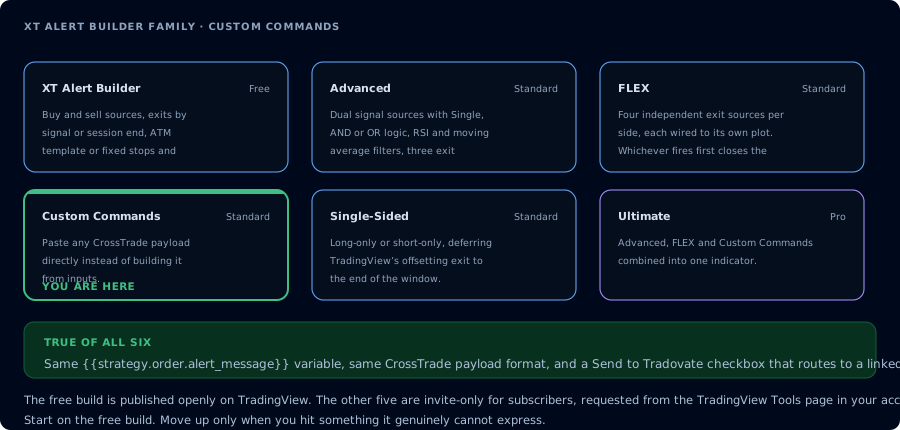
Where the Custom Commands build sits in the family.
When you reach for Custom Commands
The other builders cover the common cases by exposing every CrossTrade field as a chart input. That's great until you need something they don't have a dropdown for:
- Sending a partial-close (close N contracts, not the whole position)
- Modifying an existing order's price, stop, or target
- Submitting OCO brackets with custom structure
- Targeting a specific position by tag or comment
- Stacking multiple commands from one chart condition (with Custom + Advanced together)
- Sending to a custom command endpoint your team built on top of CrossTrade
Custom Commands gives you the full API surface as raw payloads instead of a curated UI. Anything documented in the CrossTrade API reference is fair game.
How it differs from the others
| Free / Advanced / FLEX / Single-Sided | Custom Commands | |
|---|---|---|
| Where the payload comes from | Built by the indicator from chart inputs | You paste it as text |
Key (key=…) location | TradingView alert message line | Embedded inside your payload |
| TradingView alert message | key=…; {{strategy.order.alert_message}} | {{strategy.order.alert_message}} only |
| Which API actions can fire | The ones the builder exposes | Anything the API accepts |
That last row is the headline. The other builders are designed around the enter / exit a position workflow. Custom Commands isn't restricted to that — you can fire a CANCEL or a MODIFY just as easily as a PLACE.
The alert message
Because your payload carries the key= inside it, the TradingView alert message is one variable:
{{strategy.order.alert_message}}
The indicator builds that variable's contents from whatever you typed into the chart inputs, including your key.
Setup walkthrough
-
Add the XT Alert Builder — Custom Commands to your chart.
-
Wire your entry / exit conditions to indicator plots, the same way the other builders do. The strategy still uses TradingView's normal long / short signals to decide when to fire.
-
Paste your CrossTrade payload(s) into the Custom Command text inputs. There are separate slots for each strategy event (long entry, long exit, short entry, short exit) so you can wire a different command per event.
A typical PLACE payload looks like this:
{"key": "your-secret-key","command": "PLACE","instrument": "ES MAR25","account": "DemoAccount","qty": 1,"action": "BUY","order_type": "MARKET","tif": "GTC","flatten_first": true}Build your own from the CrossTrade webhook API docs. The Custom Commands script doesn't validate the payload — whatever you paste is what gets sent.
-
Create the alert in TradingView with the message field set to just
{{strategy.order.alert_message}}. Webhook URL is your CrossTrade webhook URL.
Pairing with the other builders
You can run Custom Commands on the same chart as another builder. A common pattern:
- Advanced on one chart handles the entry / exit logic for a normal long/short strategy.
- Custom Commands on the same chart fires a separate command at a separate condition — e.g. a partial close at +50 ticks of profit, or a stop modify when a regime indicator flips.
Each strategy instance gets its own alert. They run independently.
CrossTrade advanced options
Because the payload is raw, the "advanced options" aren't a separate set of dropdowns — they're just fields you include in the payload. The full list lives in the CrossTrade advanced options docs:
flatten_firstrequire_market_positiondelay_timerrate_limitmax_position
Include them in the JSON as additional keys.
Validation and debugging tips
- Paste the payload into the alert history page first. The CrossTrade dashboard's alert history shows the parsed payload and any errors. Fire one manual alert before relying on auto-fires.
- Watch the trailing semicolon. The other builders use
key=…;{{…}}because the prefix-key parser expects a delimiter. Custom Commands payloads use JSON instead, so the semicolon isn't needed — but if you switch back and forth, don't carry over the trailing punctuation. - Mind the quotes. TradingView's alert message field accepts straight ASCII quotes. If you paste from a doc that uses curly quotes (
"instead of"), the JSON parser will reject it.
When to use Custom Commands vs. the others
| Situation | Use |
|---|---|
| Standard buy / sell entries with stops and targets | Free or Advanced |
| Independent exit indicator | FLEX |
| Long-only or short-only with session-end close | Single-Sided |
| Partial closes, modifies, cancels, or any non-place action | Custom Commands |
| Multi-account, multi-step orchestration in one fire | Custom Commands (or pair with Advanced) |
| You want every feature in one indicator | Ultimate |
Frequently Asked Questions
Why does Custom Commands embed the key in the payload instead of in the alert message?
The payload is raw JSON, not a key=…;… prefix string. CrossTrade reads the key from the 'key' field inside the JSON, so the alert message itself is just the variable substitution. This also lets you target different keys per command if you have multiple keys configured.
Can I send multiple commands from one alert?
One TradingView alert sends one payload. To stack actions, either build a single payload that includes all the work CrossTrade should do (some commands accept arrays), or run Custom Commands on multiple charts and have each fire its own alert at the same condition.
Does Custom Commands validate my payload before sending?
No. Whatever you paste is what gets sent to CrossTrade's webhook. CrossTrade itself validates and will reject malformed payloads — check the alert history page after your first test fires.
Can I use Custom Commands for backtest payload previews?
TradingView strategies will show the alert message in the strategy events tab, which is enough to preview the payload before going live. Note that backtests don't actually send anything to CrossTrade.
What's the difference between Custom Commands and the Ultimate builder?
Ultimate bundles every Alert Builder feature into one indicator including Custom Commands. If you want only the raw-payload capability and nothing else, stay on Custom Commands — it's lighter and clearer to configure.