XT Alert Builder
The free XT Alert Builder lets you wire CrossTrade webhook alerts visually inside TradingView — pick your buy/sell sources, configure exits, set trade management, and fire orders into NinjaTrader 8 without writing JSON or trawling through docs. It's the base of the Alert Builder family and the right starting point for almost every new CrossTrade user.
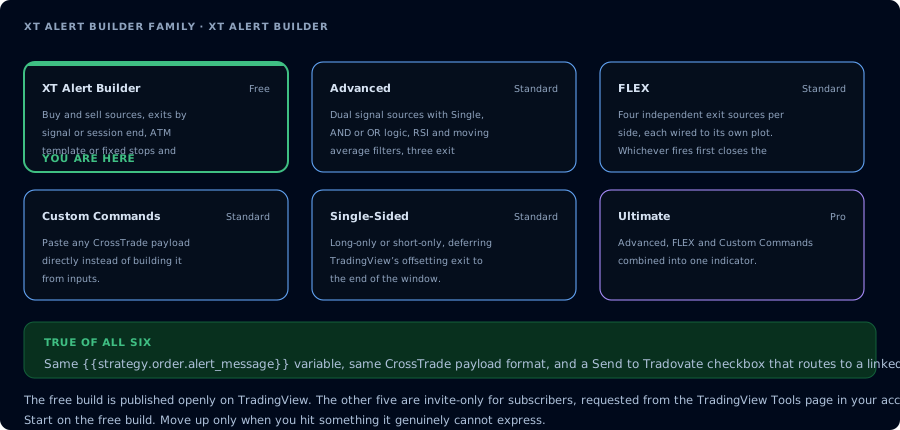
Where the free build sits in the family, and what the others add.
What it does
Most TradingView users hit the same wall when they try to automate: TradingView fires alerts with whatever message string you put in the alert dialog, but writing a CrossTrade-compatible payload by hand is fiddly, easy to mistype, and impossible to backtest. The Alert Builder solves both problems by being a TradingView strategy — meaning it has access to TradingView's {{strategy.order.alert_message}} variable, which lets the indicator construct the payload internally based on whatever inputs you set on the chart.
You configure the strategy on the chart with normal dropdowns and number inputs. The indicator builds the right CrossTrade payload behind the scenes. Your TradingView alert message is just two lines:
key=your-secret-key;
{{strategy.order.alert_message}}
That's it. Every other setting — instrument, account, qty, stops, targets, advanced options — lives on the chart, where you can change it without re-writing the alert.
How the alert pipeline works
- You configure the Alert Builder on a chart (signals, exits, NT8 instrument/account/qty, trade management).
- TradingView fires an alert when your conditions hit, sending the message string above to your webhook URL.
- CrossTrade parses the dynamic payload and forwards a NinjaTrader-formatted order to NT8.
- NinjaTrader executes the order on the configured account.
If any link in that chain breaks, the alert history page shows you exactly where.
Setup walkthrough
1. Add the script to your chart
Open Supercharts, click Indicators, search for XT Alert Builder - CrossTrade, and add it. The free version is open-source so anyone can use it.
2. Configure your signal sources
The Alert Builder uses TradingView's external source pattern — meaning you pick another indicator already on your chart as the source for the buy and sell signals. Add a SuperTrend, RSI, or any of the free CrossTrade indicators to your chart first, then point the Alert Builder at it.
You can:
- Pick independent sources for buy and sell signals, or
- Uncheck one of the signal boxes to make the strategy unidirectional (long-only or short-only).
3. Pick your exit type
Two main exit modes:
- Custom — exits fire when an indicator source signals (typical setup)
- Session End — exits are delayed until the last bar of your trading window, regardless of when the signal fires
Session End is useful when you're running a strategy that takes multiple intraday entries and you want all positions closed at a specific clock time. See Time-based Alert for an alternative pattern.
4. Add trade management
The Alert Builder gives you two ways to manage trades:
| Method | Best for |
|---|---|
| NT8 ATM template | If you already have stops / targets / trail logic configured in NinjaTrader as an ATM, point the Builder at the template name |
| Fixed levels (ticks or %) | If you want to define stops and targets directly on the chart |
You can use either method, not both. Mixing them will produce conflicting orders.
For fixed levels, enter positive distance magnitudes. CrossTrade derives direction from the Buy or Sell side:
Buy example
  Take Profit = 50
  Stop Loss   = 20

Sell example
  Take Profit = 50
  Stop Loss   = 20
5. NinjaTrader settings
- Account — your NT8 account name. Comma-separate to fan an alert out to multiple accounts.
- Instrument — your NT8 contract format (e.g.
ES 12-26orES DEC26). Optional — leave blank and CrossTrade will convert your TradingView ticker automatically. - Quantity — your preferred contract count.
6. CrossTrade Advanced Options
The free Builder includes the same advanced features as the paid versions:
- Flatten First — close any existing position before opening a new one (essential for reversal-friendly strategies)
- Require Market Position — only fire if the platform reports the expected position state
- Delay Timer — wait N seconds before sending
- Rate Limiting — throttle repeat alerts
- Max Position — cap the contracts allowed per account
More on these in the CrossTrade advanced options docs.
7. Create the alert in TradingView
Right-click the chart → Add alert. Set:
- Condition: XT Alert Builder - CrossTrade → Strategy alert
- Message:
key=your-secret-key;{{strategy.order.alert_message}}
- Webhook URL (Notifications tab): your CrossTrade webhook URL
Replace your-secret-key with your actual CrossTrade key. The {{strategy.order.alert_message}} variable is filled in by the indicator at fire time — don't change it.
Common mistakes
- Forgetting
flatten_firston a reversal strategy. If your strategy can flip from long to short, enable Flatten First or you'll end up with stacked positions. - Mismatched ATM qty. If your ATM template is set to 2 contracts and your alert sends qty=1, NinjaTrader will only manage half the position.
- Negative stops/targets. Enter positive distances for fixed take-profit and stop-loss values; CrossTrade handles the long/short direction automatically.
- Pointing the alert at the wrong indicator. TradingView lets you create alerts on any plot — make sure the alert source is XT Alert Builder - CrossTrade and not the underlying SuperTrend or RSI.
When to step up to a paid Builder
The free Builder is enough for most traders. The paid variants add capabilities for specific use cases:
- Advanced — dual signal sources with AND/OR/Single logic, plus RSI and Moving Average filters
- FLEX — independent control of stop/target sources for mix-and-match exit logic
- Single-Sided — long-only or short-only setups with clean session-end closes
- Custom Commands — paste raw CrossTrade payloads for any action the API supports
- Ultimate — the full kitchen-sink build
The paid variants are invite-only scripts — they auto-grant on the TradingView Tools page once you have an active subscription.
Frequently Asked Questions
Do I need a paid TradingView plan to use the Alert Builder?
Yes. TradingView requires a paid plan (Essential or higher) to create webhook alerts. The Alert Builder script itself is free, but webhook alerts are a TradingView platform feature gated behind their paid tiers.
Can I use the free Alert Builder with multiple NinjaTrader accounts?
Yes. Comma-separate the accounts in the NT8 Account field on the chart and CrossTrade will fan the order out to each one. Each account receives the same instrument, qty, and trade management settings.
What's the difference between Custom and Session End exits?
Custom exits fire as soon as the exit source signals — your indicator goes from buy to sell, the position closes. Session End delays all closes until the last bar of your Trading Hours window, useful for strategies that take multiple intraday entries and want everything flat at a specific time.
Does the alert message format change between versions?
No. Every Alert Builder in the family — free, Advanced, FLEX, Single-Sided, Custom Commands, Ultimate — uses the same alert message format: your CrossTrade key plus {{strategy.order.alert_message}}. Upgrading between versions never requires rewriting your alerts.
Why does my alert say 'fired' but no order shows up in NinjaTrader?
Check three things: (1) The NT8 Add-On is connected — the connection indicator at the top of the CrossTrade dashboard should be green. (2) Account name in the Alert Builder matches an account in NT8 exactly (case-sensitive). (3) Instrument format matches NT8's format. The alert history page in CrossTrade shows the parsed payload and any errors.