
New in Account Management: Hybrid Mode and Account Visibility Manager
Hybrid Mode & Account Visibility Manager Cut losers and lock in runners without ending your session. Plus, hide old accounts cluttering your dropdowns. Two updates that give you more control.

We've shipped two major updates to Account Management that give you more control over how your accounts are protected and how you interact with the interface.
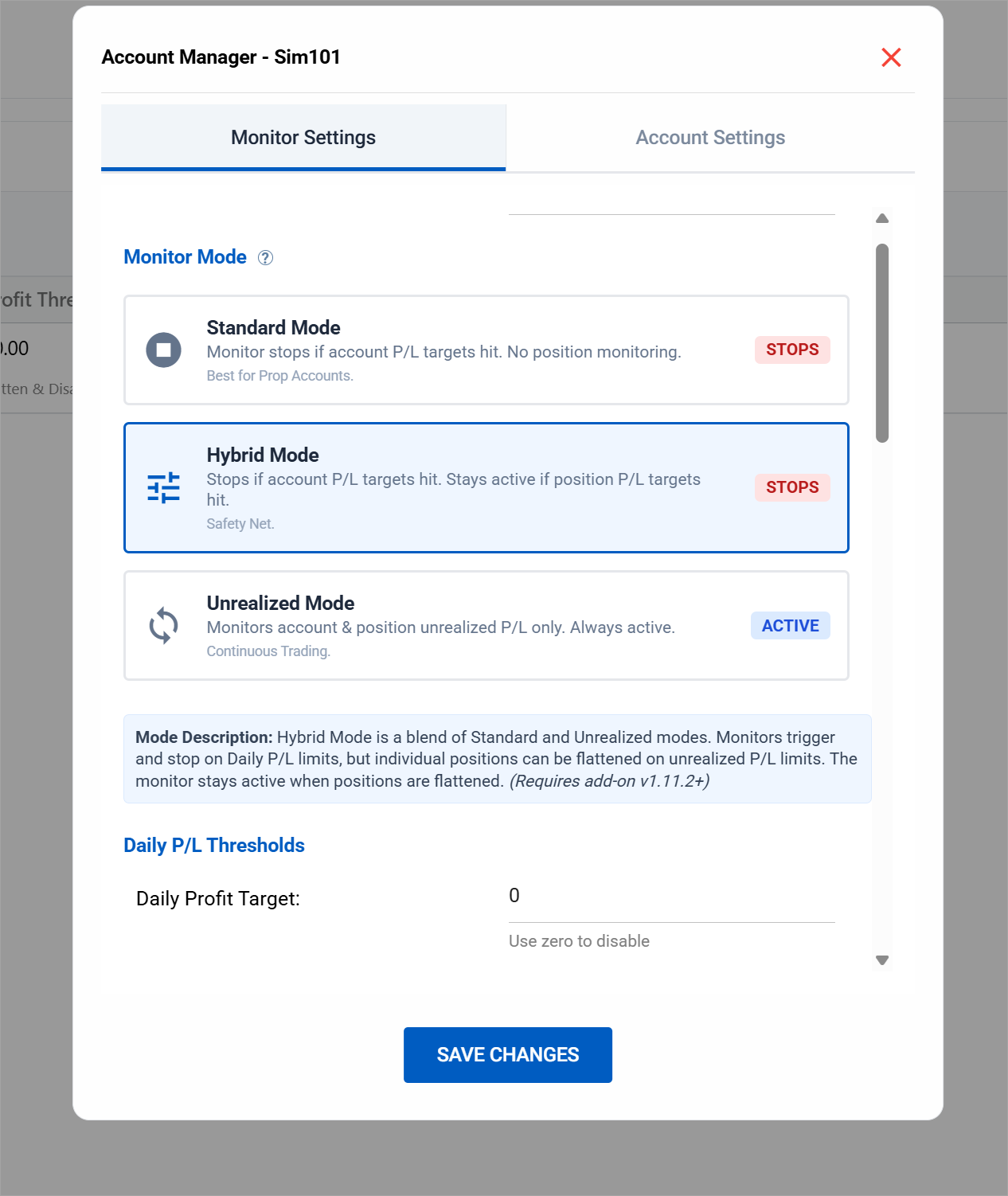
Hybrid Mode: The Best of Both Worlds
Until now, you had two choices for your account monitor:
Standard Mode waits until trades close, then checks your realized P/L against your daily targets. Hit your limit and the monitor stops for the day. Simple, hands-off, but it ignores what's happening while positions are open.
Unrealized Mode watches your floating P/L continuously and flattens positions the moment thresholds are breached. Always-on protection, but the monitor never stops—it keeps running and flattening all session.
Your Daily Profit and Daily Loss limits work as hard stops, just like Standard Mode. Hit either one and the monitor stops for the day—no more trading. But now you can also set Max Position Profit and Max Position Loss targets that work independently.
Here's the key difference: if a single position hits its limit, the monitor flattens only that position and keeps running. Your session continues. Your other positions are still managed. Your daily max loss is still active as a fail-safe.
Why This Matters
You can now automatically cut a loser at a specific threshold without ending your trading day. Lock in profits on a runner without killing your session. The monitor handles individual positions while your account-level protection stays in place.
It's a safety net that actually lets you keep trading.
How to Enable Hybrid Mode
- Go to Account Management
- Open the monitor settings for any account
- Select "Hybrid" as your monitor mode
- Set your Daily Profit/Loss limits (hard stops)
- Set your Max Position Profit/Loss limits (per-position management)
Account Visibility Manager: Clean Up Your Dropdowns
If you've connected multiple brokers or traded multiple prop firm accounts, your account dropdowns have probably become a mess. Old accounts you'll never use again sitting next to your active ones.
The Account Visibility Manager fixes this.
Click the visibility icon in Account Manager or Trade Copier to open the manager. You'll see a list of all your accounts with toggles to show or hide each one. Hidden accounts disappear from your dropdowns but remain in the system—you can unhide them anytime.
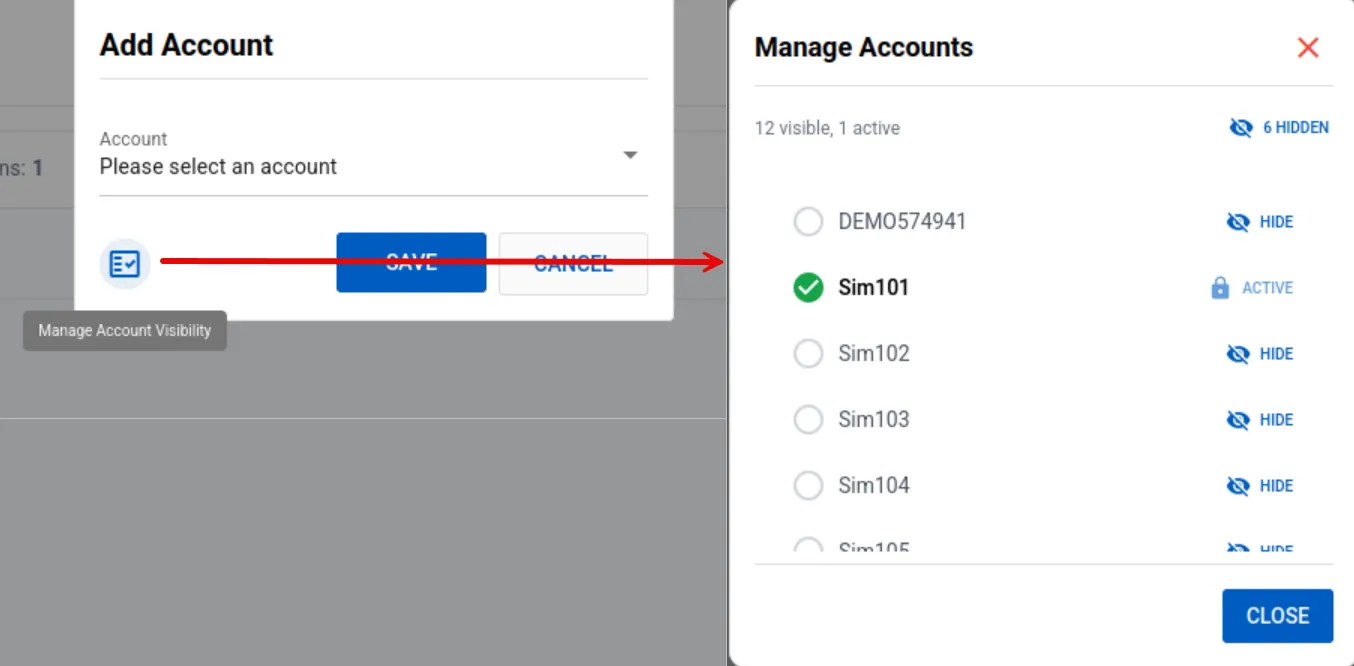
The only restriction: you can't hide accounts that are actively being used in a copier or monitor configuration. Remove them from active use first, then hide them.
Refreshed UI
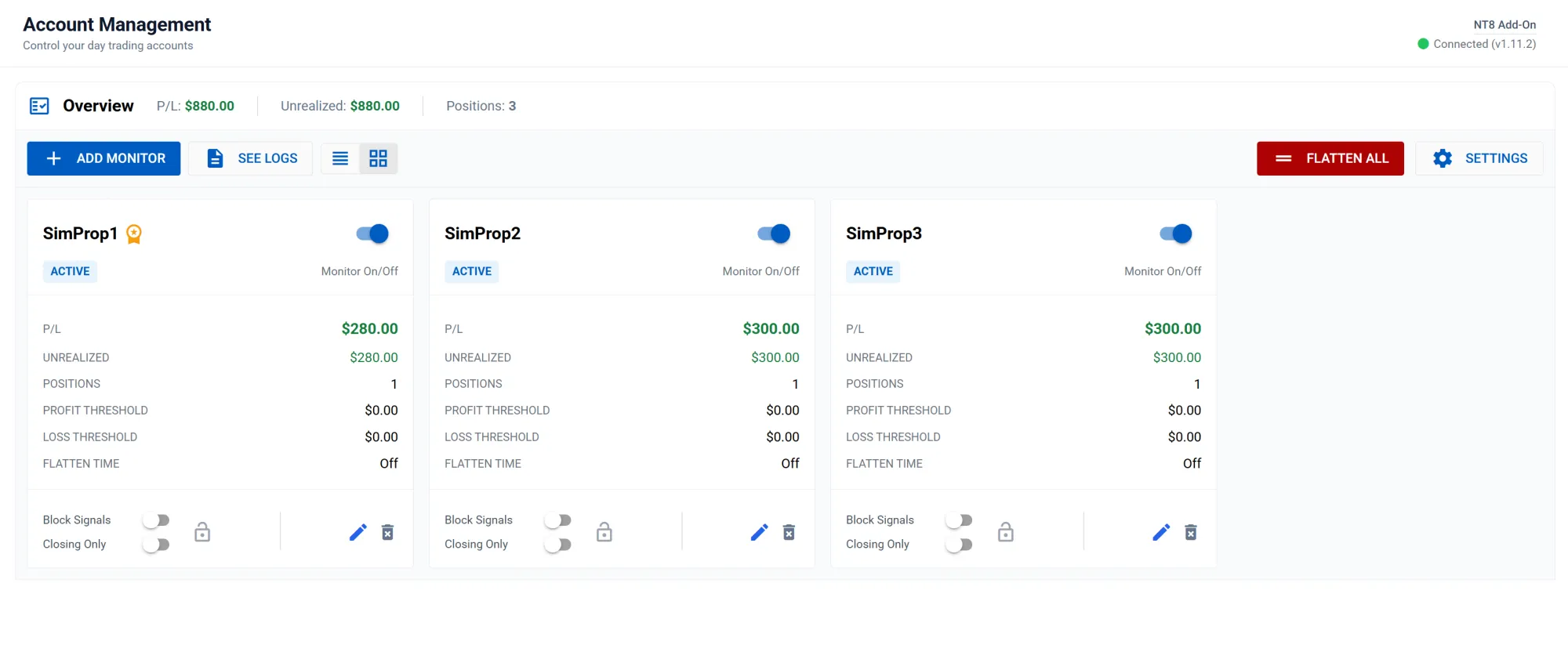
While we were at it, we unified the interface across Account Manager and Trade Copier:
- Both pages now share a similar layout with an overview bar
- New double header design for better organization
- Flatten button added to Trade Copier for quick position exits
Get Started
Both features are live now. Head to Account Management to try Hybrid Mode, or look for the visibility icon to clean up your account list.
Questions or feedback? Join our Discord.
— The CrossTrade Team