
How to Automate a TradingView Strategy on Tradovate with Strategy Sync
A TradingView strategy only knows what it thinks it holds. How Strategy Sync checks the live Tradovate position before each entry, and pairs with a scale-out bracket.

Automating a TradingView strategy looks easier than automating an indicator. The strategy already knows when to buy and sell, and TradingView fills in the action and quantity for you. The catch is that the strategy only knows what it thinks it holds. It has no idea what your Tradovate account actually holds.
Those two drift apart more often than people expect. You close a trade by hand. An alert arrives late or not at all. A bracket takes you out and TradingView never hears about it. From then on, every signal the strategy sends is built on a position that no longer exists, and an "exit" can open a new trade the wrong way.
CrossTrade's Strategy Sync exists for exactly this. Before each entry, it compares what TradingView expects with the live position on your Tradovate account and decides what to do if they disagree. This guide sets it up end to end.
New to the connection itself? Start with TradingView automation for Tradovate and prove one Demo order first. The steps here add state reconciliation to that working route.
Strategy or indicator?
Open the Pine Script. If it starts with strategy(, it is a strategy, and this guide applies. If it starts with indicator(, you send one hardcoded alert for buys and another for sells, and sync is not needed.
Strategies give you placeholders an indicator cannot: the order's action and size, and the position before and after the order. Sync is built on those.
The alert message
In the TradingView alert, choose your strategy as the condition, delete the default message, and paste this with your own key and account:
key=your-secret-key;
command=place;
account=DemoAccount;
instrument=ES1!;
action={{strategy.order.action}};
qty={{strategy.order.contracts}};
order_type=market;
sync_strategy=true;
market_position={{strategy.market_position}};
prev_market_position={{strategy.prev_market_position}};
target_quantity={{strategy.position_size}};
out_of_sync=resync;
destination=tradovate;
TradingView fills every {{...}} value when the alert fires. On the Notifications tab, tick Webhook URL and paste your CrossTrade webhook URL.
One TradingView behavior catches almost everyone: an alert keeps the strategy settings it was created with. If you change the strategy's inputs later, the alert still trades the old settings. Delete it and create a new one.
What the sync lines do
sync_strategy=true; turns the check on.
market_position is where the strategy wants to be after this order: long, short or flat. prev_market_position is where it was before. Together they describe the move the strategy intends, such as flat to long or long to short.
target_quantity is the exact size the strategy expects to hold afterwards. It is what lets CrossTrade compute a correction.
On Tradovate, the comparison runs on CrossTrade's servers against the account's live position, which is derived from Tradovate's real-time fill stream rather than a slower position lookup, so two signals in quick succession each see the true position.
When they disagree: four choices
out_of_sync decides what happens when the account does not match what the strategy expects.
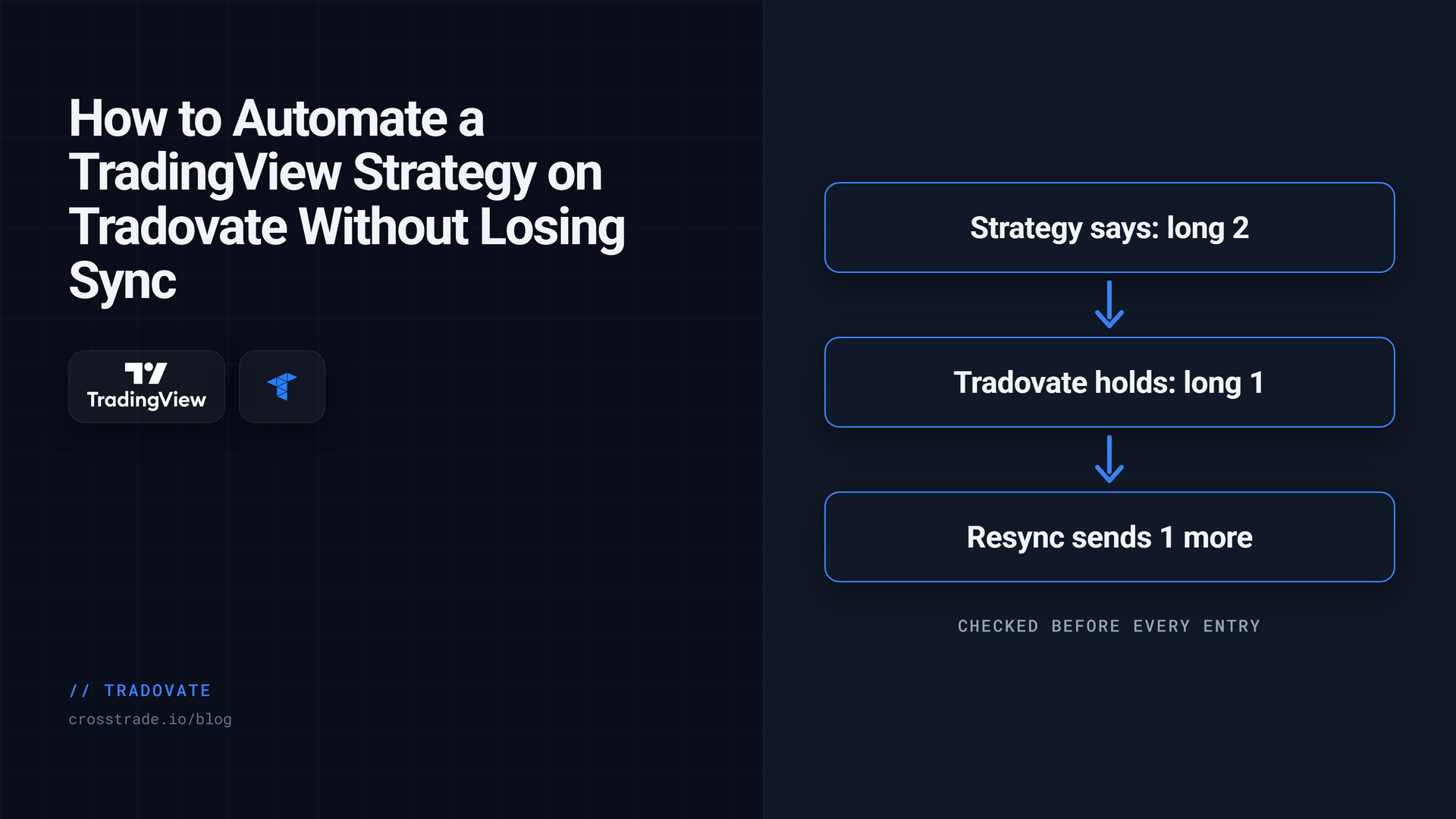
resync calculates the difference between the live position and the requested target and submits a market correction. If the target is long 2 and the account is long 1, the correction buys 1. Use it only when the strategy should own the resulting position; it can reopen exposure that a broker-side exit deliberately closed. Verify the behavior in Demo.
flatten closes the position on that contract and waits. The strategy picks up again on its next entry from flat. Choose it when you would rather be out than be corrected automatically.
wait refuses this signal and does nothing else. Nothing is queued for later.
ignore places the order anyway. It exists for advanced cases; it is rarely what you want.
Every mismatch shows in Alert History with what TradingView expected and what the account held, which is the first place to look when a strategy behaves oddly.
Pairing sync with a scale-out bracket
Many traders want the exits managed on the broker side: two targets, a stop, a runner that trails. On Tradovate that is a CrossTrade ATM template, which builds a native Tradovate bracket with several targets. The complication is that every Pine strategy must send its own exit signals, and you do not want those fighting a bracket that is already managing the trade.
Three lines handle it:
atm_strategy=Two Target Runner;
flatten_first=true;
strategy_exit_block=true;
out_of_sync=flatten;
atm_strategy names a template you saved on your Tradovate Webhooks page. flatten_first clears the contract before each new entry so no leftover orders from the last trade remain. strategy_exit_block refuses the strategy's own exit signals, so only fresh entries from flat go through and the bracket owns the exit. And out_of_sync becomes flatten here, because you do not want CrossTrade rebuilding a position a target just closed on purpose.
Expect one harmless side effect: after a bracket takes you out, the strategy's next signal will be reported as out of sync. With flatten that means "already flat, wait for the next entry", which is exactly right.
Extra guards worth adding
require_market_position=flat; blocks the entry unless the account is flat on that contract. start_time and end_time limit the hours the alert is accepted. For account-wide limits that hold even when TradingView misbehaves, give the account an Account Manager monitor with a daily loss limit and a flatten time.
The full reference, including how sync treats cancelreplace, is in the strategy automation docs.
Connect TradingView alerts to Tradovate
Link a Tradovate account, build your webhook message and test a complete entry and exit in Demo. The connection runs in the cloud.
Frequently asked questions
Why does my strategy open a trade when it meant to close one?
Almost always because TradingView and the account disagree about the current position. Strategy Sync catches that before the order goes out.
Which out_of_sync setting should I use?
resync for most strategies, because it corrects the gap and keeps trading. Use flatten when a bracket manages your exits or when you prefer to reset to flat.
Do I need NinjaTrader running for sync on Tradovate?
No. On Tradovate the check runs on CrossTrade's servers, so nothing on your computer is involved.
Why is my alert still using old strategy settings?
TradingView alerts keep the settings from when they were created. Delete the alert and create a new one after changing inputs.
Does sync work with a scale-out bracket?
Yes. Add strategy_exit_block=true; and flatten_first=true;, and use out_of_sync=flatten; so the bracket owns the exits.
Test it on Demo first
Run the strategy on a Demo account, close a position by hand mid-trade, and watch the next signal correct it in Alert History. If you are new to CrossTrade, start a free 7-day trial, and bring your strategy questions to the CrossTrade Discord.
CrossTrade is execution and automation software, not a broker, financial adviser, or trading strategy. Futures trading involves substantial risk. Test every automated workflow in simulation and verify orders at your broker.