
How to Auto-Reconnect Lost Connections on NinjaTrader 8
NinjaTrader connections drop. Your automation shouldn't care. Here's how CrossTrade's Auto-Reconnect and Data Watchdog recover lost connections without manual intervention.

If you're running automated strategies on NinjaTrader 8, a dropped broker connection isn't just an inconvenience. It's a missed entry. A stop loss that never gets placed. A position left unprotected while you're asleep, at your day job, or away from your desk. And if you're running on a VPS, which most serious automated traders are, nobody is sitting in front of the screen to click "reconnect."
NinjaTrader doesn't have a built-in auto-reconnect. When a connection drops, it stays dropped until someone manually intervenes. That's been a known gap in the platform for years, and until now, nobody in the NinjaTrader ecosystem has offered a real solution for it. CrossTrade v1.12 changes that with two features built specifically for this: Auto-Reconnect and Data Watchdog.
Why NinjaTrader Connections Drop
Connections fail for reasons that have nothing to do with your setup being misconfigured. Your internet provider might hiccup for three seconds at 2:00 AM. Your broker might cycle their servers during a low-volume window. NinjaTrader itself has internal connection management that occasionally drops and re-establishes connections on its own. If you're connected to Tradovate, Rithmic, or any other provider through NT8, you've seen the "ConnectionLost" status appear at least once. Probably more than once.
For discretionary traders, this is a minor annoyance. You notice the red indicator, click reconnect, and move on. For automated traders, it's a completely different situation. Your TradingView alerts keep firing. CrossTrade receives them and tries to route them to NinjaTrader. But NinjaTrader can't execute anything because the broker connection is down. Your strategy is flying blind.
The worst version of this happens overnight. You go to bed with a working automation, and you wake up to find that a connection dropped at midnight and your strategy missed six hours of signals. Or worse, it entered a position right before the drop and the bracket orders that were supposed to protect it never made it through.
How Auto-Reconnect Works
CrossTrade's Auto-Reconnect monitors your NinjaTrader broker connections in real time. When a connection drops unexpectedly, it kicks off a recovery sequence automatically. No manual intervention, no clicking around in the Connections tab, no RDP-ing into your VPS at 3:00 AM.
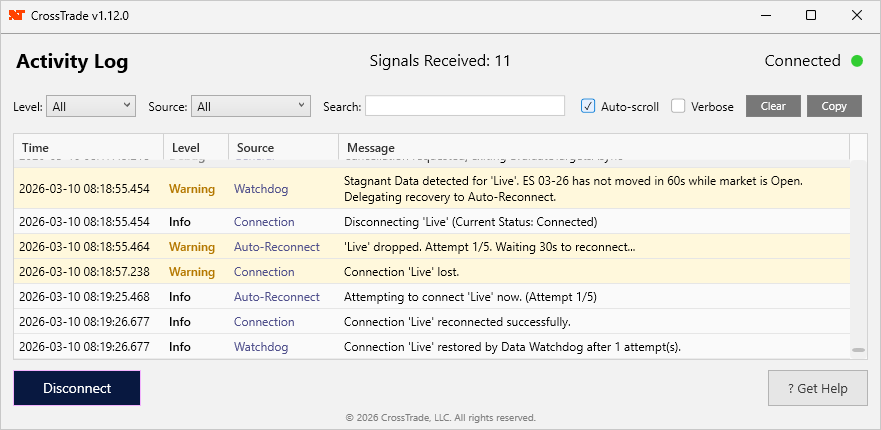
Here's what happens under the hood. When NinjaTrader fires a ConnectionLost event, the XT Add-On catches it and starts the recovery process. First, it waits for a configurable delay period. This isn't random. It's intentional. If the disconnect was caused by a brief broker-side outage, you don't want to hammer their servers with reconnect requests while they're still recovering. A 10 to 30 second delay gives the infrastructure time to stabilize.
After the delay, Auto-Reconnect checks whether NinjaTrader has already recovered on its own. NT8 has its own internal reconnection logic that sometimes kicks in within a couple of seconds of connection loss, and if the connection is already back, there's no reason to issue a redundant connect command. If NT8 is actively mid-recovery (status: Connecting or ConnectionLost), Auto-Reconnect defers and lets NT8 finish its attempt first. If the connection is still down and NT8 isn't trying, Auto-Reconnect issues the reconnect.
If that attempt fails, it tries again, up to 5 attempts total. After all 5 are exhausted, it stops and logs an error. This ceiling is a safety measure. An infinite reconnect loop pounding your broker's authentication servers would cause more problems than it solves. When attempts are exhausted, you'll see a clear notification in your XT Activity Log telling you that manual intervention is needed.
Recovering from NinjaTrader's "Panic" State
This is where CrossTrade does something that nothing else on the market can do.
When NinjaTrader loses a broker connection, it does make its own internal attempt to reconnect. Sometimes that works. But when it doesn't, NT8 escalates the situation to what it internally calls a Panic state. You'll see a log entry like YourConnection: (Panic) Unable to re-establish connection in the NinjaTrader Log tab. At that point, NinjaTrader has decided the connection is a lost cause. It stops trying. The connection sits in a disconnected state, and NT8 will not attempt to bring it back.
For most NinjaTrader users, this is where the story ends. You notice the Panic (if you happen to be looking), you manually reconnect, and you hope nothing went wrong while you were down.
CrossTrade doesn't accept that outcome. The XT Add-On actively monitors NinjaTrader's internal log output in real time, scanning for three specific failure signatures: (Panic) messages, Unable to re-establish errors, and Disconnecting on connection loss events. When it detects one of these, it flags the disconnect as involuntary and immediately triggers the Auto-Reconnect recovery sequence. The same configurable delay, the same 5-attempt budget, the same deduplication logic. NinjaTrader gave up. CrossTrade picks up where it left off.
This matters because Panic disconnects are the most dangerous kind. They tend to happen during exactly the conditions where you need your connection the most: volatile overnight sessions, broker maintenance windows, network instability during high-volume events. And because NT8 stops trying to recover, these are the disconnects that stay down the longest if nobody is watching.
Find the CrossTrade workflow that fits
Explore webhook automation, trade copying, account controls and trade review for NinjaTrader 8 and Tradovate.
The Silent Killer: Stale Data
A dropped connection is at least obvious. NinjaTrader shows a red status, and if you're watching, you know something is wrong. But there's a subtler failure mode that catches more people off guard: the connection shows "Connected," everything looks healthy, and the market data has silently stopped updating.
This happens more often than you'd expect. Your broker connection stays technically alive, but the price feed stalls. Your charts freeze. Your strategy keeps running against the last price it received, which might be 30 seconds old, 5 minutes old, or completely stale. If you're running a scalping strategy on ES with tight stops, trading against frozen quotes is a fast way to lose money.
NinjaTrader doesn't flag this condition. The connection status indicator stays green. Nothing in the platform's UI tells you that your data feed has gone quiet. You only find out when you look at a chart and notice the candles stopped forming, or when you check your fills and realize nothing executed during a period of obvious market activity.
How Data Watchdog Catches What Others Miss
Data Watchdog monitors a reference instrument's price feed (by default, the front-month ES contract) and tracks the timestamp of the last price tick for each of your broker connections. Every few seconds, it compares how long it's been since the last tick against your configured timeout threshold.
If the data has been stagnant longer than the timeout and the market is currently open, the Watchdog triggers a recovery. It disconnects the stale connection and reconnects it to force a fresh data subscription. When Auto-Reconnect is also enabled for that connection, the Watchdog delegates the actual reconnection to it. That means the Watchdog gets the benefit of Auto-Reconnect's delay, retry budget, and deduplication guards. No double-counting of attempts, no conflicting reconnection logic. One system detects the problem. The other handles the recovery.
If Auto-Reconnect isn't enabled, the Watchdog runs its own recovery loop with the same 5-attempt safety limit.
The Watchdog also knows when to stay quiet. It automatically pauses during market close. Weekends, holidays, and outside-of-session hours don't trigger false alarms. It only flags stale data when there should be data flowing but isn't.
How to Set It Up
Both features are configured per connection from your XT Web Dashboard under My Account. You'll find toggles and settings for each broker connection you've set up.
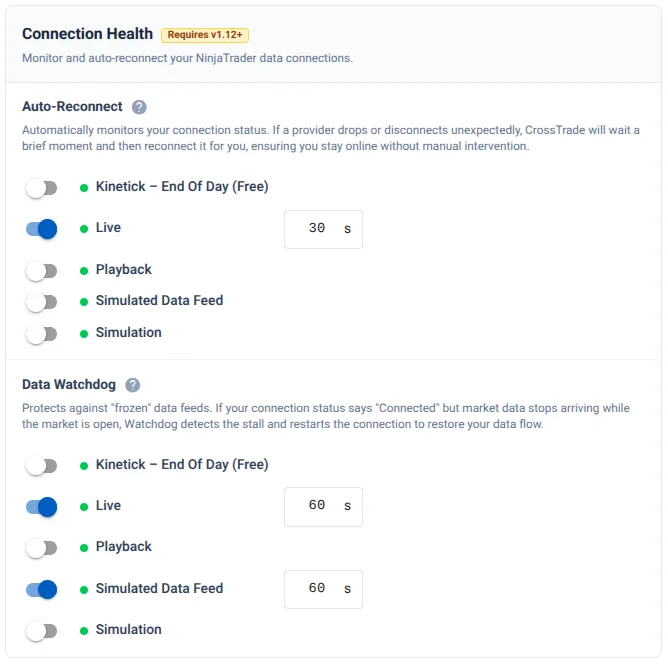
For Auto-Reconnect, you set two things: whether it's enabled for a given connection, and the timeout delay (how many seconds to wait after a drop before attempting the first reconnect). A short delay of 5 to 10 seconds works well for stable connections on a VPS with reliable internet. A longer delay of 30 to 60 seconds makes more sense if your broker is prone to brief maintenance windows where an immediate reconnect would just fail anyway.
For Data Watchdog, you configure the connection to monitor and the timeout in seconds (how long the price feed needs to be stagnant before triggering a recovery). The default is 60 seconds, which balances sensitivity with avoiding false positives during brief periods of low market activity. The reference instrument defaults to the front-month ES contract, which trades almost continuously during market hours and serves as a reliable heartbeat.
The recommended setup for most automated traders: enable both features on every live broker connection, set Auto-Reconnect's delay to 10 to 15 seconds, and leave the Watchdog at its 60-second default. This gives you coverage for connection drops, Panic states, and silent data failures with minimal configuration.
Both features require XT Add-On v1.12.0 or later. If you're on an older version, download the latest here.
Why This Matters for Prop Firm Traders
If you're running automated strategies on a prop firm account, the stakes are even higher. A dropped connection that causes a missed stop loss doesn't just cost you money. It can cost you the account. Prop firms have drawdown limits, daily loss caps, and consistency rules that don't care whether you were disconnected when the damage happened. A blown max loss limit at 4:00 AM because your connection entered a Panic state and your protective orders never fired is an expensive way to learn that your infrastructure had a single point of failure.
Auto-Reconnect and Data Watchdog eliminate that single point of failure. Your connection drops, the system detects it, waits for the right moment, and reconnects. NinjaTrader panics and gives up, CrossTrade catches the Panic log and takes over. Your data feed stalls silently, the Watchdog catches it and triggers a refresh. All of this happens while you're away from the screen, which is the entire point of running automated strategies in the first place.
No Other Tool Does This on NinjaTrader 8
There are trade copiers, webhook tools, and various NinjaTrader add-ons on the market. None of them monitor your broker connections and automatically restore them when they fail. None of them watch your market data feed for stale quotes and trigger a recovery. And none of them intercept NinjaTrader's Panic state and continue the fight after NT8 has stopped trying.
If you've been running automated strategies and just hoping your connection holds, you now have a better option. Enable Auto-Reconnect and Data Watchdog, and let your automation do what it's supposed to do: run without you babysitting it.
New to CrossTrade? Start your free 7-day trial.
Already a user? Make sure you're on v1.12.0 or later and enable both features from your dashboard.
Questions? Join us on Discord.