How to Run 10 Prop Firm Accounts on NinjaTrader 8 Without Losing Your Mind
Running multiple prop firm accounts on NinjaTrader 8 doesn't have to mean managing each one individually. Here's the full CrossTrade stack for multi-account trading.

You passed three evaluations. You have two funded accounts. There are five more in various stages. All connected to NinjaTrader 8 on a VPS. All trading the same strategy. All needing the same entries, the same exits, the same risk controls.
And every single one of them has to be managed individually.
Change a setting? Do it ten times. Disable trading before FOMC? Click through each account. Adjust your position ratio? Update every copier. An alert fires from TradingView and you need it on all ten accounts? Create ten separate alerts, or hope your single webhook somehow reaches them all.
This is the operational reality of prop farming, and it's the reason most traders cap out at three or four accounts before the overhead starts eating into their actual trading. The strategy isn't the bottleneck. The account management is.
CrossTrade was built to solve this. Here's the full stack for running as many prop accounts as your risk tolerance allows, without turning account management into a full-time job.
One Alert, Every Account
The simplest multi-account feature is Multi-Account Placement. Instead of creating separate TradingView alerts for each account, you list every account in a single webhook payload:
key=your-secret-key;
command=PLACE;
account=Apex1,Apex2,Tradeify1,BluSky1,BluSky2;
instrument=NQ1!;
action={{strategy.order.action}};
qty={{strategy.order.contracts}};
order_type=MARKET;
tif=DAY;
One alert. One webhook. Every account gets the same order. Add a new evaluation account? Add its name to the comma-separated list. Remove a blown account? Delete it from the list. No additional alerts, no additional configuration, no additional cost.
This works for any CrossTrade command: PLACE, CLOSEPOSITION, FLATTENEVERYTHING, brackets, Strategy Sync, and every advanced option. The accounts don't need to be from the same prop firm or even the same broker connection. As long as they're connected to NT8 on your machine, Multi-Account Placement reaches them.
For more details, see Submit Orders to Multiple NinjaTrader Accounts.
Independent Control with the Trade Copier
Multi-Account Placement sends identical orders to every account. That's perfect when you want the same trade everywhere. But prop farming usually isn't that simple. Your $150K funded account can handle 5 contracts. Your $50K evaluation can handle 2. One account trades ES, another needs MES for sizing. You want inversion on a hedging account. You need different settings per account while still operating from a single leader.
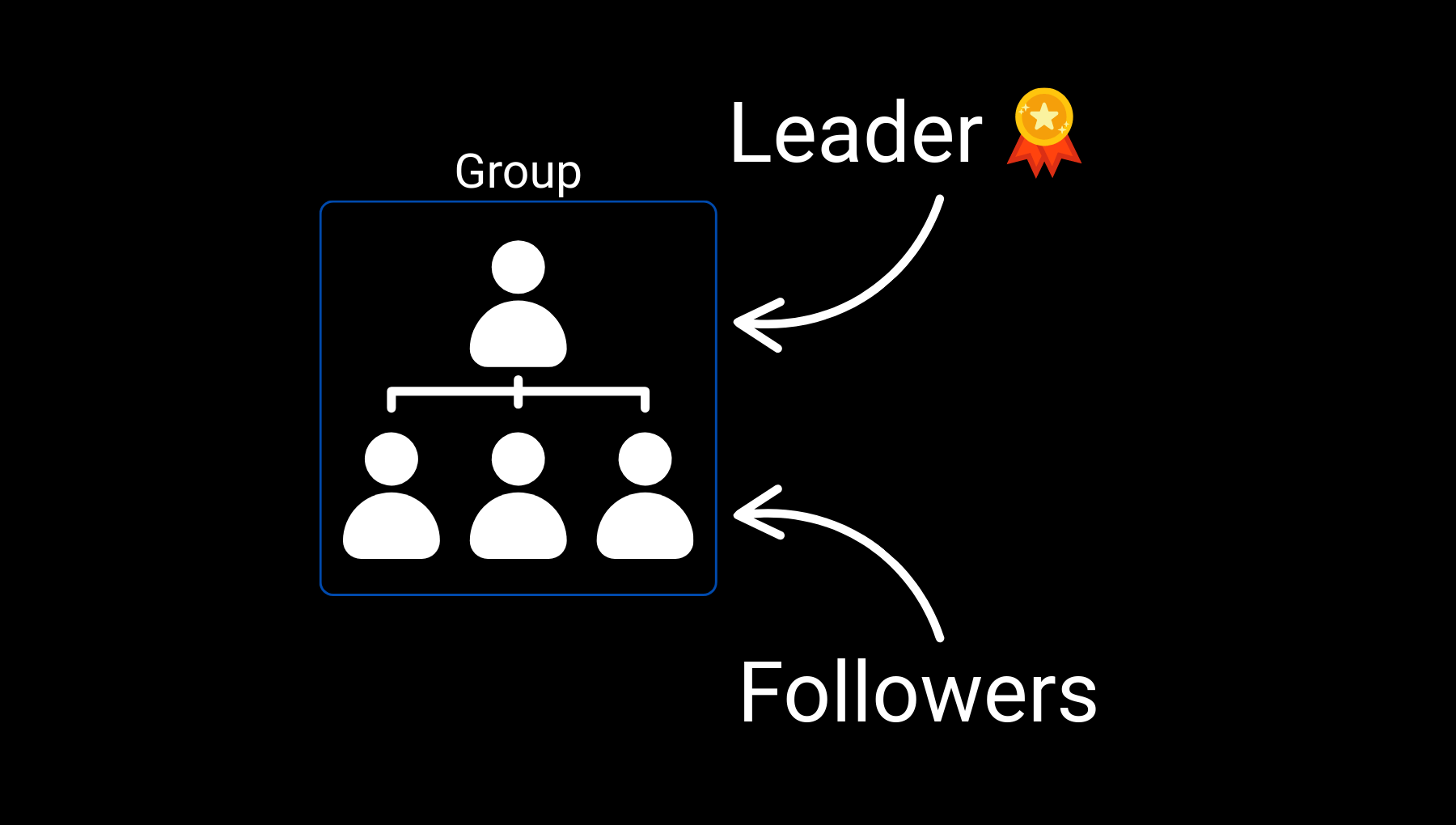
That's what the Trade Copier handles. Set up a leader account (your main trading account or a TradingView-connected Tradovate account) and create follower relationships for every prop account. Each relationship gets its own configuration:
Position ratio controls how the follower sizes relative to the leader. Leader trades 4 contracts at 0.5x ratio, follower trades 2. Set different ratios for accounts of different sizes.
Maximum position limits cap the follower's exposure regardless of what the leader does. If your prop firm allows a max of 3 contracts, set the limit to 3 and the copier won't exceed it even if the leader is trading 10.
Symbol replacement converts instruments automatically. Leader trades ES, follower copies as MES with proper contract math. Same strategy, sized for a smaller account.
Instrument filtering restricts which products get copied. Maybe one follower only copies ES trades while another copies everything. Each relationship has its own filter.
Trade inversion flips the direction. Leader goes long, follower goes short. Useful for hedging or testing the inverse of your strategy on a separate account.
The copier runs in two modes. Order Mode replicates every pending order, modification, and cancellation for precise synchronization. Execution Mode fires market orders on the follower when the leader gets a fill, optimized for speed over precision. Assign different modes to different relationships based on what each account needs.
For the full feature set, see the Trade Copier.
Find the CrossTrade workflow that fits
Explore webhook automation, trade copying, account controls and trade review for NinjaTrader 8 and Tradovate.
Copier Groups: Manage Ten Accounts Like One
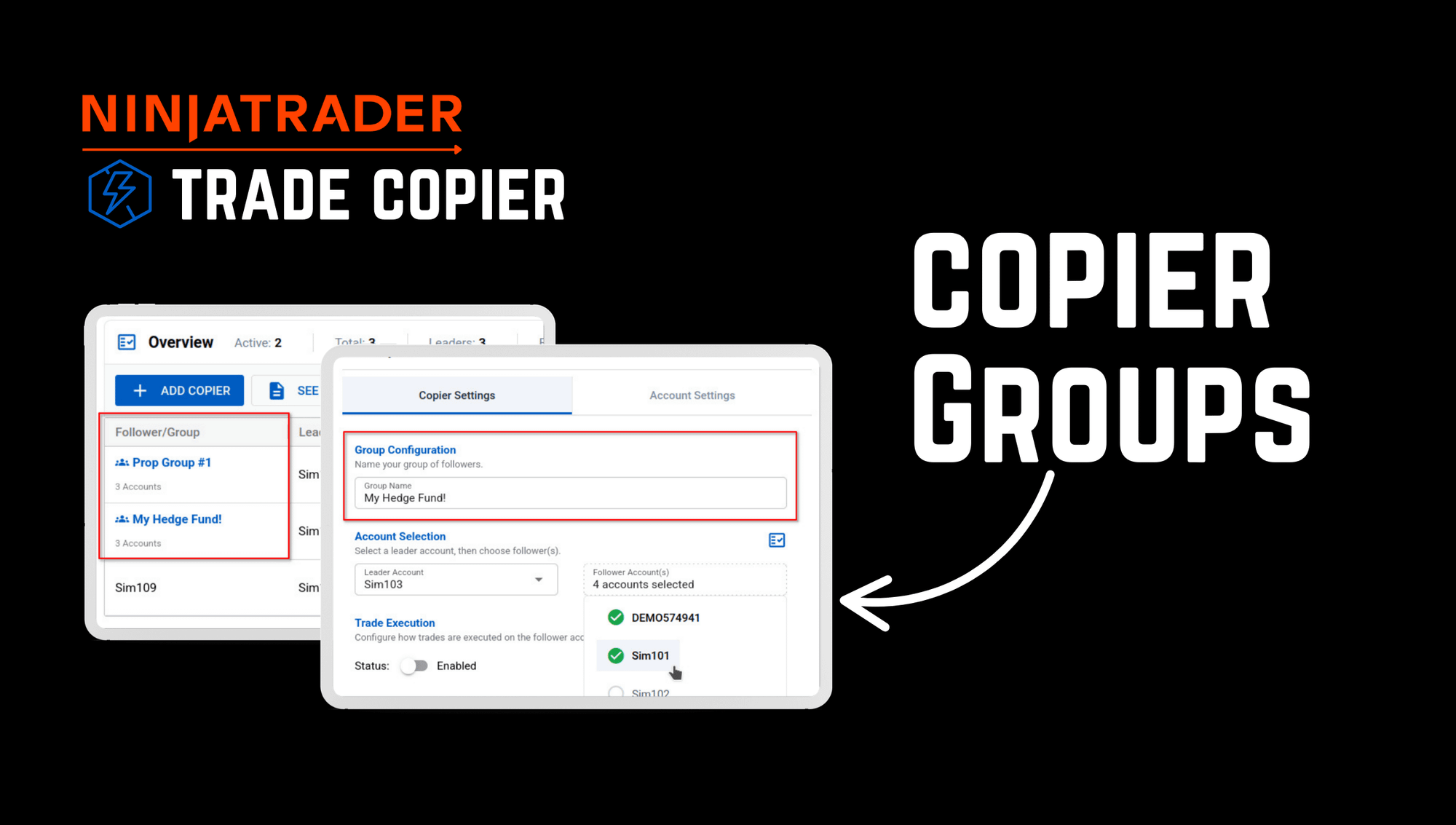
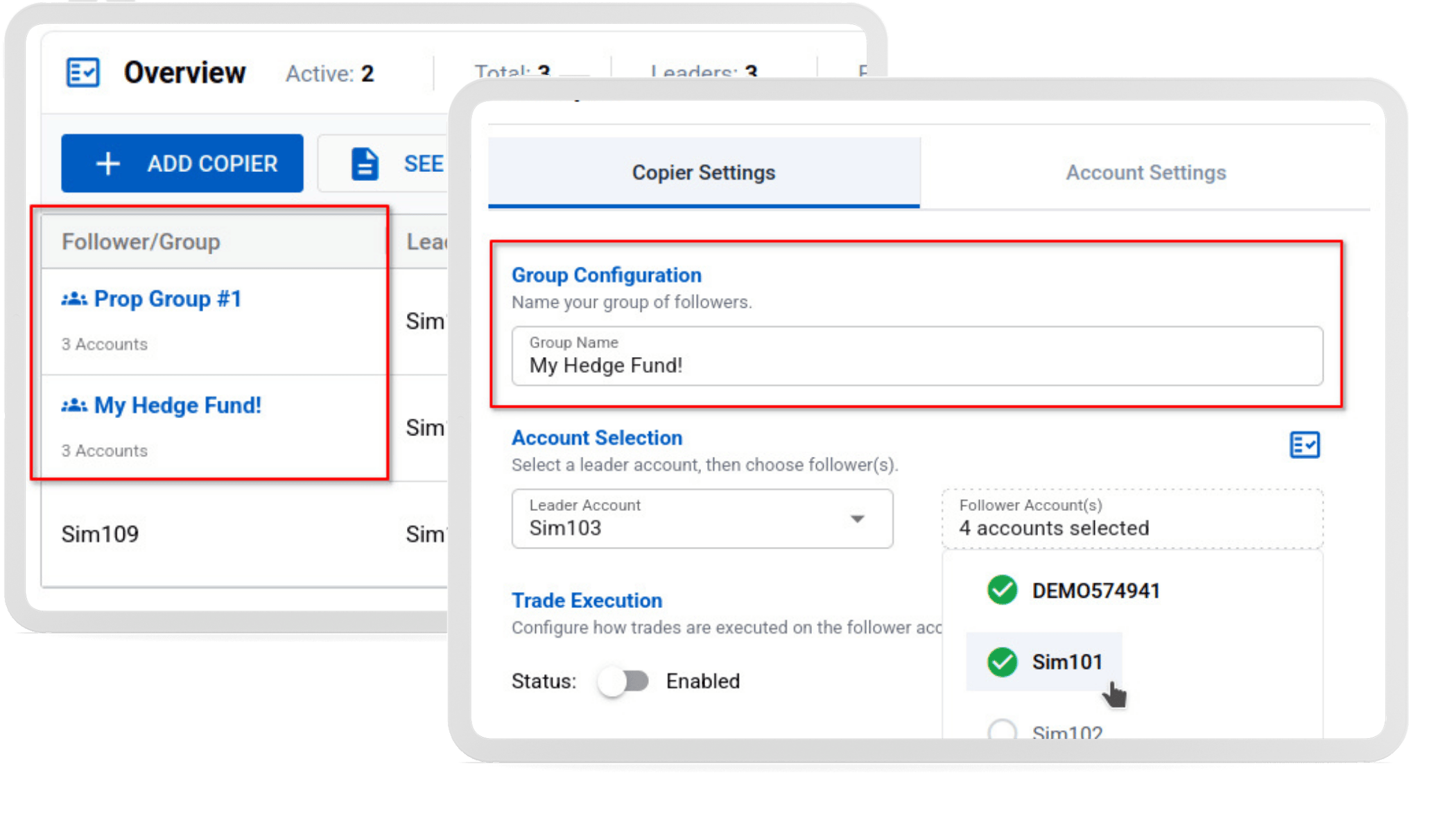
This is where the operational headache disappears. When you're running ten copier relationships individually, every configuration change, every enable/disable, every settings adjustment has to happen ten times. Copier Groups collapse that into one action.
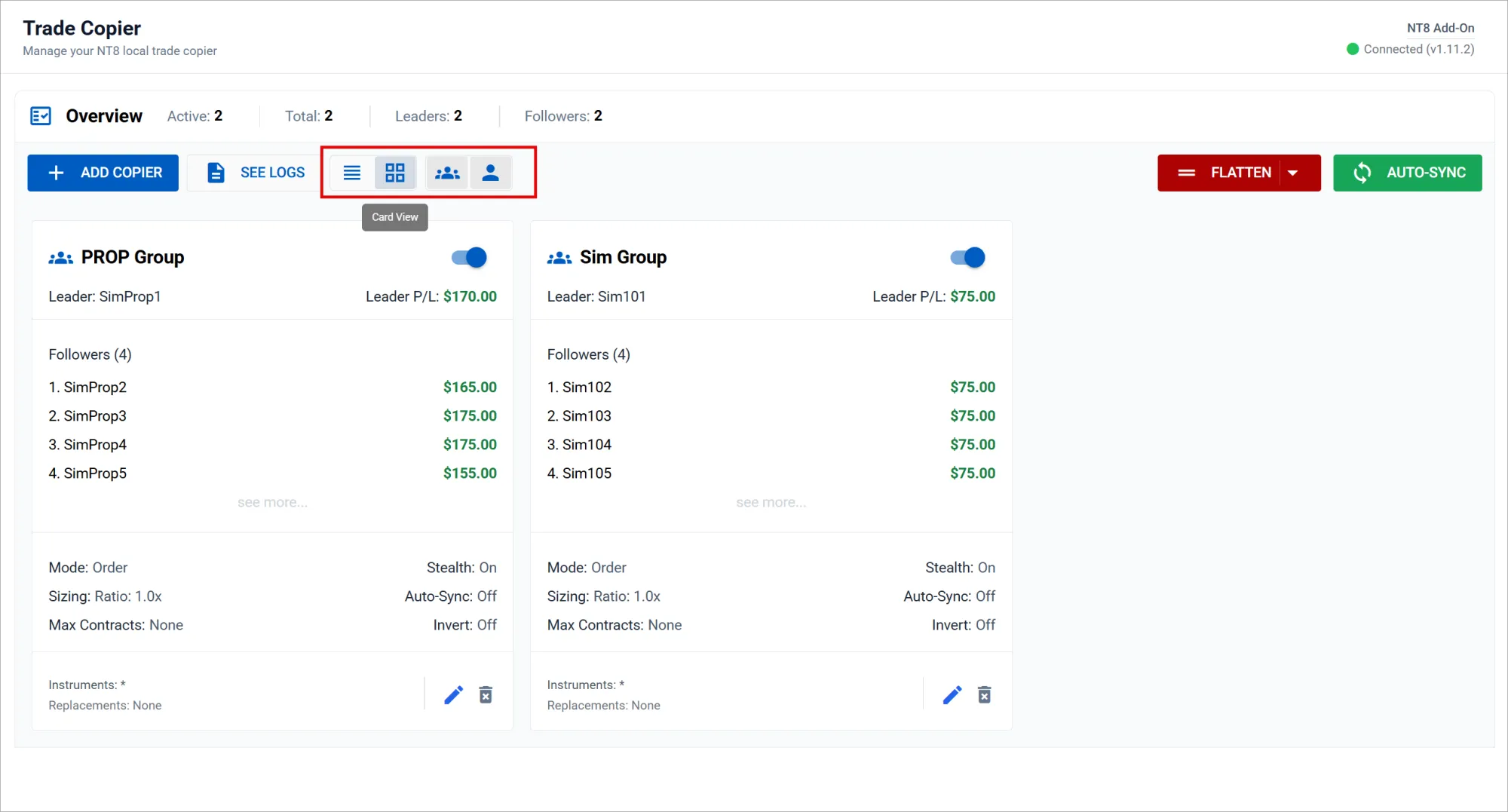
Create a group by selecting a leader account and adding as many followers as you want. Give the group a name ("BluSky Accounts" or "NQ Strategy" or "Morning Scalps"). Configure the settings once. Those settings apply to every follower in the group.
Need to disable all copying before a news event? One toggle. Want to change the position ratio across all your prop accounts? One setting change. Restart everything after FOMC? One click. The group overview shows P/L for every follower, the group aggregate, and the monitor and Tandem status for each account.
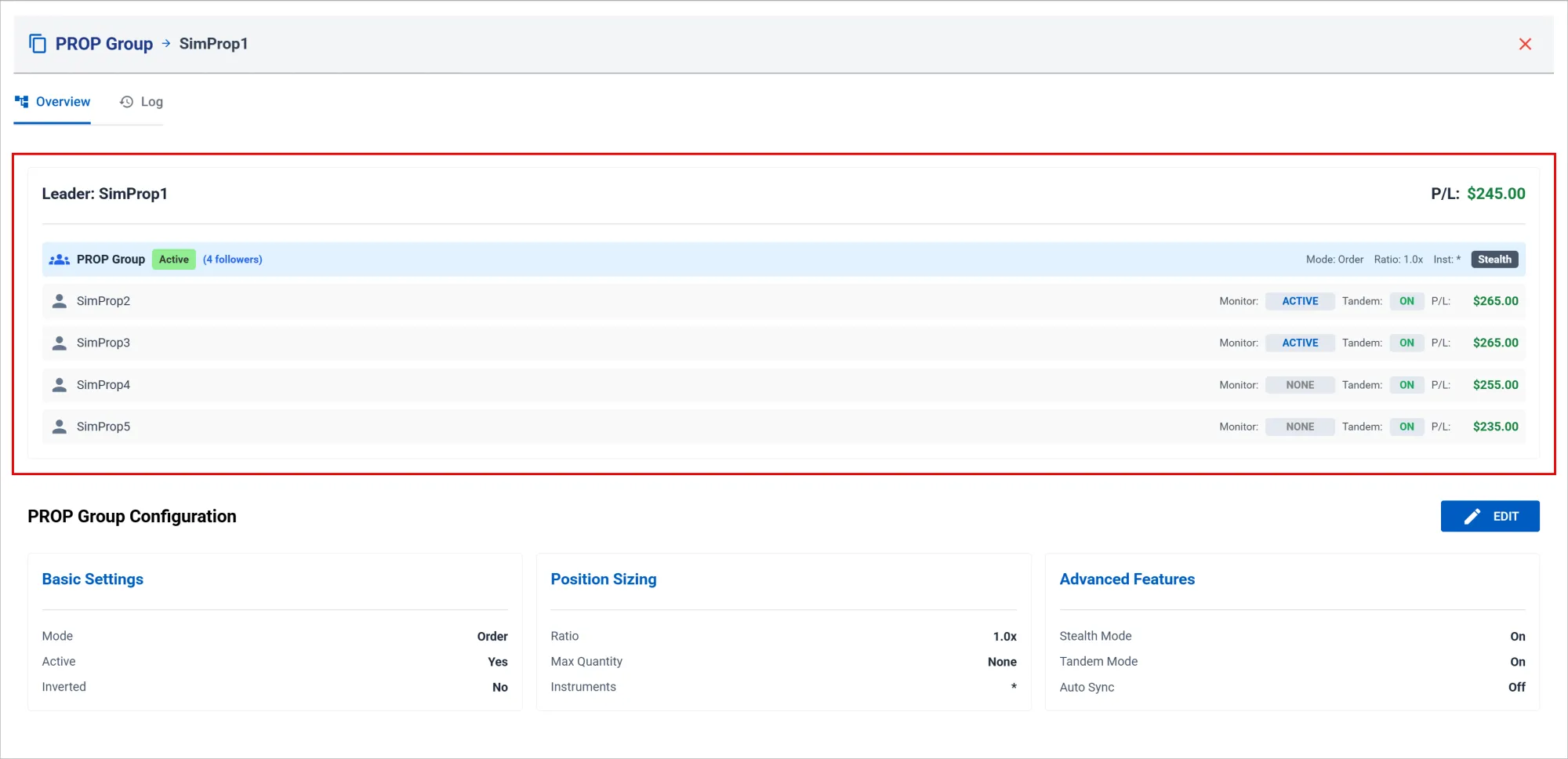
You can still create standalone copier relationships for accounts that need unique configurations. Groups and individual copiers coexist on the same dashboard. Use groups for accounts that share settings and standalone copiers for accounts that need special treatment.
Auto-Sync: Stop Worrying About Drift
When you're running ten copying relationships, the probability that something drifts out of sync during a session is nearly 100%. A partial fill on one account. A connection blip on another. An accidental close on the wrong chart. NT8 hiccups during a volatile move and one follower misses a copy.
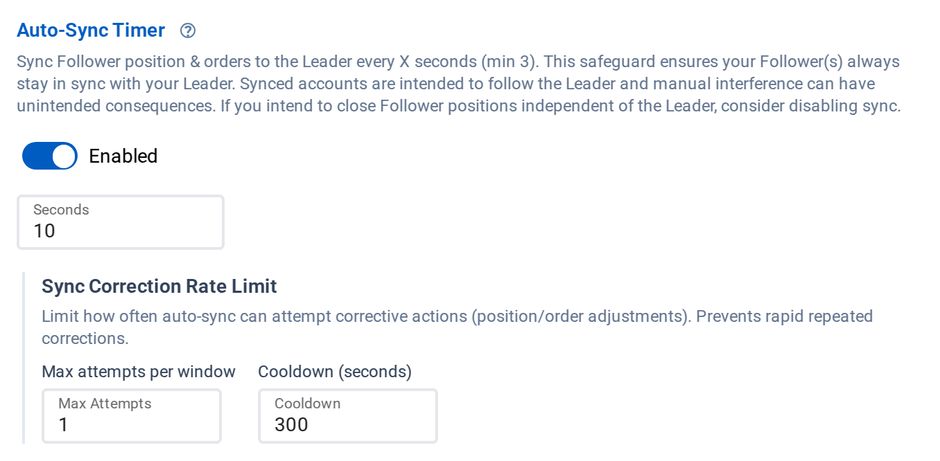
Auto-Sync on a 10-second timer
With most copiers, that means stopping your session, diagnosing which account is out of sync, manually fixing the position, and restarting. Multiply that by ten accounts and a mid-session disruption becomes a 20-minute fire drill.
CrossTrade's Auto-Sync eliminates this entirely. Every 3 seconds, the system compares each follower's position against what it should be based on the leader and the copier configuration. If anything is off, it corrects automatically. A follower accidentally closed a position? Auto-Sync reopens it. A connection dropped and a copy was missed? Auto-Sync catches it on reconnection. NT8 crashed and restarted? Auto-Sync picks up where it left off.
This works because CrossTrade's copier configuration lives server-side, not inside NT8. When NinjaTrader goes down, the copier's state doesn't go with it. The Add-On reconnects, Auto-Sync compares the current state against the server-side configuration, and corrects any discrepancies without you touching anything.
Risk Controls Per Account
Each prop firm has different rules. Different drawdown limits, different consistency requirements, different daily loss caps. You can't apply one set of risk parameters across ten accounts and expect to stay compliant everywhere.
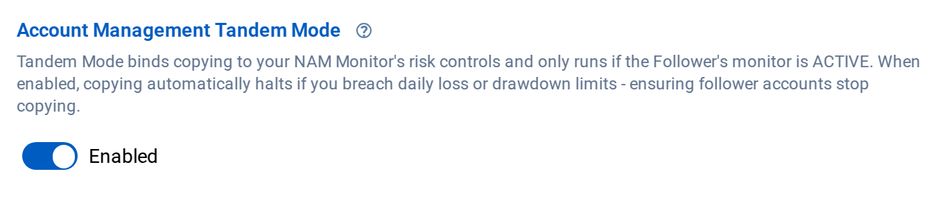
Tandem Mode ties each follower to its own monitor
The NinjaTrader Account Manager (NAM) creates an independent monitor for every account. Each monitor has its own profit threshold, loss threshold, Minimum Profit Drawdown, Trailing Drawdown, trading windows, and EOD auto-flatten time. An account at BluSky with a $2,000 trailing drawdown gets one configuration. An account at Lucid with a $1,100 daily loss limit gets another. They run independently and enforce their own rules.
Tandem Mode binds each copier relationship to its corresponding NAM monitor. When a monitor is triggered (loss limit hit, drawdown breached, profit target reached), the linked copier stops immediately. No stray orders reach the follower. No positions are opened after risk management has already intervened on the leader.
This is the safety net for the scenario everyone fears: the leader account gets flattened by risk management, but the copier keeps running on the followers. Tandem Mode makes that impossible.
Monitor Lock adds one more layer. Once a monitor stops, Monitor Lock prevents you from restarting it until after market close at 5:00 PM ET. This is discipline enforcement for the moment when you're tempted to restart a blown account and "just take one more trade." For prop accounts where one bad restart can cost you the evaluation, Monitor Lock removes the option.
For the full NAM setup, see How to Set Up CrossTrade's NinjaTrader Account Manager.
Stealth Mode
CrossTrade's Stealth Mode removes automation metadata from copied orders so they use standard NT8 order naming conventions. Orders are indistinguishable from any other ATI-generated order in NinjaTrader. Because the copier's state lives server-side, Stealth Mode recovers its order mappings even after a full NT8 crash and restart.

Stealth Mode hides the copier from order names
The Full Setup
Here's the workflow from zero to ten managed accounts:
Connect all your prop firm accounts to NT8 via Rithmic or Tradovate. See the Prop Firm Connection Guide for firm-specific steps. Install the CrossTrade Add-On and connect to the CrossTrade servers. Create a Copier Group with your leader account and all your followers. Configure position ratios, max limits, symbol replacement, and filtering per the group settings. Set up NAM monitors for each account with the correct thresholds for that prop firm's rules. Enable Tandem Mode on each copier to bind it to the corresponding monitor. Enable Monitor Lock in Global Settings. Enable Auto-Sync (on by default, 3-second interval). Enable Stealth Mode if desired.
From this point forward, you trade on one account. The leader. Everything else is managed by the system. Your TradingView alerts fire to CrossTrade. CrossTrade delivers them to the leader. The copier replicates to all followers with the right sizing, filtering, and instrument mapping. NAM watches every account's P/L independently. Tandem Mode kills copying if any account breaches its limits. Auto-Sync fixes drift automatically. You monitor the group overview for a single-screen view of all ten accounts.
Running on a VPS
If you're running ten prop accounts, you should be running on a VPS. Your home internet dropping at 2:00 AM while ten accounts have open positions is not a risk worth taking.
CrossTrade offers Chicago-based VPS hosting with NinjaTrader and the XT Add-On pre-installed. Combined with Auto-Reconnect, your broker connections recover automatically if they drop, and Data Watchdog catches stale price feeds before they cause problems. The entire system runs without you sitting in front of it, which is the point.
For more on prop farming strategies, see Unlock Prop Farming. For prop firm comparisons, see Topstep vs Tradeify vs My Funded Futures.
New to CrossTrade? Start your free 7-day trial and connect TradingView to NinjaTrader in minutes.