
Introducing Copier Groups: Manage Multiple Followers with One Click
Manage multiple followers as one unit. Create a group, configure settings once, and enable or disable all copiers with a single click. No more updating each one manually.

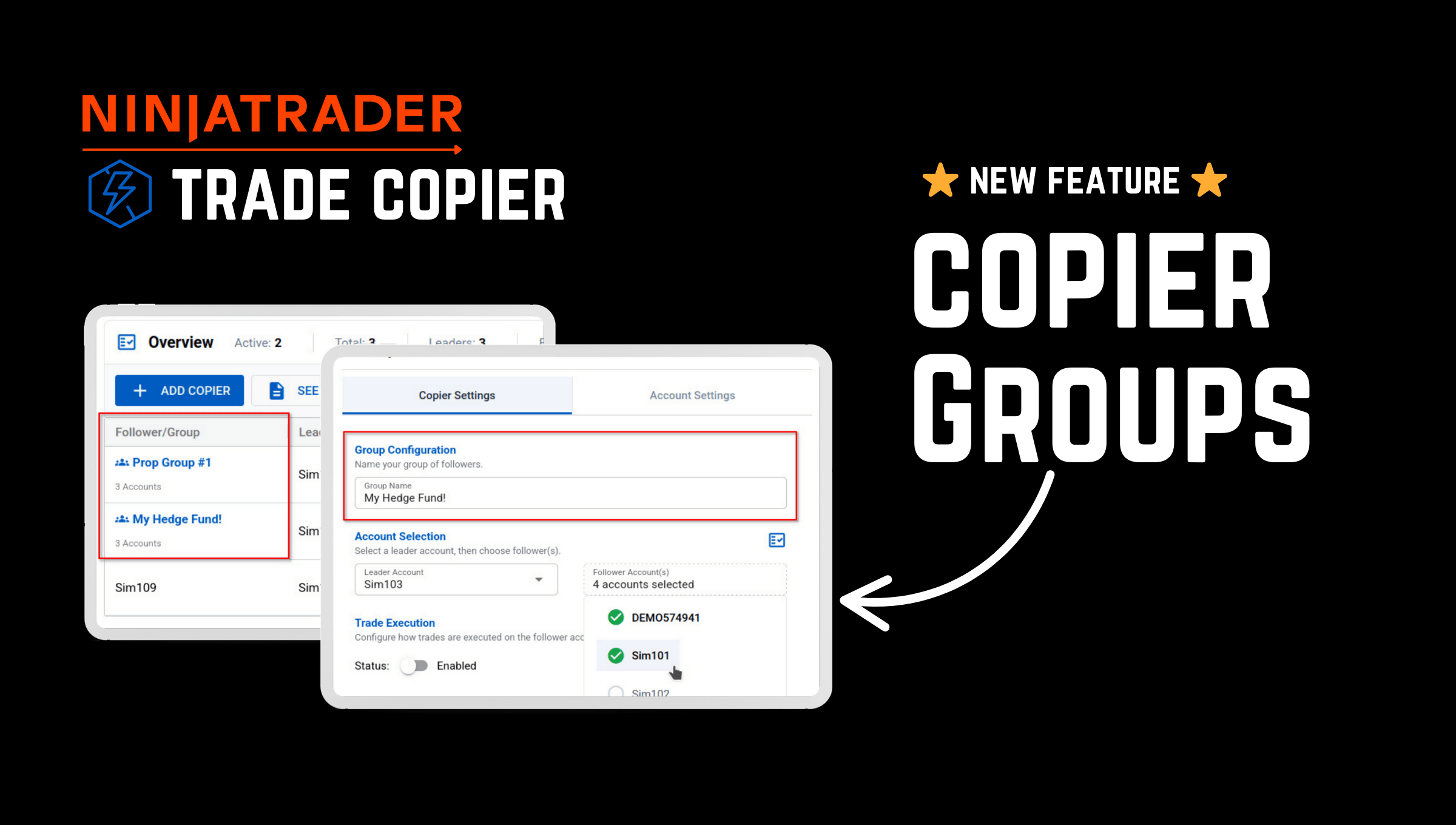
If you're copying trades to multiple NinjaTrader accounts, you've probably felt the pain of managing them one by one. Change a setting? Do it for each copier. Disable everything before news? Click through every single one. Enable them after? Same thing.
Not anymore. Life just got a lot easier with Copier Groups.

What Are Copier Groups?
Copier Groups let you organize your trade copiers into logical groups and manage them as a single unit. Pick a leader account, select as many followers as you want, give the group a name, and configure your settings once. Those settings apply to every follower in the group.
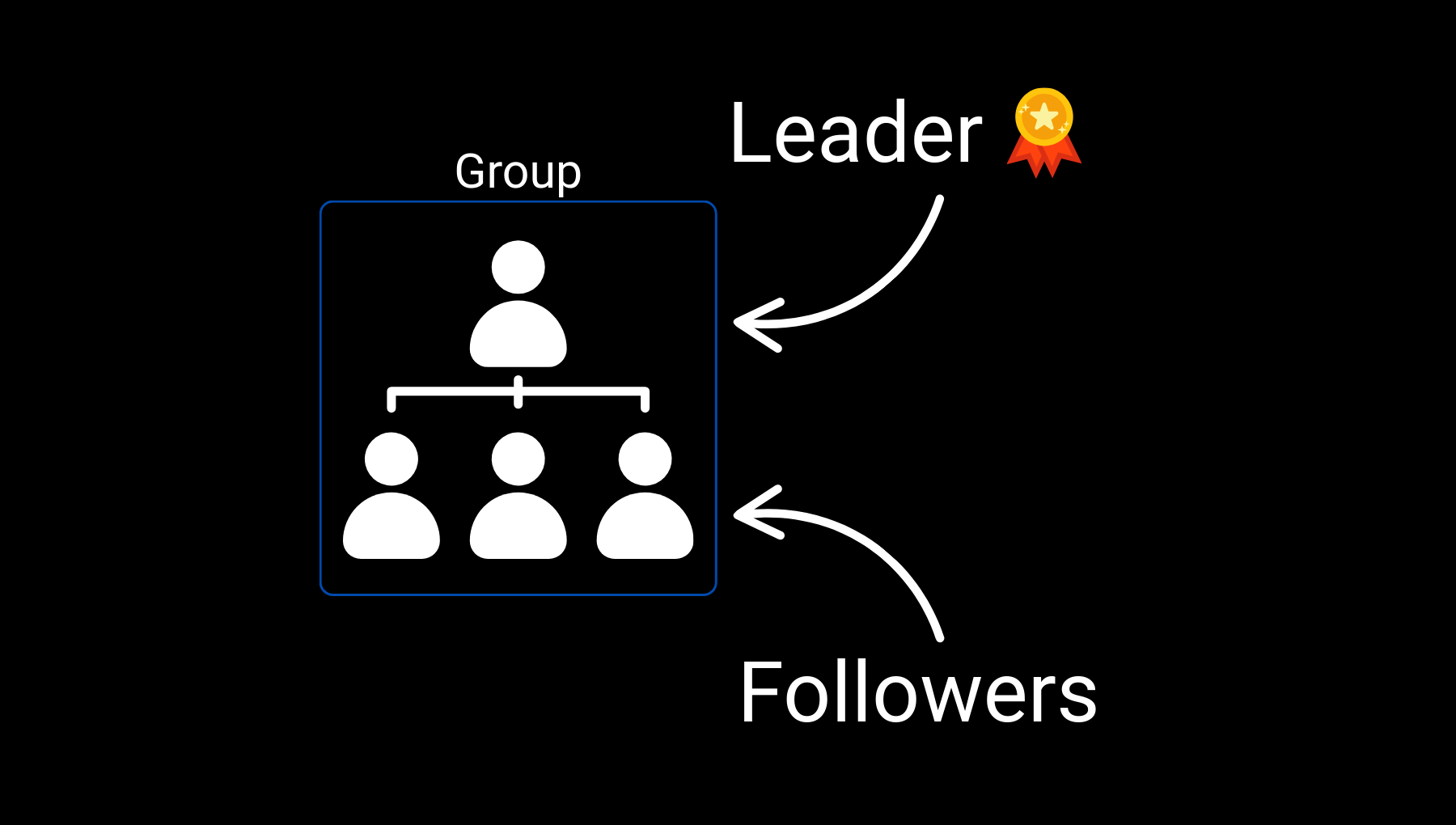
Need to disable all your NQ copiers before FOMC? One toggle. Want to change the position sizing for your prop firm accounts? One setting change. Running different strategies on different timeframes? Separate groups, separate configurations.
How It Works
Head to the Trade Copier page and click "Add Copier." You'll now see the option to create a group:
- Select your Leader account
- Select as many Follower accounts as you want from your account list
- Provide a Group Name
- Configure your group settings—these apply to all followers
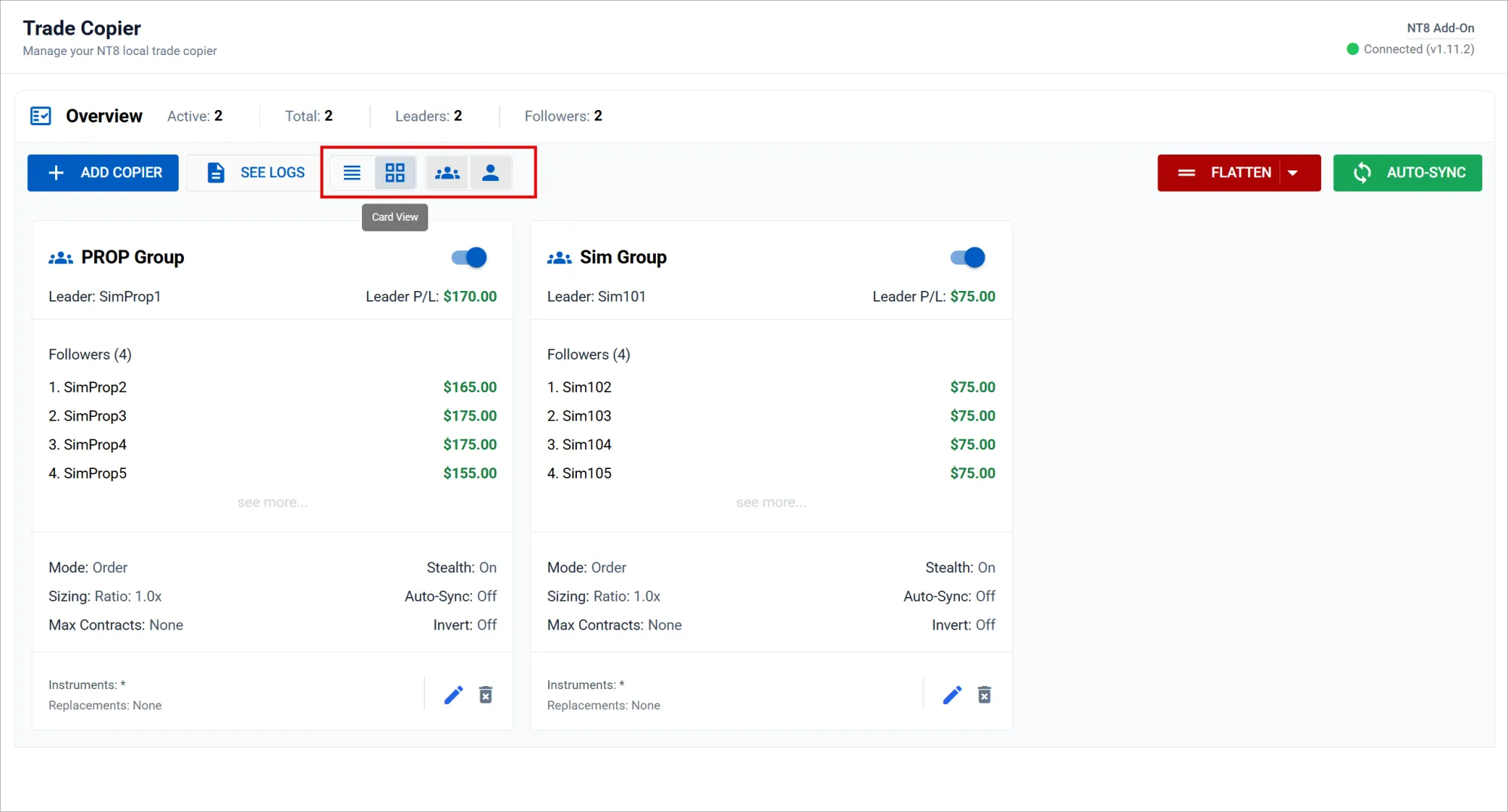
That's it. Your group appears on the Trade Copier page with a single toggle to enable or disable all followers at once.
Why We Built This
The most common support questions we get are about managing multiple copiers. Traders running prop firm evaluations across multiple accounts. Traders copying one master account to several live accounts. Traders with different strategies that need different configurations.
Before groups, every copier was independent. Same leader, same settings, but you had to configure each follower separately. If something changed, you had to update each one manually.
Groups solve this by treating multiple followers as a single unit. Configure once, apply everywhere.
View Options
We've also added new view toggles to help you navigate your copiers:
- Grid or Cards: Switch between a compact grid view and detailed cards
- ALL: Show everything
- Only Groups: Filter to show only grouped copiers
- Only Single: Filter to show only standalone copiers
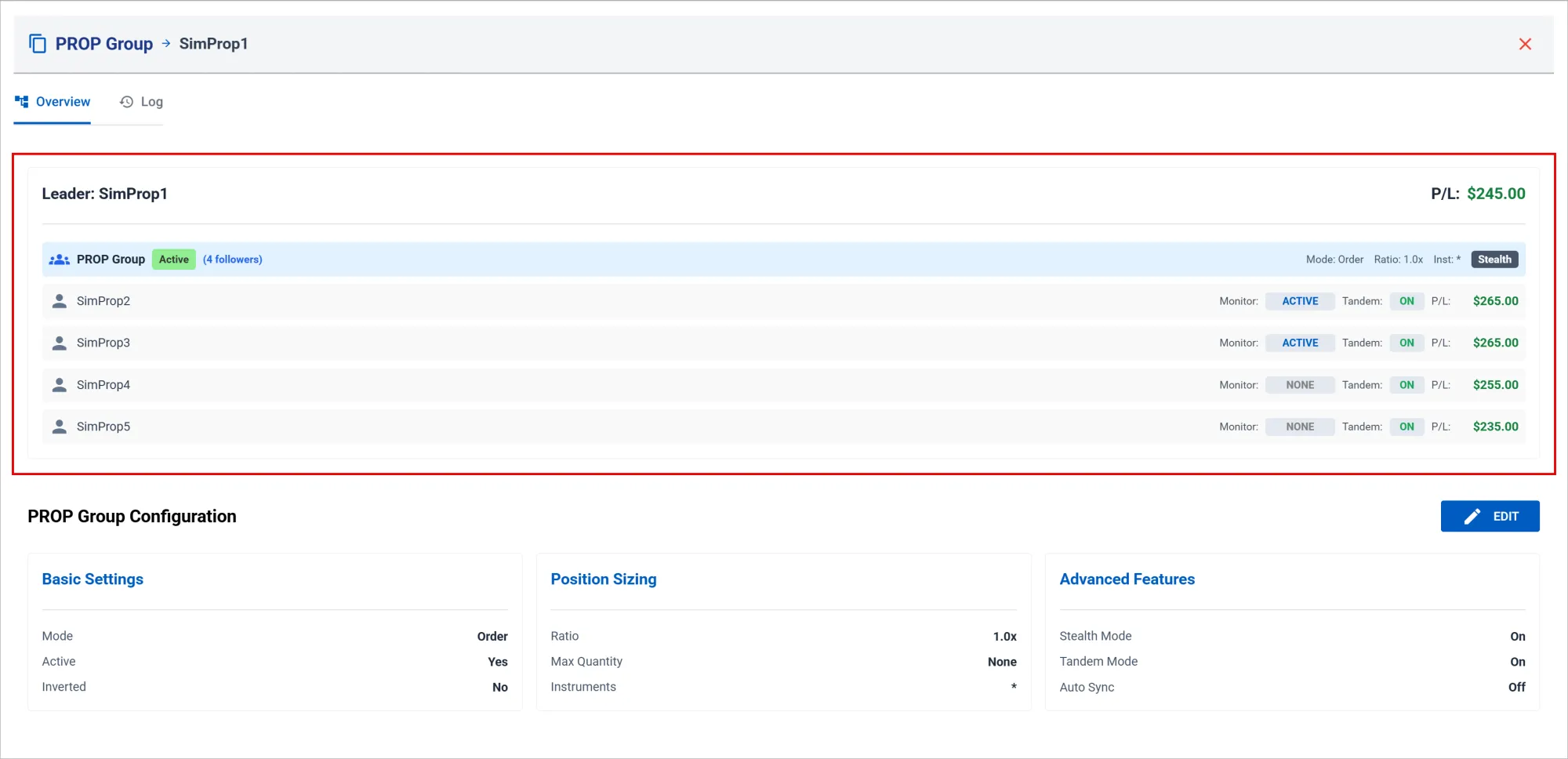
Enhanced Overview and Logs
In order to support Group Copiers, we also made enhancements to the Overview and Log screens to provide group details like Group P/L, individual Follower P/L, as well as the Monitor and Tandem status for all followers in the group. This birds eye view gives you a breakdown of everything that's happening in your group.
Get Started
Copier Groups are available now. Head to the Trade Copier page to create your first group. For more details on Groups, check out our new Updates section for this update announcement and others.
Have fun grouping!
— The CrossTrade Team