
How to Trade Multiple Tradovate Accounts From One TradingView Alert
One TradingView alert can place the same order on every Tradovate account you name, or rotate through them one signal at a time. How it works, and when to move up to a copier.

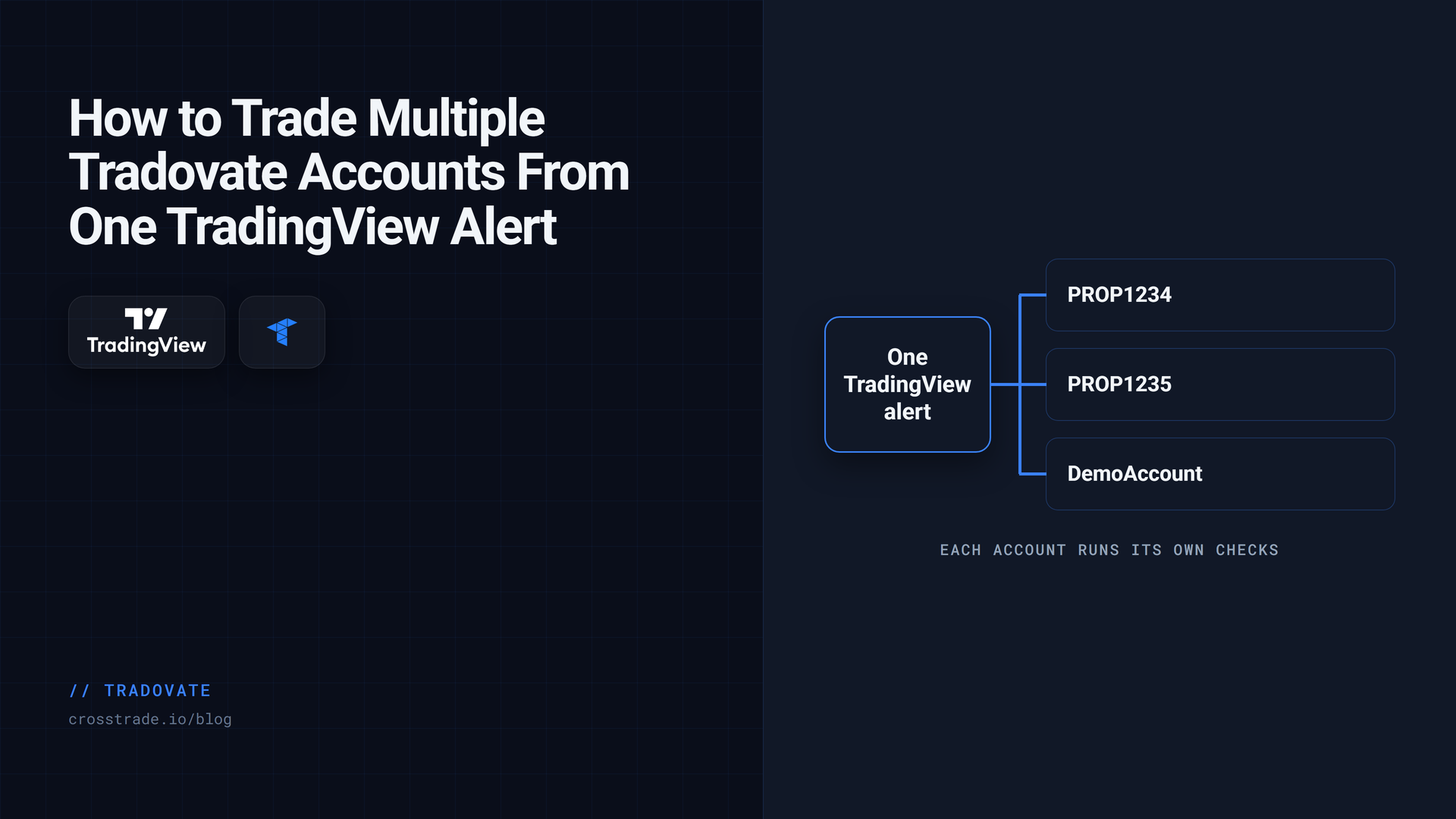
Running more than one Tradovate account is normal now. Two evaluations at one firm, a funded account at another, a personal account for your own ideas. If the same strategy should trade all of them, the last thing you want is one TradingView alert per account, each a copy of the others waiting to drift out of step.
You do not need that. One alert can name every account it should trade. This guide covers the two ways to do it, account lists and account cycling, and the point where a trade copier becomes the better tool.
Account lists and the Tradovate trade copier solve different multi-account jobs. Use multi-account placement for alert fan-out; use a copier when a leader and per-follower rules are the better fit.
First, link every account
Link each Tradovate login under My Account → Brokers using the environment that owns its accounts. Personal live brokerage accounts use Link Live; evaluation and simulated-funded accounts commonly use Link Demo. Confirm the returned environment and account names rather than inferring them from the word funded. Multiple logins can be linked side by side.
One rule to know now: account names must be unique across everything you link. If two logins carry an account with the same name, CrossTrade refuses the ambiguous name rather than guessing which one you meant.
One alert, several accounts
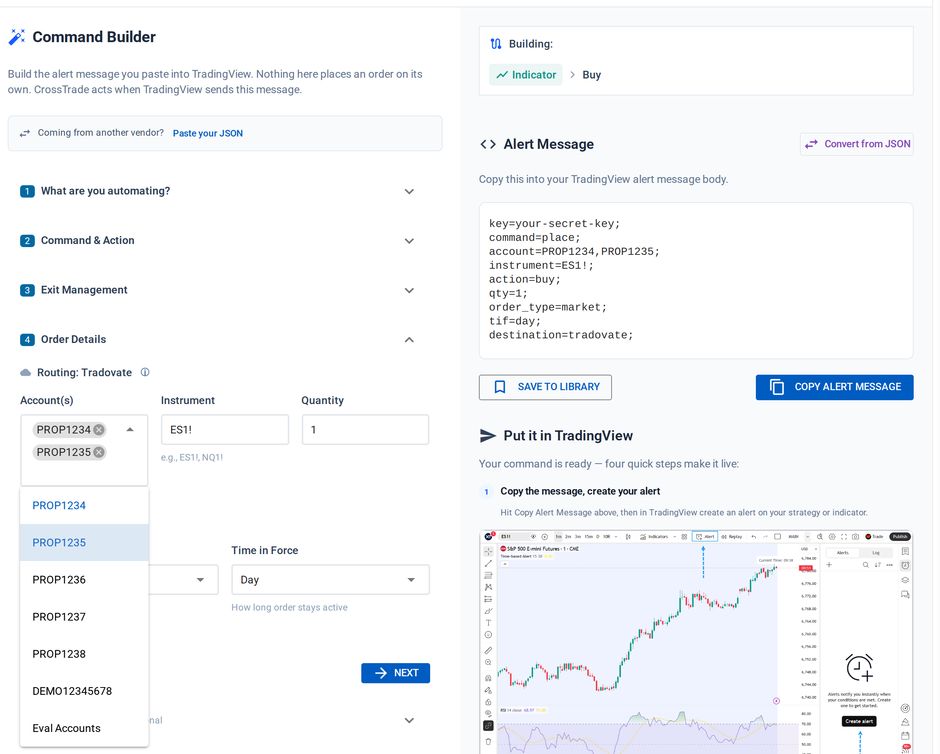
Give account a comma-separated list:
key=your-secret-key;
command=place;
account=PROP1234,PROP1235,DemoAccount;
instrument=MES1!;
action=buy;
qty=1;
order_type=market;
take_profit=40 ticks;
stop_loss=20 ticks;
destination=tradovate;
CrossTrade makes an identical copy of the order for each account and sends them at the same time. Each copy is its own order: it passes its own account's checks, it gets its own bracket at Tradovate, and it gets its own row in Alert History. If one account is locked by its daily loss limit, or already holds a position that a require_market_position=flat; gate blocks, the others still trade.
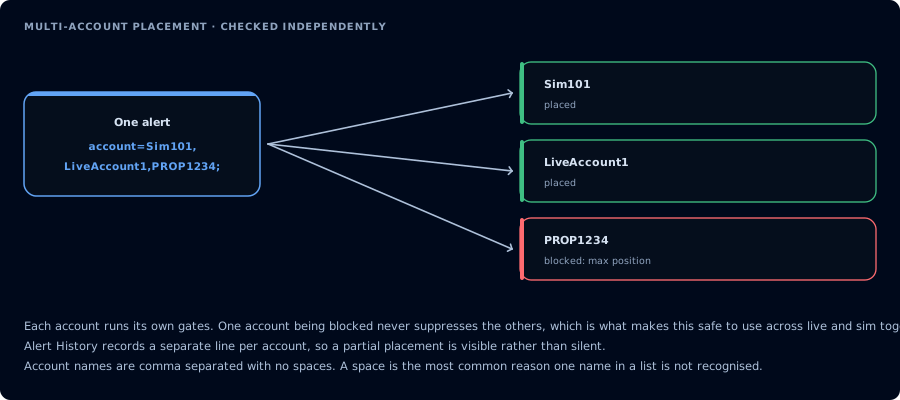
Two details matter when you read the results. Relative bracket distances are converted to prices once, before the copies go out, so every account gets its stop and target from the same quote. And because the copies are sent together, the order in which they fill is not guaranteed to match the order you listed them.
One alert, one account at a time: cycling
Some traders want the opposite. Instead of every evaluation taking every trade, and all of them failing on the same bad day, they want each signal to go to one account, moving on to the next only when the current one is done for the day.
Add cycle_accounts=true; to the same alert:
account=PROP1234,PROP1235,PROP1236;
cycle_accounts=true;
CrossTrade walks the list in order and sends the order to the first account whose Account Manager monitor is not stopped. When that account hits its daily profit target or loss limit and its monitor stops, the next signal goes to the next account in the list. An account with no monitor is always eligible. If every account in the list is stopped, the alert is refused and recorded.
Cycling reads Account Manager state, so it needs a monitor on each account and is part of the Pro plan.
When to use a copier instead
An account list is the right tool when the accounts are alike: the same size, the same contract, the same rules. It stops fitting when they differ.
The Tradovate Copier takes over at that point. Your alert targets one leader account, and CrossTrade replays each trade to follower accounts with their own settings: a size ratio or fixed quantity per follower, a cap on each follower's total position, symbol swaps such as ES=MES for a smaller account, and an instrument filter. Changing a follower never means editing the alert. The copier can also follow trades you place by hand inside Tradovate, which an alert list never sees.
Choose by behavior rather than account count. A list suits identical alert instructions; a copier suits a leader with per-follower rules. On Tradovate, symbol replacement applies to unbracketed market orders, not priced or bracketed copies. Execution and Order modes can follow manual trading; Signal mode only sees CrossTrade commands. Same-environment copier pairs under one login are validated; cross-identity and cross-environment pairs still need Demo verification. See the copier limitations.
Copy Tradovate trades from the cloud
Compare Signal, Execution and Order modes, follower sizing and account controls. No NinjaTrader installation or VPS is required for the direct Tradovate route.
Guards that apply per account
Alert-level guards run once for each account in the list, which makes them more useful here than on a single account.
require_market_position=flat; places the entry only on accounts that are flat on that contract. max_positions=1; blocks an entry that would open a second instrument on an account. start_time and end_time limit when the alert is accepted at all. And an Account Manager monitor on each account keeps its daily limits independent, so one account stopping for the day never touches the others.
Frequently asked questions
Is there a limit to how many accounts one alert can trade?
There is no fixed cap on the list. Every account adds broker requests, and CrossTrade paces them to stay clear of Tradovate's rate limits, so very long lists take slightly longer to fan out.
Can one alert trade accounts at two different prop firms?
Yes, if both firm logins are linked. The accounts only need unique names. Check that both firms allow automation first.
What happens if one account rejects the order?
The others are unaffected. Each account's result, including the rejection reason, appears as its own row in Alert History.
Should I use an account list or the copier?
Use a list for a few identical accounts. Use the copier when accounts need different sizes or contracts, or when you also trade the leader by hand.
Does this work with my computer off?
Yes. Alerts, account cycling and the copier all run on CrossTrade's servers against Tradovate's cloud API.
Try it on two Demo accounts
Link a Demo login, name two of its accounts in one alert, and fire it once. You should see two Alert History rows and two orders at Tradovate. If you are new to CrossTrade, start a free 7-day trial, and ask anything in the CrossTrade Discord.
CrossTrade is execution and automation software, not a broker, financial adviser, or trading strategy. Prop firm rules are set by each firm and change without notice. Futures trading involves substantial risk. Test every automated workflow in simulation and verify orders at your broker.