
TradingView Alert Fired but NinjaTrader Did Not Trade: How MCP Helps Debug It
The alert fired in TradingView. NinjaTrader stayed flat. CrossTrade MCP lets an AI agent walk the chain from payload to order to fill and tell you exactly where it broke.

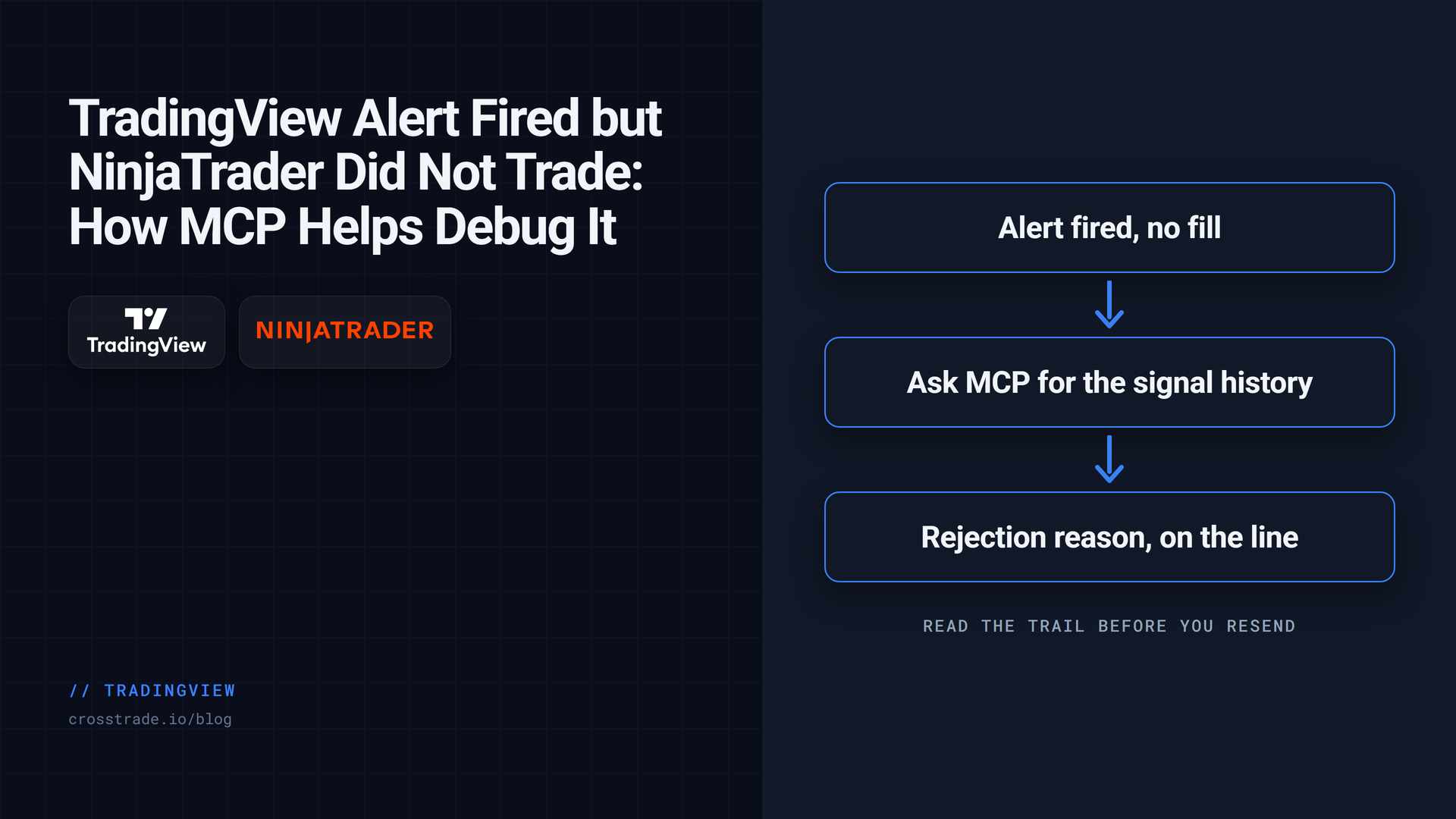
The alert fired in TradingView. You watched it pop up. NinjaTrader stayed flat. The trade never happened. The day moved on. This is the most common silent failure in TradingView-to-NinjaTrader workflows, and it is exactly the kind of thing an AI agent on CrossTrade MCP is good at debugging.
A realistic failure
A trader runs a TradingView Pine Script strategy that fires a long alert when 9-EMA crosses above 21-EMA on MES 5-minute bars. The alert sends a JSON payload to the CrossTrade webhook URL. CrossTrade routes the payload to the NinjaTrader add-on, which places the order on the configured account.
At 14:32 the alert fired. The trader saw the notification in TradingView. The chart turned green. NinjaTrader did not produce an order. There was no rejection in the broker UI. No notification. The trader's account stayed flat through what looked, on paper, like a clean signal.
Common failure categories
The same five shapes account for nearly every miss.
- Malformed payload. Required field missing, wrong type, or unparseable JSON. The signal is recorded but no order is created.
- Wrong symbol.
ESinstead ofES 06-26. Different exchange suffix. The receiver cannot map to a tradable contract. - Wrong account. The payload targets an account name that is not connected, often after a contract rollover or an account rename.
- Position-state mismatch. The payload assumes flat; the account already holds the position. The receiver refuses.
- Order rejected. The order is placed but the broker rejects it: max contracts, daily loss lockout, instrument expired.
What CrossTrade already logs
Every webhook signal lands in GetSignalHistory with the payload, parsed action, mapping decisions, and outcome. Every routing event lands in the CrossTrade Add-On's activity log, available via GetActivityLog. Every order and rejection lives in ListOrders, GetOrder, and ListExecutions.
The agent's job is to correlate those four data sources in the right window and identify the missing link.
What MCP lets an agent correlate
With mcp:read, the agent can pull all four data sources in a single conversation. Read-only is enough; no write permission is needed for debugging.
Example analysis
Prompt: "Pull the TradingView signal at 14:32 today on Sim101. Pull the matching GetActivityLog entries, ListOrders, and ListExecutions in the same window. Build a timeline. Tell me where the chain broke."
The agent returns:
14:32:00.412 webhook received: { "action": "buy", "symbol": "MES",
"quantity": 1, "account": "Sim101" }
14:32:00.418 parser: warning - "symbol" requires a contract month; got "MES"
14:32:00.418 parser: could not resolve to a tradable instrument
14:32:00.418 routing: skipped - missing instrument
[no order placed]
Cause: the Pine Script alert sent the root MES instead of the front-month contract MES 06-26. The receiver requires a contract month; it skipped routing rather than guess. The agent recommends changing the Pine Script alert message to include the active contract.
Fix checklist
- Verify the payload includes a contract month, not just the root.
- Verify the account name matches a connected account.
- If using a percentage-based size, confirm the receiver supports it for this account.
- If using a flatten or reverse action, confirm the position state before the signal allows it.
- After the fix, fire a test alert from TradingView's "Send test webhook" action and re-pull the signal history.
Webhook analyzer for offline payloads
For sanity-checking a payload before you push to production, use the TradingView Webhook Signal Analyzer. Paste the payload; see how CrossTrade would interpret it without contacting your add-on.

Links
The agent does not replay the missed signal. You fix the alert in TradingView and the next one will work.