
TradingView Alert Presets: Save Your CrossTrade Commands for Instant Reuse
TradingView's alert presets let you save configurations as reusable templates. Useful for automation, but webhook URLs aren't saved. What CrossTrade users need to know about this new feature.

TradingView just rolled out alert presets, and for CrossTrade users, this is actually useful. Here's why: you can now save your CrossTrade-compatible alert message payloads as templates and reapply them instantly across different symbols and strategies.
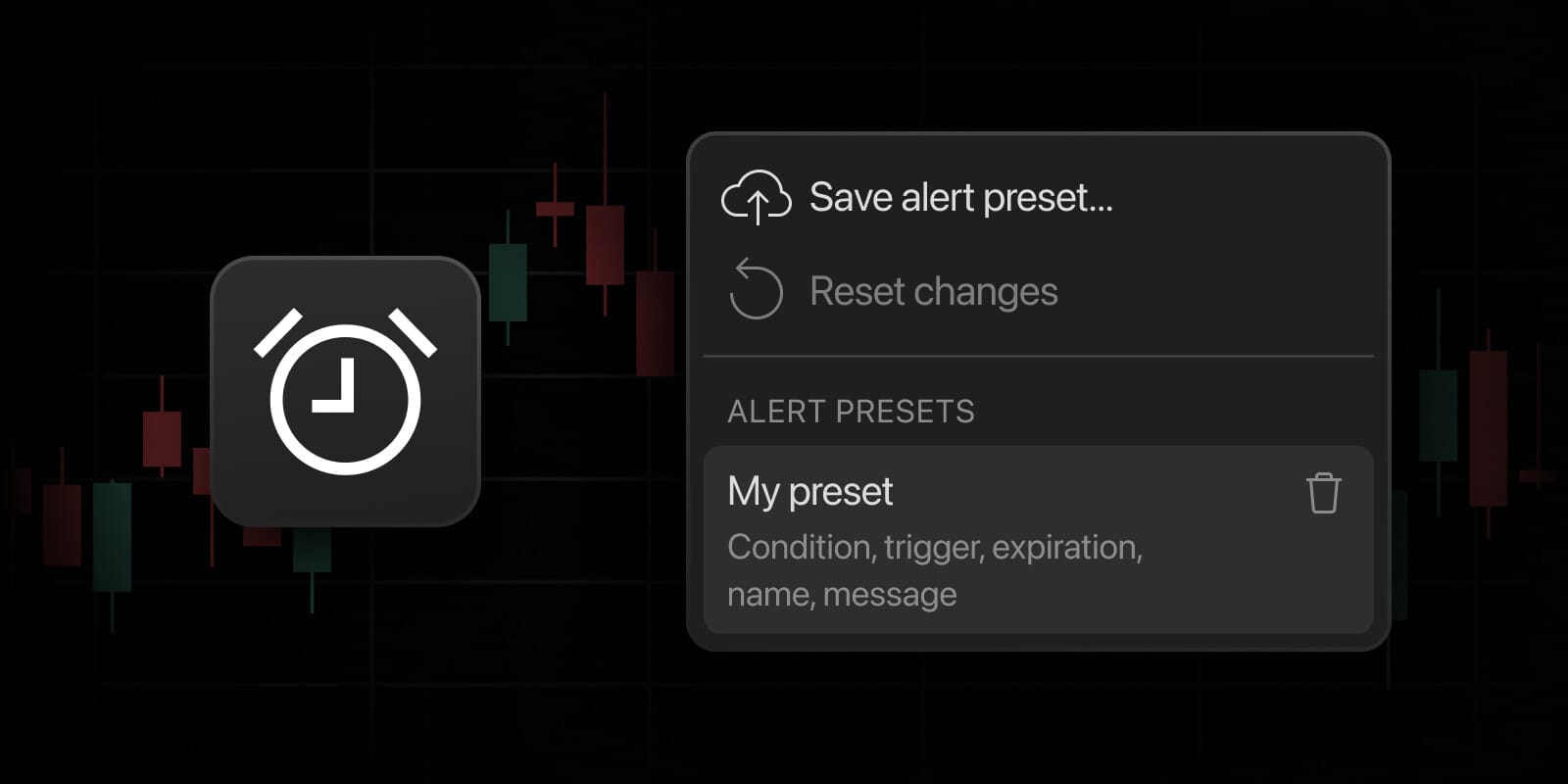
What Gets Saved (And What Doesn't)
Alert presets save everything in your alert configuration - conditions, trigger settings, notification preferences, and most importantly for us, the alert message itself. This means all your carefully crafted CrossTrade commands with proper formatting, dynamic variables, and advanced options get preserved.
The one limitation: webhook URLs aren't saved. You'll still need to add your CrossTrade webhook endpoint manually each time. It's a minor friction point, but understandable from a security perspective.
Why This Matters for CrossTrade Users
If you're running similar strategies across multiple symbols (like the same breakout logic on ES, NQ, and YM), or deploying identical setups across different timeframes, alert presets eliminate the repetitive work of reconstructing your CrossTrade commands. Configure your message payload once, save it as a preset, and reapply it whenever you need it.
Command Examples Worth Saving as Presets
Here are practical CrossTrade command templates you can save as presets for different trading scenarios:
Basic Entry with Brackets (Indicator)
Perfect for simple directional trades with defined risk:
key=your-secret-key;
command=place;
account=sim101;
instrument={{ticker}};
action=buy;
qty=1;
order_type=market;
tif=day;
take_profit=100 ticks;
stop_loss=50 ticks;
Strategy Sync for Automated Strategies
Essential if you're running TradingView strategies and want to keep them in sync with NinjaTrader. This command uses the Strategy Sync logic from your TradingView strategy to your NinjaTrader account:
key=your-secret-key;
command=place;
account=sim101;
instrument={{ticker}};
action={{strategy.order.action}};
qty={{strategy.order.contracts}};
order_type=market;
tif=day;
sync_strategy=true;
market_position={{strategy.market_position}};
prev_market_position={{strategy.prev_market_position}};
out_of_sync=flatten;
ATM Strategy Entry (Indicator)
For those using NinjaTrader's ATM strategies for trade management:
key=your-secret-key;
command=place;
account=sim101;
instrument={{ticker}};
action=buy;
qty=1;
order_type=market;
tif=day;
atm_strategy=YourATMTemplate;
flatten_first=true;
Multi-Account Placement (Indicator)
If you're running the same strategy across multiple accounts (prop farming, anyone?):
key=your-secret-key;
command=place;
account=sim101,sim102,sim103;
instrument={{ticker}};
action=buy;
qty=1;
order_type=market;
tif=day;
Close Position (Indicator)
Simple exit template for closing any position:
key=your-secret-key;
command=closeposition;
account=sim101;
instrument={{ticker}};
These are just a handful of basic examples. There are dozens of examples that cover all the basic and advanced command functionality of CrossTrade in our Help Docs.
How to Set Up Your Presets
- Configure your alert normally with your CrossTrade command in the message field
- Click the preset button (next to the X in the alert dialog)
- Select "Save alert preset"
- Name it descriptively (e.g., "ES Strategy Sync Entry" or "Multi-Account Brackets")
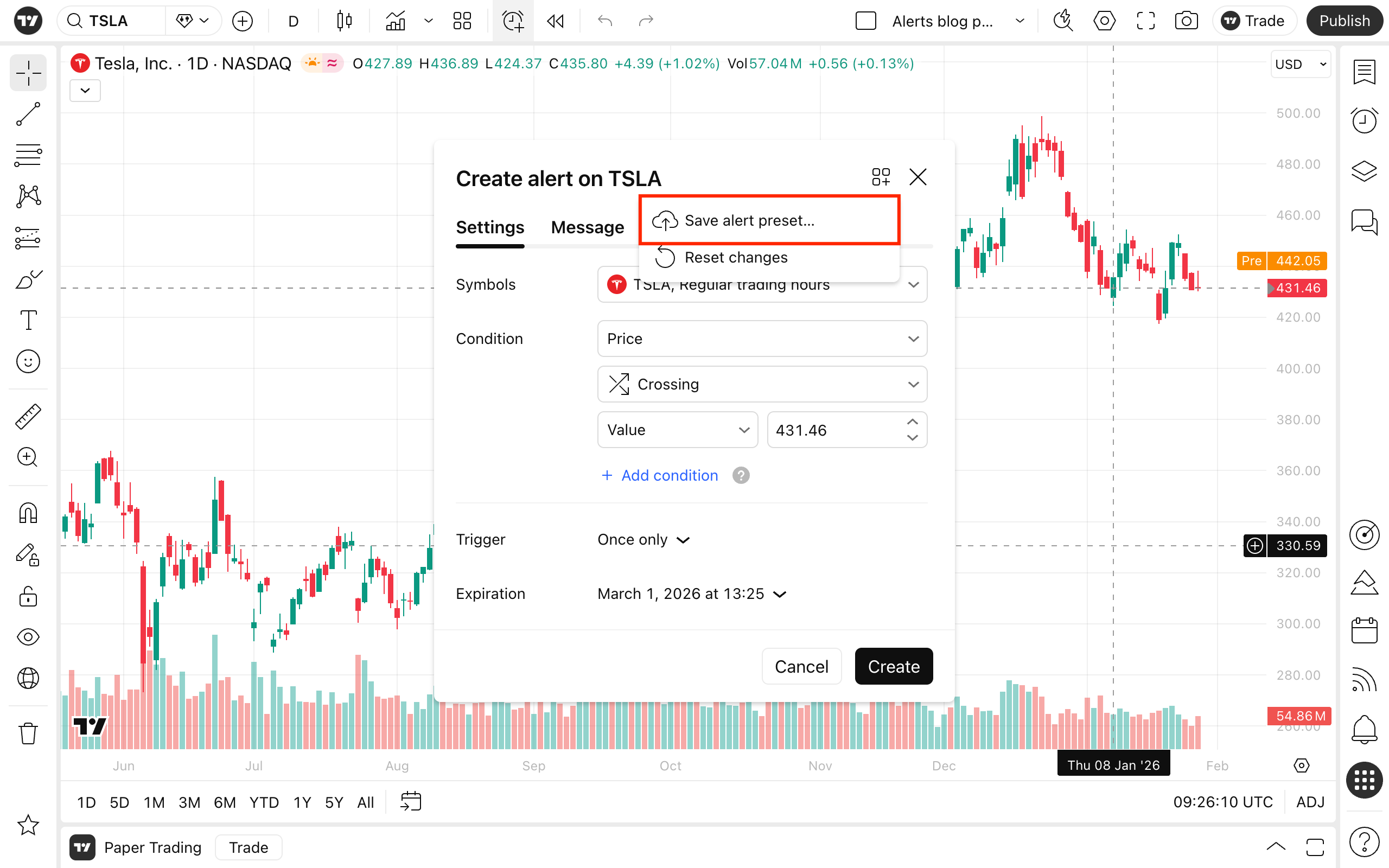
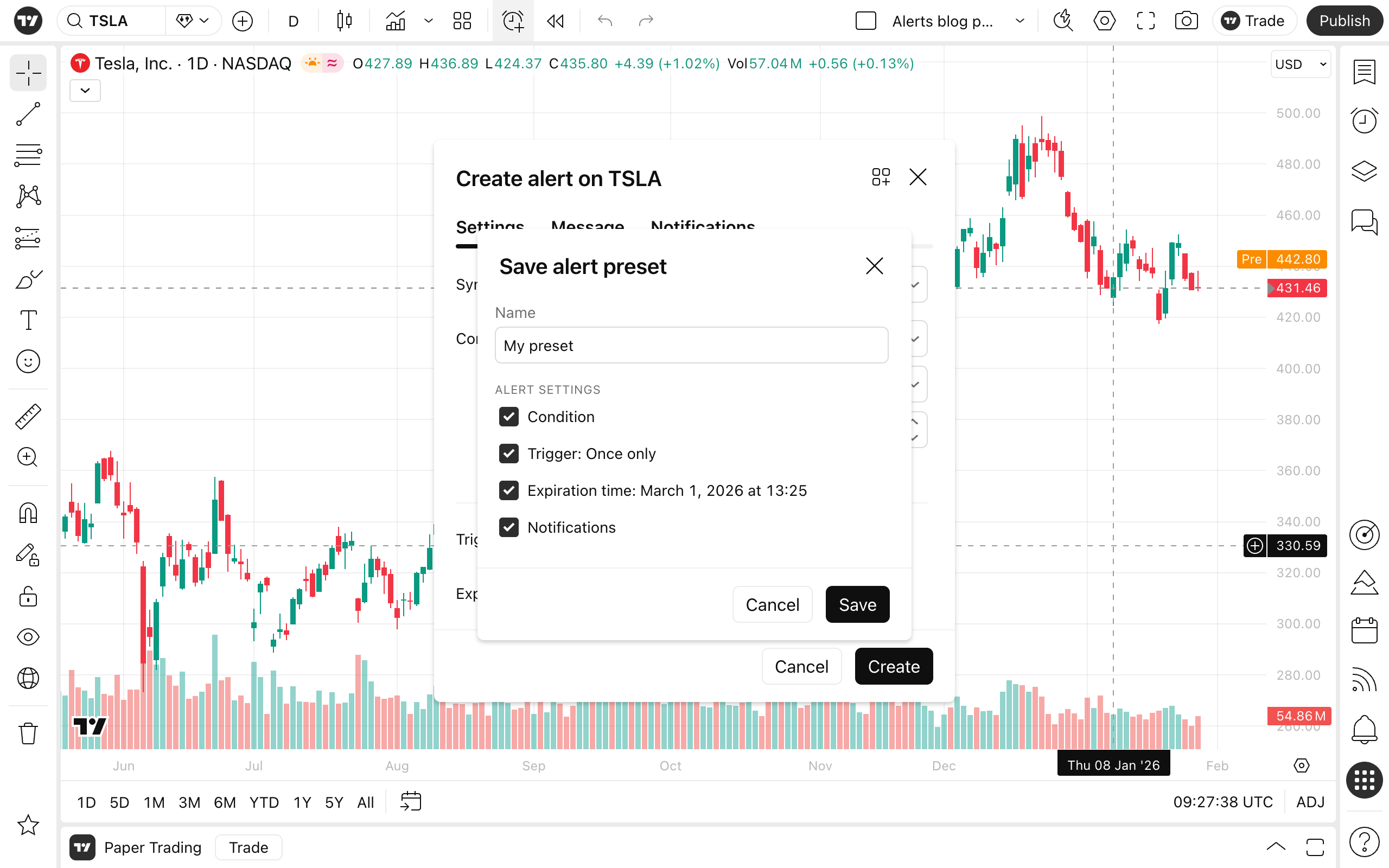
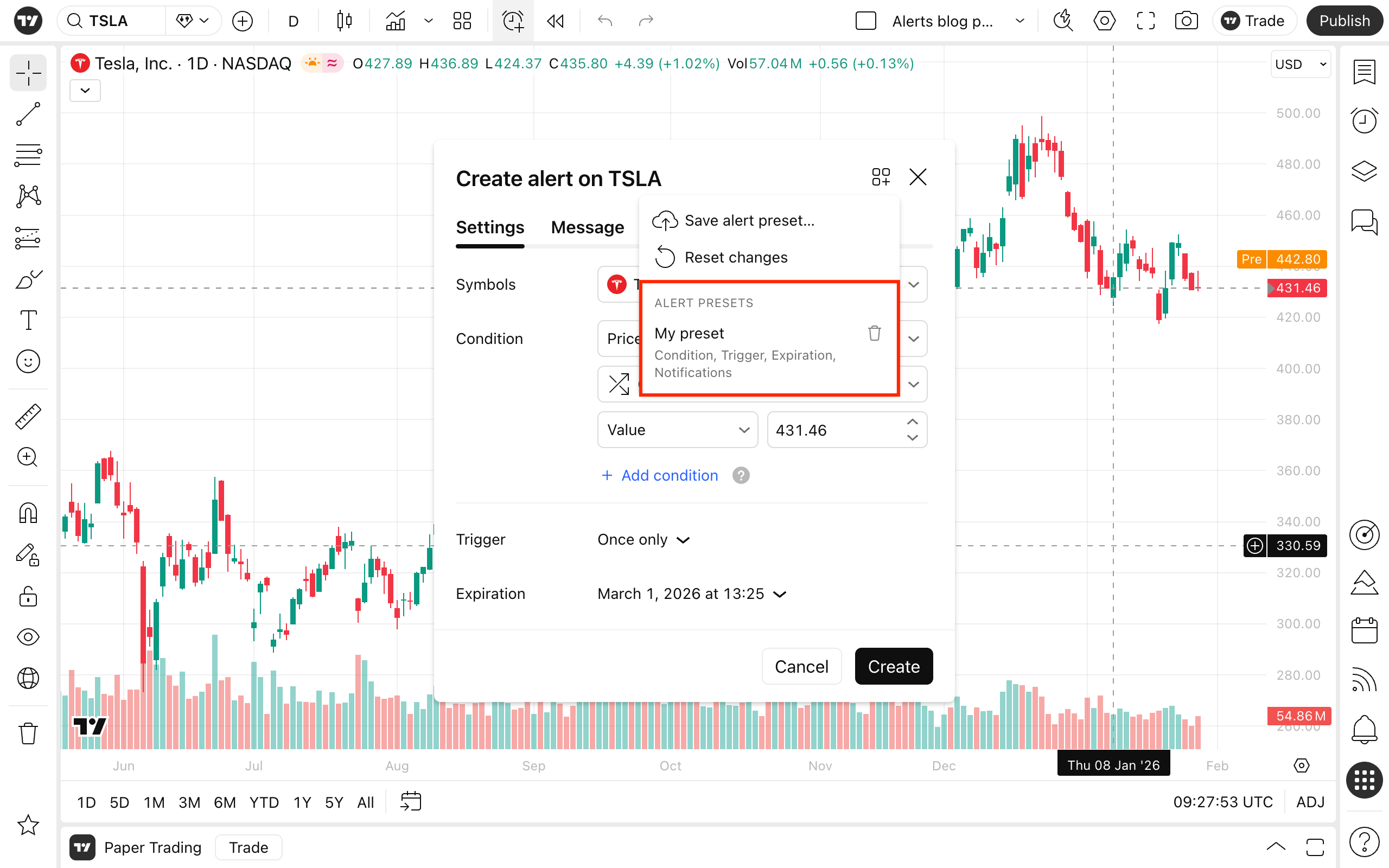
You can save up to 5 presets. When creating new alerts, select your preset from the menu, add your webhook URL, and you're done.
Practical Workflow
Let's say you trade the same mean reversion strategy on ES, NQ, and CL. You'd create one preset with your entry command, complete with your preferred brackets and sync logic. Then when setting up alerts on each symbol:
- Apply your saved preset
- Paste your CrossTrade webhook URL
- Adjust the condition/indicator as needed for that specific symbol
- Save
Your entire CrossTrade command structure with all the formatting, dynamic variables, and advanced options is already there - no copy/pasting from docs or worrying about syntax errors.
Tips for Using Presets with CrossTrade
- Use TradingView's dynamic variables ({{ticker}}, {{strategy.order.action}}, etc.) in your presets so they automatically adapt to different symbols and conditions
- Name your presets clearly - "ES Bracket Entry", "Strategy Sync Exit", "Multi-Account Entry" beats "Preset 1"
- Keep a separate preset for entries vs. exits if your logic differs
- If you manage multiple accounts with different risk parameters, create dedicated presets for each account configuration
Bottom Line
Alert presets won't revolutionize your workflow, but they do eliminate repetitive configuration work. If you're managing multiple alerts with similar CrossTrade commands, this feature saves real time and reduces syntax errors. The webhook URL exclusion is a minor annoyance, but the ability to preserve your entire message payload makes it worthwhile.