TradingView Webhook Not Working? A Step-by-Step Checklist
A webhook that never turns into a trade is broken at one of four links. How to find which one in minutes, the common causes at each, and what every rejection message means.

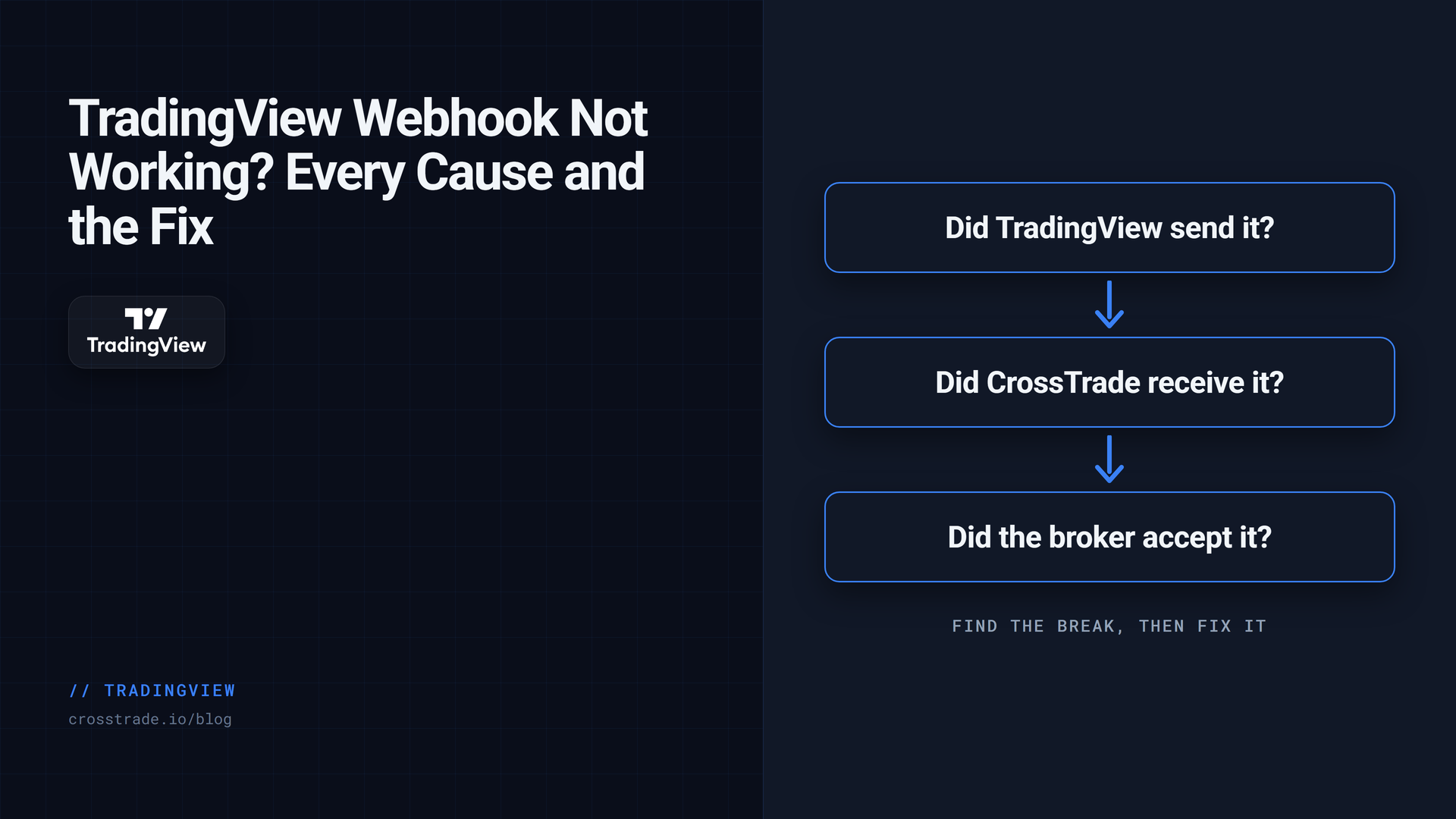
A TradingView alert fired, and nothing happened at your broker. It is tempting to start editing the alert, rebuilding the strategy or blaming the platform. Don't, yet. An automated order passes through four links, and it broke at exactly one of them. Find that one first and the fix is usually a minute's work.
This guide walks the four links in order: did TradingView send the webhook, did it arrive, was it accepted, and did the broker take the order. It uses CrossTrade as the receiving end, but the first link applies to any webhook service.
This checklist follows the delivery path used by CrossTrade webhook automation. It separates alert generation, delivery, validation and broker state so you can repair one stage at a time.
Link 1: did TradingView send it?
Open the alert in TradingView and look at its log. If the alert did not fire, nothing downstream could happen, and the cause is on the TradingView side. The log also has a Webhook status column, which shows whether TradingView reached your webhook address at all.
Webhooks need two-factor authentication. TradingView will not send a webhook from an account without 2FA turned on, and it prompts you to enable it the first time you tick the webhook box.
Webhooks need a paid plan. The free Basic plan has no webhook notifications, and no alerts on indicators or strategies at all. Every paid plan includes both. Downgrading stops every active alert, even though they still appear in the list.
The alert expired. Alerts on the Basic plan expire after one month, and on Essential and Plus after two. Only Premium and Ultimate offer alerts that do not expire, and even those switch off after a year with no triggers or edits.
The alert fired too often and stopped itself. TradingView stops an alert that triggers more than 15 times in 3 minutes. A strategy that flips back and forth on a fast chart can hit that in a busy minute.
The condition never became true on the chart you think. An alert watches the symbol and timeframe it was created on. An alert built on a 5-minute chart does not fire on the 1-minute signal you are looking at.
Strategy settings are frozen at creation. A strategy alert keeps the inputs it was created with. If you changed the strategy afterwards, delete the alert and create a new one.
The webhook box is empty. On the Notifications tab, the Webhook URL box must be ticked and filled. It is easy to create a copy of an alert and lose it.
Link 2: did the webhook arrive?
Open Alert History in CrossTrade. Every webhook that reaches CrossTrade gets a row, accepted or not, with the exact message TradingView sent.
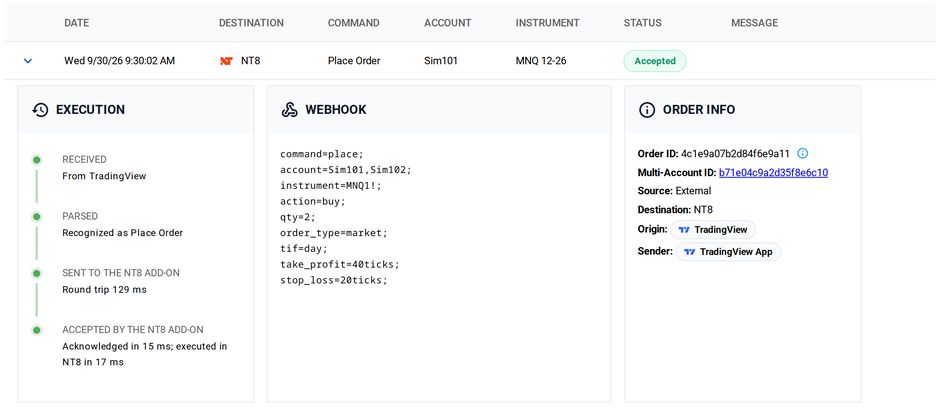
No row at all. The webhook went somewhere else or nowhere. Re-copy your webhook URL from your CrossTrade account and paste it again; a single missing character sends it to the wrong address. Make sure it is your personal URL, not an example from a guide.
A row with the wrong content. Read the body CrossTrade received, not the one you typed. TradingView fills in placeholders before sending, so the received text shows what actually went out, including a {{strategy.order.action}} that came through empty because the alert was built on an indicator.
Rows arriving late. TradingView can delay alerts by several seconds at busy times, especially at the top of the hour and at session opens. Alerts set to fire once per bar close wait for the first trade of the next bar, so on a quiet market they can arrive up to a minute after the bar ends. The row's received time shows exactly when it arrived.
Rows arriving twice. Check for duplicate alert definitions and delivery retries before resending. CrossTrade supports alert rate limiting for workflows that need it. Confirm the original order state first; a rate window is not a substitute for reconciling an ambiguous broker result.
Link 3: was it rejected?
A row that arrived but shows red or a warning tells you why in plain words. The common reasons:
Formatting. The message must contain only the command. Delete TradingView's default text in the message box. In the semicolon format, every line ends in a semicolon; in JSON, the message must be one flat object with no duplicate fields.
Missing fields. A place needs account, instrument, action, qty and order_type, plus tif on NinjaTrader 8.
Secret key. A key copied with a trailing space or from an old account fails. Re-copy it from your account page.
Account name. The account must match exactly what the broker calls it, such as Sim101 or the full prop firm account number.
A rule of yours blocked it. Trading windows, news lockout, a daily loss limit, require_market_position or the kill switch all refuse signals on purpose. The row names which one. This is the system working, not failing.
The destination. Alerts go to NinjaTrader 8 unless the message says destination=tradovate;. A Tradovate alert without that line is sent to NinjaTrader instead.
Turn your TradingView alert into an order
Choose NinjaTrader 8 desktop execution or direct Tradovate cloud routing, then configure the account, order message and exits.
Link 4: did the broker accept it?
The last link is the broker.
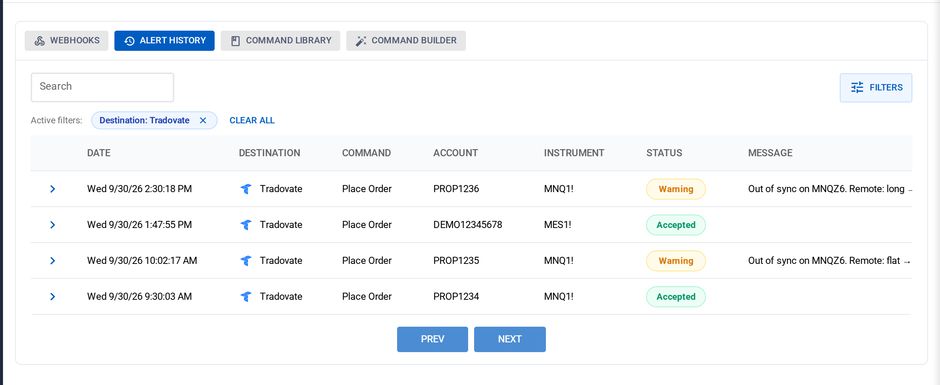
NinjaTrader 8. NinjaTrader must be running, connected to the account, with the NT8 Add-On connected to CrossTrade. An expired contract month rejects with a message about no market data; roll the instrument or use a continuous symbol like ES1!. Prop firms that have closed or paused an account reject with a message pointing to an administrator.
Tradovate. A green row means Tradovate accepted the order. Tradovate can still reject it a moment later in its risk checks, most often for a price outside the product's limits, and CrossTrade turns the row yellow with Tradovate's reason when that happens. If the row shows an authorization error, the link to your Tradovate login expired or was pushed off by a sign-in elsewhere; re-link it in your account settings.
For a Tradovate-specific walk-through with every check in order, see the TradingView-to-Tradovate troubleshooting checklist. For NinjaTrader, How MCP Helps Debug It shows how an AI assistant can read the order history for you.
Test the whole chain on purpose
Once it works, keep it working. CrossTrade's free troubleshooting indicator fires a signal on every bar, which makes it easy to test a new alert on a Demo or Sim account in a few minutes. Add flatten_first=true; so each test starts from flat, and check all four links once before you point the alert at real money.
Frequently asked questions
Why did my TradingView alert fire but no trade was placed?
The order broke at one of four links: TradingView sending, the webhook arriving, the message being accepted, or the broker taking the order. Alert History shows which one.
Does TradingView need a paid plan for webhooks?
Yes. The free Basic plan has no webhooks and no indicator or strategy alerts. Every paid plan has both, and TradingView requires two-factor authentication before it sends a webhook.
Why is my webhook alert delayed?
TradingView can hold alerts for several seconds when its servers are busy, most often at the top of the hour and at session opens. The delay happens before the webhook leaves TradingView.
Why does my alert show an empty action or quantity?
The alert was created on an indicator or a price condition. Strategy placeholders only fill in when the alert's condition is the strategy itself.
My Tradovate order was accepted and then rejected. Why?
Tradovate checks orders again after accepting them. A price outside the product's limits is the usual reason, and the rejection reason appears on the Alert History row.
Get alerts working in minutes
If you are new to CrossTrade, start a free 7-day trial, and bring a stubborn alert to the CrossTrade Discord.
CrossTrade is execution and automation software, not a broker, financial adviser, or trading strategy. TradingView's plans and alert behavior are set by TradingView and can change. Futures trading involves substantial risk. Test every automated workflow in simulation and verify orders at your broker.