
How to Automate NinjaTrader Trades with Zapier and CrossTrade
CrossTrade's webhook API works with any HTTP source, not just TradingView. Here's how to connect Zapier and automate trades from 7,000+ apps.

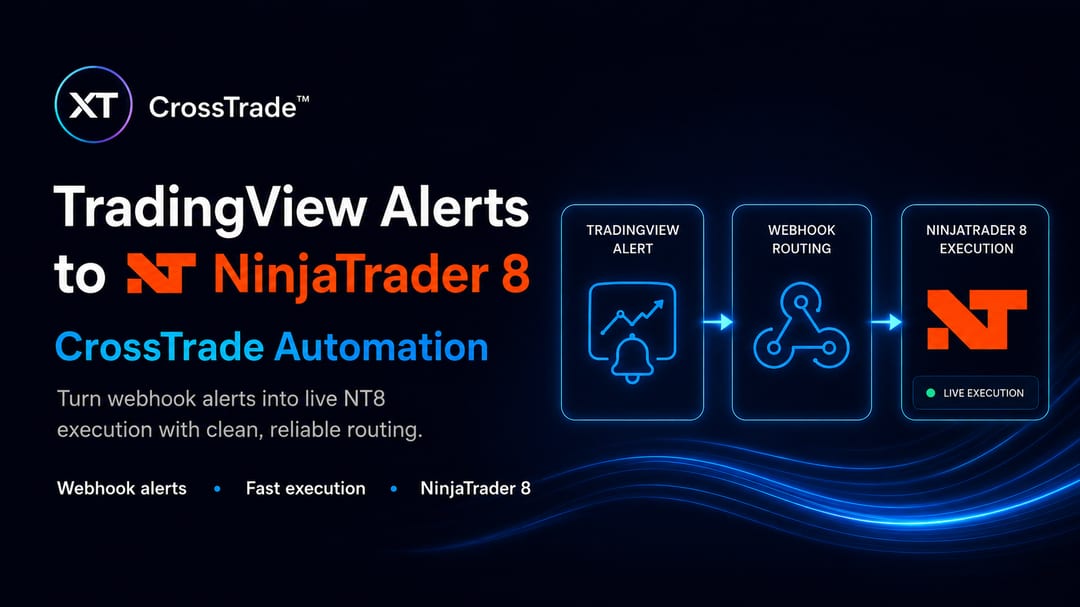
Most CrossTrade users send webhooks from TradingView. That's the bread and butter: Pine Script fires an alert, CrossTrade receives it, NinjaTrader executes. Simple, fast, proven.
But TradingView isn't the only thing that can send a webhook. CrossTrade's API accepts commands from any source that can make an HTTP POST request, and Zapier connects to over 7,000 apps that can do exactly that. This opens up automation workflows that go well beyond charting alerts: email-based signals, spreadsheet-driven batch orders, AI sentiment analysis, scheduled time-based trades, and cross-platform event triggers.
This guide covers how to set up the Zapier connection, the correct payload format, and a handful of use cases that are worth exploring.
Zapier is one possible signal source for CrossTrade webhook automation. This walkthrough uses NT8; direct Tradovate requests need destination=tradovate and the corresponding supported fields.
Setting Up Zapier with CrossTrade
The example below uses Zapier's Custom Request action to send a semicolon-formatted text body. CrossTrade also accepts a flat JSON object with CrossTrade field names. Follow the JSON webhook format if you choose that form; a nested vendor payload or form encoding is not equivalent.
Here's the setup:
Step 1: Create a new Zap and configure your trigger (the app or event that starts the workflow, more on trigger ideas below).
Step 2: For the action step, search for Webhooks by Zapier and select Custom Request.
Step 3: Configure the Custom Request:
- Method: POST
- URL: Your CrossTrade webhook URL (e.g.,
https://app.crosstrade.io/v1/send/YOUR_CHANNEL/YOUR_ENDPOINT) - Data: Paste your full CrossTrade command as a single string
The Data field should contain the same semicolon-delimited format you'd use in a TradingView alert message:
key=YOUR_SECRET_KEY;command=place;account=Sim101;instrument=ES1!;action=buy;qty=1;order_type=market;tif=day;
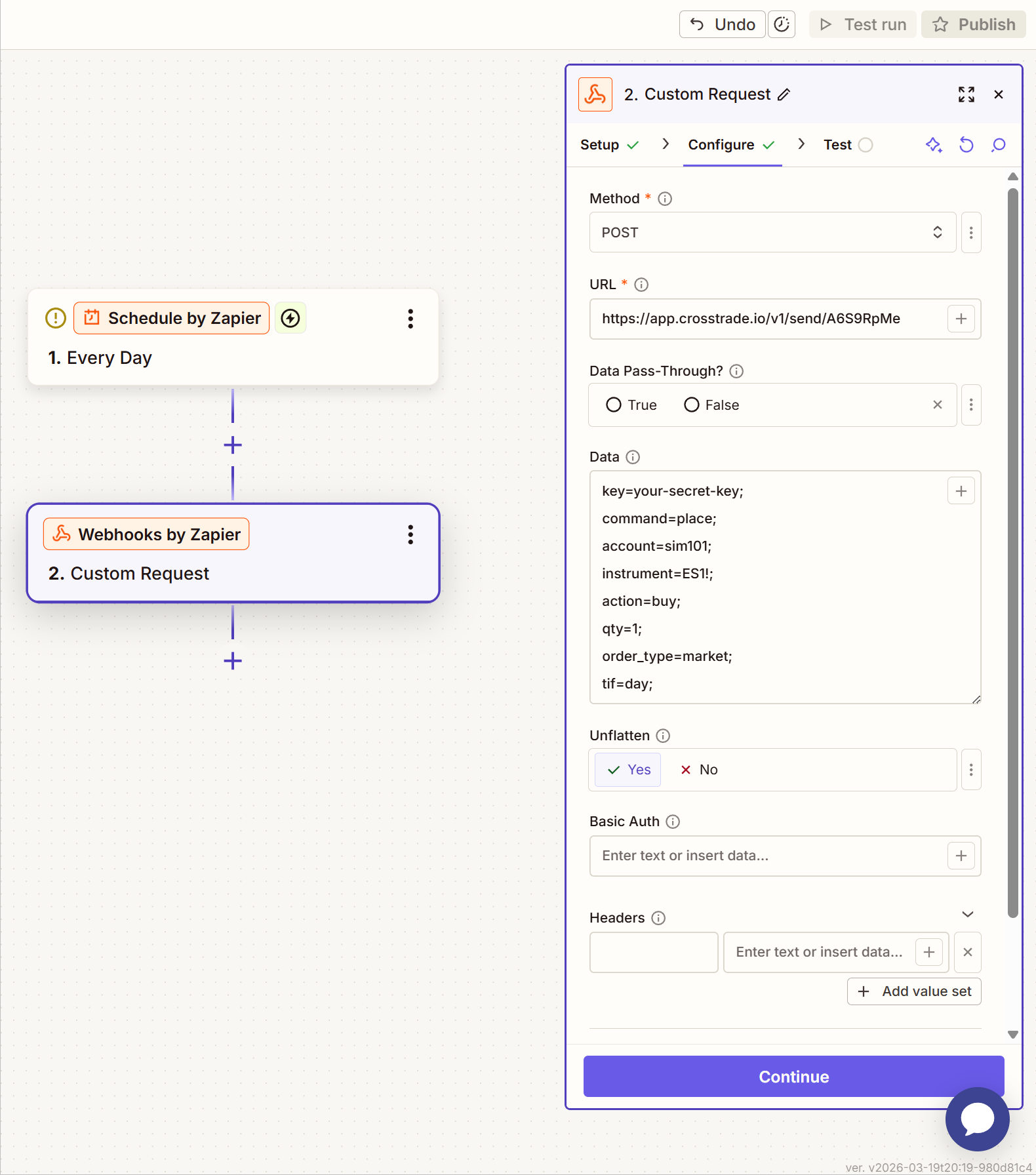
That's it. Every field uses the field=value; format, separated by semicolons, with an equal sign between each key and value. The same syntax you'd put in a TradingView alert body works identically here.
Dynamic Values from Your Trigger
Zapier's real power is that you can inject dynamic values from your trigger step into the command string. Instead of hardcoding action=buy, you can reference a field from the trigger output.
For example, if your trigger is an email that contains the word "BUY" or "SELL" in the subject line, you can use Zapier's field mapping to insert that value:
key=YOUR_SECRET_KEY;command=place;account=Sim101;instrument=ES1!;action={{trigger_action}};qty=1;order_type=market;tif=day;
Where {{trigger_action}} is replaced by Zapier with the actual value extracted from your trigger step. You'll select these dynamic fields using Zapier's "Insert Data" button (the + icon) in the Data field.
This works for any field: instrument, quantity, account, action. As long as the final assembled string follows the key=value; format, CrossTrade will process it.
Use Cases Worth Exploring
Zapier connects to over 7,000 apps, but not all of them make sense for trading automation. Here are the workflows where the integration actually adds value, with specific apps and setups.
TrendSpider Alerts to NinjaTrader
This is arguably the most compelling use case. TrendSpider is a charting and technical analysis platform with its own multi-factor alert system, trading bots, and dynamic alerts that can fire on trendline breaks, candlestick patterns, and multi-timeframe conditions. TrendSpider can send webhooks natively, and those webhooks can be routed through Zapier using the "Catch Hook" trigger.
The workflow: TrendSpider fires a webhook when a dynamic alert triggers (say, price breaks a trend line on the 15-minute chart while RSI is oversold on the daily). Zapier catches that webhook, a Code by Zapier step reformats TrendSpider's JSON payload into CrossTrade's semicolon-delimited format, and the Custom Request action sends the command to your CrossTrade webhook URL. The result is TrendSpider's technical analysis driving NinjaTrader execution, two platforms that don't natively talk to each other, connected through Zapier and CrossTrade.
This also works in reverse. If you're already running TrendSpider trading bots, you can use Zapier to route those bot signals to CrossTrade as a secondary execution path alongside whatever broker TrendSpider connects to directly.
Email-Based Signal Services
A surprisingly large number of signal providers still deliver trade calls via email. If you subscribe to a service that sends "BUY ES at market" to your inbox, Zapier can parse that email and forward a properly formatted command to CrossTrade.
The setup uses Gmail (or Outlook) as the trigger, with Zapier's built-in Email Parser to extract the relevant fields (instrument, direction, quantity). A filter step ensures the Zap only runs when the email matches specific criteria: sender address, subject keywords, body content. This same approach works for any platform that sends trade-related email notifications, including prop firm alerts, broker notifications, or newsletter services that distribute actionable trade ideas.
The chain from inbox to NinjaTrader execution happens automatically. No more reading an email, switching windows, and manually entering the trade.
Discord, Slack, and Telegram Signals
If you're part of a trading community where calls are posted in a Discord channel, a Slack workspace, or a Telegram group, Zapier can monitor those messages and trigger a CrossTrade webhook when they match your criteria.
For Discord, the trigger fires on new messages in a specified channel. You add a Filter step to check for keywords or patterns ("LONG ES", "SHORT NQ", or whatever format the signal provider uses), then a Code by Zapier step extracts the trade details and formats the CrossTrade command. Telegram works similarly. Zapier's Telegram integration triggers instantly when a new message arrives via a bot, which is faster than polling-based triggers.
The practical application here is automating signals from a paid chat room or a group of traders you trust. The latency is higher than a direct TradingView webhook (Zapier adds seconds of processing time), so this is better suited for swing setups or trades where 5-10 seconds of delay is acceptable, not for scalping calls.
Scheduled and Time-Based Automation
Zapier's built-in Schedule trigger works like a cron job. It fires at a specific time, daily, weekly, hourly, or at a custom interval. For traders who want to execute time-based actions independently of any charting platform, this is the simplest Zapier workflow to set up.
The most obvious application is risk management: flatten all positions at 3:45 PM ET every day, regardless of what your strategy is doing. Or send a CANCELALLORDERS command 15 minutes before a known high-impact economic event. You could also schedule a standing order at the same time every session for a time-of-day strategy, or trigger a CLOSEPOSITION on specific accounts at the end of each week.
If you already use CrossTrade's Account Management monitors for server-side flattening, scheduled Zaps add a redundant safety layer that operates on a completely independent system. Belt and suspenders.
Google Sheets and Airtable as Trade Journals That Act
Google Sheets and Airtable as triggers open up a workflow that's part trade journal, part order entry system. Build a spreadsheet where each row contains trade parameters (account, instrument, action, quantity, order type) and adding a new row automatically fires a webhook to CrossTrade.
Why is this useful? Consider pre-market planning. You analyze the markets, decide on your trades for the day, and fill in rows in your sheet. Each row triggers an order through CrossTrade to NinjaTrader. It's a structured approach to batch order entry that doesn't require setting up individual TradingView alerts. Airtable takes this further with its built-in views, filters, and automation rules. You could create a Kanban board of planned trades that trigger execution when moved to a "Ready" column.
You could also connect this to external data. If you have a Python model that writes output to Google Sheets via the Sheets API, or an Airtable automation that populates rows based on external data, those rows become trade signals.
RSS Feeds and News-Driven Risk Management
Zapier can monitor RSS feeds from financial news outlets, economic calendars, or any site that publishes a feed. When a new item matches your criteria, the Zap fires. Rather than trying to trade off headlines (which is dangerous without significant filtering), the more practical application is defensive: flatten positions or cancel orders when specific events occur.
The setup uses RSS by Zapier as the trigger, with a filter step to match keywords like "FOMC", "CPI", "rate decision", or whatever events you want to react to. The action sends a FLATTENEVERYTHING or CANCELALLORDERS command to CrossTrade. You're not trying to interpret the news. You're just getting out of the way before volatility hits.
For a more sophisticated version, add a ChatGPT or Claude step between the RSS trigger and the CrossTrade action. The AI analyzes the headline content and returns a structured decision (flatten, hold, or ignore), and a filter step routes accordingly. This requires careful prompt engineering and extensive testing, but the architecture is sound.
SMS-Triggered Trading via Twilio
Twilio is Zapier's SMS integration, and it lets you trigger a Zap when a text message arrives at a Twilio phone number. The concept: send yourself (or receive from a trusted source) a text like "BUY 2 NQ MARKET" and have Zapier parse it and fire a CrossTrade command.
This is a niche use case, but it's relevant for traders who want a dead-simple way to trigger trades from their phone without opening any app. It's also interesting as an emergency flatten mechanism. Text "FLATTEN" to your Twilio number and everything closes. It works anywhere you have cell service, even if your internet is down.
Multi-Step Workflows with AI in the Middle
Zapier integrates with ChatGPT, Claude, and other AI models as intermediate processing steps. This means you can build multi-step workflows where raw data enters from any source, gets analyzed by an AI model, and the AI's output determines whether and how to trade.
Example: A StockTwits trigger monitors posts for a specific ticker. A ChatGPT step analyzes the sentiment of the last N posts and returns a bullish/bearish score. A filter step checks if the score exceeds your threshold. The final step sends (or doesn't send) a trade command to CrossTrade. Another example: a Google Sheet of your current positions feeds into a Claude step that evaluates whether to scale in, scale out, or hold based on rules you define in the prompt, and the action follows through.
Zapier also supports branching logic (Paths), so a single trigger can route to different CrossTrade commands based on conditions. If the AI says "strongly bullish", send a larger order. If "mildly bullish", send a smaller one. If bearish, flatten instead. This is the most experimental category and absolutely requires extensive testing on sim accounts before live deployment. But the architecture (Zapier as plumbing, AI as decision logic, CrossTrade as execution) is genuinely powerful.
Supported Commands
Any command you can send from TradingView works identically through Zapier. Here are the most common ones:
Place an order: key=SECRET;command=place;account=Sim101;instrument=ES1!;action=buy;qty=1;order_type=market;tif=day;
Flatten a position: key=SECRET;command=closeposition;account=Sim101;instrument=ES1!;
Flatten everything: key=SECRET;command=flatteneverything;
Cancel all orders: key=SECRET;command=cancelallorders;
Place with bracket: key=SECRET;command=cancelandbracket;account=Sim101;instrument=ES1!;action=buy;qty=1;take_profit=10;stop_loss=8;
For the full list of commands, fields, and advanced options like sync_strategy, flatten_first, and cycle_accounts, check the CrossTrade documentation.
A Few Things to Keep in Mind
Latency: Zapier is not built for millisecond-precision execution. Polling-based triggers (email, RSS, spreadsheets) can have delays of 1-15 minutes depending on your Zapier plan. Webhook-based triggers (where something pushes to Zapier) are faster but still add processing time. If you need sub-second execution, TradingView's native webhook alerts remain the best path. Zapier is better suited for workflows where a few seconds (or minutes) of delay is acceptable.
Testing: Always test with a Sim account first. Use account=Sim101 (or your sim account name) until you've confirmed the entire Zap works correctly end-to-end. CrossTrade's Sandbox on the Webhooks page is also a great way to validate your command format before connecting it to Zapier.
Zapier plans: Free Zapier accounts are limited in the number of Zaps and tasks per month. If you're building multiple trading workflows, you'll likely need a paid plan. Check Zapier's pricing for current limits.
Error handling: If CrossTrade rejects a command (bad format, missing fields, invalid key), the error won't surface in Zapier the same way it does in your CrossTrade alert history. Check your Alert History page to verify that commands are being received and processed correctly.
Getting Started
If you're already a CrossTrade member, you have everything you need. Grab your webhook URL and secret key from the Webhooks page, sign up for a Zapier account, and start building.
If you're new to CrossTrade, start your free 7-day trial — full access, no credit card required. And if you get stuck or want to share what you've built, drop into our Discord. We'd love to see the creative workflows people come up with.