CrossTrade Mobile Is Open to Every CrossTrade User
The CrossTrade app for Android is open to every CrossTrade user. Watch P&L, flatten positions, cancel orders and reconnect data feeds on the NinjaTrader 8 running on your own PC, without a remote desktop or a VPS.
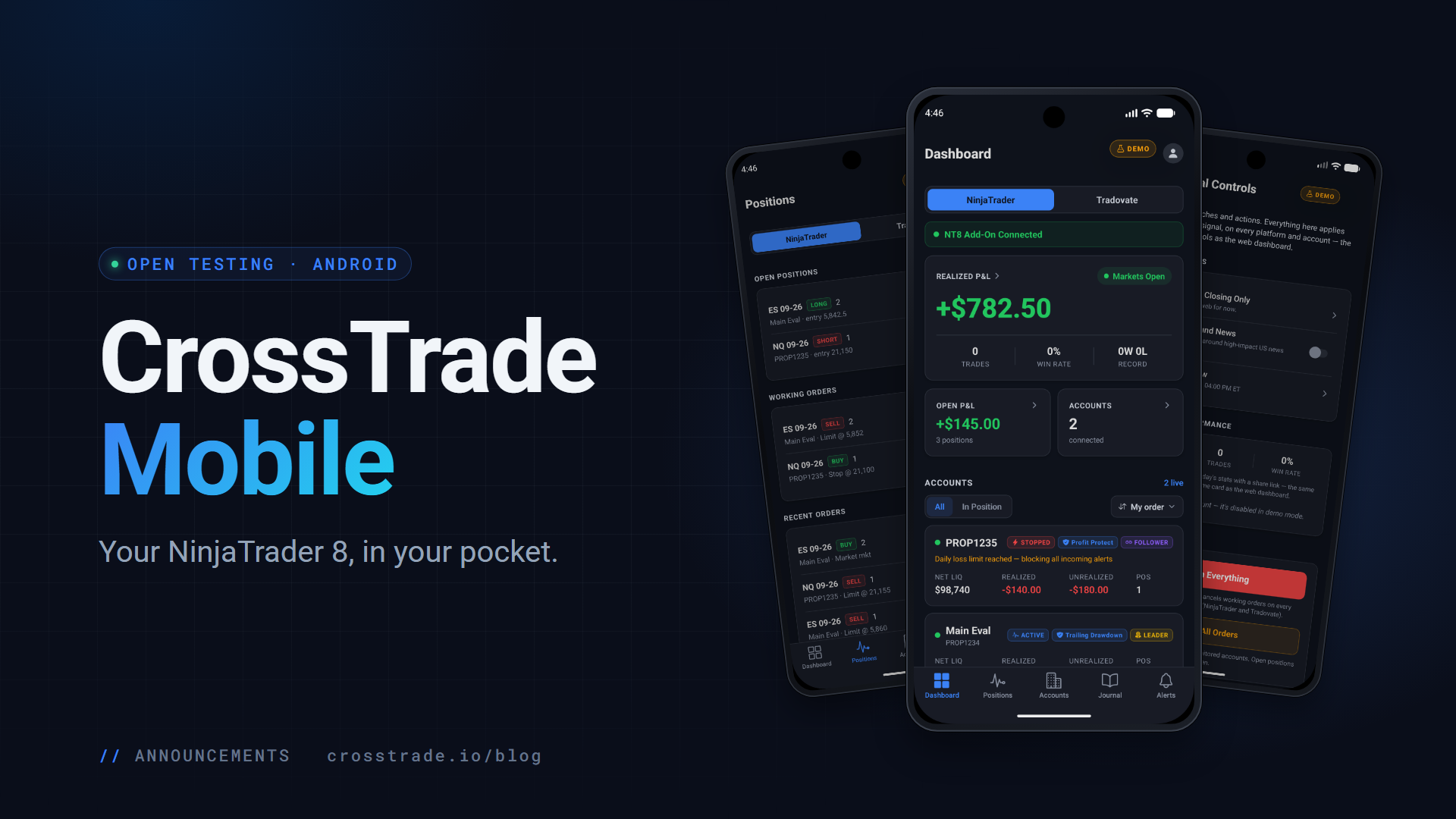
CrossTrade is now in your pocket. The CrossTrade app for Android is in open testing on Google Play, and anyone with a CrossTrade account can install it today.
It does something no remote desktop or phone "VPS" app does: it talks to the NinjaTrader 8 running on your own computer. Your positions, your working orders, your data feed connections, every account NinjaTrader is connected to. Check them, flatten them, cancel them, reconnect them, from your phone, with nothing in between except CrossTrade.
The problem it solves
If you trade NinjaTrader 8, you already know the moment. You step away from the desk, and something needs you: a position you meant to close, an order still working, a data feed that dropped. Until now there were three ways to deal with that from a phone, and none of them is good.
Remote desktop. Chrome Remote Desktop, Microsoft Remote Desktop and their cousins put your entire Windows screen on a six-inch display. You pinch, you zoom, you try to hit a Flatten button the size of a grain of rice, and you hope the connection holds while you do it.
A phone "VPS". Some apps rent you a Windows server, move your trading onto it, and stream that server's screen to your phone. It's remote desktop with a monthly bill, and your NinjaTrader now lives on someone else's machine.
A broker app. Broker apps trade your brokerage account directly. They're fine for that, but they can't see the NinjaTrader 8 on your desk: its connections, its other accounts, the add-ons and controls you run inside it.
CrossTrade Mobile is none of those. It's a native app built for the job, and it reaches your NinjaTrader 8 through the same NT8 Add-On you already run.
How it reaches your NinjaTrader
When you tap Flatten on your phone, the app asks CrossTrade's servers to flatten that account. CrossTrade passes the request to the NT8 Add-On running inside your NinjaTrader, the add-on flattens it, and the result comes back to your phone. It's the same path a TradingView alert takes, pointed the other way.
That means NinjaTrader keeps running exactly where it does now, on your PC or your own VPS. You don't move anything, rent anything or open a remote session. If the add-on is connected, your phone can reach it.
What you can do from your phone
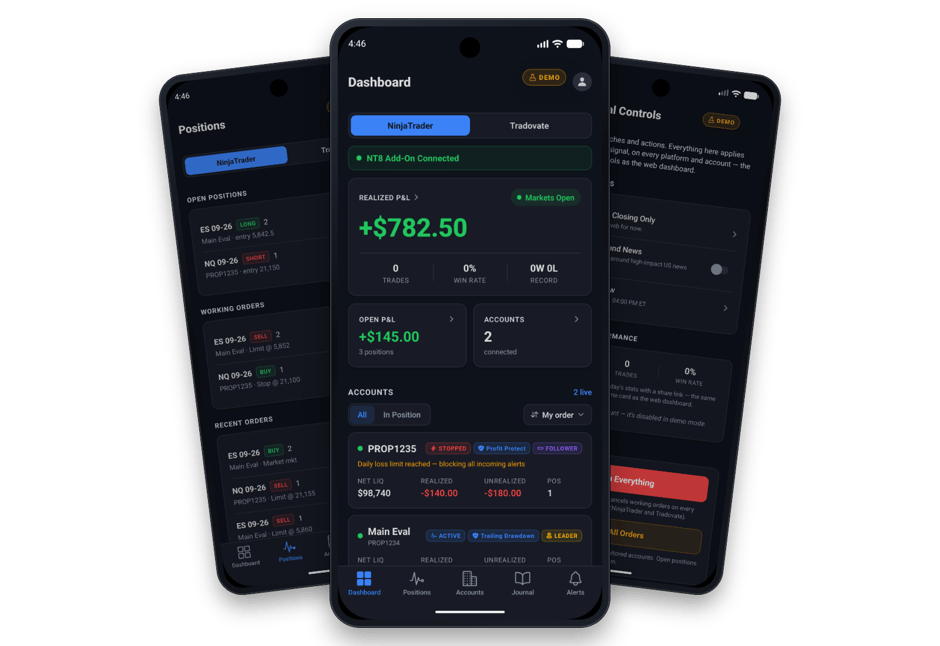
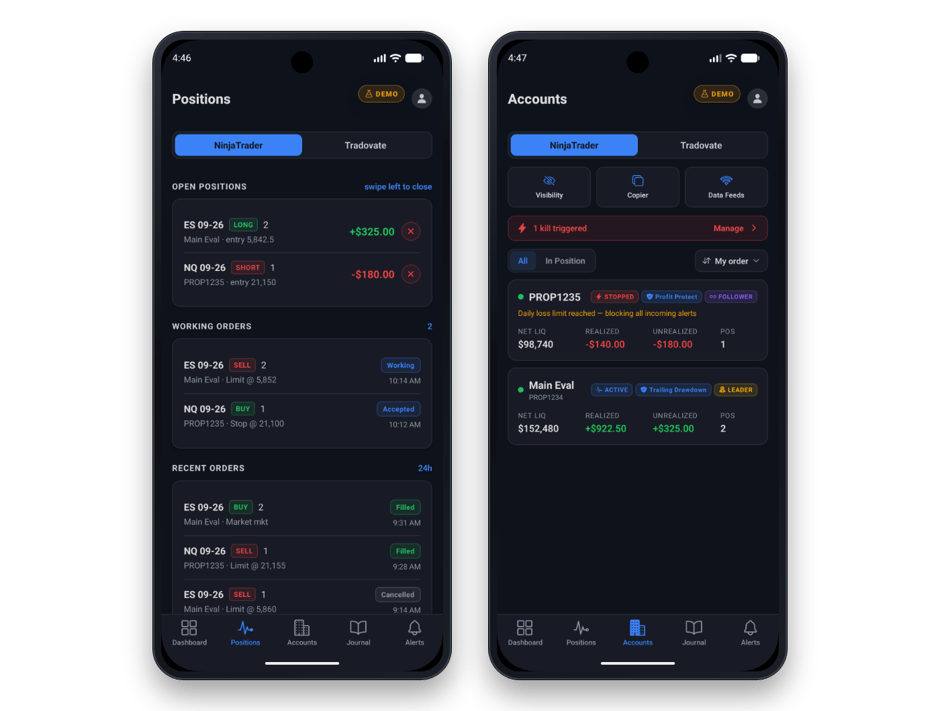
See everything, both platforms. The Dashboard shows realized and open P&L, trades and win rate across your accounts, with a switch between NinjaTrader and Tradovate on every screen. Tradovate accounts work too, straight from CrossTrade's cloud, no add-on involved.
Act on positions and orders. Close a single position, flatten an account, or cancel its working orders. Every action asks you to confirm first, so a stray tap in your pocket never closes a trade.
Fix a dropped connection. See which data feed connections NinjaTrader has open, and connect or disconnect them remotely. This is the one that used to need a trip back to the desk.
Run your Account Manager. See every monitored account and why one has stopped, and unblock its signals when you're ready. Edit daily profit targets, loss limits, trailing drawdown and end-of-day flattening from the account screen.
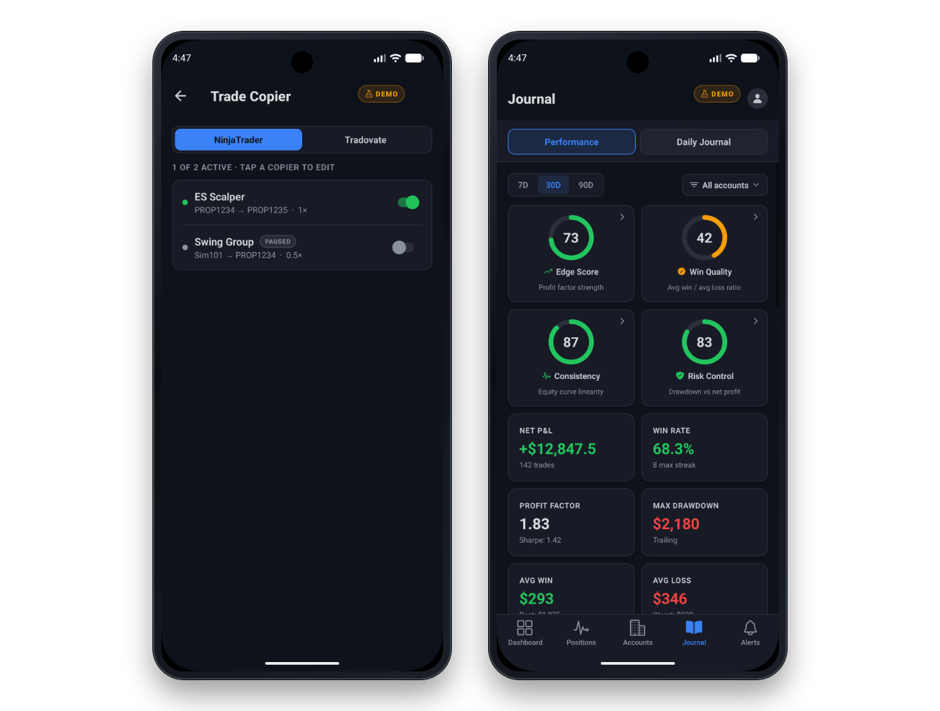
Steer the Trade Copier. Pause and resume copiers, and adjust follower sizing, without opening a laptop.
Hit the big buttons when you need them. Global Controls has Flatten Everything and Cancel All Orders across your monitored accounts on both platforms, plus Block Trading Around News.
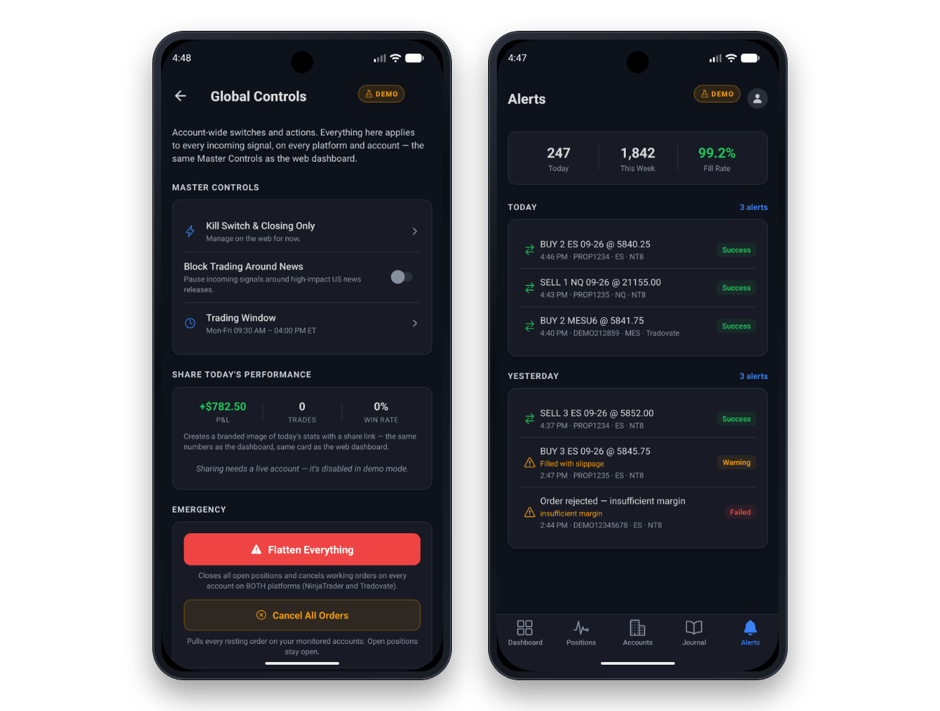
Get a push the moment something needs you. A monitor stops, an auto-flatten fires, the NT8 Add-On goes offline, a broker connection stalls. Choose which alert types reach your phone, and filter by account.
Review the day. The Journal shows closed trades, P&L by day and performance scores, and you can share a card of today's numbers.
What you need
- An Android phone. Install CrossTrade from Google Play.
- A CrossTrade account with an active plan or free trial. Accounts are created at crosstrade.io, not in the app. Want to look around first? Tap Explore the demo first on the sign-in screen.
- For NinjaTrader 8: NinjaTrader running with the NT8 Add-On connected, on your PC or your own VPS. If the add-on is offline, the app says so, and it can send you a push when that happens.
- For Tradovate: a linked Tradovate login. Nothing else has to be running.
Some features follow your plan, the same as on the web: the Account Manager, the Trade Copier and push alerts are part of Pro.
Open testing means you can shape it
Open testing is Google Play's public early-access track. The app is complete and in daily use, and it's still changing quickly, so updates arrive often. If something looks wrong or you want a feature, tell us in the CrossTrade Discord or at [email protected]. That feedback is exactly what this phase is for.
The full setup guide, including push notifications and troubleshooting, is in the CrossTrade Mobile docs.
Frequently asked questions
Can I control NinjaTrader 8 from my phone?
Yes. The CrossTrade app reaches the NinjaTrader 8 running on your own PC through the NT8 Add-On, so you can check P&L, close positions, flatten accounts, cancel orders and reconnect data feeds from your phone, without a remote desktop.
Do I need a VPS to use the CrossTrade app?
No. NinjaTrader keeps running wherever it runs now, on your PC or your own VPS, and the app reaches it through CrossTrade. You don't rent a server or open a remote session to use it.
Is the CrossTrade app available on iPhone?
Not yet. The app is available on Android through Google Play.
Is the CrossTrade app free?
The app is free to install. You sign in with your CrossTrade account, which needs an active plan or free trial, and some features follow your plan, the same as on the web.
Does the app work with Tradovate?
Yes. Tradovate accounts are reached from CrossTrade's cloud, so nothing has to be running on your computer. You switch between NinjaTrader and Tradovate on each screen.
What does open testing mean?
It's Google Play's public early-access track. Anyone can install the app from the Play Store, and updates arrive quickly as we add features and fix what testers report.
Get it now
Install CrossTrade from Google Play and sign in with your CrossTrade account. New to CrossTrade? Start your free 7-day trial first, then sign in on your phone.
CrossTrade is execution and automation software, not a broker, financial adviser, or trading strategy. Futures trading involves substantial risk. Actions taken in the app are real orders on your accounts, so confirm each one before you tap.