How to Copy Trades on Tradovate: Step-by-Step Setup for Multiple Accounts
Copy one Tradovate account to many from the cloud. Which copy mode fits webhook trading, manual trading, or mirrored working orders, plus the sizing rules that keep each follower in bounds.

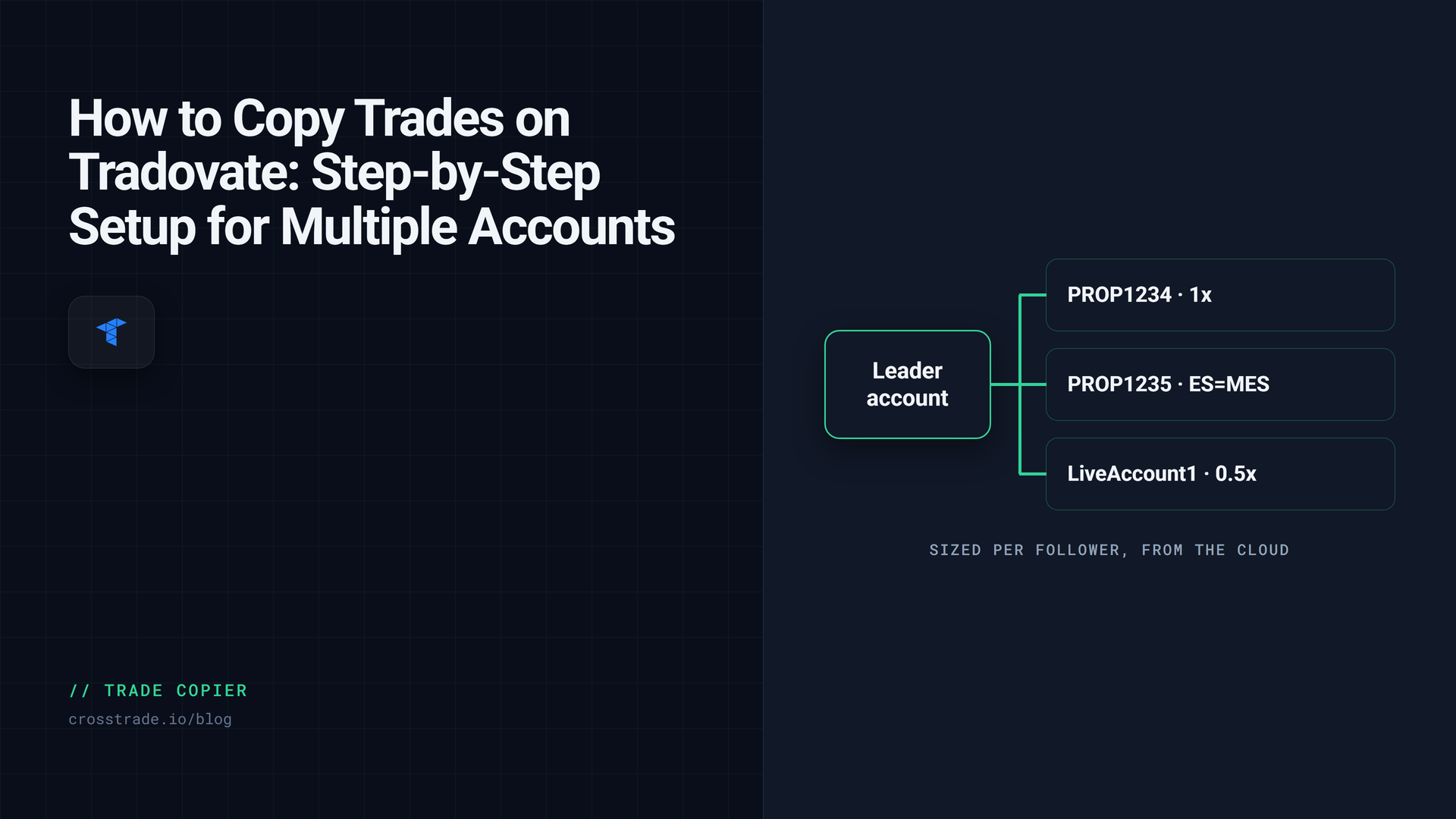
If you trade more than one Tradovate account, you already know the problem. Two evaluations, a funded account, maybe a personal account on the side, and the same trade needs to land on all of them at the right size. Doing it by hand means clicking the same order four times and hoping the fills are close. Doing it with desktop software means a machine that has to stay on.
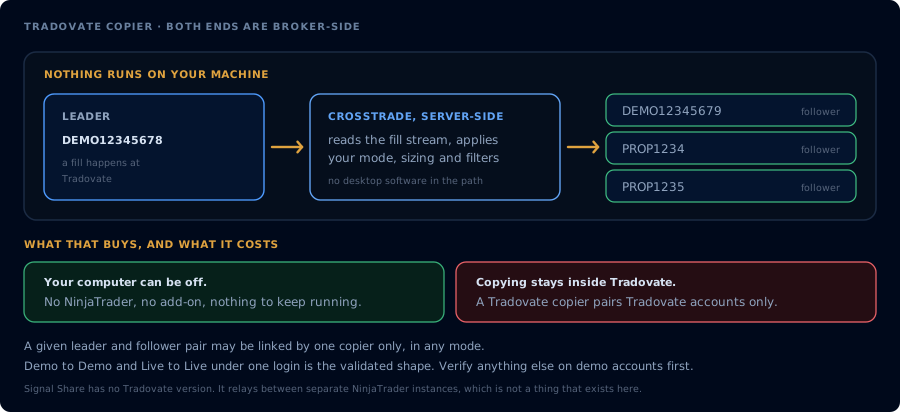
The Tradovate Copier does it from CrossTrade's cloud. A leader account's activity is replicated to one or more follower accounts through Tradovate's API, with no desktop software anywhere in the path. Your computer can be off.
The one decision that matters most is the copy mode, because the three modes copy different things. This guide walks through how to choose, then the per-follower settings that keep each account inside its own limits.
Start with one question: what places your trades?
The right mode depends on how orders reach the leader account.
If every trade comes from TradingView alerts or the CrossTrade API, you want signal mode. If you also click trades inside Tradovate or TradingView's own trading panel, and market-order copies are fine, you want execution mode. If you trade outside CrossTrade and want followers to hold the same resting entries, stops and targets as the leader, you want order mode, which is currently in beta.
| Signal | Execution | Order (Beta) | |
|---|---|---|---|
| Listens to | CrossTrade webhooks and API commands | Every fill on the leader | Every order event on the leader |
| Copies manual Tradovate trades | No | Yes | Yes |
| Keeps order types (limits, stops) | Yes | No, copies at market | Yes |
| Followers get their own brackets | Yes, as a server-side OSO | No, exits copy when the leader's fill | Yes, as linked orders |
If you are comparing copiers rather than modes, Simultaneous Execution vs Leader-Follower explains why what a copier listens to matters more than its speed, and gives a ten-minute Demo test that shows which kind you have.
Signal mode: for webhook-driven trading
Signal mode is named for what it listens to: CrossTrade signals. When a webhook or API command targets the leader account, the same command is replayed to every active follower with that follower's sizing and symbol rules applied.
Order structure is preserved. A limit entry copies as a limit. A take profit and stop loss bracket rides along as the same server-side OSO on each follower, so every account has its own protection at the broker from the moment it is filled. Closes, reverses, cancels and changes are mirrored too: CrossTrade keeps a seven-day map from each leader order to its follower twins, so changing or cancelling a copied order through CrossTrade updates every follower.
The boundary is simple. Signal mode does not see what happens inside Tradovate's own platform. A trade you click there, or a leader order you move by hand, is not copied. If your trading is all alerts, that is exactly what you want. If it is not, keep reading.
Execution mode: copy every fill, whatever produced it
Execution mode watches the leader account at the broker over a persistent connection to Tradovate. Every leader fill is copied to followers as a market order, whether it came from a webhook, a manual click, or an ATM bracket leg.
That breadth has a trade-off you need to understand before going live: followers do not receive resting bracket orders of their own. When a leader entry with a take profit and stop loss fills, each follower enters at market with no exits at the broker. Followers exit when the leader's target or stop fills and that exit is copied. Between entry and exit, a follower has no independent broker-side stop.
That is fine for a lot of setups, and it is exactly why the Tradovate Account Manager exists alongside the copier: a monitor on each follower enforces its own daily limits and flatten time from the cloud, regardless of what the leader is doing. With Tandem Mode on, copying to a follower also stops the moment that follower's monitor stops, so the copier never re-opens a position the monitor just closed.
For ratio sizing, execution mode carries fractional remainders per copier and contract, so a 0.5x follower on a leader that scales in and out one contract at a time still converges to flat.
Order mode (Beta): mirror the leader's working orders
Order mode also watches the leader at the broker, but it mirrors orders instead of fills. When the leader places a working order, whether market, limit, stop or stop-limit, the same order type goes to each follower with your sizing rules applied. When the leader changes a price or quantity, the follower's twin order is modified. When the leader cancels, the twin is cancelled. Brackets and OCO pairs go to the follower as linked orders, so a fill on one leg cancels its sibling at the broker.
It covers manual trades placed in Tradovate's platform and trades sent from TradingView's native Tradovate integration, which makes it the mode for traders who work the leader by hand and want followers holding the same resting protection.
Three behaviors to know before relying on it. Turning a copier on does not adopt orders already resting on the leader, so there is no burst of copies at setup. Brief disconnects do not duplicate work: orders placed during a gap are copied once the connection returns, and nothing is placed twice. And a leader cancel after a partial fill cancels the follower's whole remainder, which can leave sizes different; with Auto-Sync on, the difference is corrected. Order mode is labeled Beta in the app, so run it on Demo accounts first.
Setting each follower's rules
Every follower in a copier carries its own settings, which is what makes one leader usable across accounts with different sizes and different firm limits.
Quantity ratio or fixed quantity. A ratio multiplies the leader's size (0.5x, 2x). A fixed quantity overrides it with a constant. Per-follower overrides let one group copier run different multipliers on different accounts.
Max Position Size. A ceiling on the follower's resulting net position. An entry that would push the follower past it is trimmed or skipped, and the copy log records which. Orders that reduce the position always pass. This is the setting to use when a follower's account allows fewer contracts than the leader trades.
Symbol replacements. ES=MES puts micros on a follower while the leader trades minis, with the month carried over. One rule to remember: replacements apply to unbracketed market orders only. When a replacement is set and the leader sends a limit, stop or bracketed order on that instrument, the follower skips it rather than place prices computed for a different contract. Use market entries, or turn on Fills Only in signal mode, if you rely on a replacement.
Instrument filter. * for everything, exact roots like ES,MES, or globs like ES*. Anything that does not match is skipped and logged.
Invert direction and Stealth. Inversion flips buys and sells on unpriced market entries (priced and bracketed entries are skipped, because absolute prices cannot be inverted safely). Stealth removes the descriptive "copied from" text from follower orders.
Group copiers. Pick several followers, name the group, and they share one config. The copy log records the group name on every entry, so a group's activity reads as one unit. There is no limit on how many followers a leader can have; large fan-outs are paced by CrossTrade's request management to stay clear of Tradovate's rate limits.
Drift checks and the copy log
After each copy, Auto-Sync compares leader and follower direction. In signal mode a mismatch is flagged in the copier log. In execution mode it also places rate-limited correction orders, both after copies and when the connection returns after downtime. In order mode the correction pass runs on reconnect.
Follower results are independent of each other and of the leader. Once Tradovate accepts the leader's order, a follower rejection does not roll the leader back, and one failed follower does not cancel the others. Every outcome is written to the copy log, open with See Logs on the Tradovate Copier page. Read it before retrying anything: re-sending the leader signal after an ambiguous result can double real exposure on the followers that did fill.

Before you point it at funded accounts
Same-environment copying, Demo to Demo or Live to Live under one Tradovate login, is the validated configuration. Copying across environments or across linked logins, such as from one firm's accounts to another's, is supported but still being validated, so test that pairing on Demo accounts first. Work through the pre-live verification checklist before enabling a copier on live or funded accounts.
And confirm your firm's current rules. Whether a prop firm allows copying between its accounts, or between firms, is set by the firm and can differ by account stage. CrossTrade documents what the copier does; it does not approve a workflow on any firm's behalf.
Frequently asked questions
Can I copy manual trades I place in Tradovate?
Yes, with execution mode or order mode. Signal mode only copies CrossTrade webhook and API commands.
Do I need a VPS or to keep my computer on?
No. The Tradovate Copier runs in CrossTrade's cloud against Tradovate's API. Nothing is installed and nothing has to stay open.
How many follower accounts can I copy to?
There is no follower limit. Large groups are paced automatically to stay within Tradovate's request limits.
Can I copy from a Tradovate account to a NinjaTrader account?
No. The Tradovate Copier pairs Tradovate accounts. If you copy between NinjaTrader-connected brokers, use the NinjaTrader 8 Trade Copier.
Which plan includes the Tradovate Copier?
The Trade Copier is part of Pro and above, and is included in the free trial.
Set up your first copier
Link the Tradovate logins that hold your leader and follower accounts, open Tradovate Copier, pick a mode, set each follower's sizing, and run a few trades on Demo accounts while you watch the copy log. The full reference is in the Tradovate Copier docs. New to CrossTrade? Start a free 7-day trial, and bring questions to the CrossTrade Discord.
CrossTrade is execution and automation software, not a broker, financial adviser, or trading strategy. Futures trading involves substantial risk. Prop firm rules vary and change; confirm them with your firm. Test every automated workflow in simulation and verify orders at your broker.