TradingView Webhook to Tradovate: Setup Guide (No VPS Needed)
If your strategy runs on TradingView and your account runs on Tradovate, you should not need a Windows VPS just to move an alert from one cloud service to another.
CrossTrade now routes TradingView webhooks directly to Tradovate through a secure cloud connection. Your computer can be off. NinjaTrader 8 does not need to be open. There is no desktop add-on to keep alive for the Tradovate route.
Direct Tradovate webhook routing, managed ATM behavior and Signal/Execution copying are generally available. Copier Order mode remains beta. This guide focuses on linking an account, sending an alert and verifying the complete order lifecycle without a desktop relay.
For the product, plans and current connection options, see TradingView automation for Tradovate. For copying a leader to followers, use the separate Tradovate copier overview.
What happens between a TradingView alert and a Tradovate order?
A TradingView alert can reach a connected Tradovate account without a Windows VPS or an open NinjaTrader window. The route is simple, but test it in a Tradovate Demo account before you rely on it live.
- TradingView sends the alert. Your alert posts the CrossTrade command to your permanent webhook URL.
- CrossTrade checks the command. The command key identifies your account and destination=tradovate tells CrossTrade which execution route to use.
- CrossTrade routes the order request. A connected Tradovate account receives the order request through the cloud route.
- You review the result. Check CrossTrade Alert History and your Tradovate account for the accepted, rejected, or filled order state.
- You test the complete workflow first. Use Tradovate Demo to test the alert, the account mapping, quantity, entry type, and exit behavior before sending a live order.
CrossTrade does not publish a latency promise for this route. Network conditions, the alert payload, broker response, and account state can all affect an individual order. The safe test is an end-to-end demo order that you can review in both systems.
Can you trade Tradovate webhooks without a VPS?
Yes. A direct Tradovate webhook route can run entirely in the cloud:
- TradingView detects your alert condition.
- TradingView sends the alert to your permanent CrossTrade webhook URL.
- CrossTrade validates the command and routes it to your linked Tradovate account.
- Tradovate receives the order through its cloud API.
No part of that path requires your home computer, NinjaTrader 8, or a rented Windows VPS to stay online.
This is different from NinjaTrader 8 automation. NinjaTrader is a Windows desktop platform, so the CrossTrade Add-On and NinjaTrader must be running when the destination is NT8. For direct Tradovate orders, CrossTrade talks to Tradovate's cloud instead.
What you need before you start
- A CrossTrade account. Every new account starts with a free 7-day trial. The Tradovate webhook destination is included with Standard, Pro, and Elite.
- A TradingView plan that can send webhooks. Your alert needs to send an HTTP request to CrossTrade.
- A Tradovate login. Personal brokerage accounts use the Live connection. Tradovate-based evaluation and funded accounts generally use the Demo environment.
- A safe test account. Start with a simulation account and confirm every field before sending an order to any live account.
If you use a prop firm, check the firm's current rules before connecting anything. Some firms prohibit third-party automation, trade copiers, or external order routing. Technical compatibility does not override a firm's terms of service.
How to connect TradingView to Tradovate without a VPS
1. Link your Tradovate account
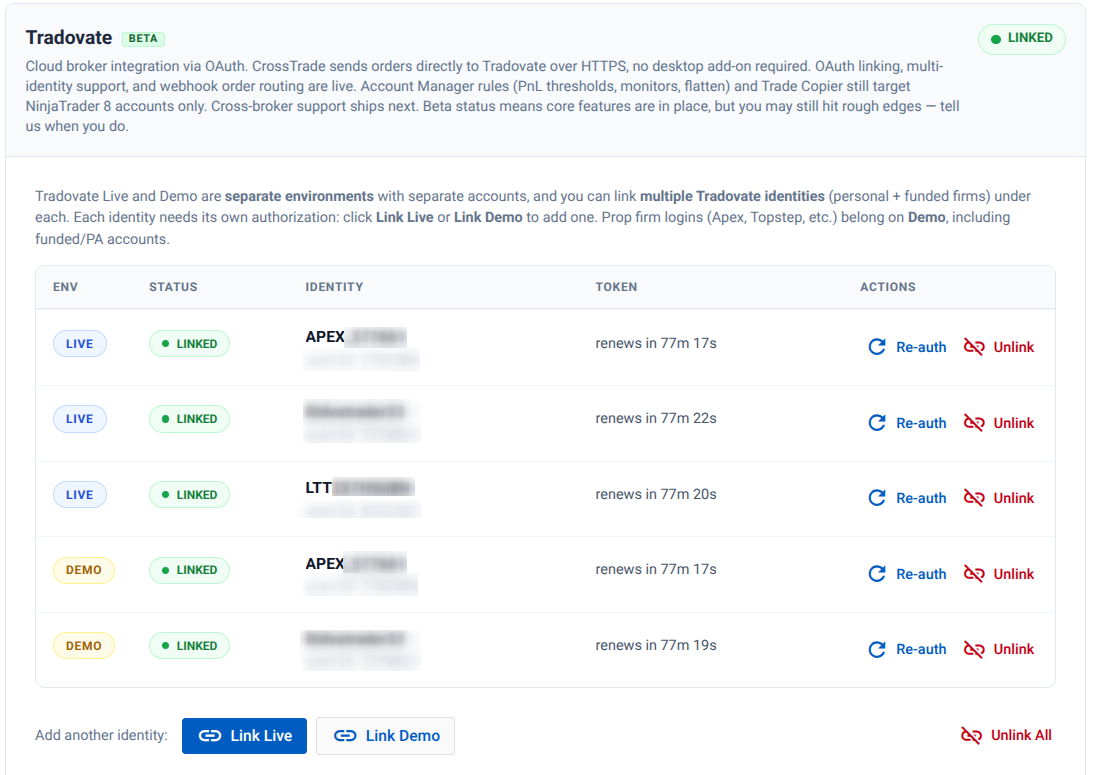
Log in to CrossTrade, open My Account, and select the Brokers tab. Choose Link Live for a personal live Tradovate brokerage login or Link Demo for a Tradovate Demo login.
CrossTrade uses Tradovate's authorization screen. You do not put your Tradovate password inside a TradingView alert.
2. Create the alert command
Use obvious placeholders while you build and test. A basic market-order command looks like this:
key=your-secret-key;
command=place;
account=DemoAccount;
instrument=ES1!;
action=buy;
qty=1;
order_type=market;
tif=day;
destination=tradovate;
The routing line is:
destination=tradovate;If you omit the destination, CrossTrade keeps the existing default and routes the alert to NinjaTrader 8. That default protects older alerts from changing behavior unexpectedly.
3. Add the webhook to TradingView
Create or edit your TradingView alert. Paste your permanent CrossTrade webhook URL into the webhook field, then paste the command into the alert message.
Do not paste your Tradovate password, a real account number, or any other personal identifier into a public script or shared screenshot.
4. Send a simulation test
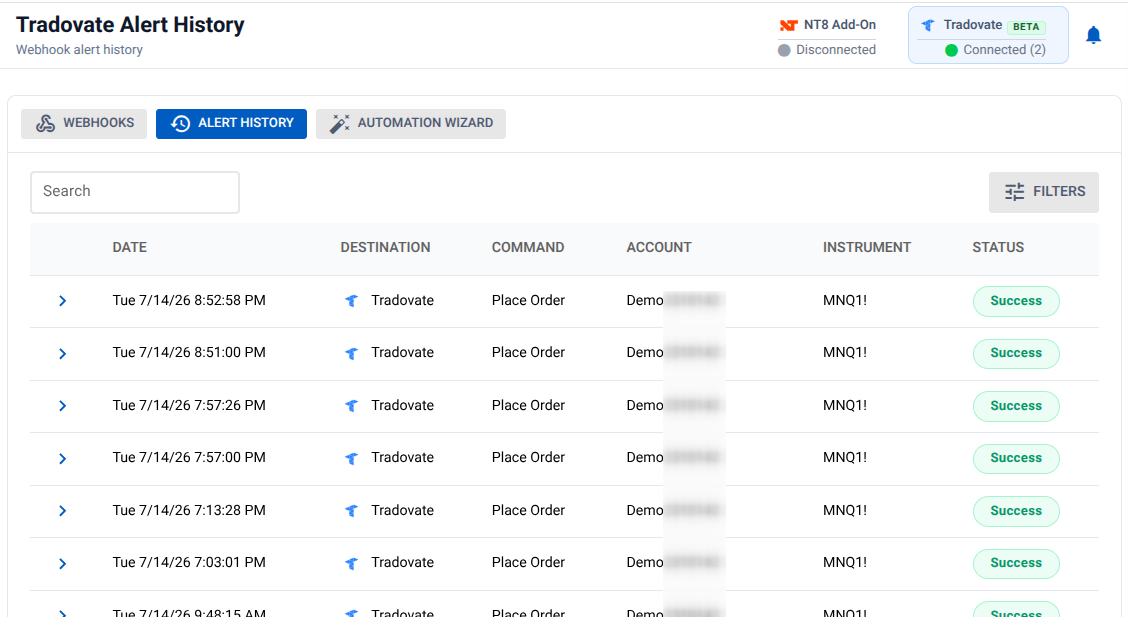
Fire the alert against DemoAccount. Then open CrossTrade Alert History and confirm:
- The alert reached CrossTrade.
- The destination shows a Tradovate badge.
- The account and instrument resolved correctly.
- The order status matches what you see inside Tradovate.
If an order behaves unexpectedly, save the Order ID from Alert History and send it to CrossTrade support. Do not keep resending the same alert while the result is unclear.
If the alert fires and no order appears, work through the TradingView-to-Tradovate troubleshooting checklist. To send the same order as JSON instead of the semicolon format, see TradingView webhook JSON.
Choose the Tradovate automation path you need
CrossTrade supports more than one way to work with a connected Tradovate account. Start with the path that matches how you plan to trade, then test the complete workflow in Tradovate Demo before live use.
- Send TradingView alerts to Tradovate. Read Tradovate Webhook Trading Generally Available on CrossTrade.
- Compare supported API routes. Read Tradovate API Automation: REST, Webhooks, MCP, and WebSocket Availability.
- Use an AI client with account safeguards. Read How to Use MCP with Tradovate Through CrossTrade.
What works on the Tradovate destination
The direct route covers the core order workflow traders need for webhook automation. Current support includes market, limit, stop, and stop-limit entries, plus cancellation, order changes, closes, reversals, and account-scoped flatten commands.
Tradovate also supports broker-side features that do not require a desktop process to stay online, including:
- Server-side target and stop brackets.
- Native trailing stops.
- Good-till-date orders.
- Iceberg display quantity.
- Scheduled cancellation for supported orders.
- Multi-account placement with a comma-separated account list.
The complete command and field matrix changes as the integration expands. Use the Tradovate destination documentation as the source of truth before relying on an advanced field.
What the remaining beta covers
Native brackets, multibrackets and continuous trailing are generally available, as are CrossTrade-managed target-fill breakeven and profit-triggered trailing. The latter require CrossTrade's service to evaluate and adjust the stops. Tradovate copier Order mode remains beta. See the ATM reference for current limits.
NinjaTrader still has the deeper local integration. Features tied to the NT8 Add-On, its local order book, or NinjaTrader-specific strategy objects may not apply to Tradovate. CrossTrade rejects unsupported commands instead of silently pretending they worked.
That distinction matters. A reliable automation setup should tell you when a command is unsupported, when a broker rejects an order, and which destination received the alert.
No VPS does not mean no risk
Removing a VPS removes one machine from the path. It does not remove trading risk or every possible failure.
- TradingView still has to send the alert. An alert that never leaves TradingView cannot reach CrossTrade.
- The command still has to be valid. A wrong account, instrument, direction, quantity, or price can create a wrong order.
- Tradovate can reject an accepted request later. Broker risk and price checks can happen after the first API response. Check Alert History for a later warning.
- Cloud services can have incidents. Fewer moving parts does not mean zero moving parts.
- Live orders are real. Test in simulation, use small quantities when you move to live trading, and supervise the system.
CrossTrade routes the instructions you send. It does not provide a strategy, promise fills, or promise trading results.
When would you still use a VPS?
A VPS can still make sense when your workflow depends on Windows software that must stay open. Common examples include:
- Sending the webhook to NinjaTrader 8 instead of Tradovate.
- Running a local indicator, strategy, or add-on inside NT8.
- Keeping a custom desktop application online around the clock.
- Using tools that do not offer a direct cloud connection.
For a direct TradingView to CrossTrade to Tradovate route, a VPS is not required.
Frequently asked questions
Does my computer need to stay on?
No. Direct Tradovate orders run through CrossTrade's cloud connection and Tradovate's cloud API. Your computer can be off.
Do I need NinjaTrader 8?
No, not for the Tradovate destination. NinjaTrader 8 is required only when you route the alert to the NT8 destination or use NT8-specific features.
Which CrossTrade plans include Tradovate?
Standard, Pro, and Elite all include the Tradovate webhook destination. There is no separate Tradovate add-on fee. Check current CrossTrade pricing before subscribing.
Can I connect a prop-firm account?
Tradovate-based firm logins generally live in Tradovate's Demo environment and can be linked through Link Demo. That is a technical connection, not permission from the firm. Review your firm's current rules first. Some firms prohibit third-party automation or copying.
Can I send brackets from the webhook?
Yes. Tradovate supports server-side target and stop brackets on the direct destination. Use the current documentation for the exact fields and test the command in simulation first.
Does CrossTrade provide trading signals?
No. CrossTrade is execution and automation software. Your TradingView alert supplies the instruction. You remain responsible for every order and every result.
Connect TradingView alerts to Tradovate
Link a Tradovate account, build your webhook message and test a complete entry and exit in Demo. The connection runs in the cloud.
Start with one simulation alert
The shortest safe path is simple: start a CrossTrade trial, link a Tradovate Demo account, add destination=tradovate; to one alert, and confirm the result in Alert History.
One alert. One obvious placeholder account. One verified result. Then expand the workflow only after the basic path behaves exactly as expected.

CrossTrade is software, not a broker, financial adviser, or trading strategy. Futures trading involves substantial risk. AI systems and automated tools can produce or execute incorrect instructions. You are responsible for every action taken through your account. Review the CrossTrade Trading Disclaimer before using live funds.