
How to Connect Multiple Tradovate Accounts in NinjaTrader 8
Run a personal Tradovate account and several prop firm logins in one NinjaTrader 8 at the same time. Turn on Multi-provider, add one connection per login, and copy across them.

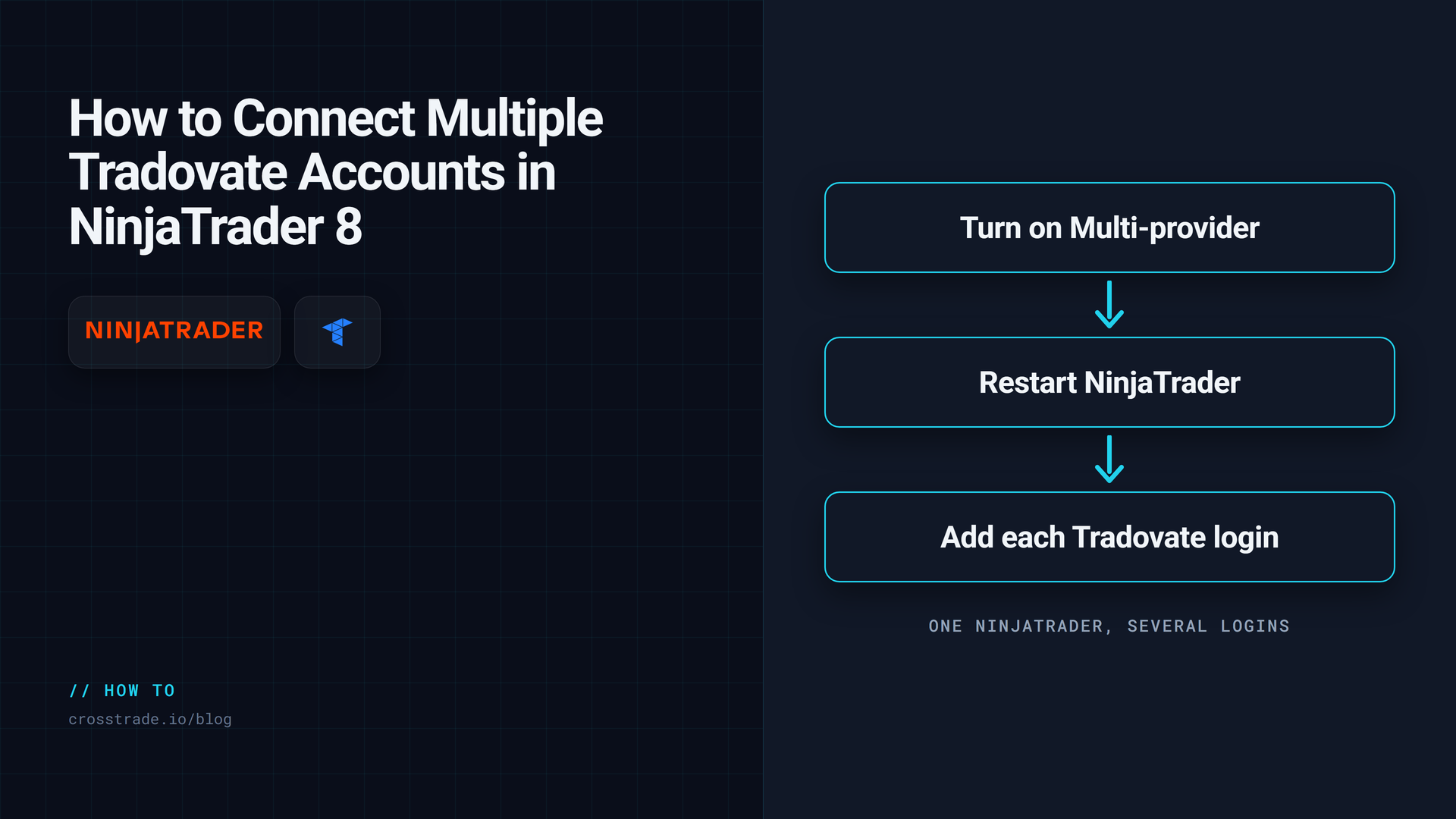
Every prop firm that runs on Tradovate gives you its own Tradovate username and password. Pass evaluations at two firms and keep a personal brokerage account, and you have three separate Tradovate logins. Out of the box, NinjaTrader 8 connects to one at a time.
That is fine until you want to see and trade all of them from one platform, or copy trades from one to the others. The fix is a single setting called Multi-provider, followed by one connection per login. This guide walks through both, with the naming habit that keeps ten accounts readable and the fixes for connections that keep dropping.
This is a desktop connection guide. Once the accounts appear in one NT8 installation, the NinjaTrader trade copier handles copying between them. Direct cloud copying is a separate Tradovate workflow with its own pairing and mode requirements.
Before you start: sign in on the web once
For every prop firm login, sign in at trader.tradovate.com first with the credentials the firm emailed you, and accept any market data agreements it asks for. Firms that run on Tradovate require this before the login will stream data into NinjaTrader, and activation can take a few minutes. Skipping it is the most common reason a new connection shows no data.
Step 1: turn on Multi-provider
In the NinjaTrader Control Center:
- Open Tools → Settings. Older versions call it Options.
- In the General section, tick Multi-provider.
- Click Apply, then OK.
- Restart NinjaTrader. The setting does nothing until you do.
Multi-provider lets NinjaTrader hold more than one connection open at the same time, and NinjaTrader documents adding the same connection type more than once with different usernames. It needs NinjaTrader 8.1 or later and is off by default on new installs. One side effect: if you had opted into server-side ATMs, turning it on moves you back to local ATMs.
Step 2: add one connection per login
After the restart:
- Open Connections → Configure.
- In the Available list, choose NinjaTrader and click Add. This is the connection type for Tradovate-backed accounts, personal and prop alike. It appears as My NinjaTrader.
- Rename it to something clear. Name it after the firm or purpose, such as
Lucid,TradeifyorPersonal. - Set Account type to Simulation for a prop firm or demo login, or Live for a personal brokerage account.
- Enter that login's username and password, then click Apply.
Repeat for every login. Each one becomes its own entry under the Connections menu.
Step 3: connect and confirm the accounts
Open the Connections menu and connect each one. A green status means it is live. Then open the Accounts tab in the Control Center: every account under every login should now be listed, each with its own balance.
If an account is missing, check that its connection is green and that you accepted the firm's data agreement on the web.
Name things for the day you have ten
Connection names and account names are what you will read in the Accounts tab, the order entry windows and every trade copier screen. A few habits save real mistakes later:
- Name connections after the firm, so a glance tells you which rules apply.
- Keep the firm's account numbers as they are. Automation tools, CrossTrade included, address accounts by those exact names.
- Put the account size or stage in your own notes, not in a rename, so what you see always matches what the firm sees.
When a connection keeps dropping
The same login is open somewhere else. Tradovate limits sessions per login. Signing in to the same credentials in another platform or device can knock NinjaTrader's session off. Keep each login in one place while you trade.
You signed up with Google. If a login was created through Google sign-in, sign in with the Google option inside NinjaTrader's own connection window rather than typing a username. Mixing the two causes repeated drops.
Orders never reach the firm. With Multi-provider on, NinjaTrader turns on Global Simulation Mode under the Tools menu by default, to keep orders from reaching a live account by mistake. If your orders fill instantly and never appear at the firm, check that setting.
Wrong data source. With several connections, NinjaTrader takes market data from the first connected provider that supports the instrument. Set a preferred data connection in the market data settings if charts are pulling from the wrong login.
Rithmic in the mix. Several Tradovate connections can run together. Firms that use Rithmic document a single Rithmic connection at a time in NinjaTrader. To switch between Rithmic firms, disconnect, restart NinjaTrader and connect to the other.
Copying trades across the logins
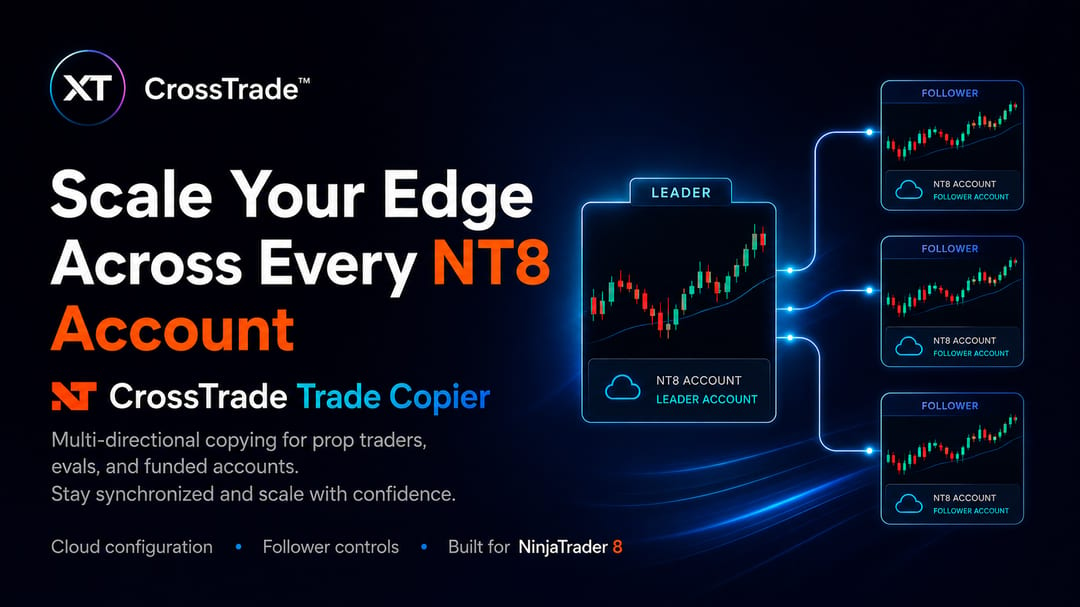
Once every account is connected, one leader can drive the rest. With the CrossTrade NT8 Add-On, the trade copier replays each leader trade to follower accounts under any connection, with a size ratio, a position cap and symbol swaps such as ES=MES per follower. A TradingView alert can also name several accounts directly. The full multi-account setup, including per-account loss limits, is in How to Run 10 Prop Firm Accounts on NinjaTrader 8.
If your accounts are all on Tradovate, you can also skip NinjaTrader and use the direct cloud Tradovate copier. Same-environment pairs under one login are the validated configuration. Pairing across linked identities or Live/Demo environments is still being validated; verify that exact setup in Demo before relying on it.
Check each firm's rules on copying before you connect a follower.
Frequently asked questions
Can NinjaTrader 8 connect to more than one Tradovate account at once?
Yes. Enable Multi-provider under Tools, Settings, General, restart NinjaTrader, and add a separate NinjaTrader connection for each Tradovate login.
Why does my second Tradovate connection disconnect the first?
Multi-provider is off, or NinjaTrader was not restarted after turning it on. The setting only takes effect after a restart.
Which connection type do I choose for a Tradovate prop firm account?
Choose NinjaTrader in the Available list and set the account type to Simulation. Many evaluation and simulated-funded accounts use Simulation. Confirm the environment issued for your particular account; a funded label alone does not establish Demo or Live.
Why do my orders fill instantly but never show at the firm?
Global Simulation Mode is on. NinjaTrader enables it by default with Multi-provider; turn it off under the Tools menu to route orders to the connected accounts.
Can I copy trades between the connected accounts?
Yes. With the CrossTrade NT8 Add-On, the trade copier copies from a leader to followers under any connection. Check each firm's copying rules first.
Connect, then automate
Once your logins are connected, start a free 7-day trial to copy across them or drive them from TradingView alerts, and ask anything in the CrossTrade Discord.
CrossTrade is execution and automation software, not a broker, financial adviser, or trading strategy. NinjaTrader menus can change between releases. Prop firm rules are set by each firm. Futures trading involves substantial risk. Test every automated workflow in simulation and verify orders at your broker.