
Tradovate Automation Guide (2026): Bots, Webhooks, and the API
Three ways to automate a Tradovate account: TradingView webhooks, your own code through an API, or an AI agent. What each needs, how to set one up, and the rules that run with your computer off.

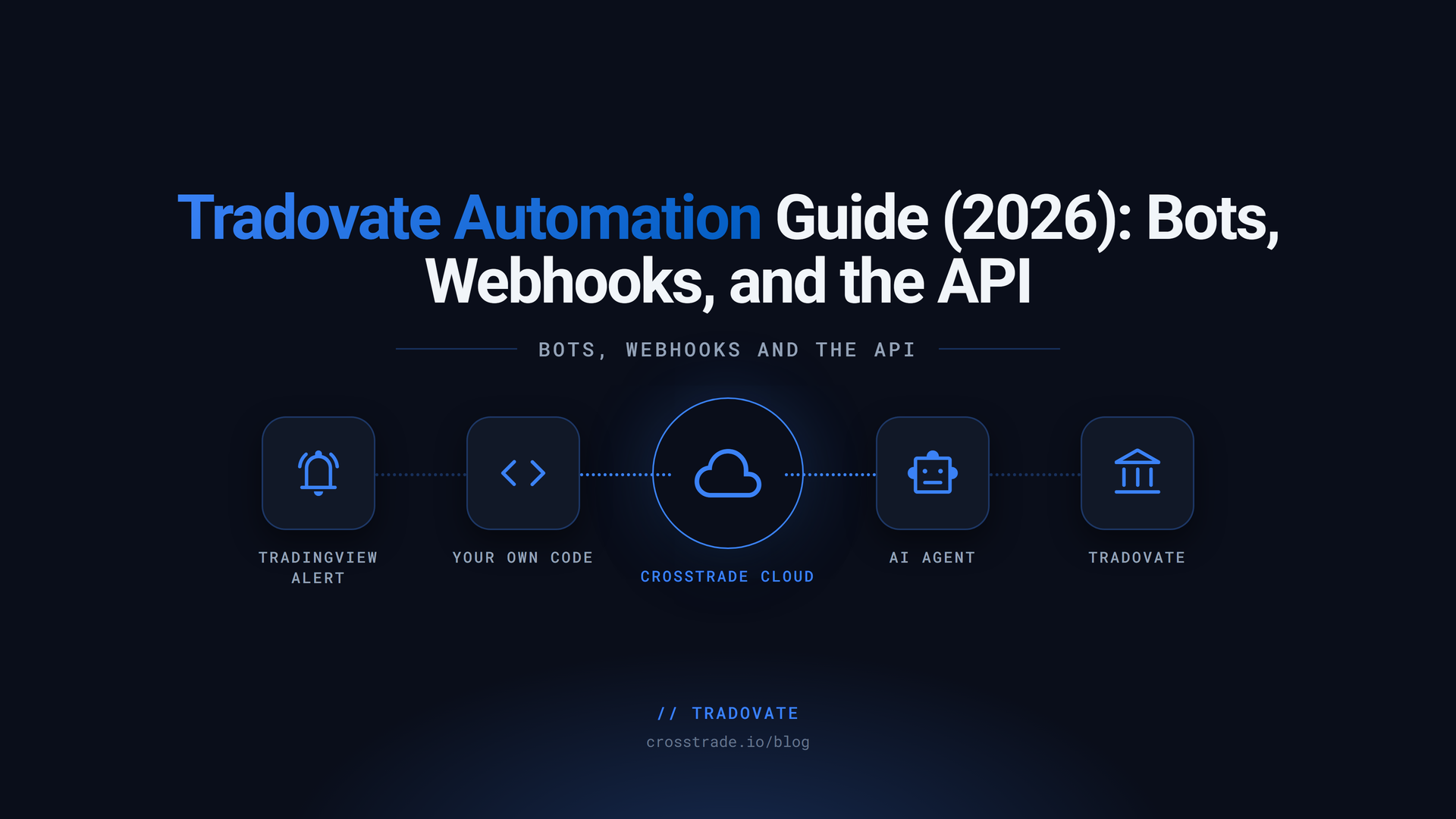
Most traders who search for a Tradovate bot are not looking for a robot. They have a strategy on a TradingView chart, they are tired of clicking the order in by hand, and they want the alert to place the trade for them. Some want more: their own Python script managing positions, or an AI assistant that can read the account and act on it.
All three are possible on Tradovate, and they are not the same thing. They need different accounts, different credentials and different amounts of code. This guide lays out the three routes, what each one needs, how to set up the most common one in six steps, and the controls that keep an automated account inside your rules when you are not watching.
Can you automate trading on Tradovate?
Yes. Tradovate runs an API that third-party software uses to place and manage orders, and it expects automated orders to be marked as automated. CrossTrade sets that flag on every order it places for you, so there is nothing to configure.
What decides whether you should automate is usually not Tradovate. If the account belongs to a prop firm, the firm's rules on bots, copiers and news trading apply, and they differ widely from firm to firm. Check them before you connect anything.
Three ways to automate Tradovate
1. TradingView webhooks: the bot most traders mean
A TradingView alert can send a message to a web address when it fires. Point that at your CrossTrade webhook URL, put the order in the message, and add one line, destination=tradovate;, to send it to your linked Tradovate account. When the alert fires, CrossTrade checks the message and places the order through Tradovate's cloud API.
Nothing runs on your computer. There is no desktop software to keep open and no VPS to rent, because both TradingView and Tradovate already live in the cloud. The route supports market, limit and stop orders, broker-hosted take profit and stop loss brackets, scale-out targets, trailing stops, closes, reversals and multi-account orders, and every alert lands in Alert History with the reason if anything was refused.
This route is included on every CrossTrade plan. It is the right choice when your signal already lives in TradingView, whether that is a strategy you wrote or an indicator someone else did.
2. Your own code through an API
If the logic lives in your own program, you want an API rather than an alert. CrossTrade's Tradovate REST API reaches your linked account from the server side with a bearer token: read positions, orders and fills, then place, change, cancel, close or flatten. A WebSocket connection streams order, fill and position events and account P&L as they happen, so your program can react without polling.
You could also go to Tradovate's own API directly. That means subscribing to Tradovate's API Access add-on, which Tradovate lists at $25 a month and which requires a live, funded brokerage account with at least $1,000. Tradovate states that prop firm and evaluation accounts are not eligible, and that real-time market data over the API needs a separate CME license. CrossTrade's link goes through Tradovate's own sign-in screen instead of a personal API key, and prop firm accounts link on the Demo side.
The CrossTrade REST API is part of the Pro plan.
3. An AI agent through MCP
The newest route puts an AI assistant such as Claude or ChatGPT in the loop. CrossTrade hosts an MCP server, the standard way AI clients call outside tools, with a set of Tradovate tools: read the account, list positions and orders, trace an order's history, and, with the right permission, place or close orders.
The useful pattern is supervised, not autonomous. Start the assistant with read-only permission, let it answer questions about the account, and grant trade permission only for workflows where it restates the exact order and waits for you to confirm. MCP access is part of the Elite plan.
What you need for each route
| Route | Who decides when to trade | What you set up | CrossTrade plan |
|---|---|---|---|
| TradingView webhook | A TradingView alert | An alert message and a webhook URL | Every plan |
| REST API and WebSocket | Your own program | A bearer token and your code | Pro |
| AI agent (MCP) | You, through an assistant | An MCP connection with read or trade permission | Elite |
All three start the same way: link your Tradovate account once under My Account → Brokers. Personal brokerage logins use Link Live. Prop firm accounts, funded ones included, use Link Demo with the username and password the firm gave you.
Set up a TradingView webhook bot in six steps
1. Link Tradovate. Sign in through Tradovate's own screen from My Account → Brokers. CrossTrade never sees your password, and you can unlink at any time.
2. Copy your webhook URL and secret key from the same page.
3. Write the alert message. Open the alert in TradingView, delete everything in the message box, and paste a command like this with your own key and account:
key=your-secret-key;
command=place;
account=DemoAccount;
instrument=MES1!;
action=buy;
qty=1;
order_type=market;
take_profit=40 ticks;
stop_loss=20 ticks;
destination=tradovate;
The take profit and stop loss are distances in ticks, converted to prices when the order is sent and placed as one bracket that lives on Tradovate's servers. Always include the word ticks: a number on its own is read as a price. MES1! resolves to the front-month contract.
4. Add the webhook. On the Notifications tab, tick Webhook URL and paste your CrossTrade URL. TradingView asks for two-factor authentication the first time.
5. Fire it on Demo. Let the alert trigger on a Demo account first, or use the Webhook Trader on your Tradovate Webhooks page to send the same message from the browser.
6. Check three places. The Alert History row should show success with a Tradovate badge, the order should be in Tradovate, and the bracket should be resting. A green row means Tradovate accepted the order, and CrossTrade turns it yellow with the reason if Tradovate rejects it a moment later.
If the alert fired and nothing happened, work through the troubleshooting checklist. For strategies rather than indicators, the strategy automation guide covers keeping TradingView and the account in sync.
Rules that run with your computer off
An automated account needs limits that do not depend on you being at the screen. On Tradovate, CrossTrade enforces them from its own servers.
The Account Manager gives each account a daily profit target, a daily loss limit, an optional trailing drawdown and a scheduled flatten time. When a rule trips, that account stops accepting signals, and its position closes if you turned auto-close on. Trading windows limit the hours an account takes signals, and economic-event lockout refuses new signals for five minutes either side of high-impact USD releases.
Individual alerts can carry their own guards too. require_market_position=flat; stops an entry from stacking on an open position, and max_positions=1; caps how many instruments an account can hold at once. The Account Manager is part of the Pro plan; alert-level guards work on every plan.
Before you automate a prop firm account
Firms disagree sharply here. Some allow bots and copiers outright, some allow copying only between your own accounts, and some prohibit automation on evaluation and funded accounts altogether. Read your firm's current rules, set your own loss limit a buffer inside theirs, and test the whole workflow on a Demo account first.
Frequently asked questions
Does Tradovate allow automated trading?
Yes. Tradovate offers an API for automated trading and requires automated orders to be flagged, which CrossTrade does on every order. Prop firms that run on Tradovate set their own rules on top of that.
Do I need to keep my computer on?
No. The webhook route, the API, the copier and the Account Manager all run on CrossTrade's servers against Tradovate's cloud API.
Can I automate a prop firm account on Tradovate?
Technically yes: prop accounts link through Link Demo with the login your firm issued. Whether you may is your firm's decision, so check its rules on automation first.
Do I need to know how to code?
Not for the webhook route. You paste a text message into a TradingView alert. Code only matters if you want your own program to drive the account through the API.
What is the difference between a webhook bot and the API?
A webhook is one-way: TradingView decides, CrossTrade executes. The API is two-way: your program reads the account, decides, and places orders itself.
Can an AI assistant trade my Tradovate account?
It can if you connect it through CrossTrade's MCP server and grant trade permission. Start with read-only permission and require a confirmation step before any order.
Start with one Demo alert
Link a Demo account, paste the message above, and fire one alert. If you are new to CrossTrade, start a free 7-day trial, and bring questions to the CrossTrade Discord.
CrossTrade is execution and automation software, not a broker, financial adviser, or trading strategy. Tradovate's fees and requirements are set by Tradovate and can change. Futures trading involves substantial risk. Test every automated workflow in simulation and verify orders at your broker.