
Unlimited alerts. Unlimited accounts.
TradingView to NinjaTrader or Tradovate in ~30ms.
Send as many alerts as your strategy fires, to as many accounts as you trade, for one flat monthly price. Turn any TradingView alert into an executed order on NinjaTrader 8 or Tradovate.
Why CrossTrade over other alert bridges
Unlimited alerts. Unlimited accounts. One flat price.
Other alert bridges
- Alert quotas, or a bill that climbs with your volume
- A fee for every account you connect
- JSON payloads you hand-write and debug
- One broker, one route
CrossTrade
- Unlimited alerts on every planNo monthly quota, no daily cap, no overage fees, starting on Standard at $29 a month.
- Unlimited accounts on every alertList accounts separated by commas and one alert places the order on all of them. Connect as many accounts as you trade.
- NinjaTrader 8 and TradovateOne line in the alert picks the destination. Tradovate runs in our cloud with no desktop software.
- ~30ms through the pipelineFrom webhook received to order routed, on average.
- Plain text, or no text at allA simple key=value format, a visual Command Builder, or the XT Alert Builder writing it for you.
- Controls on every alertStrategy Sync, max positions, trading windows, and rate limits you set, applied before any order goes out.
The signal pipeline
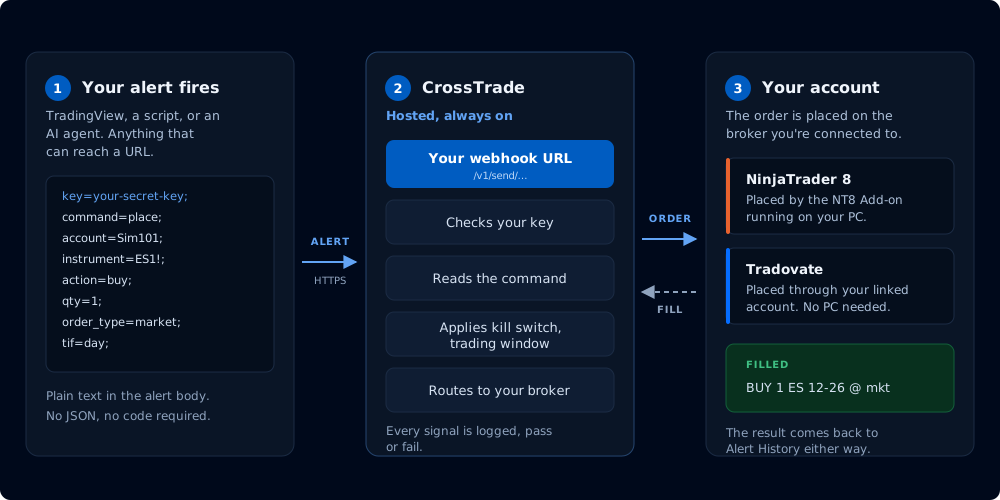
A TradingView alert becomes an executed order in three hops. CrossTrade sits in the middle, authenticating, validating, and routing every signal to whichever broker you point it at.
Alert fires
Your TradingView strategy or indicator triggers an alert. The alert message contains a CrossTrade-formatted payload with your order details. TradingView sends it to your personal webhook URL.
Validate & route
CrossTrade receives the webhook, authenticates your key, validates the format, applies any advanced options (Strategy Sync, rate limiting, multi-account placement), and reads your destination line to decide where the order goes.
Order executes
For NinjaTrader, the CrossTrade NT8 Add-On submits through NinjaTrader's Automated Trading Interface, with ATM strategies, brackets and every NT8-native feature available. For Tradovate, CrossTrade sends the order straight to Tradovate's cloud API over HTTPS, with nothing running on your machine. The pipeline averages ~30ms.
The alert format
CrossTrade uses a simple key=value format — no JSON required. Each line ends with a semicolon. Paste it into TradingView's alert message field, or use the Command Builder on your dashboard to build it visually.
key=your-secret-key;
command=PLACE;
account=sim101;
instrument=MES1!;
action=BUY;
qty=1;
order_type=MARKET;
tif=DAY;
Two destinations, one format
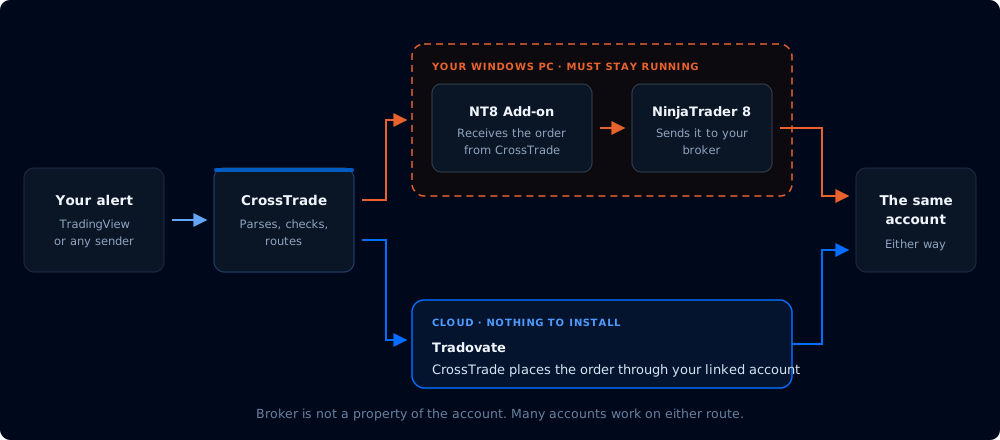
The same alert body works on both brokers. Add one line to route it to Tradovate instead of NinjaTrader. Leave it off and the order goes to NinjaTrader 8, so every alert you already have keeps working exactly as it does today.
key=your-secret-key;
command=PLACE;
account=DemoAccount;
instrument=MES1!;
action=BUY;
qty=1;
order_type=MARKET;
tif=DAY;
destination=TRADOVATE;
NinjaTrader 8
Orders run through the CrossTrade NT8 Add-On inside your NinjaTrader install, so ATM strategies, brackets and NT8-native order handling are all on the table. Needs NinjaTrader open and connected, which is what the CrossTrade VPS is for.
DESKTOPTradovate
CrossTrade sends orders directly to Tradovate's cloud API. Nothing runs on your machine, so there is no desktop app to keep open and no VPS to rent. Link the account once in My Account, Brokers tab, and CrossTrade handles token refresh from there.
NO DESKTOP SOFTWAREOrder types only Tradovate has
Routing to Tradovate is not a reduced version of the NinjaTrader path. Some order types exist there and nowhere else in CrossTrade, because Tradovate supports them natively.
Native trailing stops
NinjaTrader has no trailing order type in webhooks; trailing there is done through ATM strategies. On Tradovate, order_type=trailingstop with a trail_offset is a first-class order. trailingstoplimit works the same way with a limit leg.
Market-if-touched
order_type=mit becomes a market order when price trades at your level, without resting in the book the way a limit does. The touch price goes in limit_price.
Iceberg orders
max_show limits how much of your size is visible in the book at once, so a large resting order does not advertise itself.
GTD and broker-side timeouts
Good-til-date expiry and broker-side order timeouts are handled by Tradovate itself rather than by anything running on your machine, so they survive your computer going to sleep.
TRADOVATE ONLYCrossTrade also layers its own managed ATM on top of Tradovate: named cloud templates, target-fill breakeven, and profit-triggered trail activation with restart-safe trigger memory. Tradovate execution details
Advanced options
Same key=value format, more power. Append any of these to your alert message to unlock advanced execution logic.
Strategy Sync
Compares expected vs. actual position state before every order. Prevents state drift between TradingView and NinjaTrader — the #1 cause of phantom positions and double entries.
SAFETYRate Limiting
Block duplicate signals within a configurable time window. TradingView fires duplicate alerts more often than you'd think — rate limiting catches them before they become duplicate orders.
SAFETYMulti-Account Placement
Hit up to 10 NinjaTrader accounts from a single alert. Separate account names with commas — one webhook, one payload, all accounts filled simultaneously.
SCALEBracket Orders
Add take_profit and stop_loss to any order. Supports tick, percentage, point, and dollar offsets. Plotted on TradingView for backtesting when used with the Alert Builder.
CONFIGStrategy Tags
Assign position ownership with strategy_tag. Run multiple strategies on the same account and instrument without interference — Strategy B can't close Strategy A's position.
CONFIGFlatten First
Close all existing positions on the account before placing the new order. One key=value pair turns a reversal into a clean slate entry. Works with or without Strategy Sync.
AUTOMATIONDon't want to write alert messages by hand?
The Command Builder on your CrossTrade dashboard walks you through building webhook payloads step by step — select your account, instrument, order type, and advanced options from dropdown menus. It generates the exact alert message you need, ready to paste into TradingView.
Or use the XT Alert Builder on TradingView — a Pine Script strategy that wraps your indicators and generates CrossTrade-compatible alerts with full backtesting. No code required.
Learn about the Alert Builder →Supported order types
Everything NinjaTrader supports, CrossTrade can execute via webhook.
Market & Limit Orders
Market orders execute immediately at current price. Limit orders sit on the book at your specified level. Both support all time-in-force options (DAY, GTC, IOC).
Stop & Stop Limit
Stop orders trigger at your price and execute as market. Stop limit orders trigger at your stop price and place a limit at your limit price. Full bracket support.
ATM Strategies
Attach any NinjaTrader ATM template to your webhook order. Trailing stops, auto-breakeven, multi-target management — all handled by NT8 after CrossTrade places the entry.
Position Commands
CLOSE, FLATTEN, and CANCEL commands let you manage existing positions without placing new orders. Close a specific instrument, flatten an account, or cancel all pending orders.
What you need
NinjaTrader 8
Installed and connected to at least one data feed — sim, prop, or live broker. Level 1 data is sufficient.
CrossTrade Account
Free 7-day trial includes full webhook access. Standard plan starts at $29/mo after trial. No per-order fees.
TradingView
Any paid TradingView plan with 2FA enabled. Free TradingView plans do not support webhook alerts.
From first alert to first fill in under 10 minutes.
Try everything free for 7 days.